This article provides step-by-step instructions for checking and updating Bluetooth drivers on Windows, macOS, or ChromeOS.
Windows 10 & Windows 11
Windows allows you to check your current driver version directly and update it through built-in tools or official manufacturer downloads.
Step 1: Verify your current Bluetooth driver
- Right-click the Start Button (or press Win + X) and select Device Manager.
- Click the arrow next to Bluetooth to expand the list.
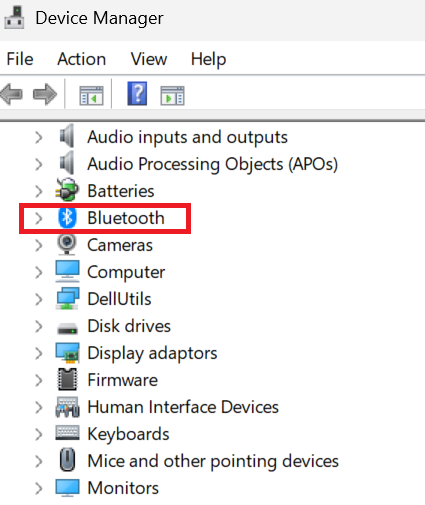
- Right-click your main Bluetooth adapter (Example: Intel Wireless Bluetooth, Realtek Bluetooth Adapter) and select Properties. The Properties window opens.
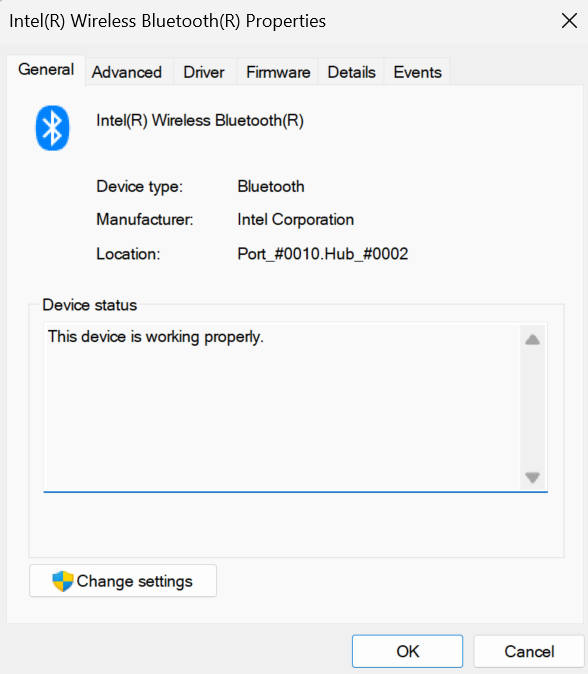
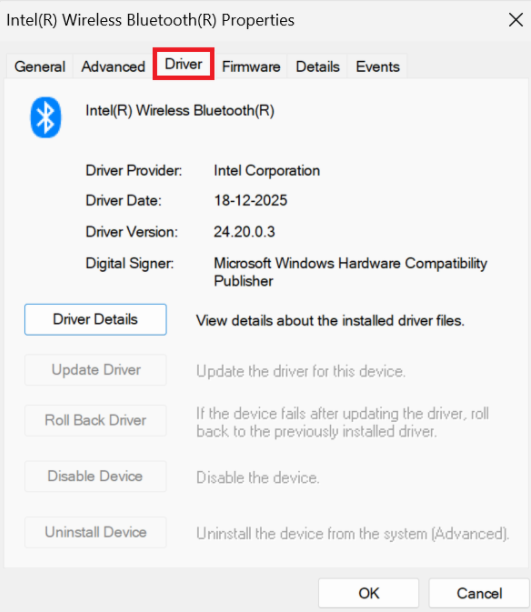
- Switch to the Driver tab to view the Driver Provider, Driver Date, and Driver Version.
Step 2: Update your Bluetooth driver
Method 1: Windows Update (Recommended)
- Press Win + I to open Settings.
- Go to Windows Update (or Update & Security on Windows 10).
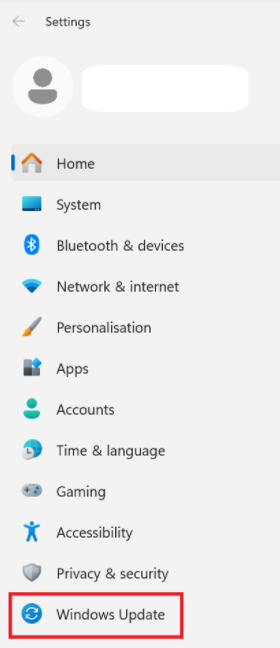
- Click Check for updates.
- Select Advanced options > Optional updates.
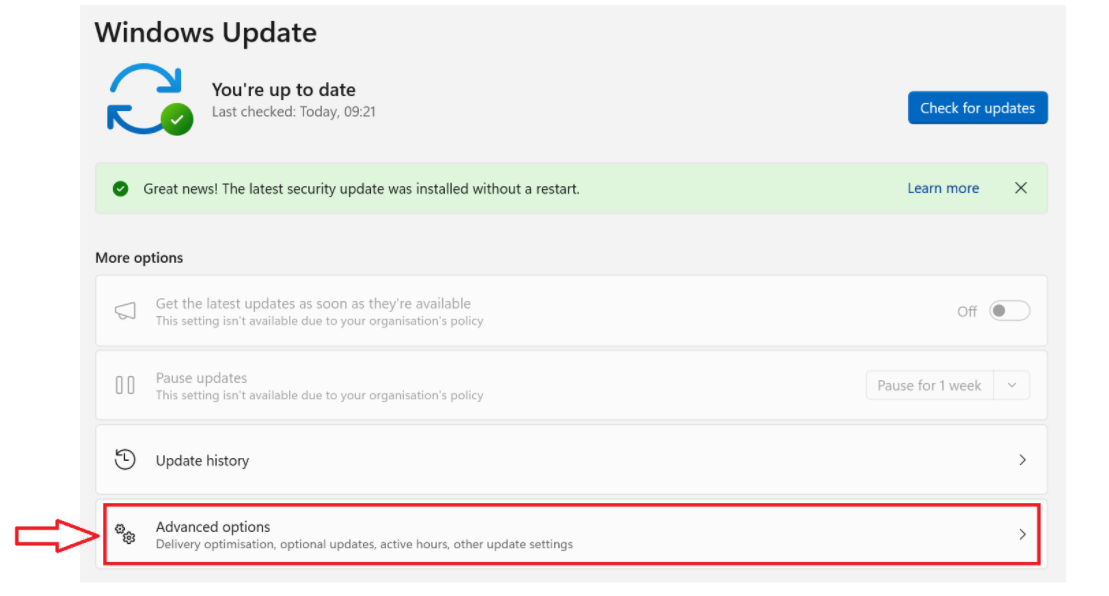
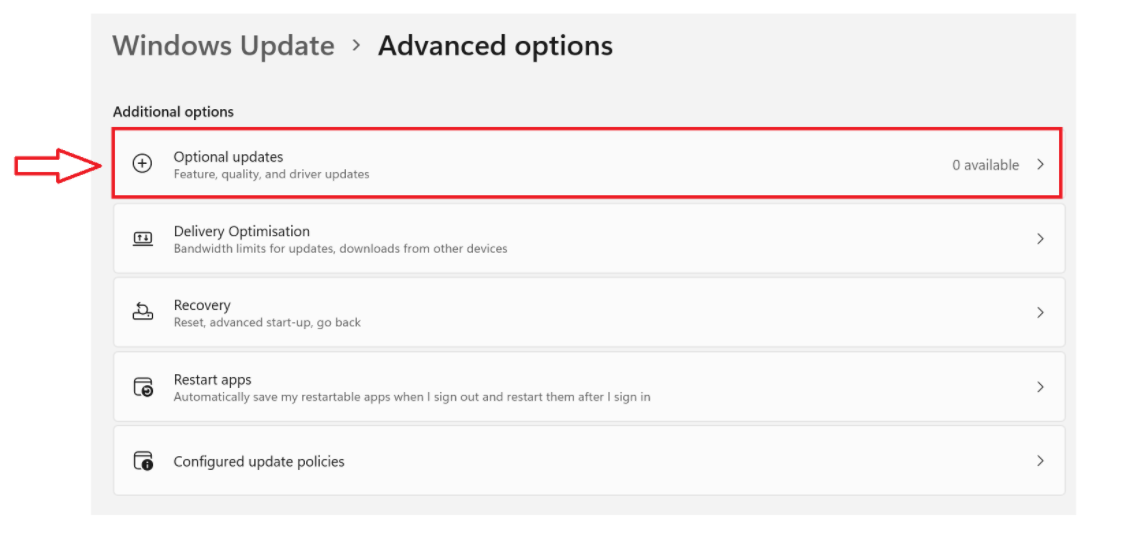
- Expand Driver updates, check any available Bluetooth driver, and click Download & install.
Method 2: Device Manager
- Open Device Manager, expand Bluetooth, right-click your adapter, and choose Update driver.
- Select Search automatically for drivers.
- Follow the prompts if a newer driver is located.
Method 3: Direct Manufacturer Downloads
- Intel: Use the Intel Driver & Support Assistant (DSA) or download directly from Intel's Download Center.
- Dell / HP / Lenovo / ASUS: Visit your device manufacturer's support page, enter your serial number, and download the latest Bluetooth driver package (.exe or .msi).
- Run the installer and restart your PC to complete setup.
macOS
Important: Apple integrates hardware drivers into macOS updates. Standalone driver installation is not supported on Mac devices.
Step 1: Verify Bluetooth hardware info
- Hold the Option (⌥) key and click the Apple Menu in the upper-left corner.
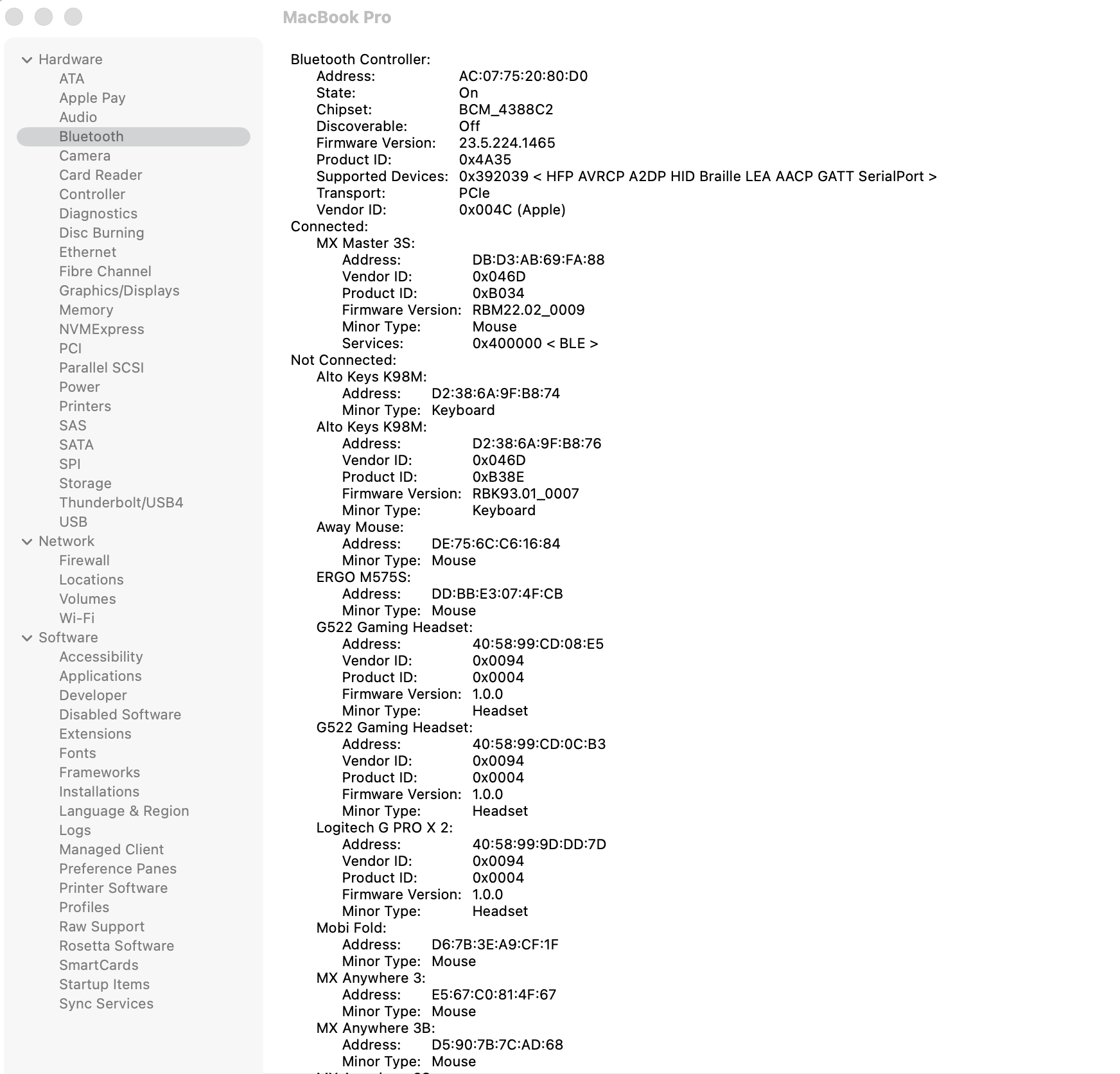
- Select System Information.
- Under Hardware in the left sidebar, click Bluetooth.
- Review your Bluetooth chipset details, and firmware version.
Step 2: Update Bluetooth drivers and firmware
- Click the Apple Menu in the upper-left corner and select System Settings (or System Preferences).
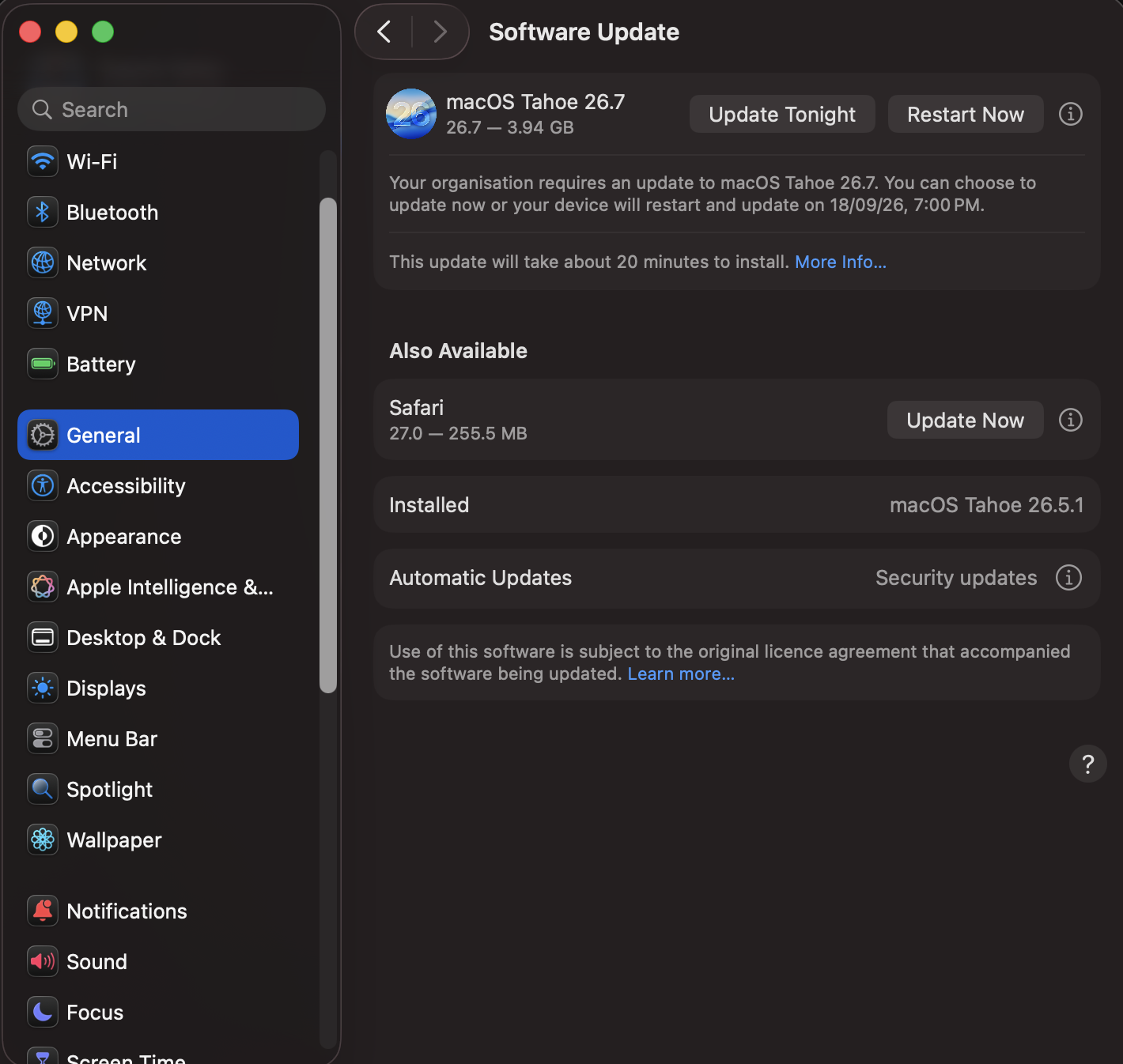
- Click General in the left sidebar, then select Software Update.
- If an update is available, click Update Now or Upgrade Now.
- Restart your Mac to apply system-wide updates.
ChromeOS
Important: ChromeOS handles hardware drivers at the kernel level. Updates are delivered through standard system updates.
Step 1: Verify ChromeOS version
- Click the time indicator in the lower-right corner of the shelf.
- Click Settings (gear icon).
- On the left menu, select About ChromeOS.
- Note the current version number listed.
Step 2: Update ChromeOS drivers
- In the About ChromeOS menu, click Check for updates.
- If an update is available, your Chromebook will automatically download it.
- Click Restart to apply the update.
Důležitá poznámka: Nástroj pro aktualizaci firmwaru již není společností Logitech podporován ani udržován. Důrazně doporučujeme pro vaše podporovaná zařízení Logitech použít aplikaci Logi Options+. Jsme tu, abychom vám při tomto přechodu pomohli.
Důležitá poznámka: Aplikace Logitech Preference Manager již není společností Logitech podporována ani udržována. Důrazně doporučujeme pro vaše podporovaná zařízení Logitech použít aplikaci Logi Options+. Jsme tu, abychom vám při tomto přechodu pomohli.
Důležitá poznámka: Aplikace Logitech Control Center již není společností Logitech podporována ani udržována. Důrazně doporučujeme pro vaše podporovaná zařízení Logitech použít aplikaci Logi Options+. Jsme tu, abychom vám při tomto přechodu pomohli.
Důležitá poznámka: Nástroj Logitech Connection Utility již není společností Logitech podporován ani udržován. Důrazně doporučujeme pro vaše podporovaná zařízení Logitech použít aplikaci Logi Options+. Jsme tu, abychom vám při tomto přechodu pomohli.
Důležitá poznámka: Software Unifying již není společností Logitech podporován ani udržován. Důrazně doporučujeme pro vaše podporovaná zařízení Logitech použít aplikaci Logi Options+. Jsme tu, abychom vám při tomto přechodu pomohli.
Důležitá poznámka: Software SetPoint již není společností Logitech podporován ani udržován. Důrazně doporučujeme pro vaše podporovaná zařízení Logitech použít aplikaci Logi Options+. Jsme tu, abychom vám při tomto přechodu pomohli.
Časté otázky
V této sekci nejsou dostupné žádné produkty
Pro tento produkt nejsou k dispozici žádné Soubory ke stažení
Pro tuto verzi nejsou k dispozici žádné soubory ke stažení.
Compatible Product
