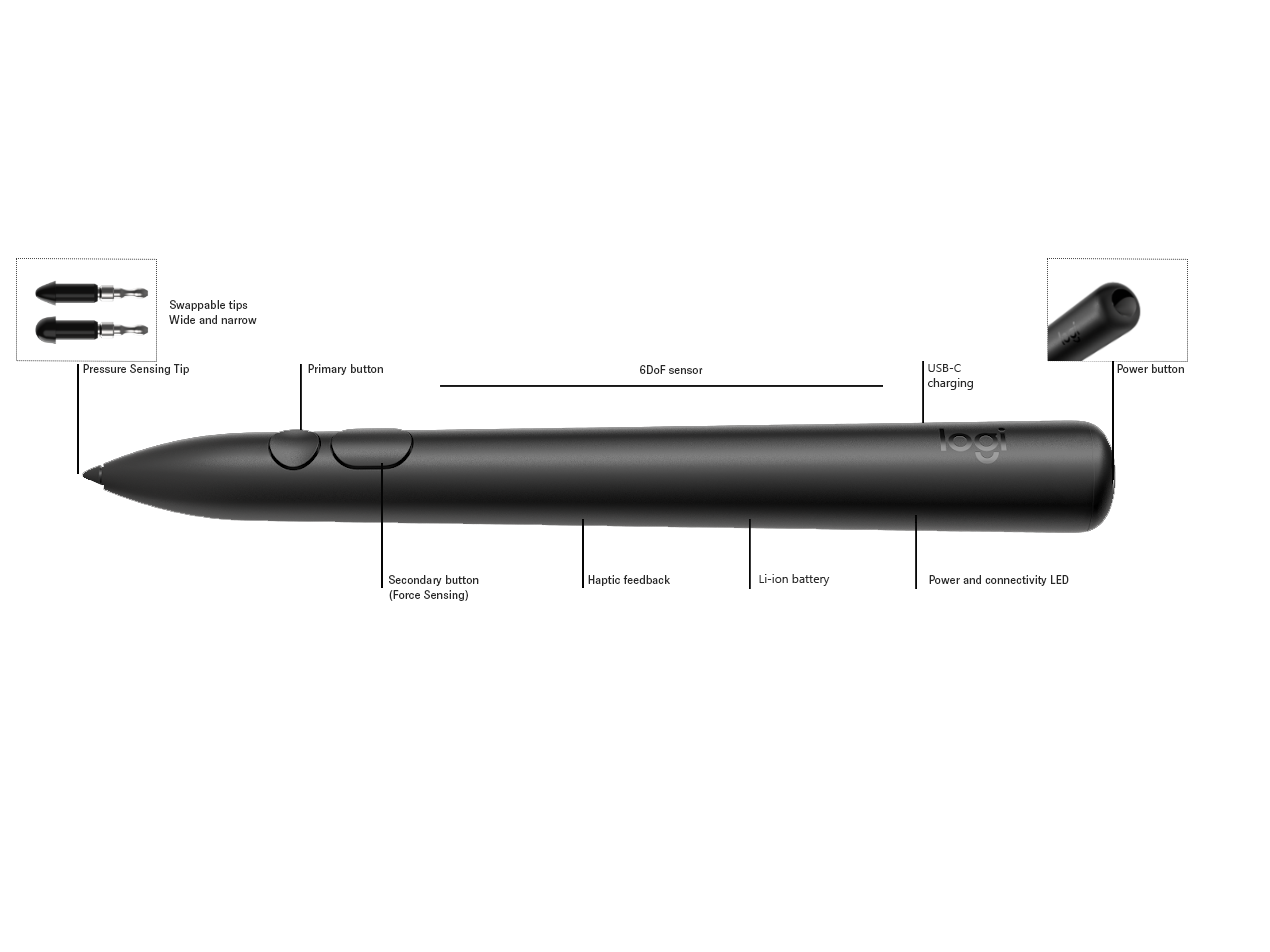
Getting to know your Muse
Pairing your Muse with Apple Vision Pro
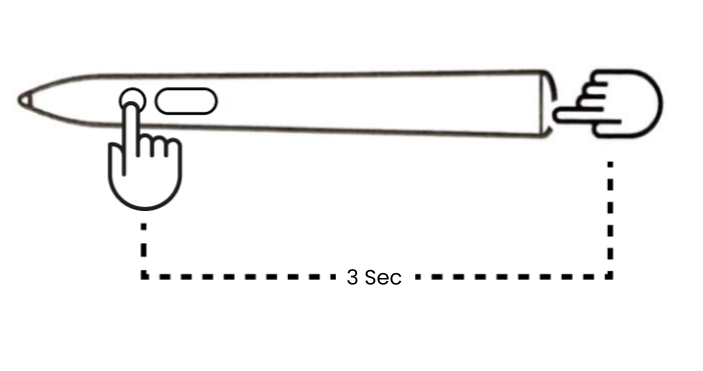
- Press and hold the top and primary button of the pen for 3 seconds until the pairing indicator starts blinking.
- On your Apple Vision Pro, open Bluetooth settings and select Muse from the list of available devices to pair.
- When pairing is successful, you’ll feel a short haptic feedback, and the green LED will glow solid, confirming the connection.
Power Management
Simply plug a USB-C cable into the USB-C port on the back of Muse.

Note: USB-C cable is not included with Muse.
On and Off
To power Muse ON: Press and hold the TOP button for 3 seconds.
To power Muse OFF: Press and hold the TOP button for 3 seconds.
To see battery status: Short Press power button.
LED Indicator
Every Muse stylus is equipped with an LED light at the front top to indicate power and connectivity status. A short press on power button should state the battery status. Green- Healthy, Red- Critical.
What it means |
LED Behaviour |
|---|---|
| Stylus is charging | Green Breathing |
| Stylus charging is complete and plugged to cable | Green Steady |
| Stylus has critical battery (<10%) | Red Steady (5s) |
| Stylus in pairing mode | Green Fast Blink |
| Stylus awake or pairing success | Green Steady (5Sec) |
| Stylus paired and connected | Green Steady (5Sec) |
| Stylus firmware update in progress | Green and Red Blink |
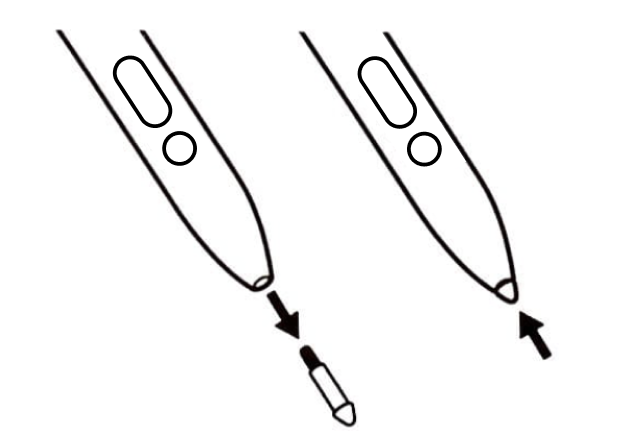
Replacing the Muse stylus tip
Each Muse stylus comes with two replaceable tips in the box in addition to the tip already installed on the Muse. These tips can be found on the tray inside the box that holds Muse.
Included are one additional fine tip and one wide tip.
1. Firmly grasp the tip already installed into the Muse and pull out.
2. Simply push in the replacement tip until you feel a light click as it locks into place.
Compatible Apps
Muse is compatible with a number of apps and the list is continuing to grow.
Bemærk! Firmwareopdateringsværktøjet understøttes/vedligeholdes ikke længere af Logitech. Vi anbefaler, at du bruger Logi Options+ til dine understøttede Logitech-enheder. Vi står klar til at hjælpe dig igennem denne overgang.
Bemærk! Logitech Preference Manager understøttes/vedligeholdes ikke længere af Logitech. Vi anbefaler, at du bruger Logi Options+ til dine understøttede Logitech-enheder. Vi står klar til at hjælpe dig igennem denne overgang.
Bemærk! Logitech Control Center understøttes/vedligeholdes ikke længere af Logitech. Vi anbefaler, at du bruger Logi Options+ til dine understøttede Logitech-enheder. Vi står klar til at hjælpe dig igennem denne overgang.
Bemærk! Logitech Connection Utility understøttes/vedligeholdes ikke længere af Logitech. Vi anbefaler, at du bruger Logi Options+ til dine understøttede Logitech-enheder. Vi står klar til at hjælpe dig igennem denne overgang.
Bemærk! Unifying-softwaren understøttes/vedligeholdes ikke længere af Logitech. Vi anbefaler, at du bruger Logi Options+ til dine understøttede Logitech-enheder. Vi står klar til at hjælpe dig igennem denne overgang.
Bemærk! SetPoint-softwaren understøttes eller vedligeholdes ikke længere af Logitech. Vi anbefaler, at du bruger Logi Options+ til dine understøttede Logitech-enheder. Vi står klar til at hjælpe dig igennem denne overgang.
Ofte stillede spørgsmål
Der er ingen tilgængelige produkter til dette afsnit
Der er ingen downloads til dette produkt
Der er ingen Downloads til denne version.
Compatible Product
