Steering wheel and pedal response can be adjusted on the G923 racing wheels using Logitech G HUB. Before you attempt to make these adjustments, make sure to download and install the latest version of G HUB before connecting the G923 Racing Wheel to your computer. You can get the latest version of G HUB from your product’s Download page.
Steering Sensitivity
Steering sensitivity on the G923 racing wheels can be adjusted to accommodate your steering preferences or improve to steering response in some games.
NOTE: Adjustments to steering sensitivity can be customized for each game, per profile in G HUB.
To adjust the steering sensitivity:
- Make sure that the G923 racing wheel is connected to your computer, and then launch G HUB.
- On the G HUB Home screen click on the G923 icon.
- Navigate to the Steering Wheel screen, then use the sensitivity slider to adjust the response of the wheel.
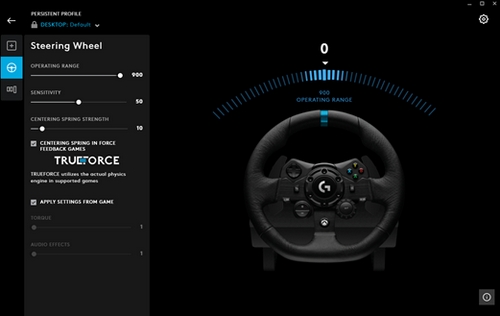
- Leaving the slider at 50 will provide a linear 1:1 steering ratio of sensitivity. Between 51 and 100 will make steering more sensitive and between 1 and 49 will make it less sensitive.
Wheel Operating Range
The G923 racing wheels allow for maximum lock-to-lock rotation of up to 900 degrees. Some games may require this range to be reduced in order to provide optimal steering response in those games.
To adjust the wheel operating range:
- Make sure that the G923 racing wheel is connected to your computer, and then launch G HUB.
- On the G HUB Home screen click on the G923 icon.
- Navigate to the Steering Wheel screen, then use the sensitivity slider to adjust the desired degree range of the wheel:

- You can also type the desired value by selecting the value and then using your keyboard
Pedal Sensitivity
Pedal sensitivity on the G923 racing wheels can be adjusted to accommodate your pedal engagement preferences or to improve clutch, brake, or accelerator pedal response in some games.
NOTE: Adjustments to pedal sensitivity can be customized for each game, per profile in G HUB.
To adjust the pedal sensitivity:
- Make sure that the G923 racing wheel is connected to your computer, and then launch G HUB.
- On the G HUB Home screen click on the G923 icon.
- Navigate to the Pedal screen, then use the sensitivity slider to adjust the desired sensitivity of each pedal:
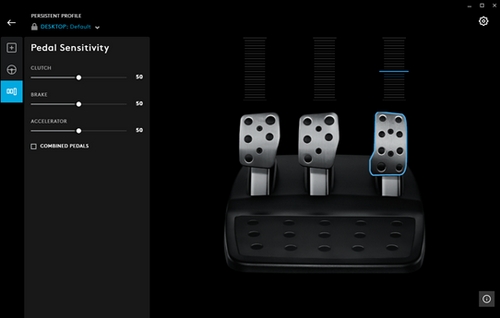
- You can also type the desired value by selecting the value and then using your keyboard.
Leaving the slider at 50 will provide a linear 1:1 ratio of sensitivity. Between 51 and 100 will make the pedal more sensitive and between 1 and 49 will make it less sensitive.
Bemærk! Firmwareopdateringsværktøjet understøttes/vedligeholdes ikke længere af Logitech. Vi anbefaler, at du bruger Logi Options+ til dine understøttede Logitech-enheder. Vi står klar til at hjælpe dig igennem denne overgang.
Bemærk! Logitech Preference Manager understøttes/vedligeholdes ikke længere af Logitech. Vi anbefaler, at du bruger Logi Options+ til dine understøttede Logitech-enheder. Vi står klar til at hjælpe dig igennem denne overgang.
Bemærk! Logitech Control Center understøttes/vedligeholdes ikke længere af Logitech. Vi anbefaler, at du bruger Logi Options+ til dine understøttede Logitech-enheder. Vi står klar til at hjælpe dig igennem denne overgang.
Bemærk! Logitech Connection Utility understøttes/vedligeholdes ikke længere af Logitech. Vi anbefaler, at du bruger Logi Options+ til dine understøttede Logitech-enheder. Vi står klar til at hjælpe dig igennem denne overgang.
Bemærk! Unifying-softwaren understøttes/vedligeholdes ikke længere af Logitech. Vi anbefaler, at du bruger Logi Options+ til dine understøttede Logitech-enheder. Vi står klar til at hjælpe dig igennem denne overgang.
Bemærk! SetPoint-softwaren understøttes eller vedligeholdes ikke længere af Logitech. Vi anbefaler, at du bruger Logi Options+ til dine understøttede Logitech-enheder. Vi står klar til at hjælpe dig igennem denne overgang.
Ofte stillede spørgsmål
Der er ingen tilgængelige produkter til dette afsnit
Der er ingen downloads til dette produkt
Der er ingen Downloads til denne version.
Compatible Product
