To create a new Smart Action,
- Click Create on the top right corner of the Templates or Manage tab.
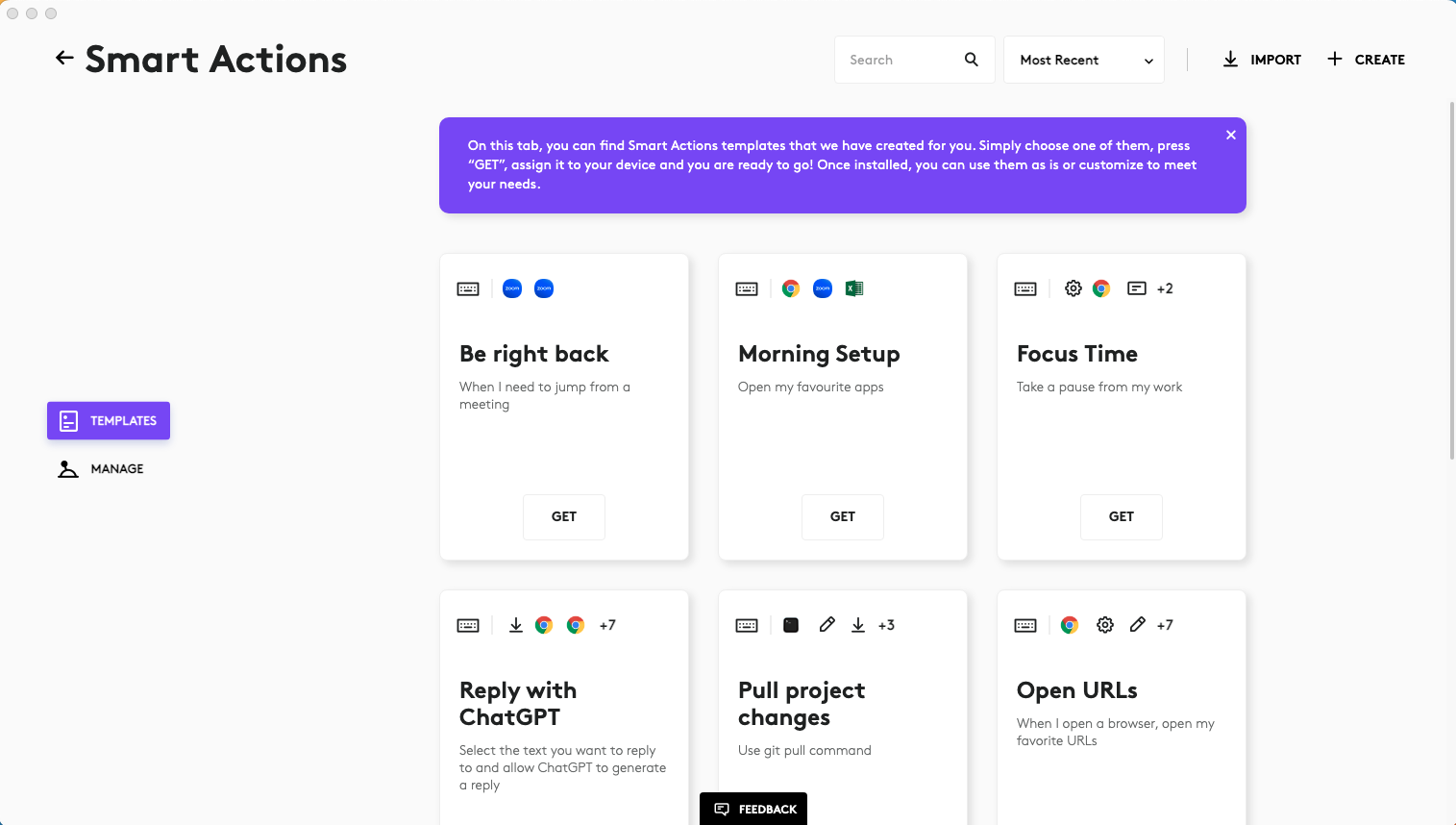
- In Edit mode you’ll see Smart Actions consists of triggers and actions. You’ll need to have at least one of each to have a functioning Smart Action.
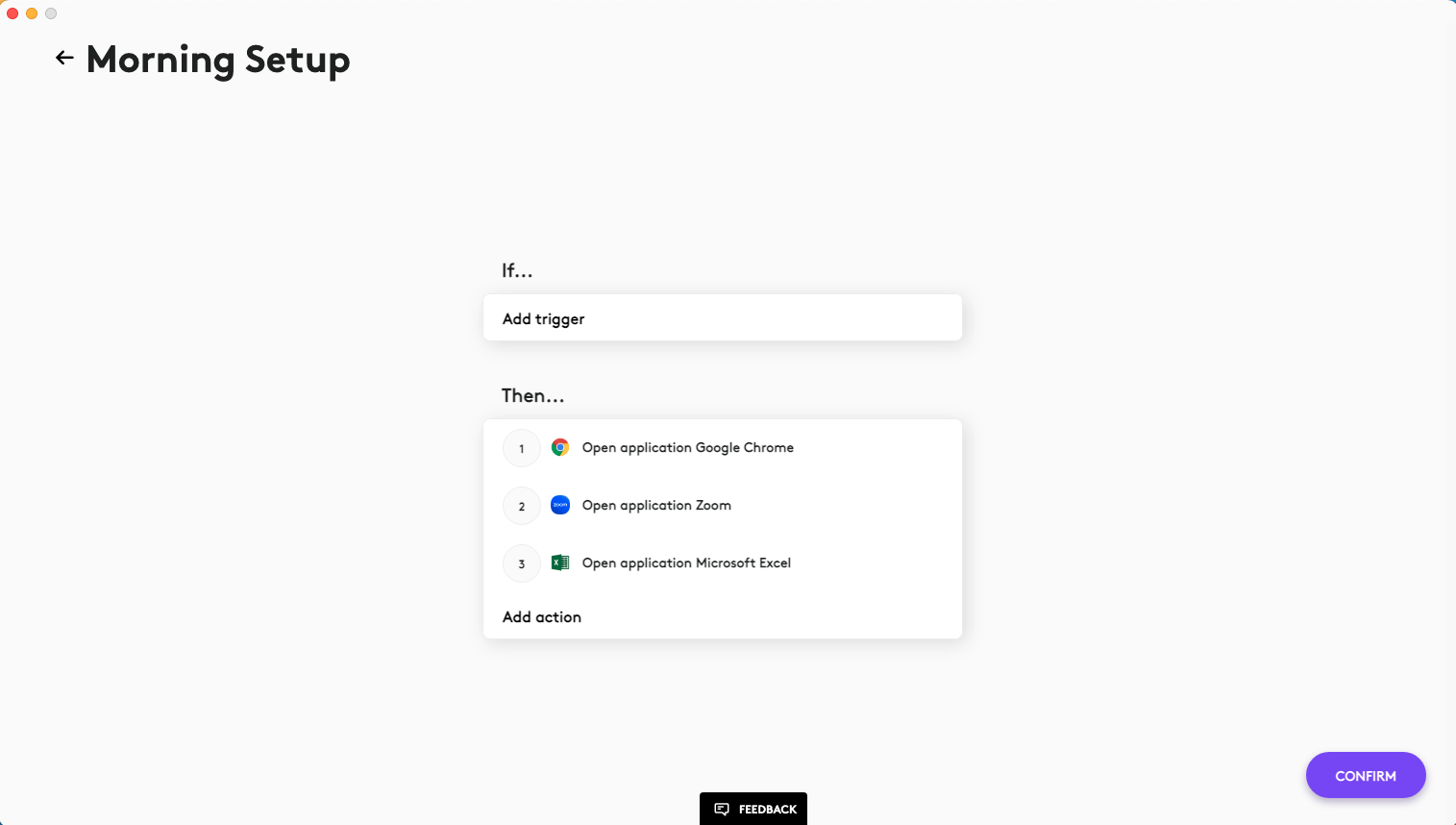
- To add a new trigger, click Add trigger, then select the trigger type from the dropdown list. Currently, Device, Console (is shown only if MX Creative Keypad and/or MX Creative Dialpad is connected), Actions Ring, and Shortcut triggers are available. Console and Actions Ring triggers can be assigned on the Console and Actions Ring device pages after Smart Actions plugin installation. If you have multiple triggers, the Smart Actions will be executed if you use any of them.
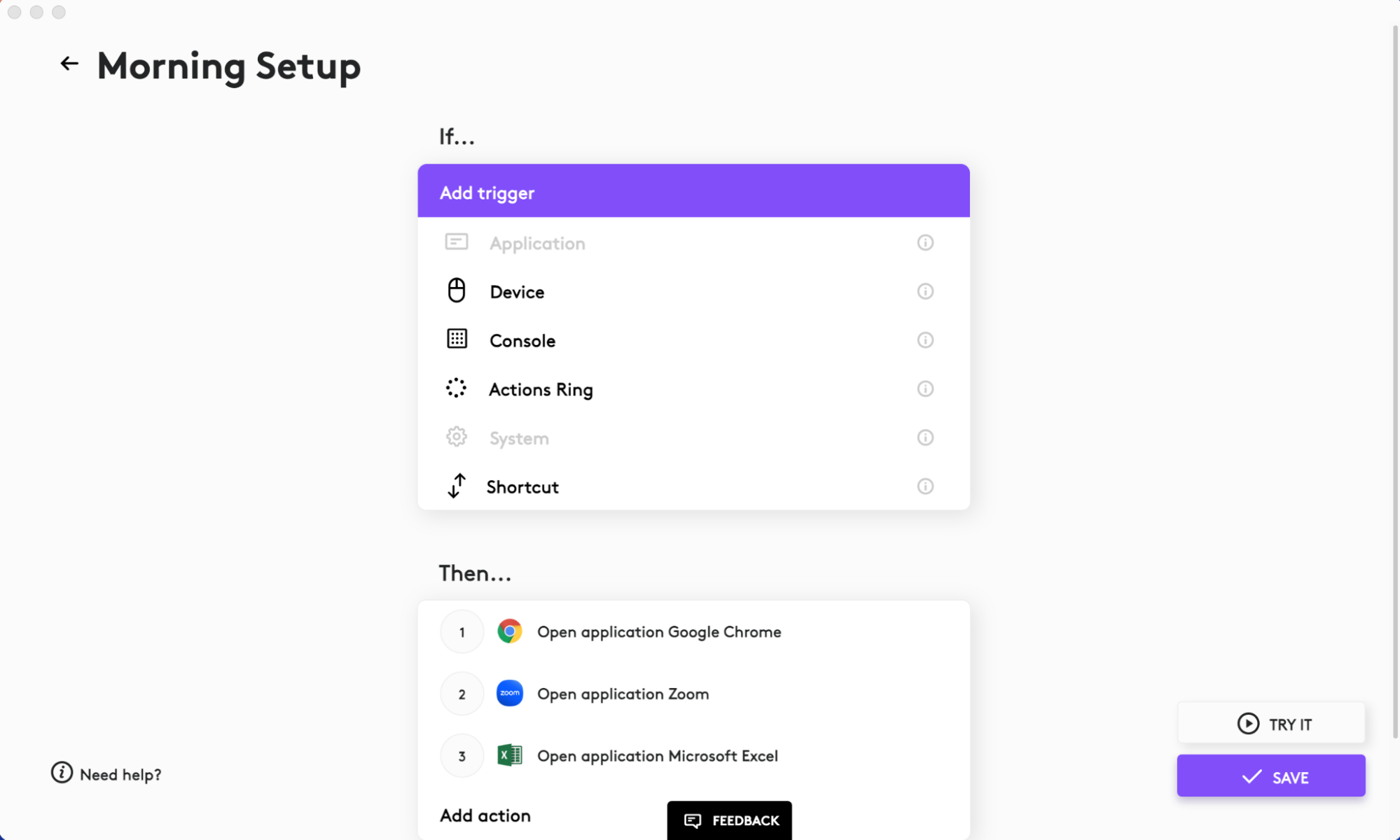
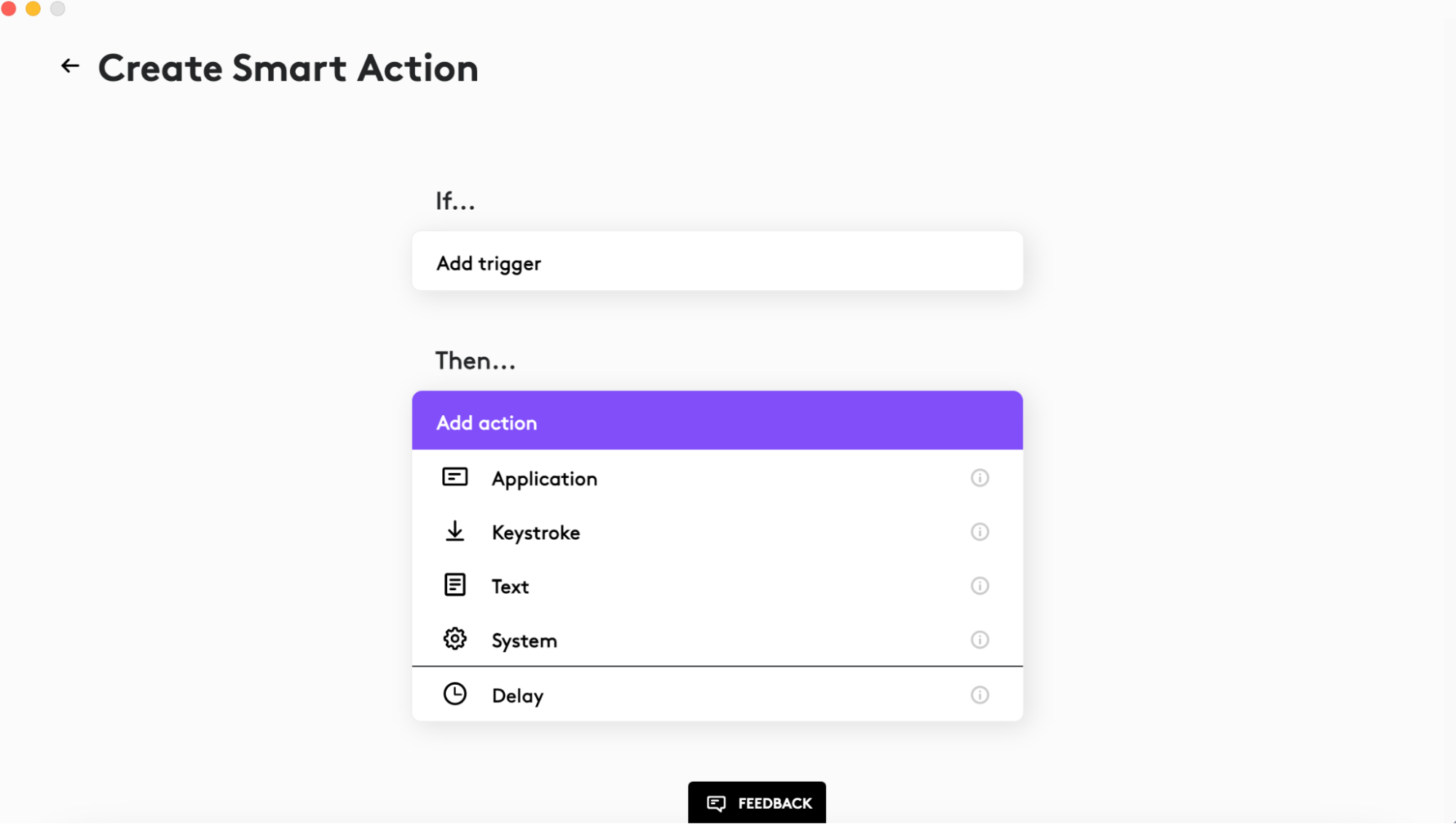
- To add an action click Add action, then select the action type from the dropdown list. You can set AI Prompt Builder, Application, Keystroke, Text, Haptic feedback (if MX Master 4 has been connected), and System actions. You can also set a Delay between those actions.
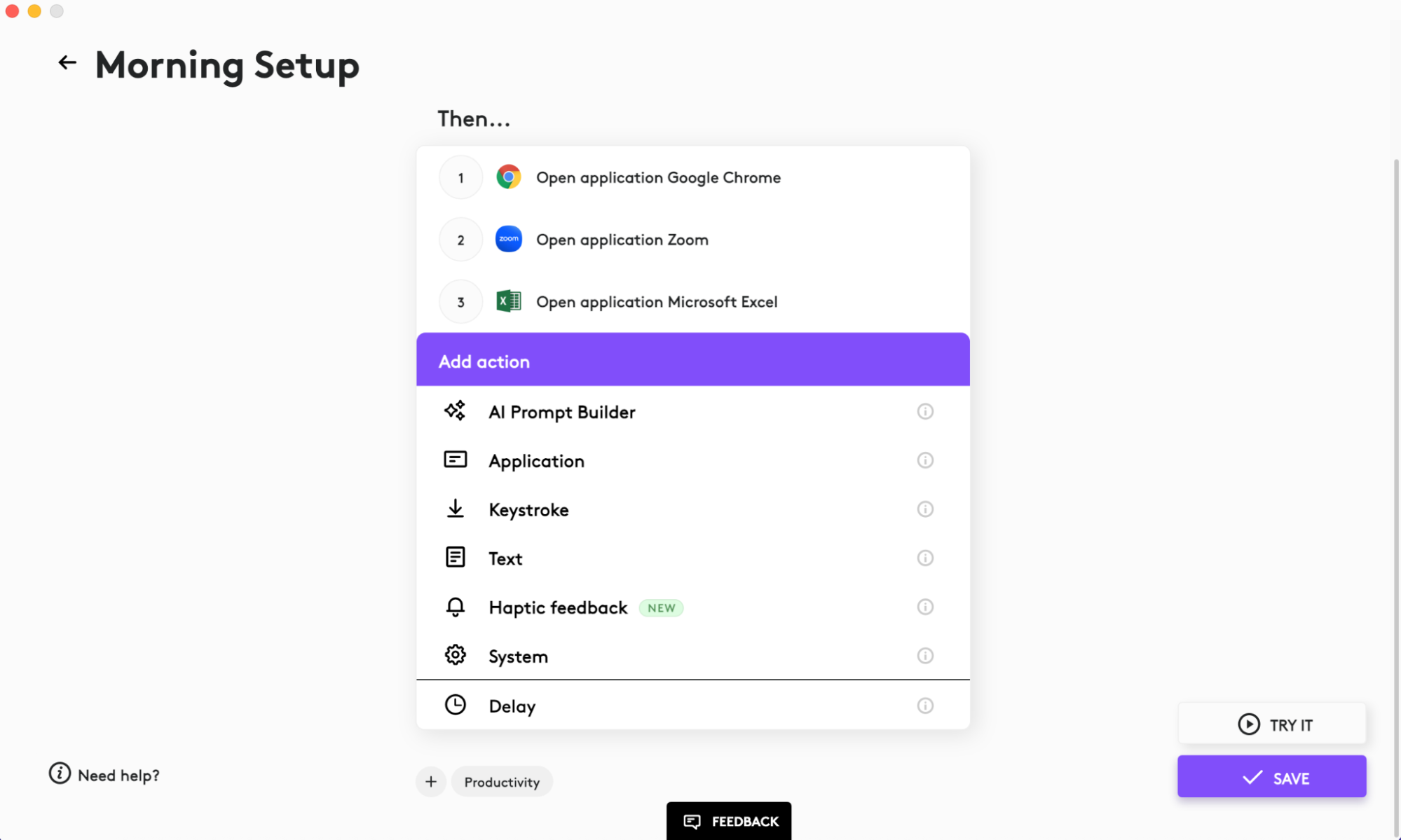
Adding a Delay is important for web based actions. For example, if you want to open a new browser tab in Google Chrome, the system needs time to perform the action. We recommend adding a 1 second delay for these types of actions.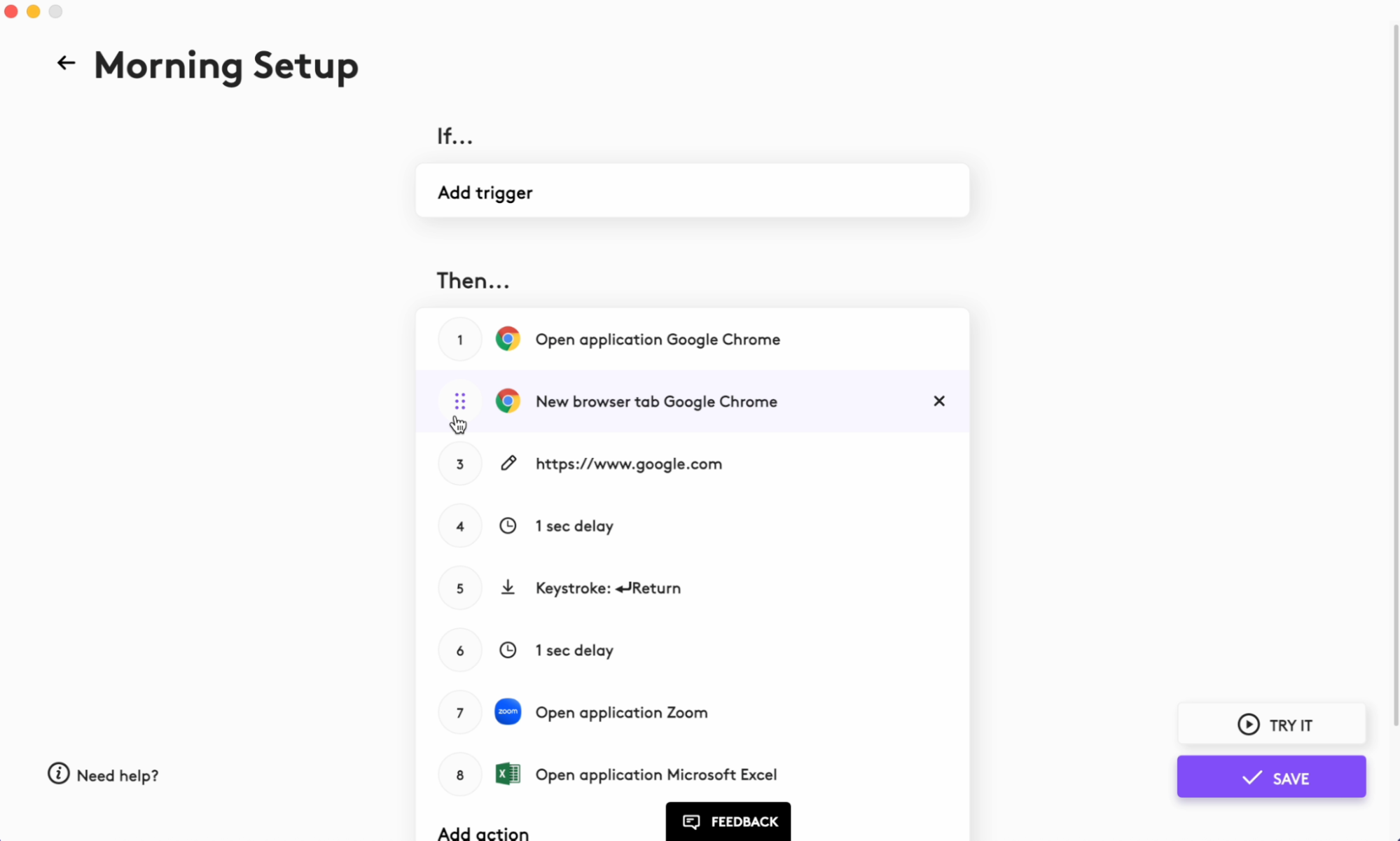
- Actions that you add to the Smart Actions will be executed one by one in order. You can use drag and drop to reorder their execution.
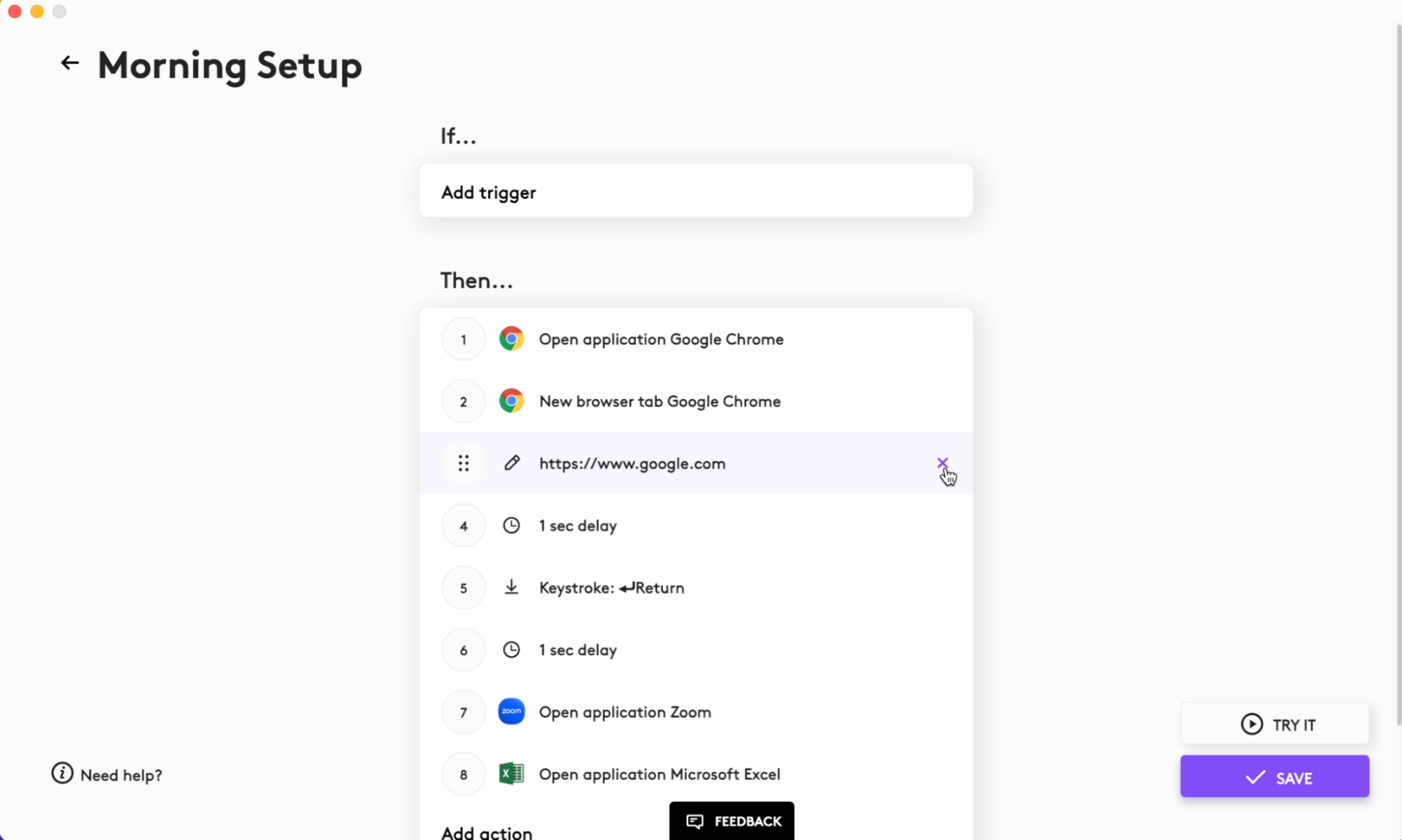
- Triggers and actions can be deleted by clicking on the X button on the right side of the item. If you click on an existing trigger or action line you can edit it.
Wichtiger Hinweis: Das Firmware Update Tool wird von Logitech nicht mehr unterstützt oder gepflegt. Wir empfehlen dringend die Verwendung von Logi Options+ für Ihre unterstützten Logitech-Geräte. Während dieser Übergangsphase stehen wir Ihnen gern zur Seite.
Wichtiger Hinweis: Der Logitech Preference Manager wird nicht mehr von Logitech unterstützt oder gepflegt. Wir empfehlen dringend die Verwendung von Logi Options+ für Ihre unterstützten Logitech-Geräte. Während dieser Übergangsphase stehen wir Ihnen gern zur Seite.
Wichtiger Hinweis: Das Logitech Control Center wird nicht mehr von Logitech unterstützt oder gepflegt. Wir empfehlen dringend die Verwendung von Logi Options+ für Ihre unterstützten Logitech-Geräte. Während dieser Übergangsphase stehen wir Ihnen gern zur Seite.
Wichtiger Hinweis: Logitech Connection Utility wird von Logitech nicht mehr unterstützt oder gepflegt. Wir empfehlen dringend die Verwendung von Logi Options+ für Ihre unterstützten Logitech-Geräte. Während dieser Übergangsphase stehen wir Ihnen gern zur Seite.
Wichtiger Hinweis: Die Unifying-Software wird von Logitech nicht mehr unterstützt oder gepflegt. Wir empfehlen dringend die Verwendung von Logi Options+ für Ihre unterstützten Logitech-Geräte. Während dieser Übergangsphase stehen wir Ihnen gern zur Seite.
Wichtiger Hinweis: Die SetPoint-Software wird von Logitech nicht mehr unterstützt oder gewartet. Wir empfehlen dringend die Verwendung von Logi Options+ für Ihre unterstützten Logitech-Geräte. Während dieser Übergangsphase stehen wir Ihnen gern zur Seite.
Häufig gestellte Fragen – FAQs
Für diesen Abschnitt sind keine Produkte verfügbar
Für dieses Produkt sind keine Downloads vorhanden
Für diese Version gibt es keine Downloads.
Compatible Product
