Einsetzen Ihres iPad
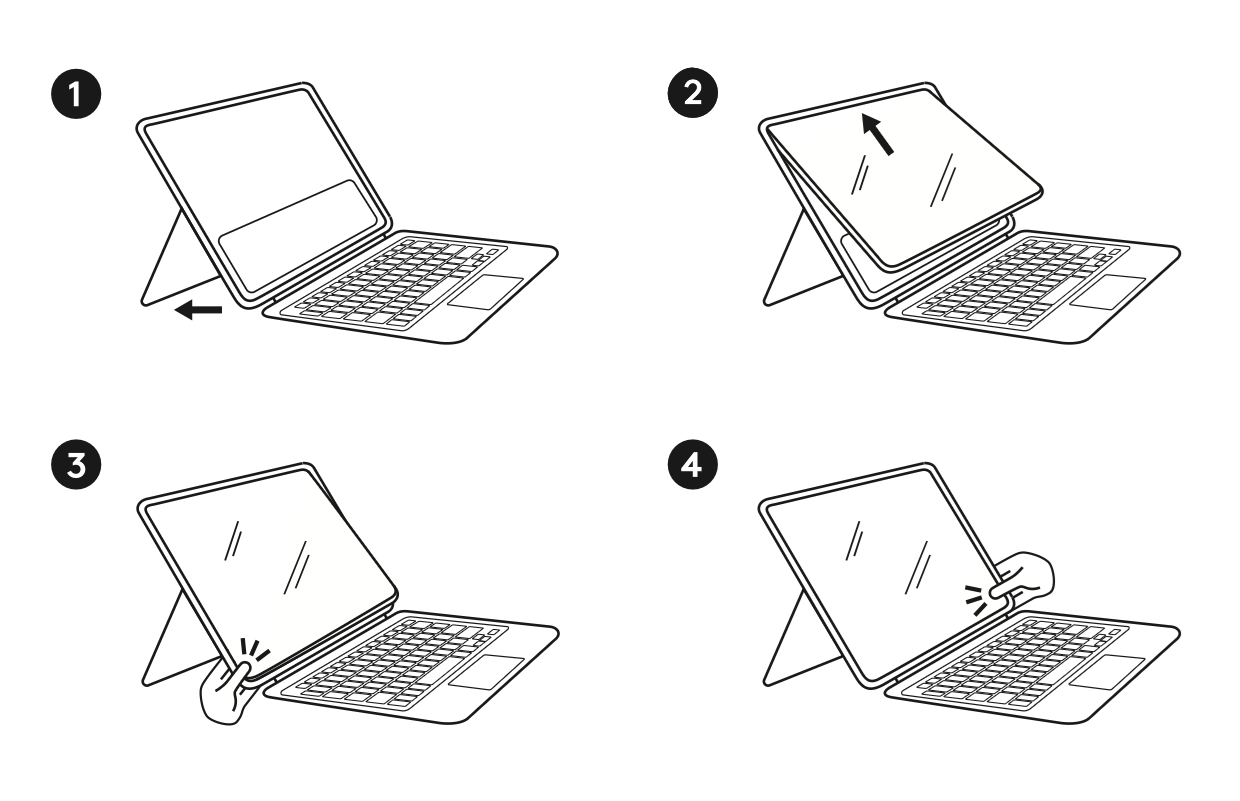
- Öffnen Sie die Standhalterung. Dadurch lässt sich die Rugged Combo-Halterung beim Einsetzen leichter biegen.
- Setzen Sie zuerst die obere linke (Ein-/Ausschaltknopf) Seite des iPads ein, gefolgt von der oberen rechten Seite des iPads. Dieser Teil sollte einfach sein, da sich der untere Teil des iPads noch nicht in der Halterung befindet.
- Arbeiten Sie sich auf der linken Seite nach unten vor und schieben Sie den iPad-Bildschirm in das Rugged Combo.
-
Nachdem drei Ecken eingesetzt sind, arbeiten Sie sich entlang der Unterkante vor und drücken Sie die letzte, untere rechte Ecke fest in die Halterungslippe.
- Tipp: Greifen Sie die untere Ecke der Halterung mit beiden Händen und drücken Sie den iPad-Bildschirm mit beiden Daumen fest in diese Ecke.
- Prüfen Sie, ob die Halterungslippe rund um den iPad-Bildschirm gleichmäßig abschließt.
Entfernen des iPad
- Um das iPad zu entnehmen, klappen Sie zunächst die Standhalterung aus, um der Halterung etwas mehr Flexibilität zu verleihen.
- Greifen Sie die untere rechte Kante des iPad-Bildschirms mit beiden Händen und drücken Sie mit beiden Daumen die Seitenwand des Rugged Combo 4 nach hinten, um die iPad-Kante freizulegen.
- Streichen Sie mit dem Finger über die Unterkante und lösen Sie so das iPad von den unteren Ecken der Halterung.
- Sobald die beiden unteren Kanten frei sind, sollte sich das iPad von oben herausschieben lassen.
Wichtiger Hinweis: Das Firmware Update Tool wird von Logitech nicht mehr unterstützt oder gepflegt. Wir empfehlen dringend die Verwendung von Logi Options+ für Ihre unterstützten Logitech-Geräte. Während dieser Übergangsphase stehen wir Ihnen gern zur Seite.
Wichtiger Hinweis: Der Logitech Preference Manager wird nicht mehr von Logitech unterstützt oder gepflegt. Wir empfehlen dringend die Verwendung von Logi Options+ für Ihre unterstützten Logitech-Geräte. Während dieser Übergangsphase stehen wir Ihnen gern zur Seite.
Wichtiger Hinweis: Das Logitech Control Center wird nicht mehr von Logitech unterstützt oder gepflegt. Wir empfehlen dringend die Verwendung von Logi Options+ für Ihre unterstützten Logitech-Geräte. Während dieser Übergangsphase stehen wir Ihnen gern zur Seite.
Wichtiger Hinweis: Logitech Connection Utility wird von Logitech nicht mehr unterstützt oder gepflegt. Wir empfehlen dringend die Verwendung von Logi Options+ für Ihre unterstützten Logitech-Geräte. Während dieser Übergangsphase stehen wir Ihnen gern zur Seite.
Wichtiger Hinweis: Die Unifying-Software wird von Logitech nicht mehr unterstützt oder gepflegt. Wir empfehlen dringend die Verwendung von Logi Options+ für Ihre unterstützten Logitech-Geräte. Während dieser Übergangsphase stehen wir Ihnen gern zur Seite.
Wichtiger Hinweis: Die SetPoint-Software wird von Logitech nicht mehr unterstützt oder gewartet. Wir empfehlen dringend die Verwendung von Logi Options+ für Ihre unterstützten Logitech-Geräte. Während dieser Übergangsphase stehen wir Ihnen gern zur Seite.
Häufig gestellte Fragen – FAQs
Für diesen Abschnitt sind keine Produkte verfügbar
Für dieses Produkt sind keine Downloads vorhanden
Für diese Version gibt es keine Downloads.
Compatible Product
