Getting Started
Connect the keyboard to your device
Choose how you want to pair your keyboard to your device. You have two options:
- Bluetooth Low Energy connection
- Logi Bolt receiver
To pair through Bluetooth:
|
|
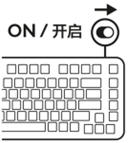
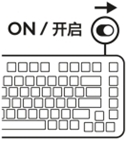
Step 1 Switch ON your keyboard. A white LED on your keyboard (on the Connect key) will start blinking. |
|
|
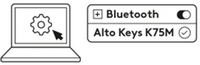
Step 2 Open the Bluetooth settings on your device. Add a new peripheral by selecting the Alto Keys K75M keyboard from your list of devices. Your keyboard is paired once the LEDs stop blinking. |
|
|
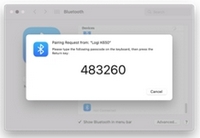
Step 3 Your computer will require you to enter a random set of numbers. Type the numbers and then press the Enter key on your Alto Keys K75M keyboard. Your keyboard is now ready to use. |
Click here for more details on how to do this on your computer. If you experience issues with Bluetooth, click here for Bluetooth troubleshooting.
To pair through Logi Bolt receiver:
|
|
Step 1 Take the Logi Bolt receiver from the packaging for your keyboard. |
|
|
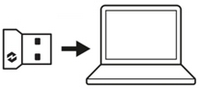
Step 2 Insert the receiver into any available USB port on your desktop or laptop. |
|
|
Step 3 Switch ON your keyboard. When the white LED on the Connect key stops blinking, your device is successfully connected. |
|
|
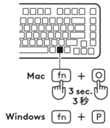
Step 4 Set the right keyboard layout for your computer’s operating system:
IMPORTANT: Windows is the default OS layout. If you are using a Windows computer you can skip this step. Your keyboard is now ready to use. |
Keyboard Functions
You have a full range of useful productive tools on your keyboard that will help you save time and work faster:
| F-Keys | Windows | macOS | Chrome OS |
 |
Escape | Escape | Escape |
 |
Easy-Switch | Easy-Switch | Easy-Switch |
 |
Easy-Switch | Easy-Switch | Easy-Switch |
 |
Easy-Switch | Easy-Switch | Easy-Switch |
 |
Backlight Increase | Backlight Increase | Backlight Increase |
 |
Dictation | Dictation | Dictation |
 |
Emoji | Emoji | Emoji |
 |
Snip and Sketch | Capture Selected Area | Snip and Sketch |
 |
Mute Microphone* | Mute Microphone* | Mute Microphone* |
 |
Play Pause | Play Pause | Play Pause |
 |
Mute Sound | Mute Sound | Mute Sound |
 |
Volume Down | Volume Down | Volume Down |
 |
Volume Up | Volume Up | Volume Up |
* For Windows without Options+: Call Mute Toggle. For Mac, Options+ is required.
Multi-OS keyboard
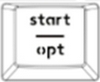
Your keyboard is designed to work with multiple operating systems (OS): Windows & macOS.
For Windows and macOS keyboard layouts:
| If you are a macOS user, the special characters and keys will be on the bottom side of the keys: | If you are a Windows, user, the special characters will be on the top side of the key: |
 |
|
| *macOS layout is compatible with iOS and iPadOS as well | *Windows layout is compatible with Linux and Android as well |
Battery Status Notification
Your keyboard will let you know when it is running low on battery life.
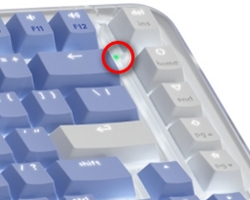
- From 100% to 6% the battery LED will be green.
- From 5% and below, the battery LED will be red. You can continue using your device for one month when the battery is low.
Install Logitech Software
Download Logitech Options+ to customize your keyboard and benefit from all of the useful shortcuts and other possibilities it has to offer. To download and learn more about the full range of features, click here.
How to customize your keyboard with Logitech Options +
- Download and install Logitech Options+. Click here to download the software.
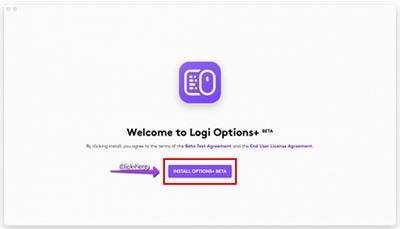
- An installer window will pop up on your screen. Click Install Options+.
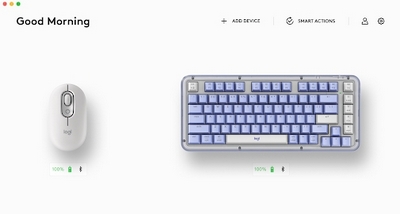
- Once Logitech Options+ is installed, a window will open and you’ll see an image of your keyboard. Click on it.
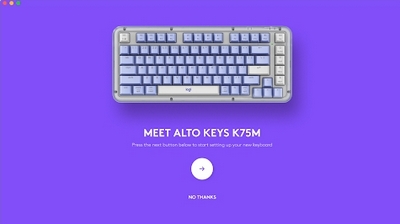
- You will be taken into a quick onboarding process that shows you how to customize your keyboard. We highly recommend not to skip it.
- Once you finish, you can start your customization:
- On the left side of the window, click on the Keys button.
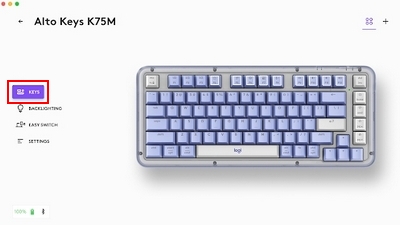
- For example, to customize your keyboard functions keys, click on any of the keys that you wish to customize:
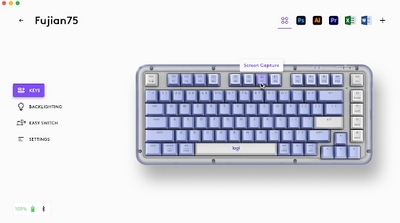
- Simply click on the function you like to set on that button/key from the options that appear on the right side of the screen and you are done!
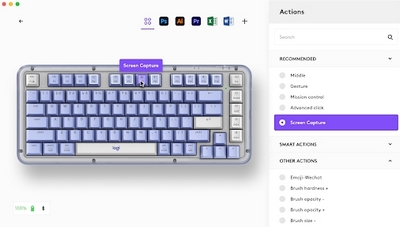
Software notifications
When you install Logitech Options+ software you’ll also get on-screen notifications for the following:.
-
Low battery
When your keyboard or mouse reaches 5% of battery left you'll get a battery notification on the screen. -
F-Keys switch
Press Fn + Esc to swap between Media keys and F-Keys. We’ve added a notification to let you know you’ve swapped.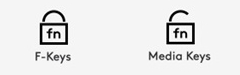
NOTE: By default, the keyboard has direct access to Media Keys. -
Caps Lock Notification
Besides the LED on your Caps Lock key lighting up, you will have an on screen notification to show you when you have Caps Lock function activated.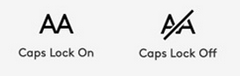
Important Notice: The Firmware Update Tool is no longer supported or maintained by Logitech. We highly recommend using Logi Options+ for your supported Logitech devices. We are here to assist you during this transition.
Important Notice: The Logitech Preference Manager is no longer supported or maintained by Logitech. We highly recommend using Logi Options+ for your supported Logitech devices. We are here to assist you during this transition.
Important Notice: The Logitech Control Center is no longer supported or maintained by Logitech. We highly recommend using Logi Options+ for your supported Logitech devices. We are here to assist you during this transition.
Important Notice: The Logitech Connection Utility is no longer supported or maintained by Logitech. We highly recommend using Logi Options+ for your supported Logitech devices. We are here to assist you during this transition.
Important Notice: The Unifying Software is no longer supported or maintained by Logitech. We highly recommend using Logi Options+ for your supported Logitech devices. We are here to assist you during this transition.
Important Notice: The SetPoint software is no longer supported or maintained by Logitech. We highly recommend using Logi Options+ for your supported Logitech devices. We are here to assist you during this transition.
Frequently Asked Questions
There are no products available for this section
There are no Downloads for this Product
There are no Downloads for this Version.
Compatible Product
