Get Started with Wave Keys
You can connect Wave Keys with your device using either Bluetooth or the Logi Bolt receiver.

To connect your device using Bluetooth:
- Pull out the tab located on the back of the keyboard. The keyboard will automatically turn on.
- On your device, open the Bluetooth settings and select Wave Keys from the list.
- Download the Logi Options+ app to enhance the experience of your new keyboard.
To connect your device using Logi Bolt:
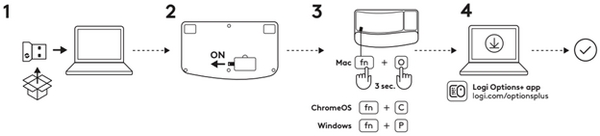
- Take the Logi Bolt receiver from the packaging and plug it into your device.
You can find the receiver on the side of the packaging tray. - Pull out the tab located on the back of the keyboard. The keyboard will automatically turn on.
- To trigger the layout for your specific OS:
- If you’re a Mac user, press the FN + O keys for three seconds to trigger the Mac layout and support for the keyboard.
- If you’re a Chrome user, press the FN + C keys for three seconds to trigger the Chrome layout and support for the keyboard.
- If you’re a Windows user, press the FN + P keys for three seconds to trigger the Windows layout and support for the keyboard.
- Download the Logi Options+ app to enhance the experience of your new keyboard.
Product Overview
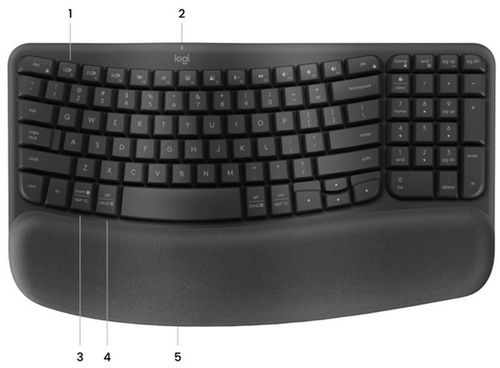
- Easy-Switch keys
- Battery status LED and ON/OFF switch
- Universal layout
- Mac layout
- Battery compartment
Function keys
The following key functions are assigned by default. Press the FN + Esc keys to switch the media keys back to normal function keys.
In order to customize the keys, download and install the Logi Options+ app.

| Function Key | Description |
| F4 | Task view |
| F5 | Dictation 1 |
| F6 | Emoji |
| F7 | Screen Capture |
| F8 | Mute Microphone 2 |
| F9 | Play/Pause |
| F10 | Mute Sound |
| F11 | Volume Down |
| F12 | Volume Up |
| Home | Home |
| End | End |
| Pg Up | Page Up |
| Pg Dn | Page Down |
1 Assigned by default for Windows; requires the installation of the Logi Options+ app for macOS.
2 Requires the Logi Options+ app for all operating systems except Chrome OS.
Multi-OS keyboard
Wave Keys is designed to work with multiple operating systems: Windows, macOS, Chrome OS, iOS, iPadOS, Android, and Linux.
For Windows, Android, and Linux users:
The special characters are on the right side of the keys.
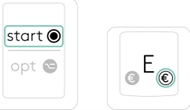
Upper side of the key: Windows layout
Lower side of the keys: macOS layout
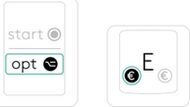
For macOS, iOS or iPadOS users:
The special characters are on the left side of the keys.
Battery information:
Your keyboard will let you know when the battery is running low.
- When the battery LED turns red, the battery life remaining is 5% or lower.
Install the Logi Options+ app
Download the Logi Options+ app to discover all the functionalities of Wave Keys and to customize shortcuts tailored to your specific needs.
The Logi Options+ app is compatible with Windows and Mac.
How to customize Wave Keys with the Logitech Options+ app
- Download and install the Logitech Options+ app. Click here to download.
- An installer window will appear on your screen. Click Install Options+.
-
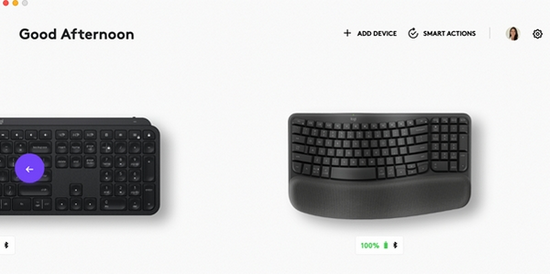
Once the Logitech Options+ app is installed, a window will open and you will be able to see an image of Wave Keys. Click on the image.
-
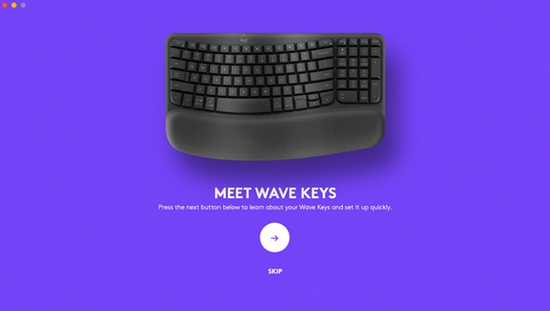
You’ll be taken into an onboarding process that shows you different features of Wave Keys and how to customize your keyboard.
-
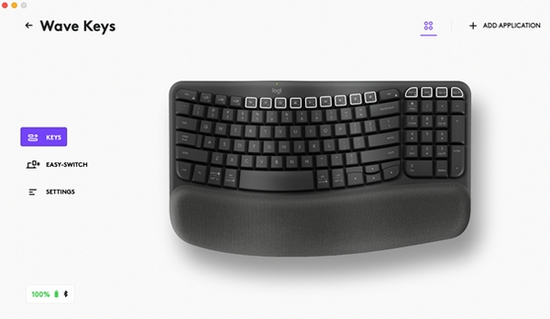
Once the onboarding is complete, you can start your customization. To do so, click on the key or button you want to customize.
-
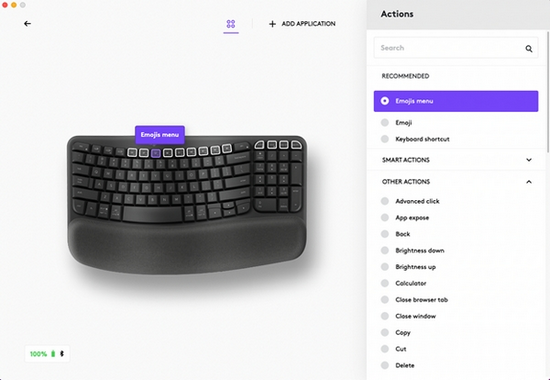
Under Actions on the right, click on the function you would like to set for the key.
Get Started with Lift Vertical Mouse
Time to make yourself comfortable!
Thank you for getting the new LIFT vertical mouse. To give you an overview of the product we have prepared a few useful tips & tricks below. We hope you will enjoy this ergonomic mouse.
Please download Logitech Options+ to unlock the full potential of your LIFT vertical mouse.
Connect your mouse to your device
You can pair your LIFT mouse to your device through a Bluetooth Low Energy connection or through our new Logi Bolt receiver. (Logi Bolt is a cutting-edge wireless protocol, engineered to meet rising enterprise security expectations. Learn more about it here.)
 Connect using Bluetooth
- Make sure the battery pull tab is removed and your LIFT is turned on.
- Press the Easy-Switch button and select the channel you want to pair to. (Make sure the LED is blinking fast. If it's not, press and hold the button for 3 seconds).
- Open the Bluetooth setting on your computer:
- On MacOS: Open System preferences > Bluetooth > Add LIFT.
- On WIndows: Select Start > Settings > Devices > Add Bluetooth device > Add LIFT.
- Connected.
 Connect using the Logi Bolt USB receiver
- Open the battery door and take out the Logi Bolt receiver.
- Plug the Logi Bolt receiver into a USB-A port on your computer.
- Remove the pull tab and make sure LIFT is turned on.
- Press the Easy-Switch button and select the channel you want to pair to.
- Connected.
LIFT at a glance
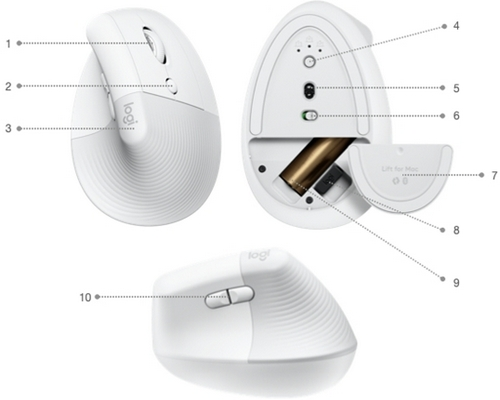
- SmartWheel
- Cursor speed switch button (adjusts the cursor speed)
- Textured rubber grip
- Easy-Switch and Connect button (pairing with up to three different devices)
- High precision sensor
- On/Off button
- Magnetic battery door
- Logi Bolt receiver
- AA battery
- Back/Forward button
FEATURE OVERVIEW
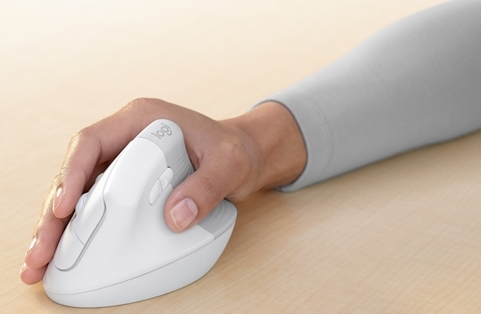
 Ergonomic vertical shape
LIFT vertical mouse is designed to help you work better. The vertical design lifts your hand, wrist, and forearm up into a more natural posture through a unique 57-degree vertical angle.
The textured rubber panel provides a soft comfortable feel while giving a good grip. Try to keep your wrists straight and your hand in a natural, relaxed position while using, to get the best experience.
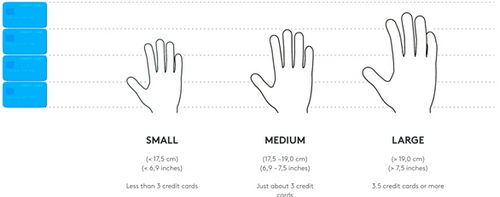
LIFT was designed especially for people looking for a small-to-medium-sized fit for their hands. If you do not know your hand size, we can help you. Please see below to determine your hand size:
Logitech SmartWheel
 |
LIFT features SmartWheel scrolling that delivers precision or speed the moment you need it. The magnetic wheel lets you seamlessly switch between two scrolling styles with the flick of your finger. Line-by-line (ratchet) scroll — Get line-by-line precision when you need to focus on the details. Scroll slowly, you will feel each step on the wheel. Ideal for reading or precise navigation of items and lists. Speed (inertia) scroll — scroll faster for a less-friction spinning. It will let you scroll faster and with less effort through long documents and web pages. |
Horizontal scroll
 |
You can scroll horizontally with your mouse. This is done with a two-button combination: Press and hold one of the side buttons and scroll with the wheel simultaneously. NOTE: The horizontal scroll is ON by default. You can customize this feature in the Point & Scroll tab in Logitech software. For more detailed information on Horizontal scroll, click here. |
Back/Forward buttons
 |
The back and forward buttons enhance navigation and simplify tasks. Logitech software lets you assign other useful functions to the buttons, including undo/redo, OS navigation, volume up/down, and more. |
 High precision sensor and cursor speed switch
 |
LIFT has an advanced high-precision sensor with 4000 adjustable DPI and an instant DPI Switch. DPI Switch
With Logitech Options you will receive an on-screen notification when switching between cursor speed 1 and cursor speed 2. You can also fully customize the speed to your needs. Press and hold the cursor speed switch until the overlay appears and then simply move the mouse left or right to adjust the speed. |
 Easy-Switch
LIFT can connect up to three devices and seamlessly switch between them with a press of a button.
The Easy-Switch button is located on the bottom of the mouse.
 Power Management
- LIFT is powered by one AA battery.
- Battery life: Up to 24 months
 Logitech Options+
LIFT is supported by Logitech Options+. Logi Options+ Beta is a next-gen app that lets you manage and customize your supported mice and keyboards — so they all seamlessly work towards your goals. Combining the best features of Options with a brand new easy-to-use interface, Options+ Beta is designed to transform your daily tasks.
Check out all the possibilities of Logitech Options+ here.
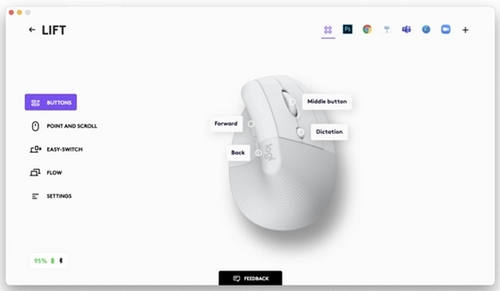
Flow between two computers
You can work on multiple computers with one single mouse.
With Logitech Flow, you can use the mouse cursor to move from one computer to the next. You can even copy and paste between computers, and if you have a compatible Logitech keyboard, the keyboard will follow the mouse and switch computers at the same time.
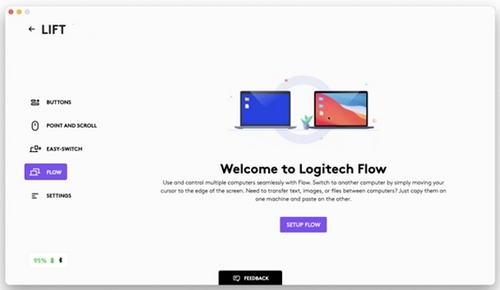
You will need to install Logitech software on both computers, and follow these instructions.
Important Notice: The Firmware Update Tool is no longer supported or maintained by Logitech. We highly recommend using Logi Options+ for your supported Logitech devices. We are here to assist you during this transition.
Important Notice: The Logitech Preference Manager is no longer supported or maintained by Logitech. We highly recommend using Logi Options+ for your supported Logitech devices. We are here to assist you during this transition.
Important Notice: The Logitech Control Center is no longer supported or maintained by Logitech. We highly recommend using Logi Options+ for your supported Logitech devices. We are here to assist you during this transition.
Important Notice: The Logitech Connection Utility is no longer supported or maintained by Logitech. We highly recommend using Logi Options+ for your supported Logitech devices. We are here to assist you during this transition.
Important Notice: The Unifying Software is no longer supported or maintained by Logitech. We highly recommend using Logi Options+ for your supported Logitech devices. We are here to assist you during this transition.
Important Notice: The SetPoint software is no longer supported or maintained by Logitech. We highly recommend using Logi Options+ for your supported Logitech devices. We are here to assist you during this transition.
Frequently Asked Questions
There are no products available for this section
There are no Downloads for this Product
There are no Downloads for this Version.
Compatible Product
