To customize the actions performed by each button click:
- Start the Logitech Options Software:
Windows: Start > All Programs > Logitech > Logitech Options
Mac: Macintosh HD > Applications > Logitech Options - Make sure you’ve selected the Mouse tab in the upper left corner of the window.
- Click on the circle next to the button that you want to configure. A list of options appears.
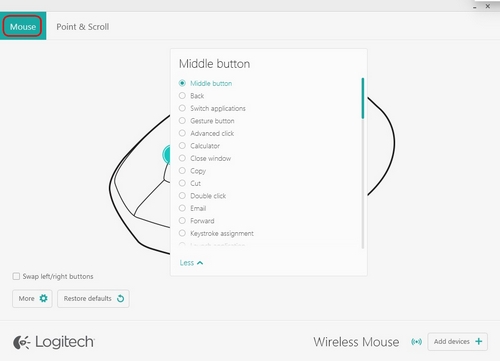
- Select the action you want the button to perform. Your selection is automatically saved.
To launch an application:
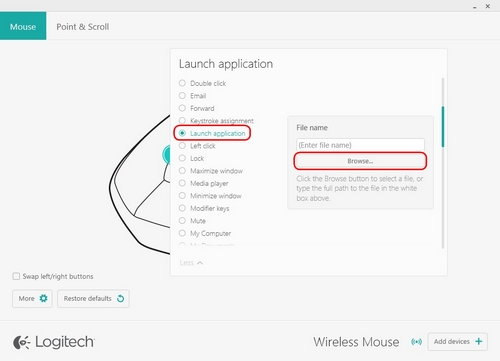
- Select Launch Application from the list of options.
- Click on Browse to locate the executable application on your computer or enter the computer path and file name for the application in the box.
To assign a custom keystroke:
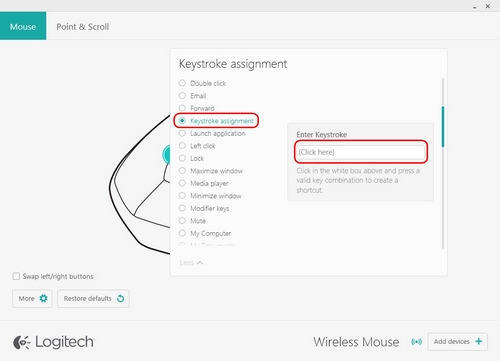
- Select Keystroke assignment from the list of options.
- Click inside the box on the right and type the key combination. It will be automatically saved.
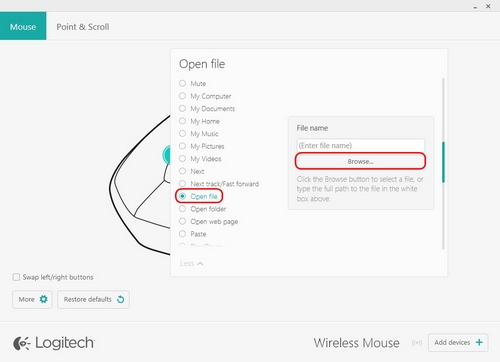
- Select Open file from the list of options.
- Click on Browse to locate the file on your computer or enter the computer path and file name in the box.
- Select Open folder from the list of options.
- Click on Browse to locate the folder on your computer or enter the computer path and folder name in the box.
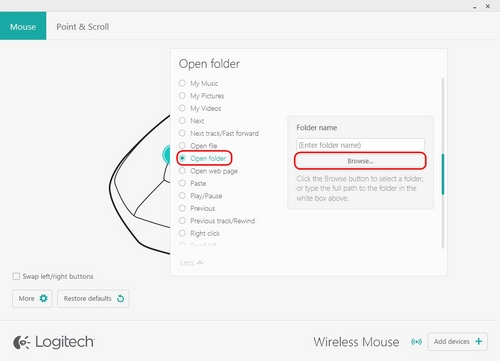
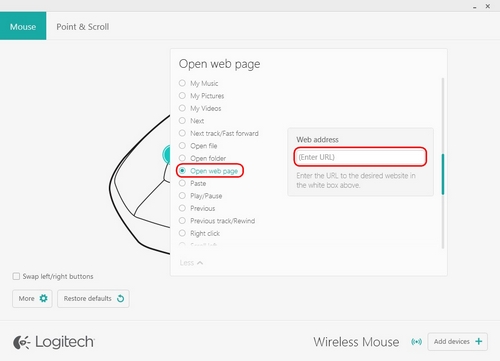
- Select Open web page from the list of options.
- On the right, under Web address, click inside the box and type or paste in the URL link of the web page. It will be automatically saved.
Important Notice: The Firmware Update Tool is no longer supported or maintained by Logitech. We highly recommend using Logi Options+ for your supported Logitech devices. We are here to assist you during this transition.
Important Notice: The Logitech Preference Manager is no longer supported or maintained by Logitech. We highly recommend using Logi Options+ for your supported Logitech devices. We are here to assist you during this transition.
Important Notice: The Logitech Control Center is no longer supported or maintained by Logitech. We highly recommend using Logi Options+ for your supported Logitech devices. We are here to assist you during this transition.
Important Notice: The Logitech Connection Utility is no longer supported or maintained by Logitech. We highly recommend using Logi Options+ for your supported Logitech devices. We are here to assist you during this transition.
Important Notice: The Unifying Software is no longer supported or maintained by Logitech. We highly recommend using Logi Options+ for your supported Logitech devices. We are here to assist you during this transition.
Important Notice: The SetPoint software is no longer supported or maintained by Logitech. We highly recommend using Logi Options+ for your supported Logitech devices. We are here to assist you during this transition.
Frequently Asked Questions
There are no products available for this section
There are no Downloads for this Product
There are no Downloads for this Version.
Compatible Product
