NOTE: For help choosing between the two modes, see Choose between gaming mouse On-Board Memory and Automatic Game Detection modes. LGS does not detect to the G603 gaming mouse while connected to a computer in Bluetooth mode. Left and right mouse button commands can only be swapped.
Automatic Game Detection
- Open LGS.
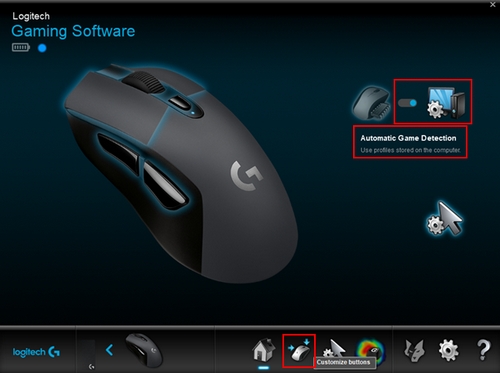
- In the Home window, make sure the blue toggle marker is set to Automatic Game Detection, and then click the glowing Customize buttons icon.
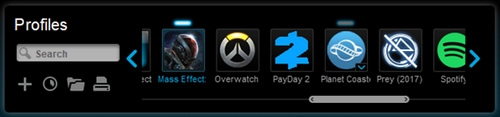
- Click on the profile you want to customize command assignments for. The active profile will have a blue highlight bar above its name.
- To assign a command to a mouse button, do one of the following:
- Double-click on the listed assignment to begin assigning a new command.
- Drag and drop an existing command from the Commands list in the left pane onto a mouse button. When you drag a command over the button, the area will become highlighted.
- You can also right-click on a button or its assignment for additional options:

- Assign New Command — click to open the Command Editor window.
- Edit Command — click to open the Command Editor window.
- Use Generic — click to revert the command assignment to its original state.
- Unassign — click to remove all command assignments from the selected mouse button.
On-Board Memory
- Open LGS.
- In the Home window, make sure the blue toggle marker is set to On-Board Memory, and then click the Customize on-board profile icon.
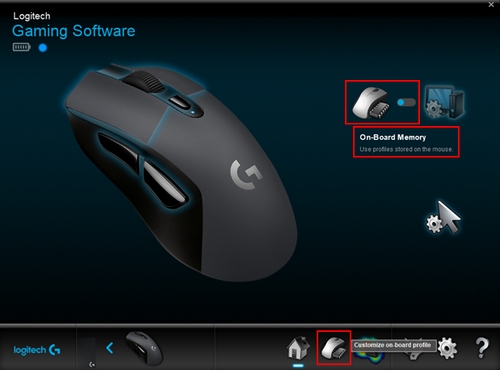
- To assign a command to a mouse button, double-click on the listed assignment or right click on any mouse button for additional options:
- Assign New Command — click to open the Command Editor window.
- Edit Command — click to open the Command Editor window.
- Use Generic — click to revert the command assignment to its original state.
- Unassign — click to remove all command assignments from the selected mouse button.
- You can create or edit a command using the following customization options:
- Keystroke — assign a single key press or a key press with modifiers.
- Multi Key — assign a "macro'd" series of keystrokes (either with or without recorded time delays).
- Text Block — create a block of text to be typed out when the mouse button is pressed.
- Mouse Function — assign a mouse button to use any of the available mouse functions.
- Media — set a mouse button to control media playback or volume.
- Hotkeys — use a predefined keystroke command.
- Shortcut — assign a mouse button to launch a file, folder, drive, or Web page on your computer.
- Function — assign a mouse button to act like a Microsoft function key (ex. to open your web browser).
- Ventrilo — assign a mouse button for Ventrilo commands, if installed on your computer.
- Click OK to assign the desired command to the mouse button.
Important Notice: The Firmware Update Tool is no longer supported or maintained by Logitech. We highly recommend using Logi Options+ for your supported Logitech devices. We are here to assist you during this transition.
Important Notice: The Logitech Preference Manager is no longer supported or maintained by Logitech. We highly recommend using Logi Options+ for your supported Logitech devices. We are here to assist you during this transition.
Important Notice: The Logitech Control Center is no longer supported or maintained by Logitech. We highly recommend using Logi Options+ for your supported Logitech devices. We are here to assist you during this transition.
Important Notice: The Logitech Connection Utility is no longer supported or maintained by Logitech. We highly recommend using Logi Options+ for your supported Logitech devices. We are here to assist you during this transition.
Important Notice: The Unifying Software is no longer supported or maintained by Logitech. We highly recommend using Logi Options+ for your supported Logitech devices. We are here to assist you during this transition.
Important Notice: The SetPoint software is no longer supported or maintained by Logitech. We highly recommend using Logi Options+ for your supported Logitech devices. We are here to assist you during this transition.
Frequently Asked Questions
There are no products available for this section
There are no Downloads for this Product
There are no Downloads for this Version.
Compatible Product
