Squeezebox Touch comes with a pre-loaded list of radio stations. To add your own preferred radio stations to your Squeezebox Touch, do the following:
Adding stations using Windows or Macintosh:
-
Launch Squeezebox Server:
-
For Windows XP, Vista, and Windows 7, right-click on the Squeezebox Server icon in your system tray and select ‘Open Web Control’ as shown below:
Windows XP / Vista Windows 7 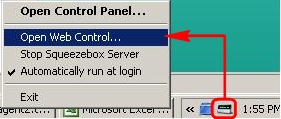
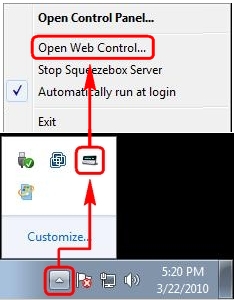
-
For Macintosh:
-
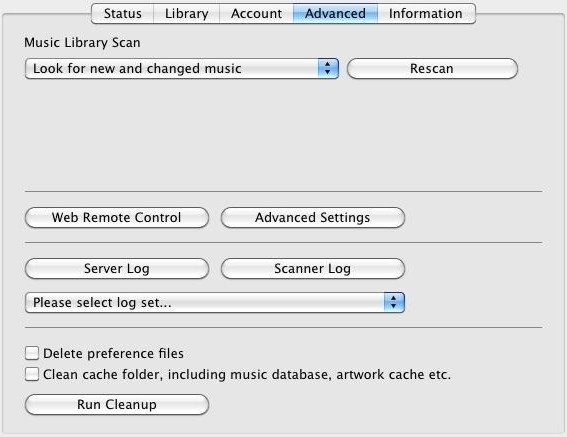
Go to System Preferences > Squeezebox Server and click the Advanced tab as shown below:
-
Click on Web Remote Control as shown below:

-
-
For Windows Home Server:
-
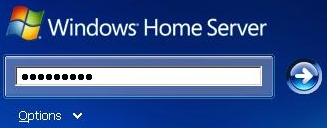
Open the Windows Home Server Console and log into Windows Home Server:
-
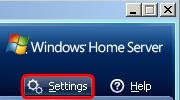
Click Settings in the top right corner:
-
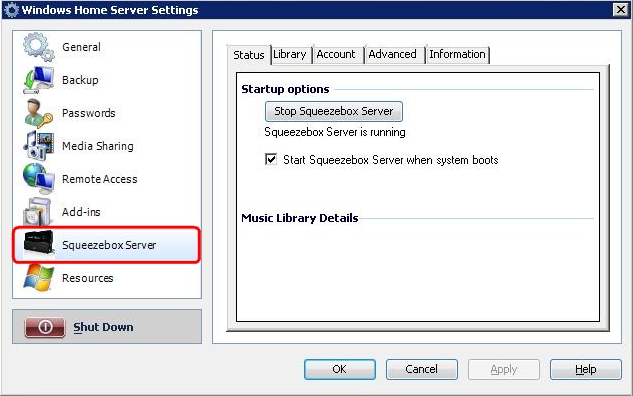
Click on Squeezebox Server:
-
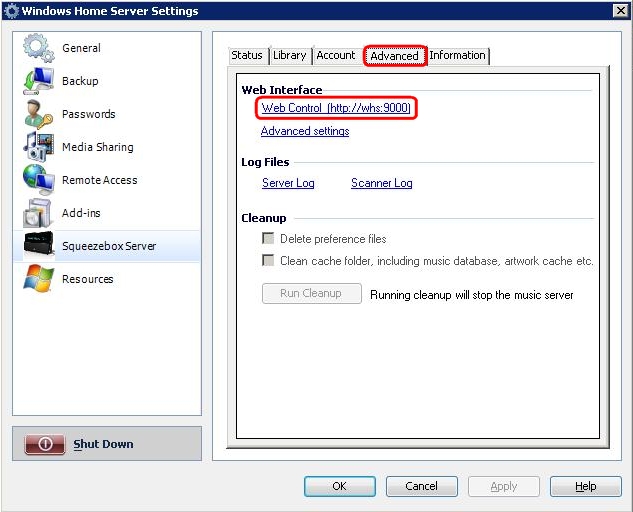
Go to the Advanced Tab, and click ‘Web Control (http://whs:9000)’:
-
NOTE: The following screenshots were taken on Windows XP but the screens are identical for Macintosh and all Windows versions.
-
-
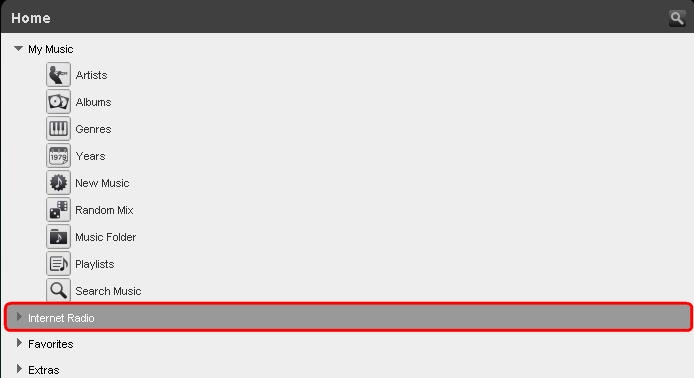
Go to Internet Radio:
-
Click Tune in to URL:
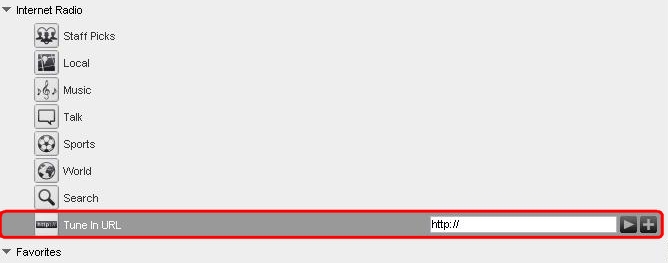
-
Enter the URL of the station you wish to listen to and click Add:
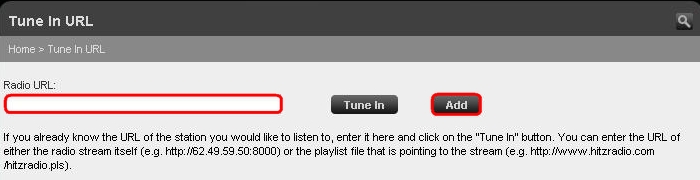
NOTE: You will need to find this information from the radio station itself.
-
Click Save:

-
Go to Home > Playlists > Name section, enter a name for your station and click Save:

-
Your station will now be listed under the Playlist section in Squeezebox Server:
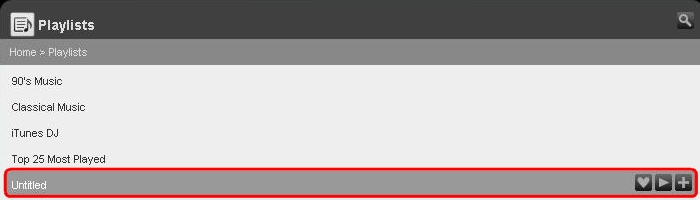
Adding stations using Mysqueezebox.com:
To add stations to mysqueezebox.com, do the following:
-
In your Web browser, open your mysqueezebox.com home page.
-
Click Favorites at the top of the screen:
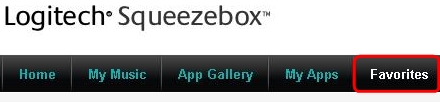
-
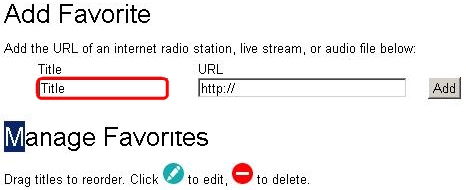
Under the Add Favorites section, enter a Title for your station:
-
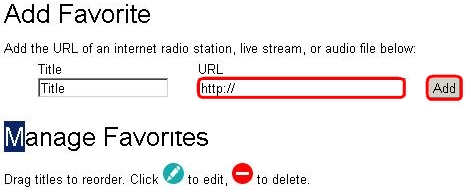
Enter the URL for your station, and click Add:
NOTE: You will need to find this information from the radio station itself.
The station will now be listed under the Favorites menu on your Squeezebox Touch, and also under Favorites > Manage Favorites within mysqueezebox.com
Additional Information:
For information on what radio streams are supported on Squeezebox Touch, please see Knowledge Base article 360023227034.
Important Notice: The Firmware Update Tool is no longer supported or maintained by Logitech. We highly recommend using Logi Options+ for your supported Logitech devices. We are here to assist you during this transition.
Important Notice: The Logitech Preference Manager is no longer supported or maintained by Logitech. We highly recommend using Logi Options+ for your supported Logitech devices. We are here to assist you during this transition.
Important Notice: The Logitech Control Center is no longer supported or maintained by Logitech. We highly recommend using Logi Options+ for your supported Logitech devices. We are here to assist you during this transition.
Important Notice: The Logitech Connection Utility is no longer supported or maintained by Logitech. We highly recommend using Logi Options+ for your supported Logitech devices. We are here to assist you during this transition.
Important Notice: The Unifying Software is no longer supported or maintained by Logitech. We highly recommend using Logi Options+ for your supported Logitech devices. We are here to assist you during this transition.
Important Notice: The SetPoint software is no longer supported or maintained by Logitech. We highly recommend using Logi Options+ for your supported Logitech devices. We are here to assist you during this transition.
Frequently Asked Questions
There are no products available for this section
There are no Downloads for this Product
There are no Downloads for this Version.
Compatible Product
