NOTE: Icons may vary between Android 3.0+ tablets. See your tablet's user guide if you're unable to locate a specific icon.
-
Tap the Apps icon on your Android 3.0+ tablet.

-
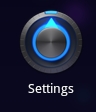
In the Apps pane, tap Settings icon.
-
In Settings, tap Wireless & Networks.

-
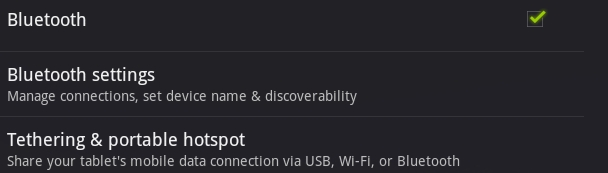
Make sure Bluetooth is turned on. It will have a green check mark. If Bluetooth is not turned on, tap once on Bluetooth to enable it.

-
Tap Bluetooth Settings.
-
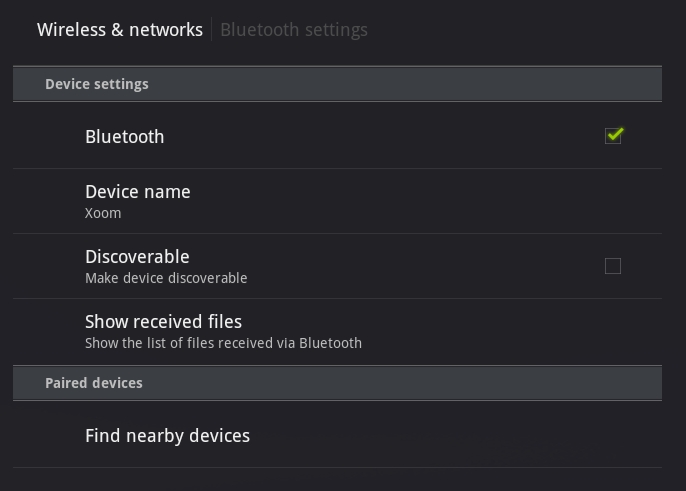
In the Bluetooth Settings, tap once on Find nearby devices.
-
Move the power switch on your keyboard to ON.
-
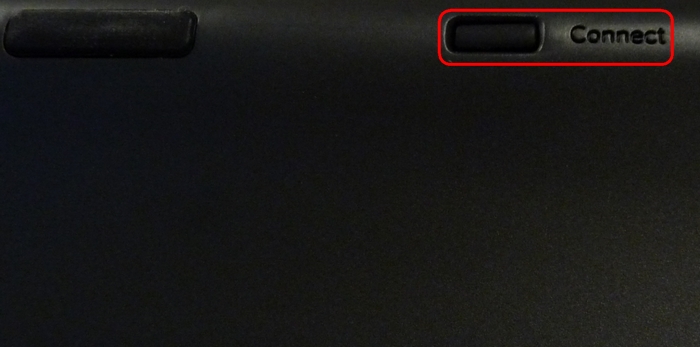
Press the Connect button on the rear of the keyboard. The Bluetooth LED should start blinking.
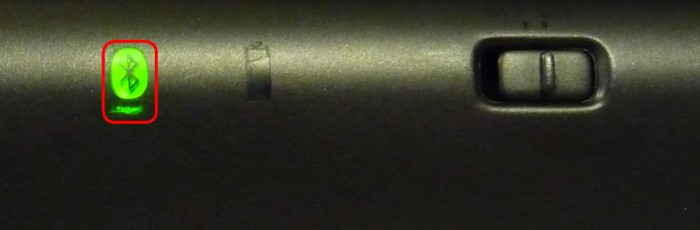
The keyboard case should become visible on the Tablet screen shortly.
-
Tap once on the name of the device you want to pair.
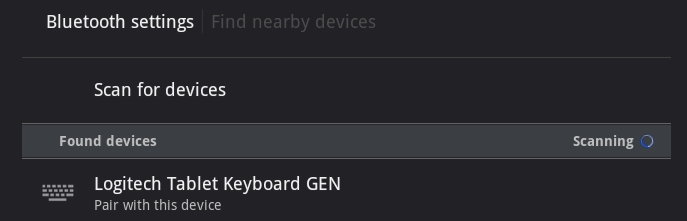
-
On your keyboard, type the PIN code shown on-screen and then press Enter.
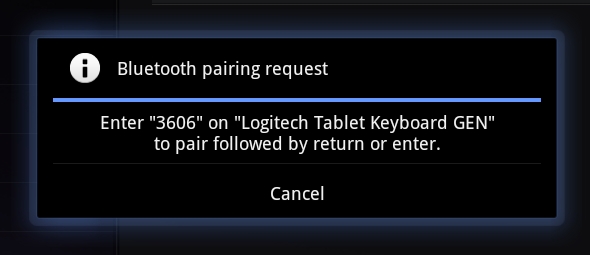
NOTE: Each connect code is randomly generated. Make sure you enter the one shown on your tablet's screen.
Once you press Enter, the pop-up should disappear and the word Connected should show beside your keyboard in the Devices list.
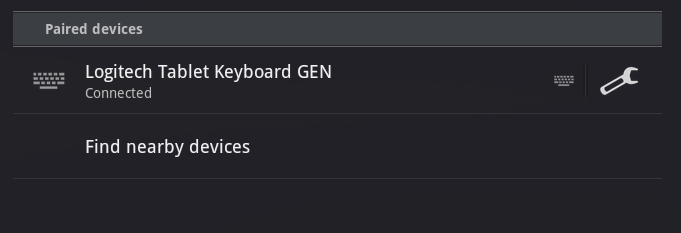
Your Logitech Tablet Keyboard is now connected.
Important Notice: The Firmware Update Tool is no longer supported or maintained by Logitech. We highly recommend using Logi Options+ for your supported Logitech devices. We are here to assist you during this transition.
Important Notice: The Logitech Preference Manager is no longer supported or maintained by Logitech. We highly recommend using Logi Options+ for your supported Logitech devices. We are here to assist you during this transition.
Important Notice: The Logitech Control Center is no longer supported or maintained by Logitech. We highly recommend using Logi Options+ for your supported Logitech devices. We are here to assist you during this transition.
Important Notice: The Logitech Connection Utility is no longer supported or maintained by Logitech. We highly recommend using Logi Options+ for your supported Logitech devices. We are here to assist you during this transition.
Important Notice: The Unifying Software is no longer supported or maintained by Logitech. We highly recommend using Logi Options+ for your supported Logitech devices. We are here to assist you during this transition.
Important Notice: The SetPoint software is no longer supported or maintained by Logitech. We highly recommend using Logi Options+ for your supported Logitech devices. We are here to assist you during this transition.
Frequently Asked Questions
There are no products available for this section
There are no Downloads for this Product
There are no Downloads for this Version.
Compatible Product
