NOTE: Windows 7 and Windows XP have similar settings in USB root HUB power management.
Follow the all of the steps below to fix this issue:
- Change the option Allow the computer to turn off this device to save power for the Yoke:
- Click Start and in the search box, type device manager. Click Device Manager in the Programs list. If you are prompted for an administrator password or confirmation, type your password or click Continue.
- Click the arrow next to Universal Serial Bus controllers to expand the list, then right-click USB Root Hub, and click Properties.
- In the USB Root Hub Properties window, click the Power Management tab. Uncheck the Allow the computer to turn off this device to save power checkbox in order to disable this setting.
- Enable the USB selective suspend option. Do the following:
- Click Start and in the search box, type power options. Click Power Options in the Programs list. If you are prompted for an administrator password or confirmation, type your password or click Continue.
- To the right of your selected power plan, click Change plan settings.
- Click Change advanced power settings. The Power Options window appears.
- In the Power Options window, expand USB settings, and then expand USB selective suspend setting.
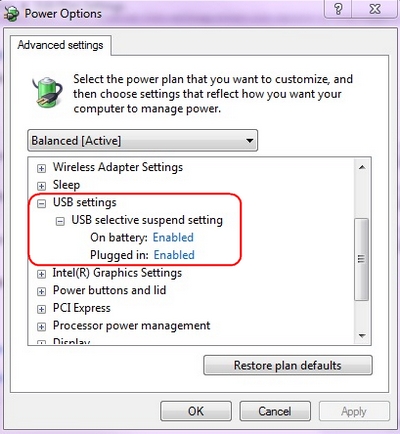
- (For laptop users only) To prevent Windows from turning off the USB root hub when the computer is running ‘On battery’ power, select Disabled in the On battery list.
- To prevent Windows from turning off the USB root hub when the computer is ‘Plugged in’ to a power outlet, select Disabled in the Plugged in list, and then click OK.
Important Notice: The Firmware Update Tool is no longer supported or maintained by Logitech. We highly recommend using Logi Options+ for your supported Logitech devices. We are here to assist you during this transition.
Important Notice: The Logitech Preference Manager is no longer supported or maintained by Logitech. We highly recommend using Logi Options+ for your supported Logitech devices. We are here to assist you during this transition.
Important Notice: The Logitech Control Center is no longer supported or maintained by Logitech. We highly recommend using Logi Options+ for your supported Logitech devices. We are here to assist you during this transition.
Important Notice: The Logitech Connection Utility is no longer supported or maintained by Logitech. We highly recommend using Logi Options+ for your supported Logitech devices. We are here to assist you during this transition.
Important Notice: The Unifying Software is no longer supported or maintained by Logitech. We highly recommend using Logi Options+ for your supported Logitech devices. We are here to assist you during this transition.
Important Notice: The SetPoint software is no longer supported or maintained by Logitech. We highly recommend using Logi Options+ for your supported Logitech devices. We are here to assist you during this transition.
Frequently Asked Questions
There are no products available for this section
There are no Downloads for this Product
There are no Downloads for this Version.
Compatible Product
