To disable the standard Windows and Menu keys, toggle the Game/Windows button on your G610 gaming keyboard. This prevents the Windows Start menu from activating during a game, which might disrupt play. The Game Mode button lights up when Game Mode is active.
NOTE: For information on toggling Game Mode on your gaming keyboard, see Game Mode and backlighting control on the G610 gaming keyboard.
Disable keys in Game Mode
In addition to the Windows and Menu keys, other keys can be disabled in Game Mode using Logitech Gaming Software (LGS). Click the Game Mode Settings icon to begin disabling keys on your keyboard.
NOTE: If you don’t have Logitech Gaming Software, you can get the latest version from the G610 Download page.
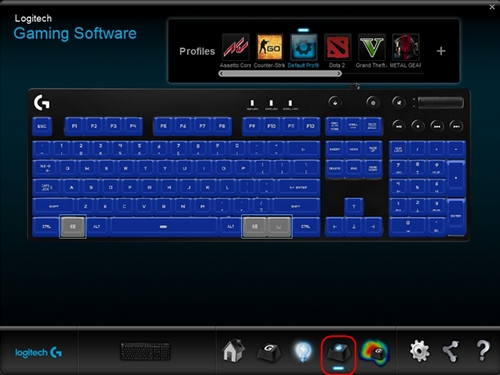
In the Game Mode Settings window, click on the key you want to disable. Enabled keys are shown in blue, and disabled keys are gray. To re-enable a disabled key, click on the key again. You can disable keys in Game Mode for any profile.
NOTE: The Windows and Menu keys are disabled by default.
For more information on creating profiles for your gaming keyboard, see Creating new gaming-keyboard profiles.
Important Notice: The Firmware Update Tool is no longer supported or maintained by Logitech. We highly recommend using Logi Options+ for your supported Logitech devices. We are here to assist you during this transition.
Important Notice: The Logitech Preference Manager is no longer supported or maintained by Logitech. We highly recommend using Logi Options+ for your supported Logitech devices. We are here to assist you during this transition.
Important Notice: The Logitech Control Center is no longer supported or maintained by Logitech. We highly recommend using Logi Options+ for your supported Logitech devices. We are here to assist you during this transition.
Important Notice: The Logitech Connection Utility is no longer supported or maintained by Logitech. We highly recommend using Logi Options+ for your supported Logitech devices. We are here to assist you during this transition.
Important Notice: The Unifying Software is no longer supported or maintained by Logitech. We highly recommend using Logi Options+ for your supported Logitech devices. We are here to assist you during this transition.
Important Notice: The SetPoint software is no longer supported or maintained by Logitech. We highly recommend using Logi Options+ for your supported Logitech devices. We are here to assist you during this transition.
Frequently Asked Questions
There are no products available for this section
There are no Downloads for this Product
There are no Downloads for this Version.
Compatible Product
