You need to have the Logitech SetPoint Mouse and Keyboard Software installed for the MX5500 mouse to scroll left and right.
If you don't have the latest version of SetPoint installed, go to the MX5500 Downloads Page to get it. Once SetPoint is installed, you should be able to control the horizontal scrolling by pushing the scroll wheel left and right.
If the horizontal scroll doesn't work after installing SetPoint:
-
Launch the Logitech SetPoint Mouse and Keyboard Software.
Start > Programs > Logitech > Mouse and Keyboard > Mouse and Keyboard Settings
-
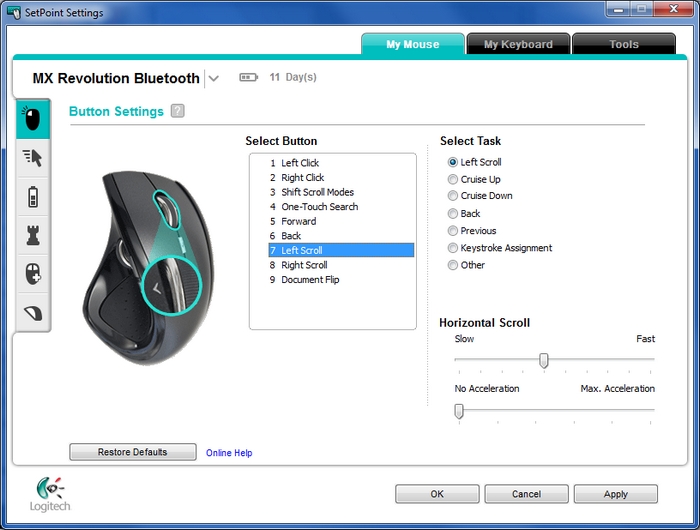
Once SetPoint opens, click the My Mouse tab at the top of the SetPoint Settings window.
NOTE: If you have more than one Logitech mouse and the MX Revolution Bluetooth isn't currently displayed, click the down-arrow icon next to the current product name and select it from the drop-down menu that displays.
-
Click the mouse icon at the top of the left toolbar to display the Button Settings screen.
-
In the Select Button field, choose "7. Left Scroll".
-
In the Select Task list, choose "Left Scroll".
-
Use the sliders to select your horizontal scrolling speed and acceleration and then click Apply.
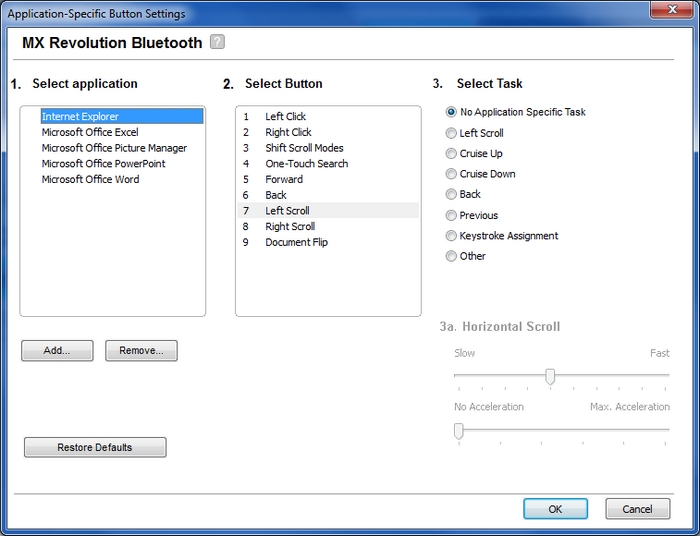
To verify your horizontal scroll settings for each application:
-
Select "Advanced Settings".
-
Click the Configure button.
- Click through the applications in the list and make any desired changes.
-
Click OK to exit SetPoint.
Contact information
If you're still having the same issue, see Knowledge Base article 20265 for how to contact us about this product.
Important Notice: The Firmware Update Tool is no longer supported or maintained by Logitech. We highly recommend using Logi Options+ for your supported Logitech devices. We are here to assist you during this transition.
Important Notice: The Logitech Preference Manager is no longer supported or maintained by Logitech. We highly recommend using Logi Options+ for your supported Logitech devices. We are here to assist you during this transition.
Important Notice: The Logitech Control Center is no longer supported or maintained by Logitech. We highly recommend using Logi Options+ for your supported Logitech devices. We are here to assist you during this transition.
Important Notice: The Logitech Connection Utility is no longer supported or maintained by Logitech. We highly recommend using Logi Options+ for your supported Logitech devices. We are here to assist you during this transition.
Important Notice: The Unifying Software is no longer supported or maintained by Logitech. We highly recommend using Logi Options+ for your supported Logitech devices. We are here to assist you during this transition.
Important Notice: The SetPoint software is no longer supported or maintained by Logitech. We highly recommend using Logi Options+ for your supported Logitech devices. We are here to assist you during this transition.
Frequently Asked Questions
There are no products available for this section
There are no Downloads for this Product
There are no Downloads for this Version.
Compatible Product
