You can connect your keyboard to an iPad running iOS 13.1 or later or iPhone running iOS 13 or later. Here's how:
- With your iPad or iPhone turned on, tap the Settings icon.

- In Settings, tap General and then Bluetooth.
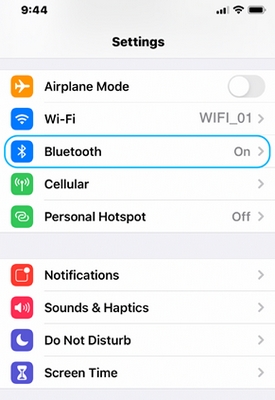
- If the on-screen switch beside Bluetooth doesn't currently show as ON, tap it once to enable it.

- Remove the pull-tab from the back of the keyboard and it will be turned ON.
- Long press channel 1, 2, or 3 for three seconds to enter pairing mode. The LED on top of the channel key will start blinking. You can save up to three devices to memory on the keyboard.
- On your iPad or iPhone, in the Devices list, tap K380 for Mac to pair it.

- Your keyboard will request a PIN code to complete the connection. On your keyboard, type the code shown on-screen, and then press the Return or Enter key.
NOTE: Each connect code is randomly generated. Make sure you enter the one shown on your iPad or iPhone screen. - Once you press Enter (if required), the pop-up will disappear, and Connected will appear beside your keyboard in the Devices list. The LED on your keyboard will stop blinking and remain ON for 10 seconds.
- Your keyboard should now be connected to your iPad or iPhone.
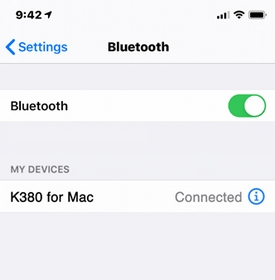
NOTE: If the K380 for Mac is already paired but having problems connecting, remove it from the Devices list and then follow the instructions above to connect it.
Important Notice: The Firmware Update Tool is no longer supported or maintained by Logitech. We highly recommend using Logi Options+ for your supported Logitech devices. We are here to assist you during this transition.
Important Notice: The Logitech Preference Manager is no longer supported or maintained by Logitech. We highly recommend using Logi Options+ for your supported Logitech devices. We are here to assist you during this transition.
Important Notice: The Logitech Control Center is no longer supported or maintained by Logitech. We highly recommend using Logi Options+ for your supported Logitech devices. We are here to assist you during this transition.
Important Notice: The Logitech Connection Utility is no longer supported or maintained by Logitech. We highly recommend using Logi Options+ for your supported Logitech devices. We are here to assist you during this transition.
Important Notice: The Unifying Software is no longer supported or maintained by Logitech. We highly recommend using Logi Options+ for your supported Logitech devices. We are here to assist you during this transition.
Important Notice: The SetPoint software is no longer supported or maintained by Logitech. We highly recommend using Logi Options+ for your supported Logitech devices. We are here to assist you during this transition.
Frequently Asked Questions
There are no products available for this section
There are no Downloads for this Product
There are no Downloads for this Version.
Compatible Product
