For Windows and macOS you can use the Logi Options+ app available for Windows or macOS to pair your device(s) to a Logi Bolt receiver. For this pairing process, you will need to download and install Logi Options+.
-
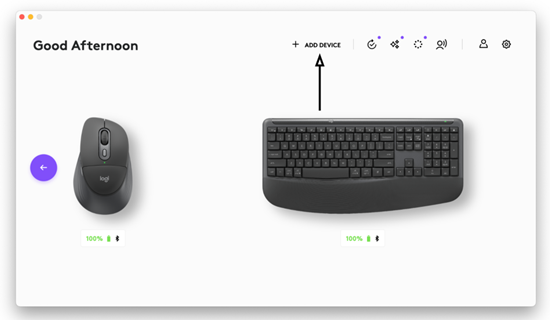
Once installed, open Logi Options+ and click ADD DEVICE (as shown below):
-
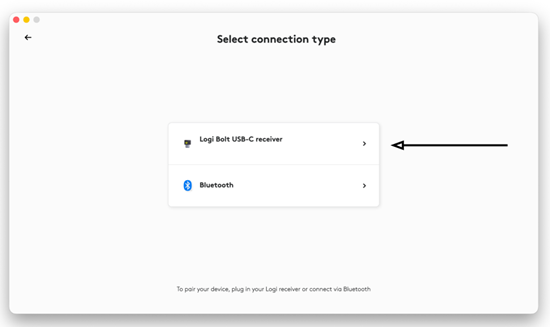
Connect the Logi Bolt receiver to your computer and in the Select connection type window, click Logi Bolt USB-C receiver.
- On your mouse, short-press the connect button at the bottom of the mouse until the LED of the selected channel for connection will light up. Put the selected channel in pairing mode by long-pressing the connect button until the LED starts blinking fast.
- On your keyboard, short-press the Easy-Switch channel key to assign the receiver to. You will see an LED light up on that key. To put it on pairing mode, long-press the same key until you see the LED blinking fast.
-
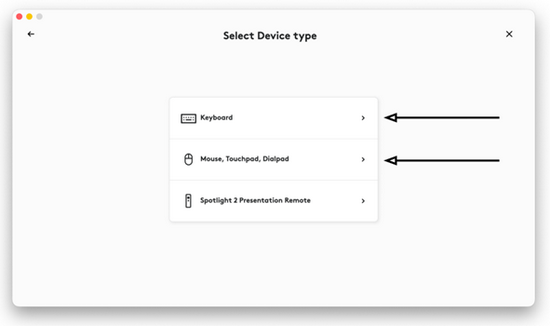
In the Select Device type window, select the category depending on which peripheral you want to pair to your receiver:
-
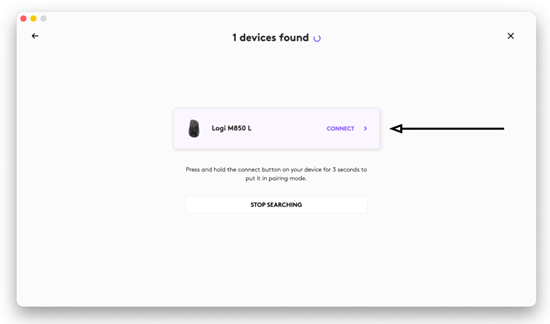
Select your peripheral — you’ll be prompted to verify your device by pressing a random series of buttons from the mouse or a passcode on your keyboard:
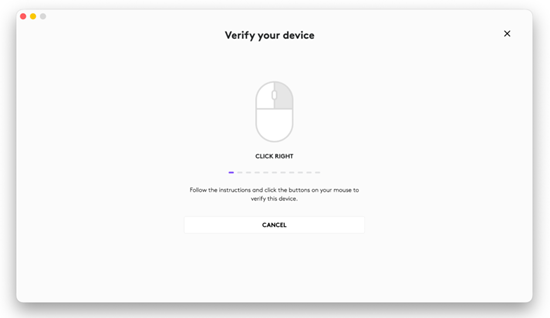
- Once finished, your mouse or keyboard will be ready to use.
NOTE For Chrome OS, you can pair a new Logi Bolt receiver using the Logi Web Connect tool. The process is similar to the one for the Logi Options+ app, and will pair your peripheral to your Chrome computer.
Important Notice: The Firmware Update Tool is no longer supported or maintained by Logitech. We highly recommend using Logi Options+ for your supported Logitech devices. We are here to assist you during this transition.
Important Notice: The Logitech Preference Manager is no longer supported or maintained by Logitech. We highly recommend using Logi Options+ for your supported Logitech devices. We are here to assist you during this transition.
Important Notice: The Logitech Control Center is no longer supported or maintained by Logitech. We highly recommend using Logi Options+ for your supported Logitech devices. We are here to assist you during this transition.
Important Notice: The Logitech Connection Utility is no longer supported or maintained by Logitech. We highly recommend using Logi Options+ for your supported Logitech devices. We are here to assist you during this transition.
Important Notice: The Unifying Software is no longer supported or maintained by Logitech. We highly recommend using Logi Options+ for your supported Logitech devices. We are here to assist you during this transition.
Important Notice: The SetPoint software is no longer supported or maintained by Logitech. We highly recommend using Logi Options+ for your supported Logitech devices. We are here to assist you during this transition.
Frequently Asked Questions
There are no products available for this section
There are no Downloads for this Product
There are no Downloads for this Version.
Compatible Product
