Which plugins are available for developers?
We have developed plugins for:
- Visual Studio Code IDE (standard version and Insider)
- IntelliJ IDE
Also, if you open the marketplace and look for the Coding category, you will find several other plugins for developers that have been developed by 3rd parties, such as:
- Claude Console
- OpenAI Codex
- AgentDeck
- Cursivis
- VoxRing
Do you have a plugin for Microsoft Visual Studio?
No, the plugin only works with Visual Studio Code (VS Code), the standard and Insider versions.
Does the plugin for VS Code also work for the Insider version?
Yes. You can simply install the plugin and its associated extension, and you’ll be set.
How can I set up my device to work with Visual Studio Code?
- Make sure that you have Visual Studio Code installed on your computer.
-
Install the plugin by doing one of the steps below:
- During the onboarding process, the SW should detect the VS Code installation and offer you the option to install the plugin automatically.
-
You can also manually open the marketplace, search for the VS Code plugin, and follow the installation steps.
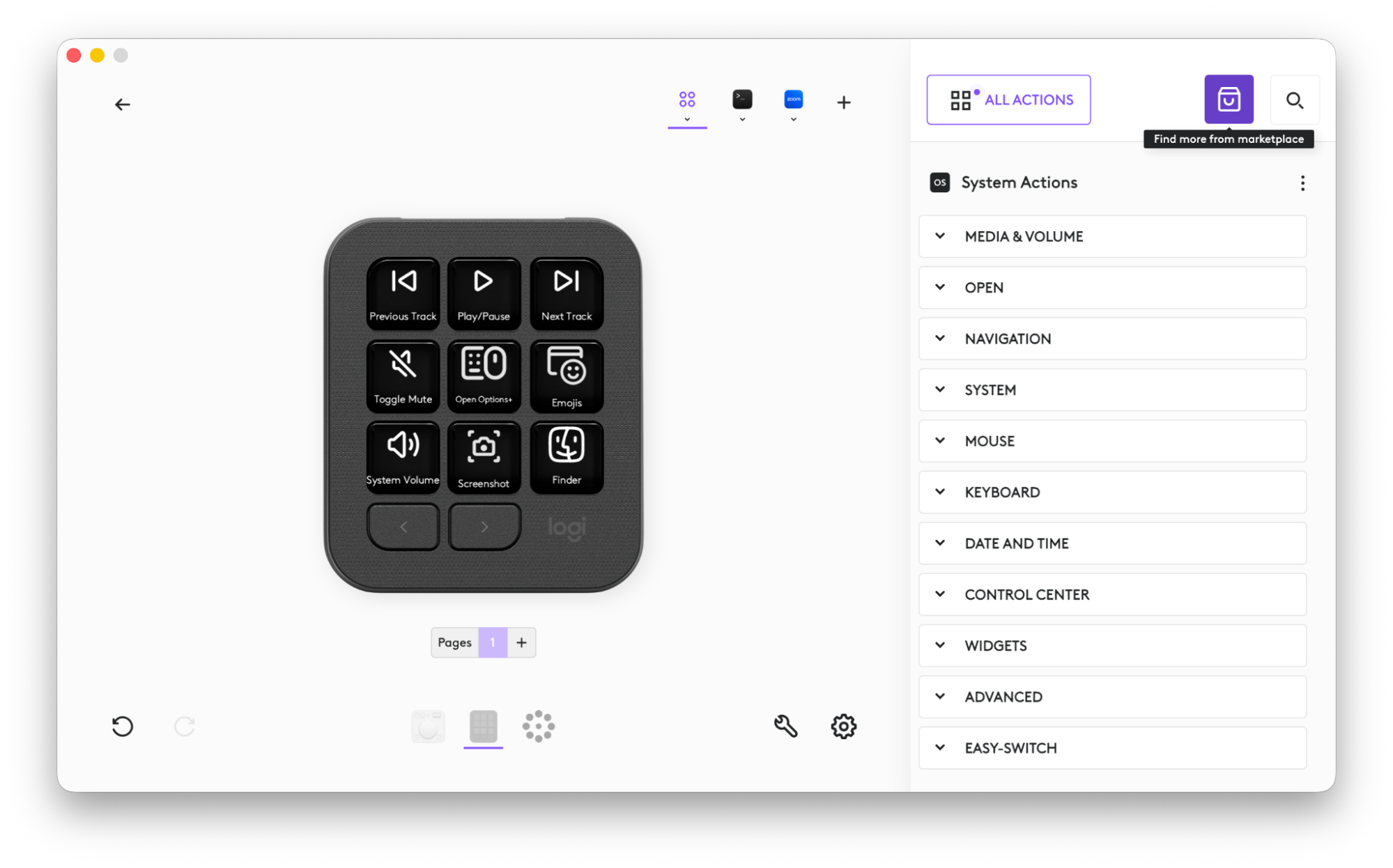
- Click on the + button near the application profiles > select an application profile > search for VS Code and then install it.
- You will need to install the required extension in Visual Studio Code (VS Code). If the extension isn’t installed, VS Code will display the following error message:
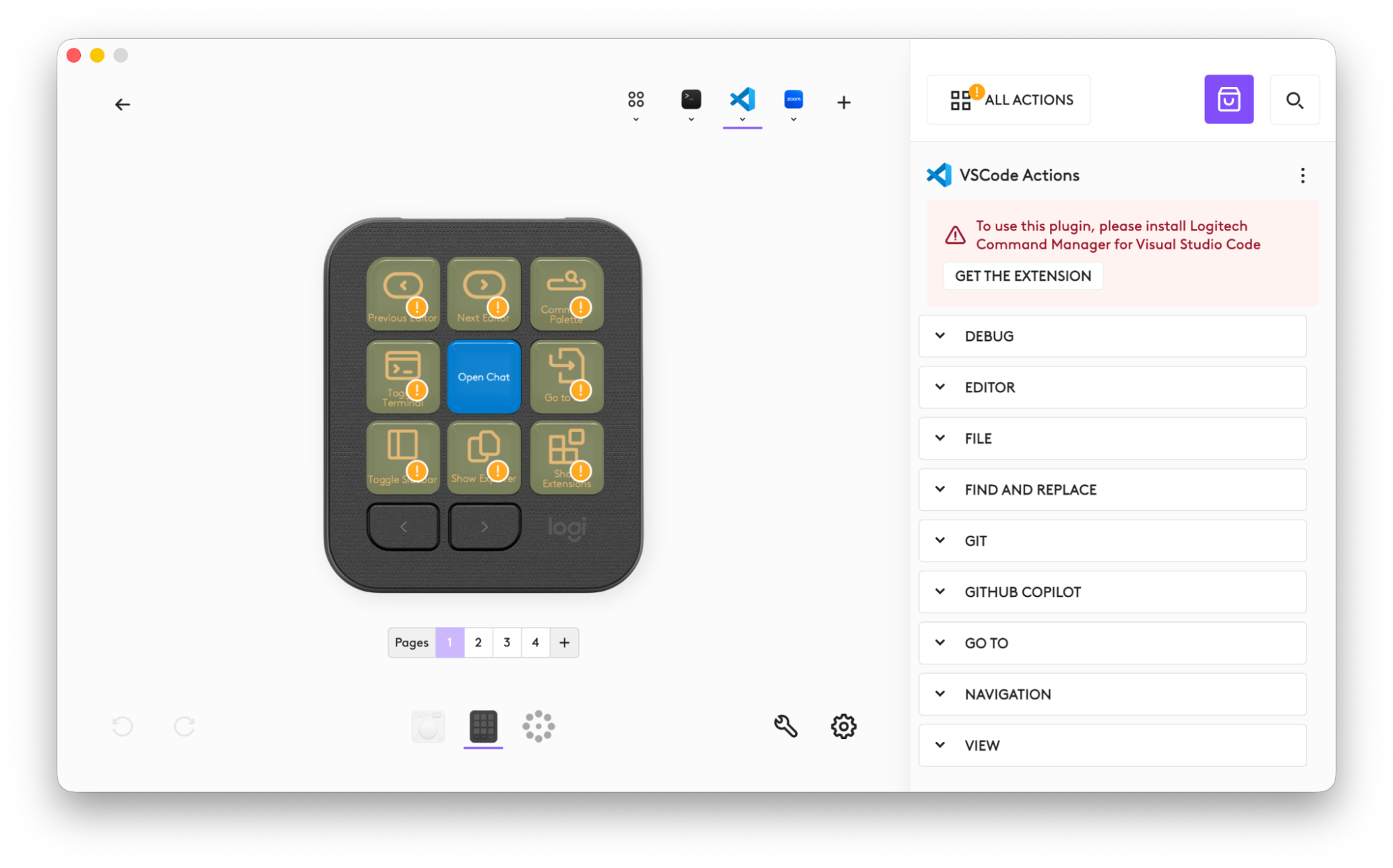
- Click on the GET THE EXTENSION button and install the extension from the official Visual Studio marketplace
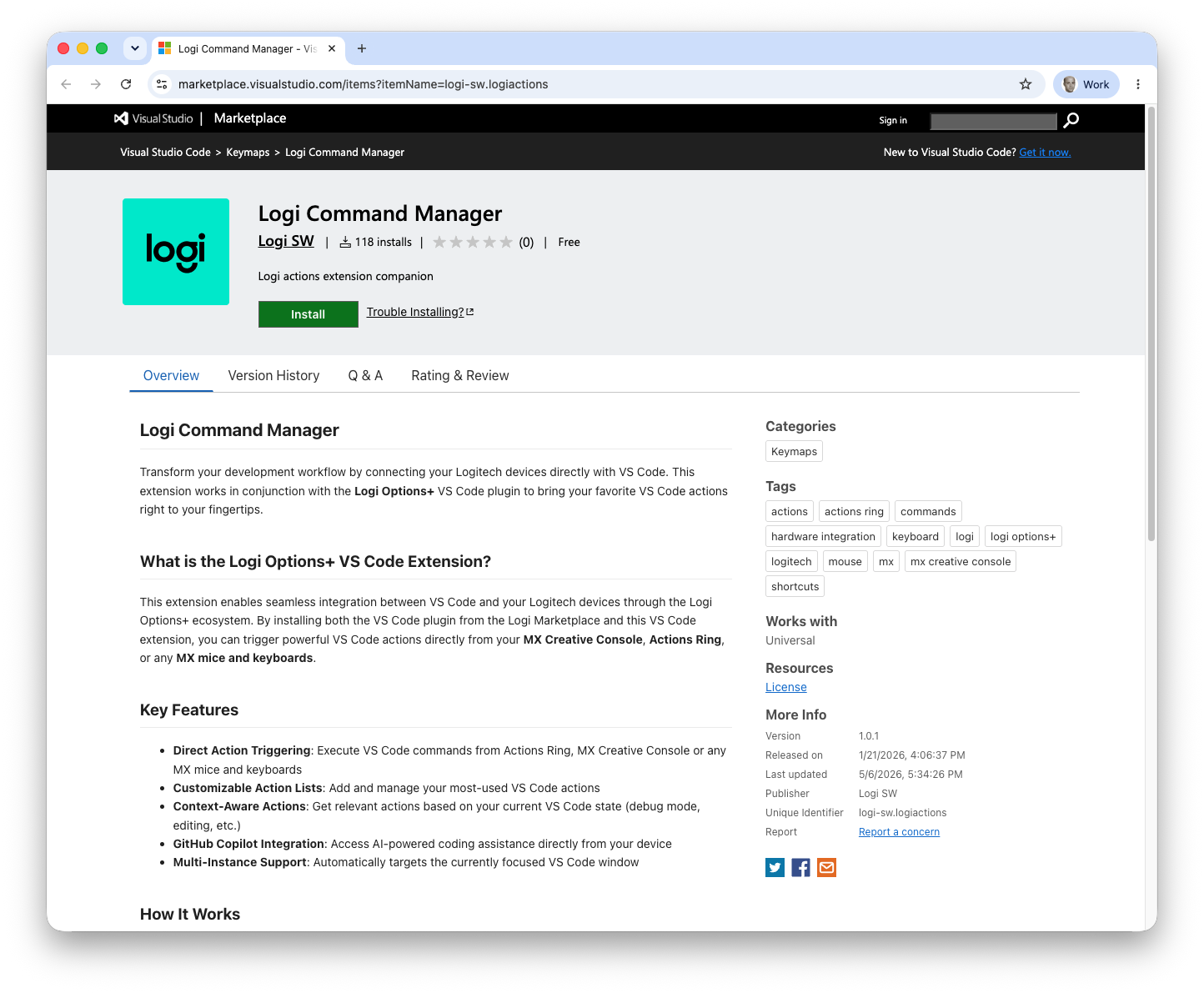
- Follow the install instructions
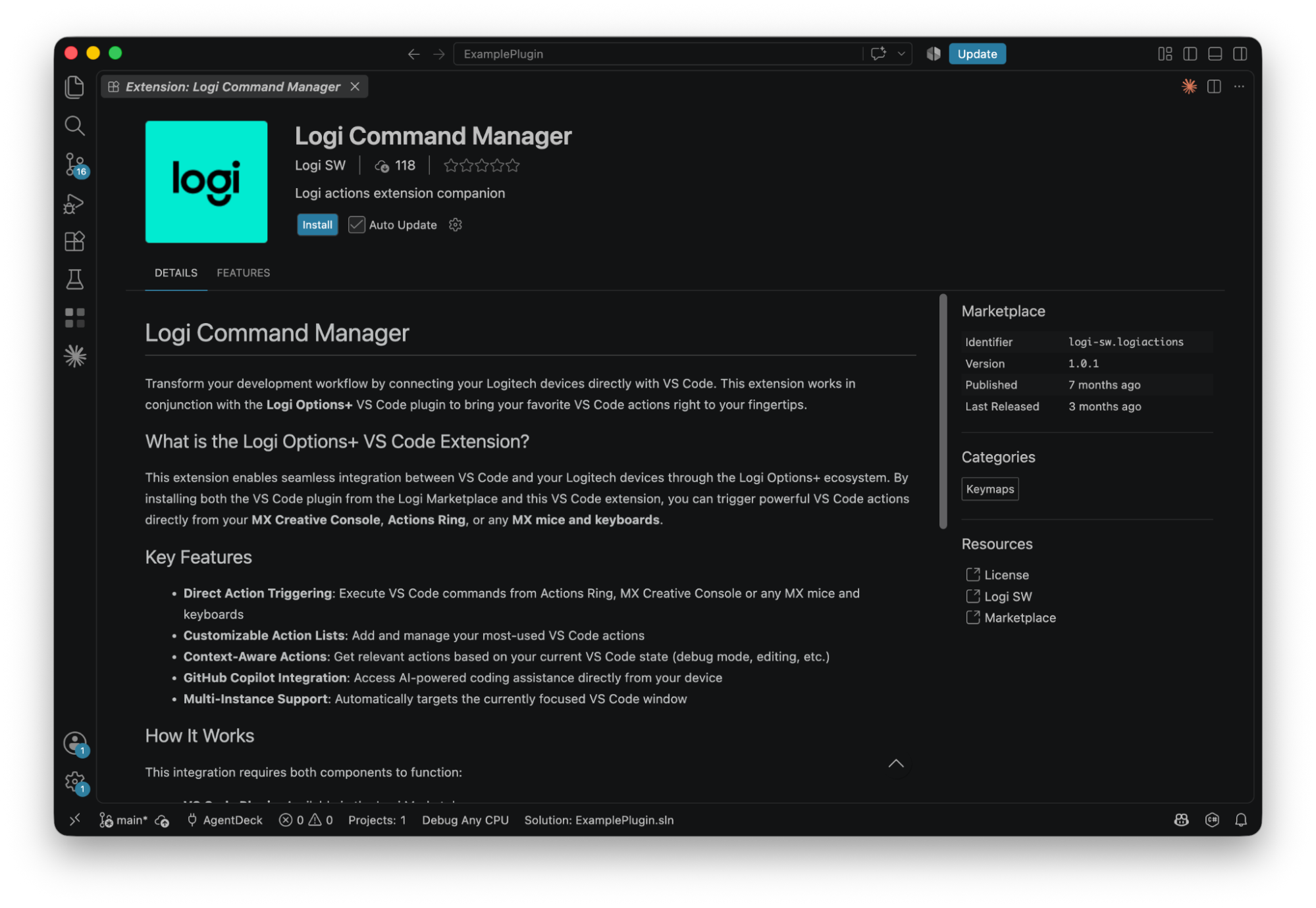
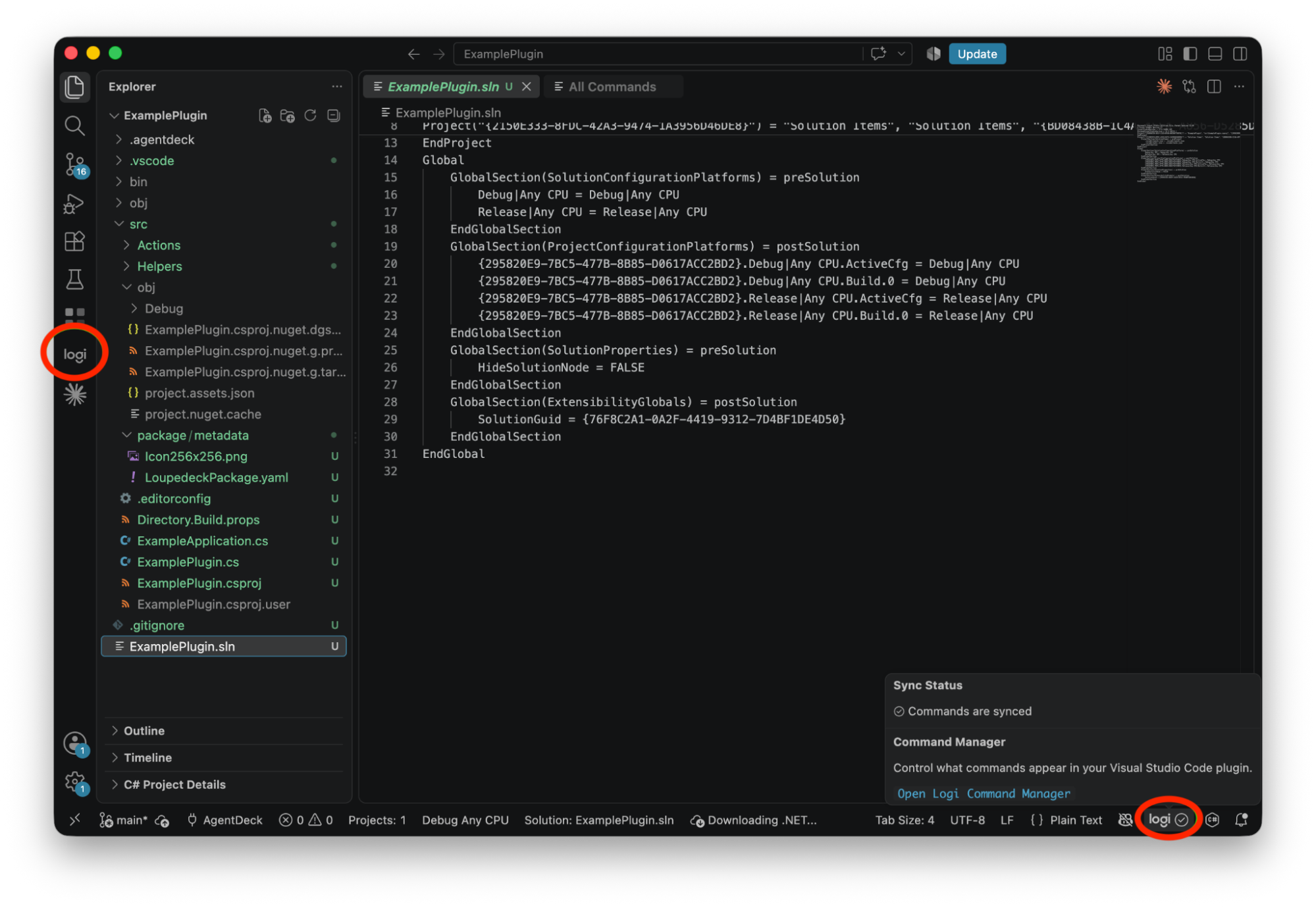
- Open the Logi Command Manager extension in VS Code by selecting its icon in the left sidebar. You can also access it by selecting the smaller Logi Command Manager icon in the bottom-right corner of the VS Code window.
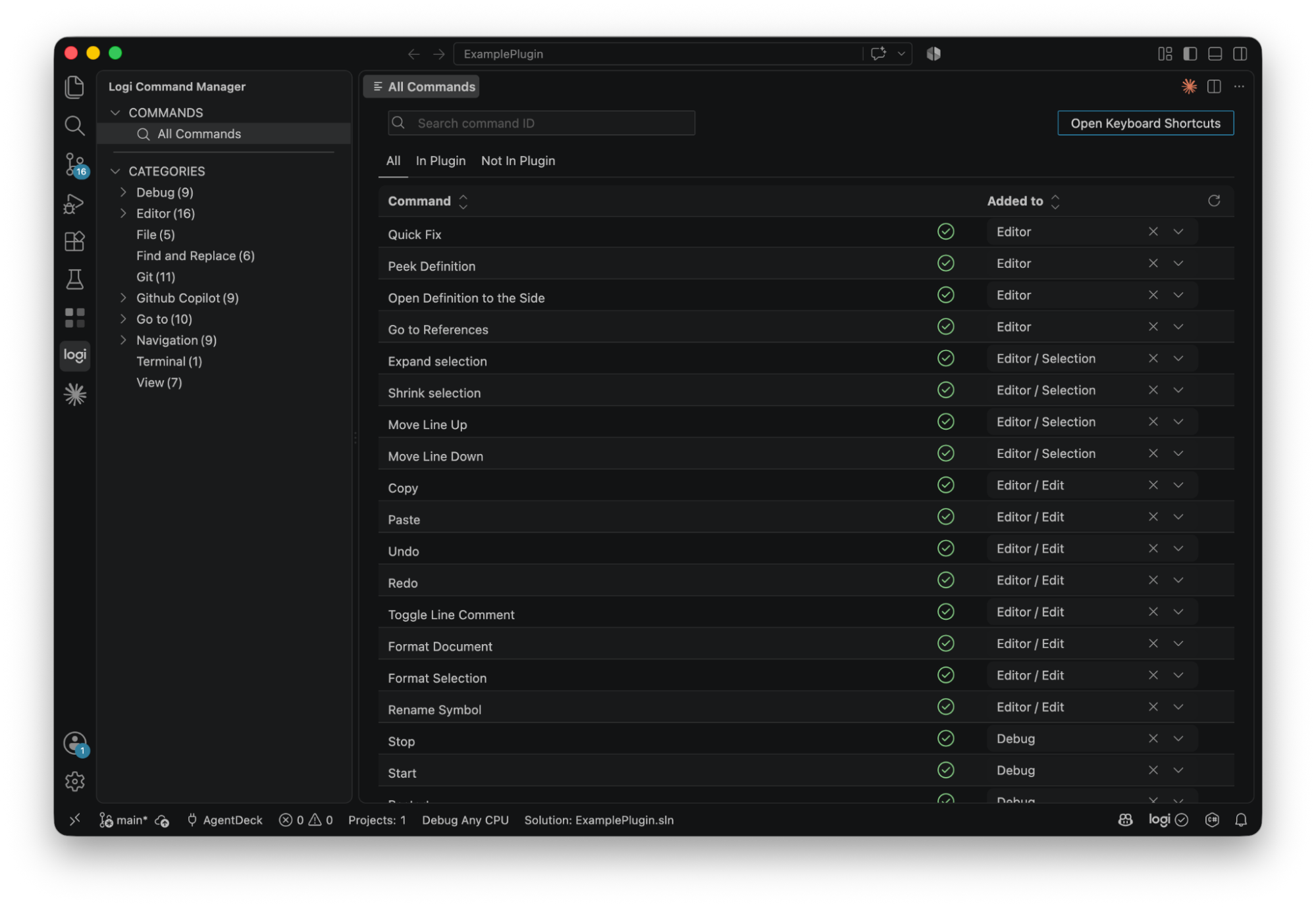
- If you open the extension, you will see the All Commands panel, which displays the commands that have already been added (marked with a green checkmark), along with all other commands available in VS Code, including those provided by your personal extensions.
Can I add additional commands to my VS Code plugin?
Yes. To do that, open the Logi extension either from the icon located in the left side bar or from the smaller icon on the bottom right corner.
-
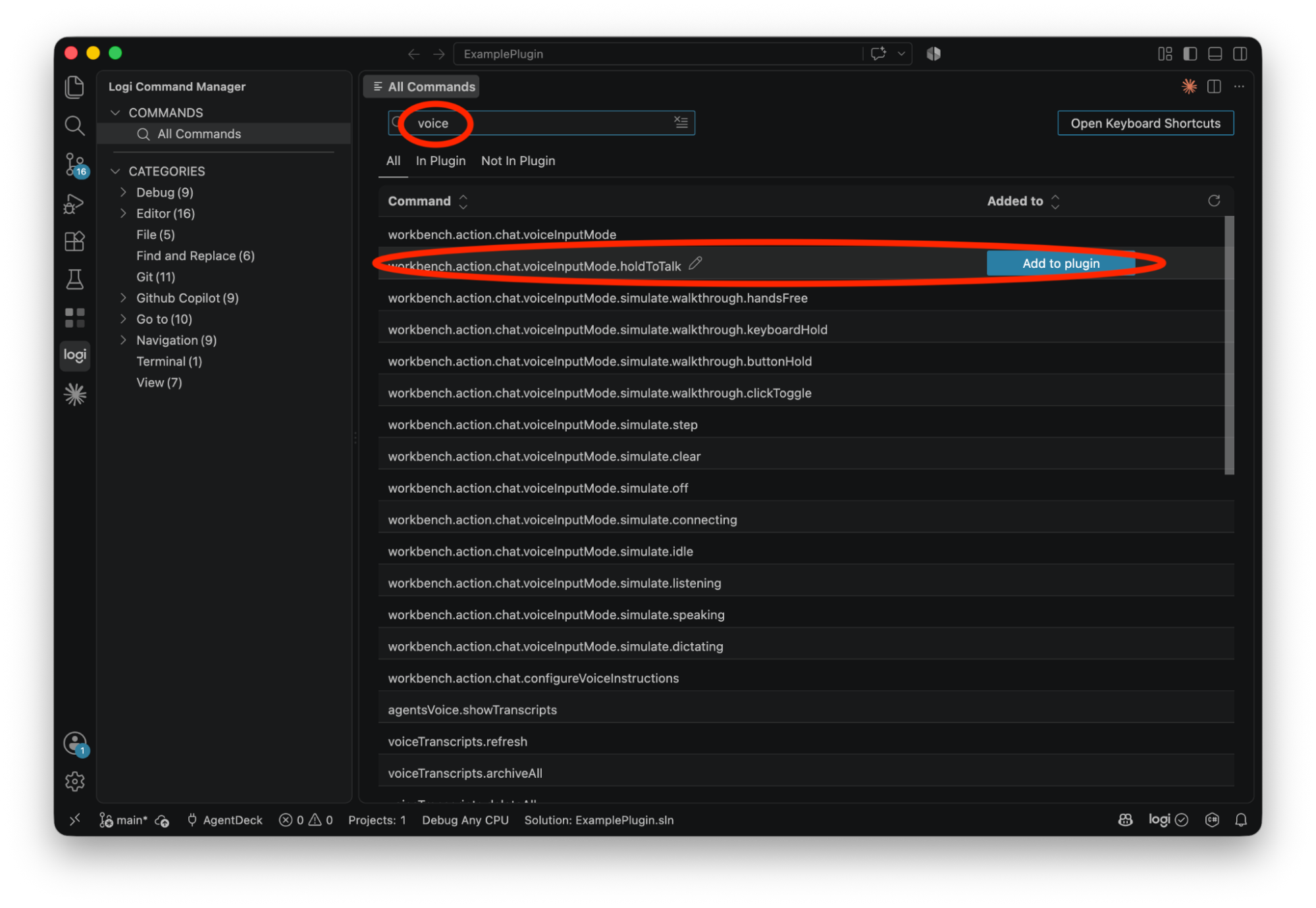
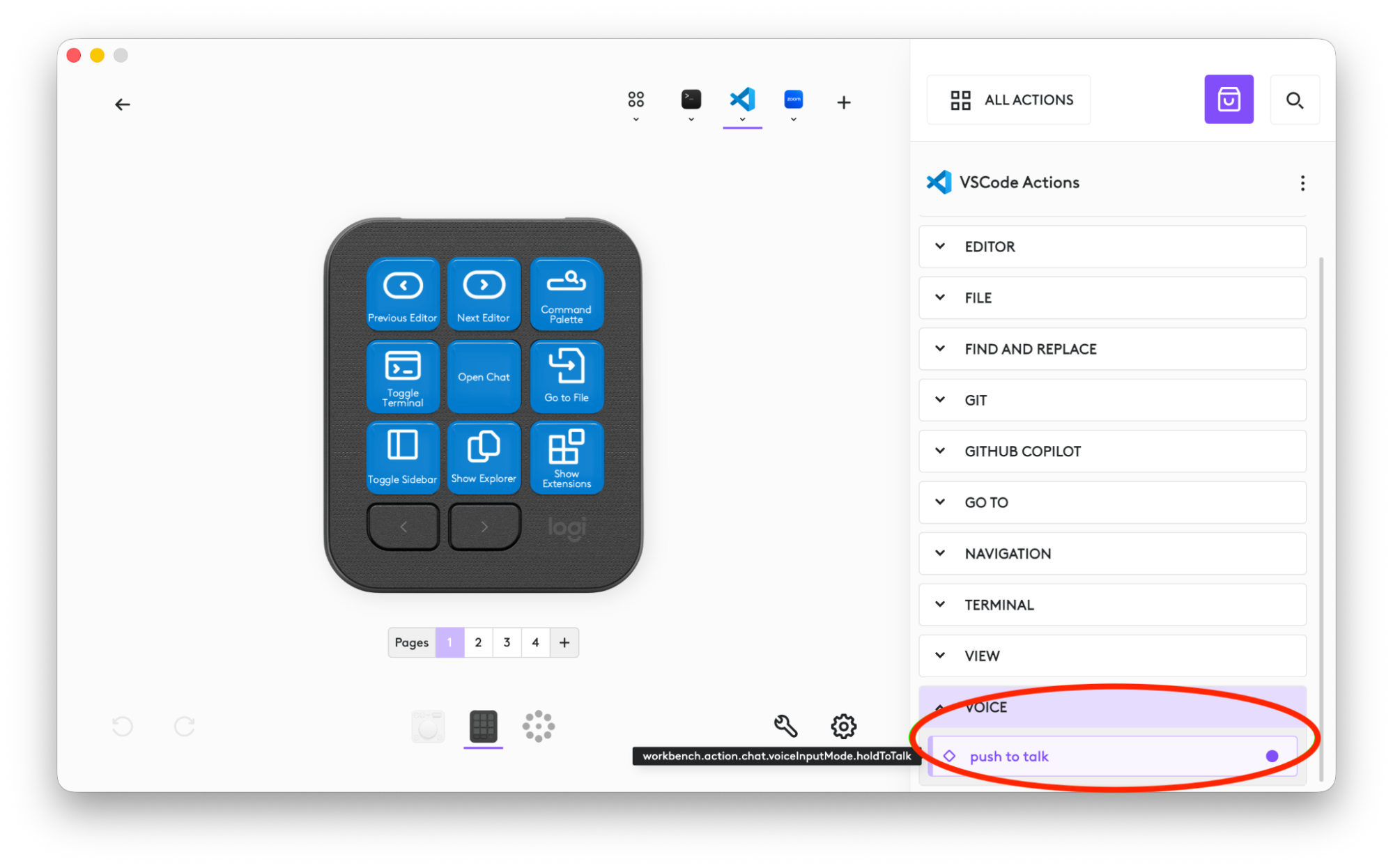
If you want to add, as an example, a command to start voice input (holdtoTalk), use the search box. Search for "voice", then click on the Add to plugin button for the command you want to add.
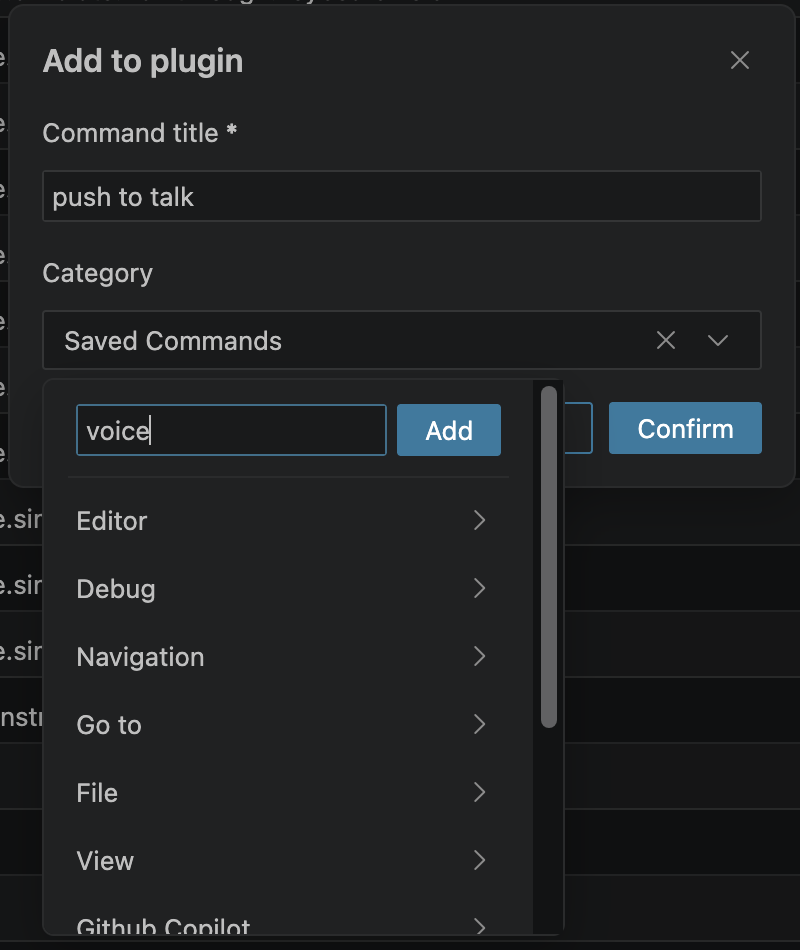
- Select a name for the action, select an existing category or create a new one, and add click Confirm.
- You can then add it to your keypad from the Logi Options+ configuration UI.
Does the VS Code plugin work with WSL (Windows Subsystem for Linux)?
Yes. However, you need to follow these instructions:
-
Make sure the extension is installed on the Windows side. Open a normal Windows VS Code window (not WSL) and install the Logi extension. The extension is installed in:
%USERPROFILE%\.vscode\extensions\logi-sw.logiactions-<version>\package.json -
Edit that package.json (the one on Windows) and add this line right after "main":
"extensionKind": ["ui"], - If the extension is also installed inside WSL, uninstall the WSL copy (Extensions panel → it'll show as installed under the remote / "Install in WSL" — remove it) so it doesn't run there instead.
- Open your WSL window and run Ctrl+Shift+P → Developer: Reload Window.
Note: When you use VS Code's Remote (WSL mode), our extension runs inside WSL, while the Logitech service needs to operate running on Windows — and the two cannot reach each other across that boundary. The workaround described above forces the extension to run on the Windows side instead.
Important Notice: The Firmware Update Tool is no longer supported or maintained by Logitech. We highly recommend using Logi Options+ for your supported Logitech devices. We are here to assist you during this transition.
Important Notice: The Logitech Preference Manager is no longer supported or maintained by Logitech. We highly recommend using Logi Options+ for your supported Logitech devices. We are here to assist you during this transition.
Important Notice: The Logitech Control Center is no longer supported or maintained by Logitech. We highly recommend using Logi Options+ for your supported Logitech devices. We are here to assist you during this transition.
Important Notice: The Logitech Connection Utility is no longer supported or maintained by Logitech. We highly recommend using Logi Options+ for your supported Logitech devices. We are here to assist you during this transition.
Important Notice: The Unifying Software is no longer supported or maintained by Logitech. We highly recommend using Logi Options+ for your supported Logitech devices. We are here to assist you during this transition.
Important Notice: The SetPoint software is no longer supported or maintained by Logitech. We highly recommend using Logi Options+ for your supported Logitech devices. We are here to assist you during this transition.
Frequently Asked Questions
There are no products available for this section
There are no Downloads for this Product
There are no Downloads for this Version.
Compatible Product
