Logitech G HUB Support & Setup Guide
Your complete guide for setting up, personalizing, and troubleshooting your Logitech G gear. Configure per-game profiles, dial in LIGHTSYNC RGB, manage multi-step macros, customize HERO 2 DPI sensitivity, and optimize mice, keyboards, headsets, racing wheels, and webcams across Windows and macOS.
About Logitech G HUB
Logitech G HUB provides a unified control center for your Logitech G gaming ecosystem. It automatically detects supported gear and switches profiles seamlessly as you change games.
Platform Compatibility
Windows: 10 (Build 1809+) & 11 (including
ARM64).
macOS: macOS 14 Sonoma and later with native
Apple Silicon & Intel architecture support.
Offline Functionality
G HUB requires internet only for initial installation, firmware updates, and community profiles. Once set up, all macros, lighting swatches, and DPI steps function completely offline.
Upgrading from LGS
Logitech Gaming Software (LGS 8.98+) can coexist with G HUB. During setup, G HUB can import your existing profiles, macros, and configuration settings automatically.
Supported Languages
Available in 19 languages including English, French, German, Japanese, Traditional/Simplified Chinese, Spanish, Korean, Italian, Polish, Turkish, and more.
G HUB Community, Creator Presets & Guidelines
Explore the built-in G HUB Community directly from the Home screen to discover, download, and share custom configurations created by fellow gamers, streamers, and Logitech G partners. All community interactions and user-generated uploads are governed by the official Online Communities Guidelines, which ensure a safe, respectful, and harassment-free environment for all members.
- Download Ready-Made Presets: Browse and apply custom mouse/keyboard game profiles, animated LIGHTSYNC RGB effects, Blue VO!CE microphone presets, and headset EQ tunings in one click.
- Creator & Esports Profiles: Filter by specific device models or popular game titles to load pro-level sensitivity curves and keybinds.
- Publish Your Own Creations: Sign in with your Logi ID to upload your custom lighting animations, macros, or EQ profiles for others to download and rate, keeping all shared content compliant with the Online Communities Guidelines.
G HUB Release Notes & Updates
Logitech continually updates G HUB to introduce support for newly released peripherals, expand game integrations, refine software performance, and resolve reported bugs.
- New Device Support: Regular software patches add out-of-the-box configuration capability for newly released LIGHTSPEED mice, keyboards, racing wheels, and headsets.
- Bug Fixes & Stability: Routine updates address background agent memory usage, profile switching glitches, and OS compatibility nuances for both Windows and macOS.
- Full Change Log: To review the complete history of changes, patch details, and new feature additions for the latest version, visit the official G HUB Release Notes page.
Integrated Feature: G HUB Games
G HUB Games is a free integrated dashboard that organizes your game library alongside your peripheral profiles.
- Unified Launcher: Auto-scans and links titles from Steam, Epic Games Store, GOG, Riot Games, and custom executables.
- Metadata & Cover Art: Uses publisher assets and the open-source IGDB database to showcase your collection.
- Cloud Profile Sync: Log in with your Logi ID to carry profiles and community presets between different PCs.
- Optional: Toggle G HUB Games on or off under Settings > Beta Features without affecting core device management.
Connecting & Pairing Devices
Using the Device Pairing Tool in G HUB
Select compatible LIGHTSPEED keyboards and mice support 2:1 multi-device pairing, allowing you to connect both peripherals to a single LIGHTSPEED USB wireless receiver to save USB ports. (Not all LIGHTSPEED products support 2:1 pairing—see the official guide: Connect two LIGHTSPEED devices to one receiver using the Device Pairing Tool for the full compatible product list).
- Plug your compatible LIGHTSPEED wireless receiver directly into a USB port on your PC.
- Open G HUB, select the Global Settings (Gear) icon, and open the Device Pairing Tool (under Support).
- Select Pair Mouse or Pair Keyboard and follow the on-screen prompts to cycle the device power switch.
Customizing Your Gear
1. Mouse Sensitivity, DPI Speeds & HERO 2 Advanced Settings
Starting with the PRO X SUPERLIGHT 2 LIGHTSPEED and newer gaming mice, G HUB features an updated Sensitivity (DPI) interface with up to 5 adjustable DPI levels per profile. The highlighted speed is active, and the orange dot indicates your DPI Shift (sniper) target:
- Select your mouse from the G HUB Home page and open the Sensitivity (DPI) tab.
- Add a Speed: Click anywhere directly on the DPI slider track to place a new speed step.
- Remove a Speed: Click and hold the speed point dot, drag it downward off the slider, and release. (Note: DPI Shift speed cannot be removed).
Advanced HERO 2 Sensor Controls (PRO X SUPERLIGHT 2 & Supported Mice)
On mice equipped with the HERO 2 sensor, toggle on Advanced mode on the Sensitivity page to access precision sensor tuning:
- Independent X / Y DPI Axis: Decouple horizontal (X-axis) and vertical (Y-axis) sensitivity to dial in distinct tracking speeds for recoil control or wide flick shots.
- HERO 2 Sensor Calibration: Automatically matches and transfers the feel of your previous mouse's sensor onto your HERO 2 mouse by tracing a figure-eight pattern with both mice simultaneously.
- Lift-Off Distance (LOD): Customize the exact tracking cut-off height (Low, Medium, or High) when lifting your mouse off the mousepad surface.
Related Guides:Configure X & Y Sensitivity | HERO 2 Sensor Calibration | Adjust HERO 2 Lift-Off Distance (LOD)

2. Mouse Button Assignments & Keyboard KEYCONTROL
A. Customizing Mouse Buttons & G-Keys:
- Select your mouse from the dashboard and open the Assignments tab.
- Select COMMANDS, KEYS, ACTIONS, MACROS, or SYSTEM from the left sidebar.
- Click and drag the command onto the designated circular target marker on the mouse diagram.
- Reset or Disable a Button: Click the assigned button label and choose USE DEFAULT (restores factory behavior) or DISABLE (deactivates the button completely).

B. Remapping Gaming Keyboards with KEYCONTROL:
Supported Logitech G keyboards (such as PRO X 60, G515, and newer models) use KEYCONTROL, a dedicated multi-layer key customization interface separate from mouse assignments:
- Select your keyboard from the G HUB Home screen and open the KEYCONTROL tab.
- Select a key on the interactive keyboard layout to map primary actions, secondary G-SHIFT layers, or modifier triggers (up to 15 actions per key).
- Drag commands, macros, or system functions onto the selected key slot.
Learn More: How do I remap keys on my gaming keyboard using G HUB? | KEYCONTROL – FAQs
3. LIGHTSYNC RGB Swatches & Dynamic Lighting
Configure custom color palettes and animated lighting:
- Add a New Swatch: Click anywhere on the color wheel, set your preferred brightness, and click the + (Plus) icon.
- Change an Existing Swatch: Select a new color from the wheel, then drag the preview dot straight onto the swatch block you wish to replace.
- Download Animated Effects: From the Home page, select See The Newest Lighting Effects, browse or search community animations (e.g., Matrix, Neon), click Download, and choose Apply Now.

Windows 11 Dynamic Lighting Integration
All Logitech G LIGHTSYNC devices support Windows 11 Dynamic Lighting. When Dynamic Lighting is enabled in Windows, Windows takes master control of your device LEDs, and LIGHTSYNC settings inside G HUB are locked out.
To let G HUB control your lighting: Go to Windows Settings > Personalization > Dynamic Lighting and toggle the switch Off.

4. Creating Macros, Profiles & On-Board Memory
Creating & Assigning a Macro:
- Open your device's Assignments (or KEYCONTROL) tab and select MACROS in the left sidebar.
- Click CREATE NEW MACRO, enter a name, and press Enter.
- Select the execution style:
- No Repeat: Plays the recorded sequence once per press.
- Repeat While Holding: Loops continuously until the button is released.
- Toggle: Starts looping on first press and stops on the second press.
- Sequence: Assigns separate actions for On Press, While Holding, and On Release.
- Click START NOW, choose Record Keystrokes (or insert text, delays, or system actions), perform your inputs, and click STOP RECORDING → SAVE.
- Drag your saved macro from the list onto any programmable mouse button or keyboard key.
Managing Profiles & On-Board Memory:
- Duplicate Profile to Another App: Click the active profile banner at the top of the Home page, navigate to Games & Applications, then drag a profile card directly onto another application.
- Lock a Persistent Profile: Go to Settings (Gear), locate Persistent Profile, and select your preferred profile to keep it active across all desktop software and games.
- Lock Assignments or Effects Only: Open your device, select the Assignments or LIGHTSYNC tab, and click the Lock icon to lock only that specific module across all profiles.
- Blacklist an App: In Games & Applications, select the game, choose Settings, and toggle Profile Switching to Disabled.
- On-Board Memory Mode: Toggle On-Board Memory Mode to On in device settings to save profiles directly to the hardware.

5. Headset Audio, Blue VO!CE Microphone, Game Mode & Switches
Depending on your connected gear, additional module icons appear on the left navigation bar in G HUB:
- Headset Acoustics & Surround Sound: Open the Acoustics (EQ) tab to customize multi-band equalizer sliders, bass/treble boost, and sidetone levels, or toggle DTS Headphone:X 2.0 spatial surround sound.
- Microphone & Blue VO!CE: Select the Microphone icon to adjust input gain, enable Blue VO!CE broadcast filters (noise reduction, expander/gate, compressor, de-esser), and test your voice with live loop-back recording.
- Game Mode (Key Lock): On supported gaming keyboards, open the Game Mode tab to choose which keys are disabled when the physical Game Mode button is active (preventing accidental presses of the Windows key, Alt+Tab, or Menu key mid-match).
- Dynamic Switches (Analog / Rapid Trigger): On supported analog-switch keyboards (such as PRO X TKL RAPID), open the Switches tab to customize per-key actuation points (0.1 mm to 4.0 mm), enable Rapid Trigger sensitivity, and configure Key Priority.
6. Webcam Controls & Custom Modes
Default presets (Default, Streaming, Video Call) cannot be edited directly. To save custom FOV, exposure, or color grades:
- Select your webcam from the gear carousel and open the Camera or Video tab.
- Click the dropdown menu and select ADD NEW CAMERA MODE or ADD NEW FILTER.
- Adjust zoom, framing, shutter speed, ISO, exposure, or anti-flicker settings.
- Click the title text above the camera preview to give your preset a custom name (e.g., "Stream Studio").
Troubleshooting & Fixes
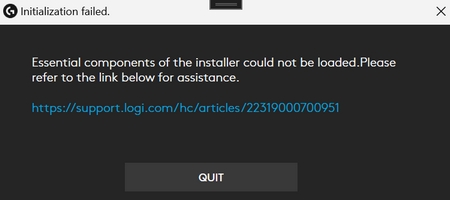
Error: "Unable to load basic components of the installer" or Installation Won't Open (Windows)
This error occurs when required Microsoft Visual C++ runtime redistributables are missing or corrupted.
- Delete any downloaded installer files. If an earlier installation of G HUB exists, uninstall it and verify that
C:\Program Files\LGHUBis removed. - Download the latest official Microsoft Visual C++ Redistributable Package (x64).
- Run the installer. If prompted to restart your computer, reboot immediately.
- Run the
vc_redist.x64.exefile a second time, click Repair, and complete any reboot prompts. - Download a clean G HUB Installer and run the setup.
G HUB Frozen on Startup (Spinning G Logo Animation)
If G HUB becomes unresponsive during launch with an endless logo loop, the background service has hung.
On Windows
- Right-click the G HUB icon in the Windows System Tray and select Quit.
-
Press
Ctrl + Shift + Escto open Task Manager. -
Under the Processes tab,
end these tasks in order:
- LGHUB Agent → End task
- LGHUB → End task (all instances)
- (Keep LGHUB Updater running if visible)
- Switch to the Services tab at the top.
- Locate LGHUBUpdaterService, right-click → Restart. Wait 15 seconds until status displays Running.
- Launch G HUB from your Start Menu.
On macOS
-
Right-click the G HUB icon in the top menu
bar → Quit G HUB (or press
Cmd + Q). -
Press
Cmd + Space, open Activity Monitor, and search for "G HUB". - Force Quit Logitech G HUB Agent and Logitech G HUB using the Stop (X) icon.
-
Open Terminal and run:
sudo pkill -f lghub
-
Enter your admin password, wait 15 seconds,
and relaunch G HUB from
/Applications.
Advanced Clean Reinstallation (Corrupted Configurations)
Use this procedure if G HUB fails after an update, is missing from the installed programs list, or does not recognize attached devices.
Windows Clean Reinstall Steps
- End
LGHUB.exe,lghub_agent.exe, andlghub_updater.exein Task Manager. - Open File Explorer → View → check Hidden items.
- Navigate to and delete these folders:
C:\Users\[YourUsername]\AppData\Roaming\LGHUB-
C:\ProgramData\LGHUB(also deleteold.LGHUBif present)
- Restart your PC.
- Download and install the latest version from the official link.
macOS Clean Reinstall Steps
- Force Quit G HUB in Activity Monitor.
- Open Finder and delete the following paths:
/Applications/lghub.app/Users/Shared/LGHUB/Library/Application Support/LGHUB/Library/LaunchAgents/com.logi.ghub.plist/Library/LaunchDaemons/com.logi.ghub.updater.plist
- Restart your Mac (do not skip this reboot).
- Reinstall G HUB using the latest macOS package.
Granting Permission to macOS Driver Extensions (DEXT)
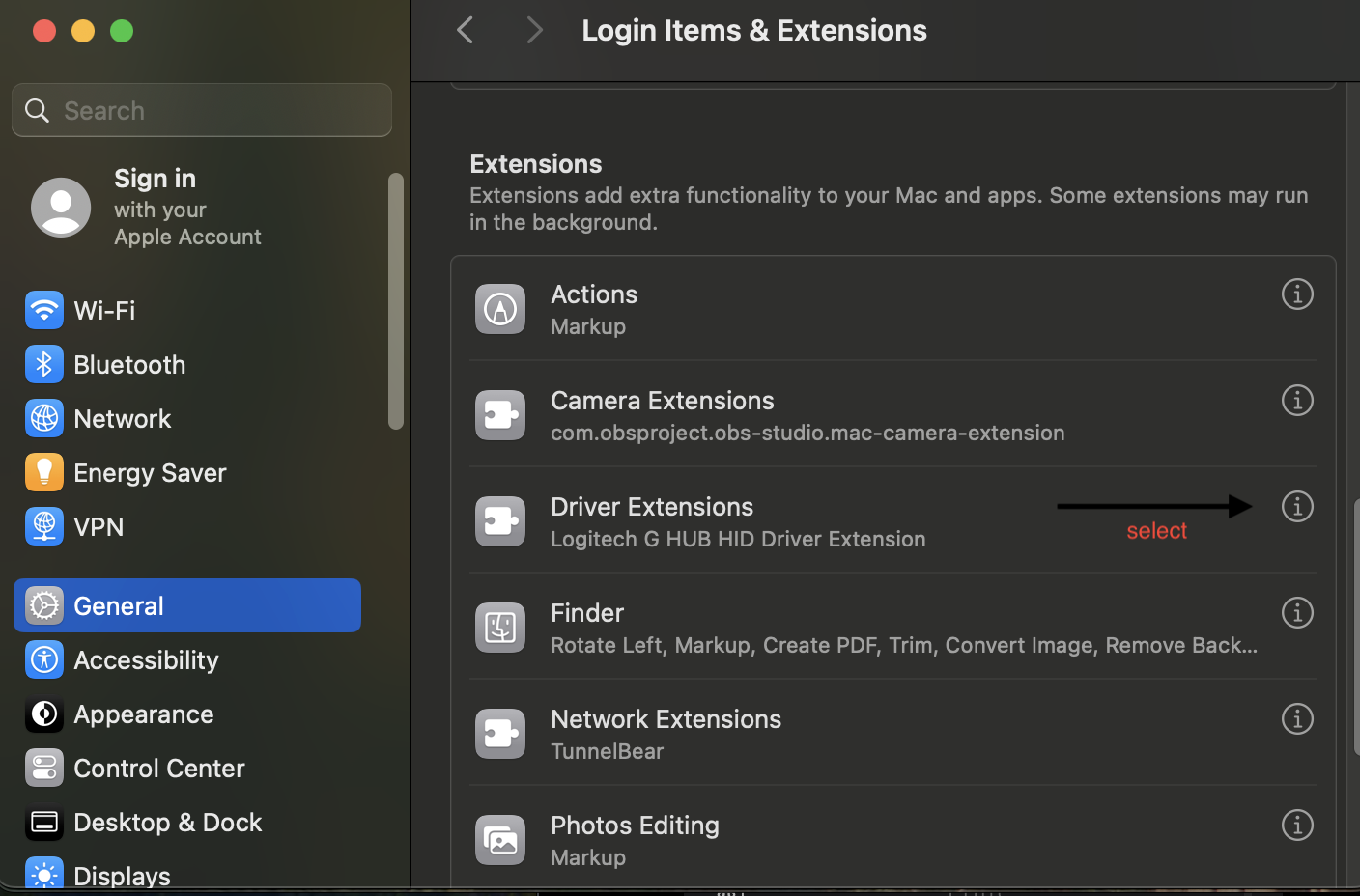
On modern macOS systems, Driver Extensions replace legacy kernel extensions. You must approve both extensions manually for G HUB to communicate with your peripherals:
- Open System Settings on your Mac.
- Go to General > Login Items & Extensions.
-
Scroll down to the Extensions section and click the info ("i") icon next to Driver Extensions.
-
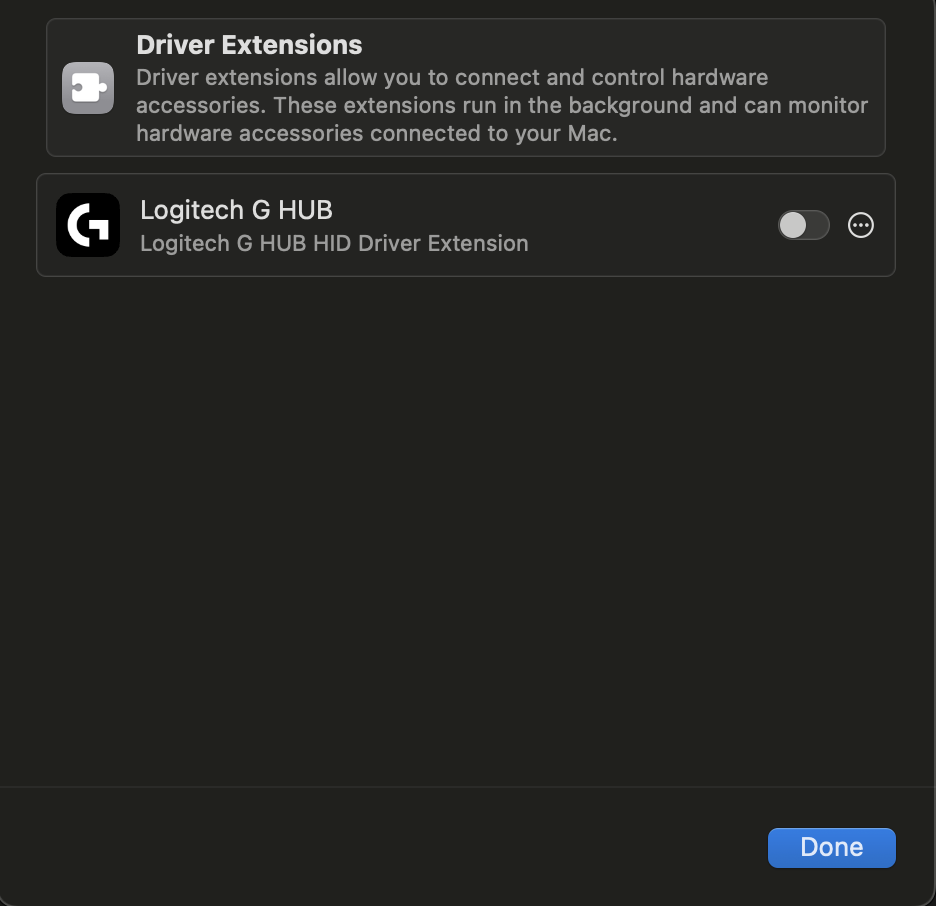
Turn the toggle On for Logitech G HUB HID Driver Extension.
-
Close the dialog, re-open Driver Extensions, and turn the toggle On for Logitech Blue Voice Extension.
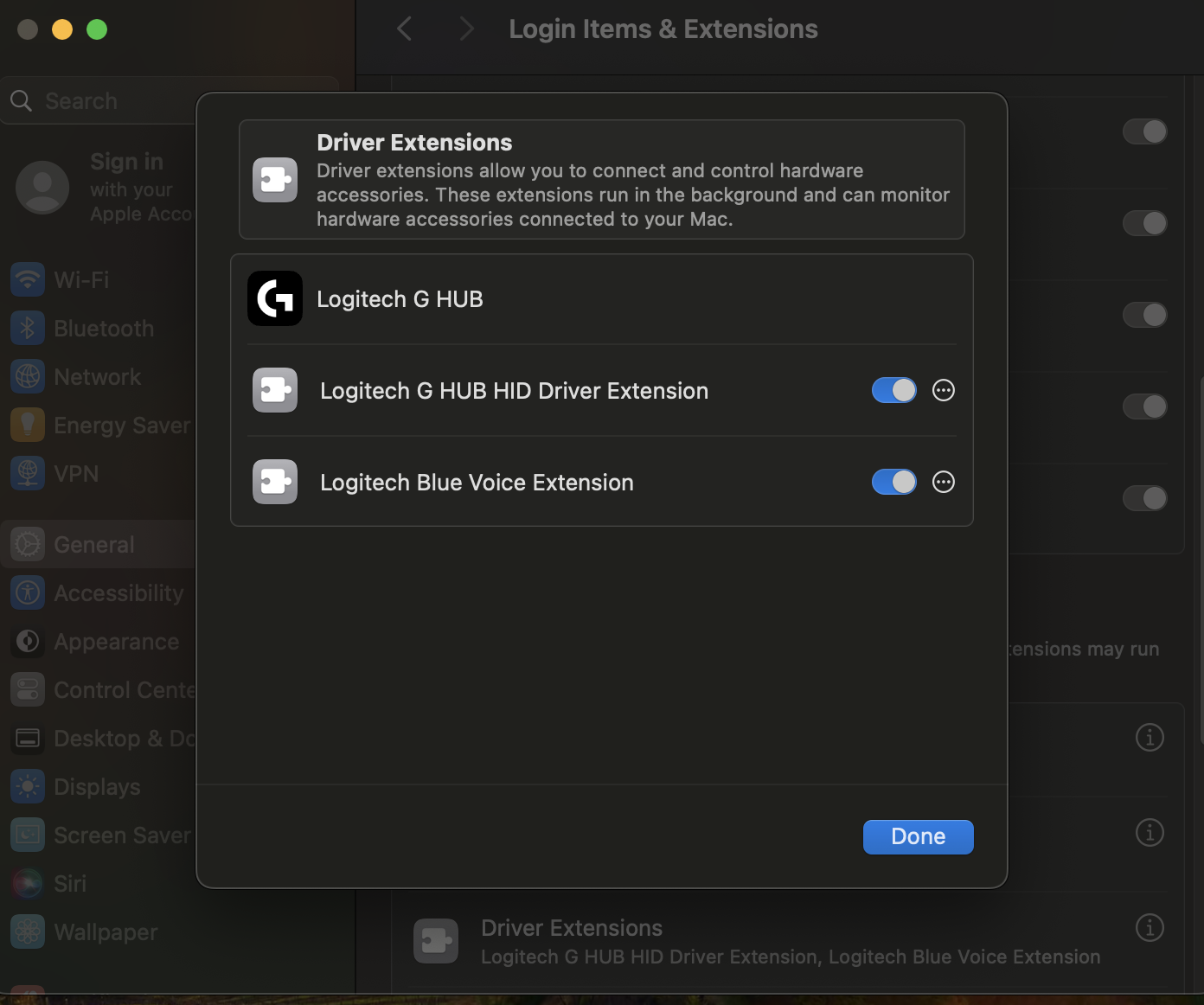
- Enter your administrator credentials to confirm.
Inconsistent DPI & Report Rate Conflicts (Windows)
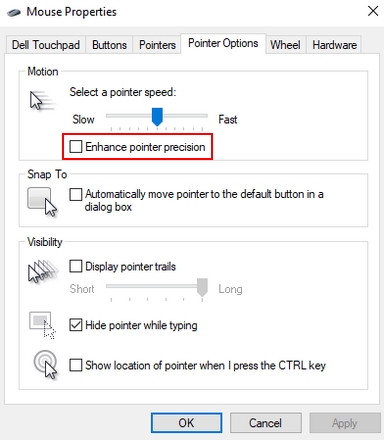
If mouse sensitivity feels inconsistent when switching wireless report rates (1 kHz, 2 kHz, 4 kHz, 8 kHz), disable Windows pointer acceleration:
- Open Windows Control Panel > Hardware & Sound.
- Under Devices and Printers, click Mouse.
- Select the Pointer Options tab.
- Under Motion, uncheck Enhance pointer precision.
- Click Apply and OK.
Macros Failing in Games (Elevation Mismatch)
G HUB and your game must run at the same Windows privilege level. If a competitive title or anti-cheat system runs with Administrator rights, G HUB cannot inject keystrokes unless elevated:
- Launch your game and open Task Manager (
Ctrl + Shift + Esc). - Click the Details tab, right-click any column header, and choose Select columns.
- Check Elevated and click OK.
- Locate your game's process: if it displays Yes under Elevated, G HUB must also run as Administrator.
- Quit G HUB from the system tray, open the Start Menu, right-click Logitech G HUB, and select More > Run as administrator.
Quick Hardware & Audio Fixes
- DTS Surround Sound in Firefox: Open G HUB, select your headset, open the DTS panel, enable DTS Super Stereo Mode, and restart Firefox.
- SignalRGB Conflicts: Third-party RGB tools like SignalRGB with "automatically close conflicting processes" enabled will terminate G HUB immediately after launch. Close SignalRGB before starting G HUB.
-
Reset Corrupted Settings Database (Mac): Quit G HUB, press
Cmd + Shift + Gin Finder, navigate to~/Library/Application Support/LGHUB, copysettings.dbto the Desktop as a backup, delete it from the folder, and relaunch G HUB to generate a clean settings file.
Frequently Asked Questions
What is Logitech G HUB?
Logitech G HUB is software that lets you customize and optimize supported Logitech G gear including mice, keyboards, headsets, racing wheels, and webcams. It allows you to configure per-game profiles, customize LIGHTSYNC RGB effects, create macros, and share presets with the community.
What operating systems are supported by G HUB?
G HUB supports Windows 10 (Build 1809 or higher), Windows 11, and modern macOS versions (including native support for Apple Silicon and Intel).
How do I update my device firmware in G HUB?
G HUB automatically notifies you when a firmware update is available for your connected Logitech G device:
- Connect your peripheral via a direct USB cable (for wireless devices, ensure both the device and its LIGHTSPEED receiver are connected).
- Open G HUB and select your device from the Home screen.
- Click the Device Settings (Gear) icon in the top-right corner of the device view.
- Under the Firmware Version section in the top-right, click Update (if an update is available) and follow the on-screen instructions without unplugging the device until complete.
Can I use G HUB offline?
Yes. While internet access is required for initial installation, software updates, and downloading community presets, all local customization tools (such as DPI adjustments, button assignments, macros, and LIGHTSYNC settings) function offline.
Some macros do not work when in On-Board Memory mode
On-Board Memory mode stores profiles directly inside your device's internal flash memory, which only supports simple keystrokes and single-action bindings. Complex macros—such as multi-step repeating sequences, text blocks, application launches, or OS-level commands—require the G HUB software engine to be running in the background and will not execute when On-Board Memory mode is active.
My G HUB macros do not work in some games
If macros work on your desktop but fail inside a specific game, check the following:
- Administrator Privilege Mismatch: If the game runs as Administrator, G HUB must also run as Administrator (see the Macros Failing in Games troubleshooting section above).
- Anti-Cheat Software Blocks: Certain competitive games use kernel-level anti-cheat systems that intentionally block virtual software-injected macro inputs.
- Missing Keystroke Delays: Fast macro sequences without a 25ms–50ms delay between key down and key up events may be ignored by the game engine.
Do I need to uninstall Logitech Gaming Software to use G HUB?
No. As long as your version of Logitech Gaming Software (LGS) is 8.98 or later, you do not need to uninstall LGS. G HUB includes an automatic migration tool to transfer your existing profiles, macros, and settings.
Where can I find the official G HUB manual?
You can download the comprehensive user manual directly from the Logitech G HUB User Manual (PDF).
What is G HUB Games and does it cost anything?
G HUB Games is a free, integrated feature that brings your games, gear, and community presets together in one place. It organizes your library across Steam, Epic Games, GOG, and Riot Games, and can be toggled on or off under Settings > Beta Features.
Why can't I delete a custom LIGHTSYNC effect completely?
This behavior is intentional. Logitech G hardware requires at least one lighting configuration stored in memory at all times so the LEDs have a fallback display state. You can replace or overwrite any existing custom profile with a new effect or static color preset whenever you wish.
Can I use Bluetooth devices with Windows Dynamic Lighting?
No. Windows 11 Dynamic Lighting requires a direct USB wired connection or an official LIGHTSPEED 2.4 GHz wireless receiver. It does not currently support devices connected via standard Bluetooth.
Why can't I sync RGB between all my Logitech devices?
Not all Logitech G peripherals use the same lighting hardware controllers or microcode architectures. Devices from similar generations synchronize seamlessly across effects like Color Wave or Color Cycle. For devices with differing processors, you can set matching static colors or custom swatches individually.
How do I delete games or custom profiles in G HUB?
- Delete an App: Click the active profile banner, select the manually added app, open Settings, and click FORGET APP. (Note: The default Desktop app and games currently detected on your drive cannot be removed).
- Delete a Profile: Open Games & Applications, select the custom profile, click Details under the banner, and click DELETE. (The Default profile for any application cannot be deleted).
Why isn't my avatar showing up in the G HUB Community?
Avatars that do not conform to the Logitech Community Terms of Use or Online Community Guidelines are automatically replaced with a default placeholder. Check your image in your Logi ID profile to ensure compliance.
How do I submit feedback or report a bug?
Click the Menu icon (≡) in the top-left corner of G HUB, select Settings, and click Send Feedback. This opens the official feedback form in your web browser.
Important Notice: The Firmware Update Tool is no longer supported or maintained by Logitech. We highly recommend using Logi Options+ for your supported Logitech devices. We are here to assist you during this transition.
Important Notice: The Logitech Preference Manager is no longer supported or maintained by Logitech. We highly recommend using Logi Options+ for your supported Logitech devices. We are here to assist you during this transition.
Important Notice: The Logitech Control Center is no longer supported or maintained by Logitech. We highly recommend using Logi Options+ for your supported Logitech devices. We are here to assist you during this transition.
Important Notice: The Logitech Connection Utility is no longer supported or maintained by Logitech. We highly recommend using Logi Options+ for your supported Logitech devices. We are here to assist you during this transition.
Important Notice: The Unifying Software is no longer supported or maintained by Logitech. We highly recommend using Logi Options+ for your supported Logitech devices. We are here to assist you during this transition.
Important Notice: The SetPoint software is no longer supported or maintained by Logitech. We highly recommend using Logi Options+ for your supported Logitech devices. We are here to assist you during this transition.
Frequently Asked Questions
There are no products available for this section
There are no Downloads for this Product
There are no Downloads for this Version.
Compatible Product
