Follow the instructions below to successfully update the firmware of the G321 headset. This applies to the tool with software version 1.0.11.
Important: The USB wireless receiver must be connected to the PC throughout the process. This helps the headset stay connected in LIGHTSPEED mode for the firmware update to apply. Refer to our detailed do's and don'ts article for more information.
- The firmware update requires a Windows 11 PC.
- Download the Firmware Update Tool.
-
Unzip the downloaded folder to access the application file named Logitech G321 FW Updater - 1.0.11.
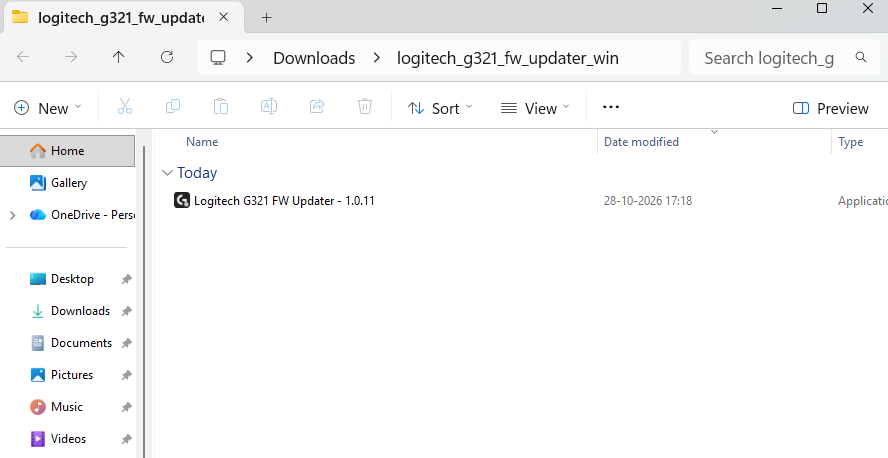
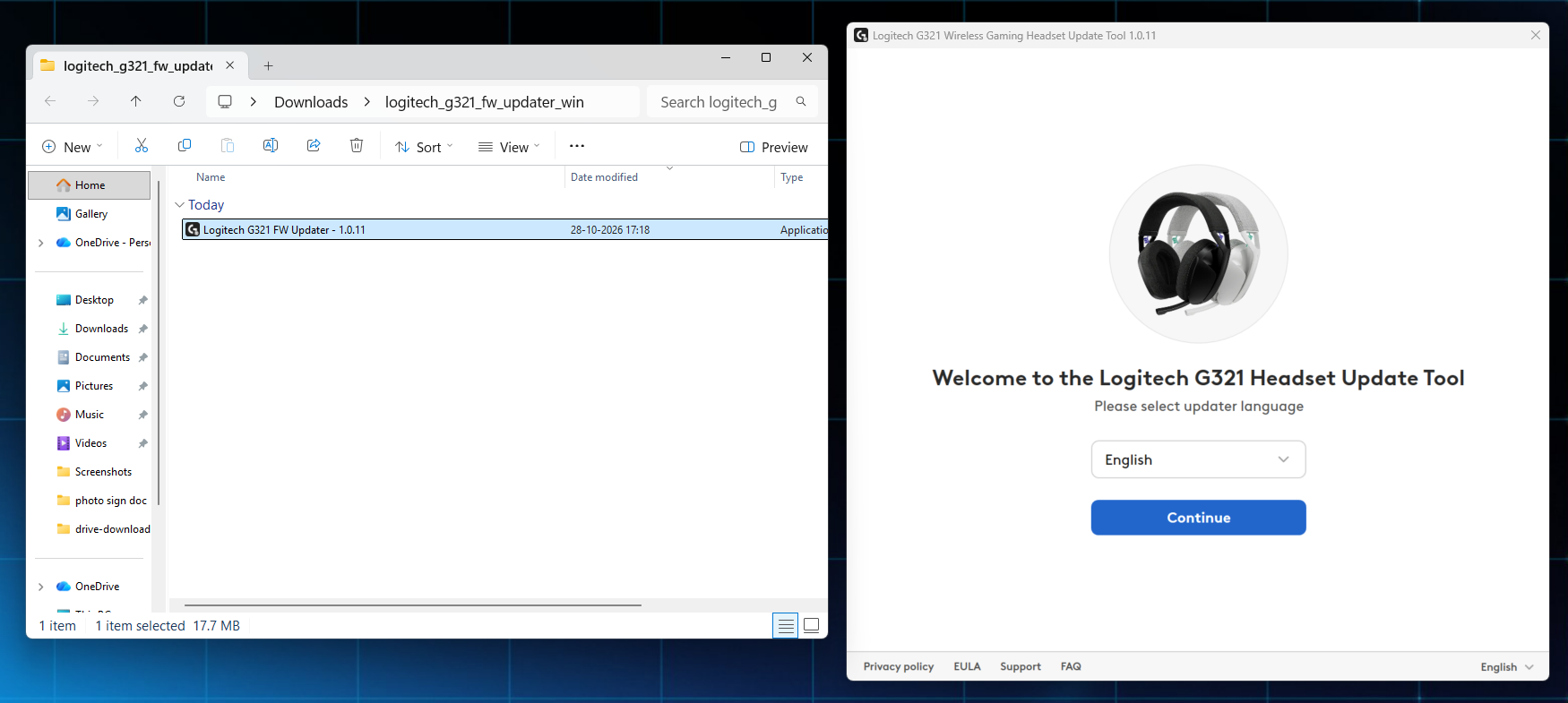
- Double-click the application file to access the Firmware Update Tool. Select your preferred language from the dropdown and click Continue to proceed.
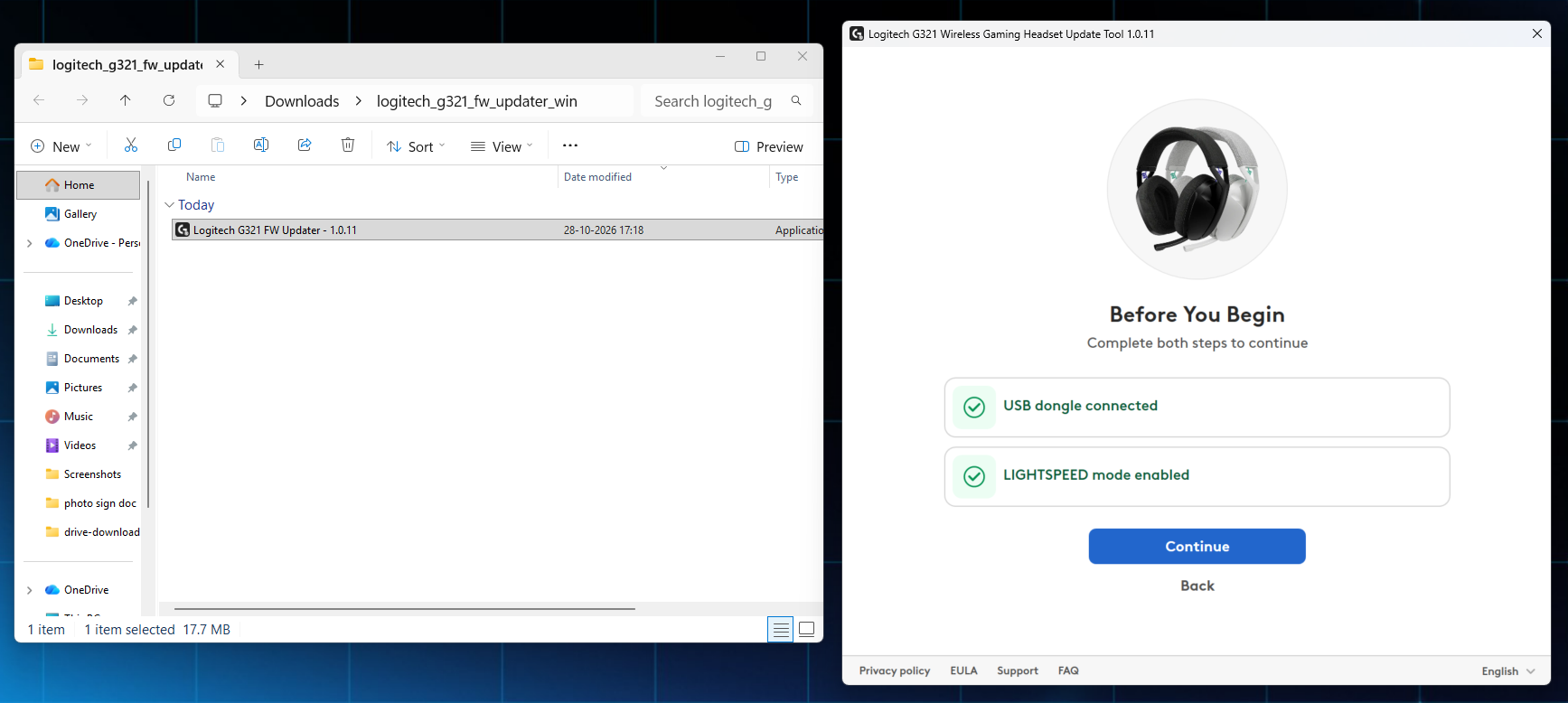
- The window will prompt you to make sure the USB wireless receiver is connected and the headset is in LIGHTSPEED mode. Click Continue.
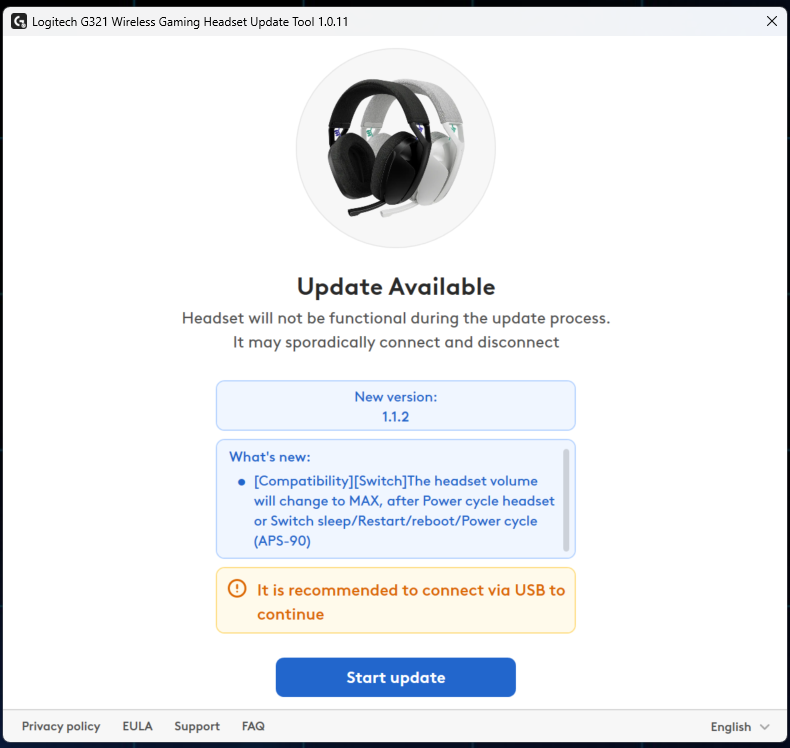
- Review the release notes for information about firmware version 1.1.2. You can also check the detailed release notes for this version. Click Start Update to begin the firmware update process.
-
Wait for the update to complete. It is normal for this to take two to three minutes. Do not turn off the headset or disconnect from LIGHTSPEED mode.
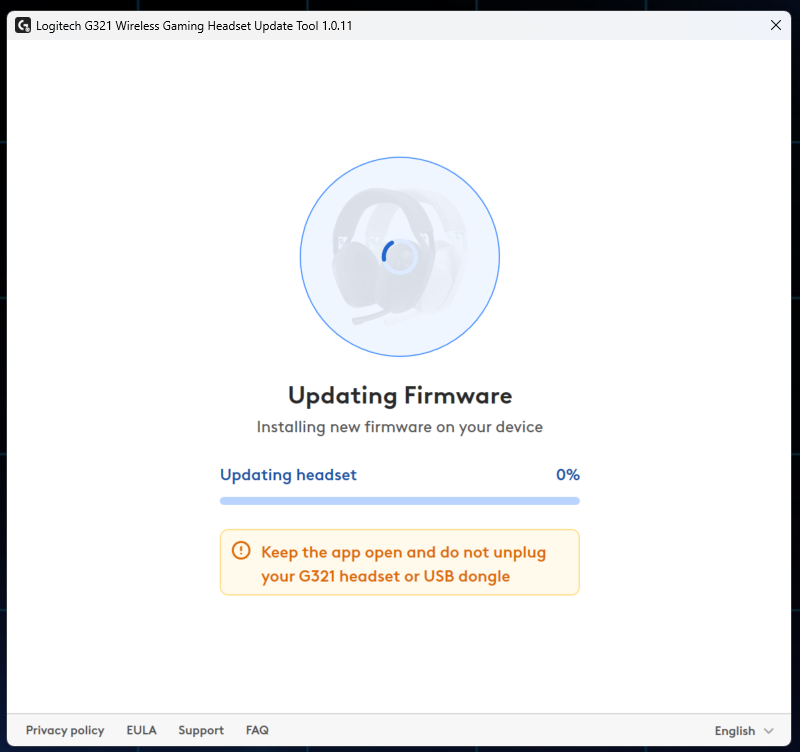
-
The headset will turn off and on automatically during or at the end of the firmware update. An "Update Successful" notification will display on the screen when it is finished and your G321 headset will display firmware version 1.1.2 on the screen.
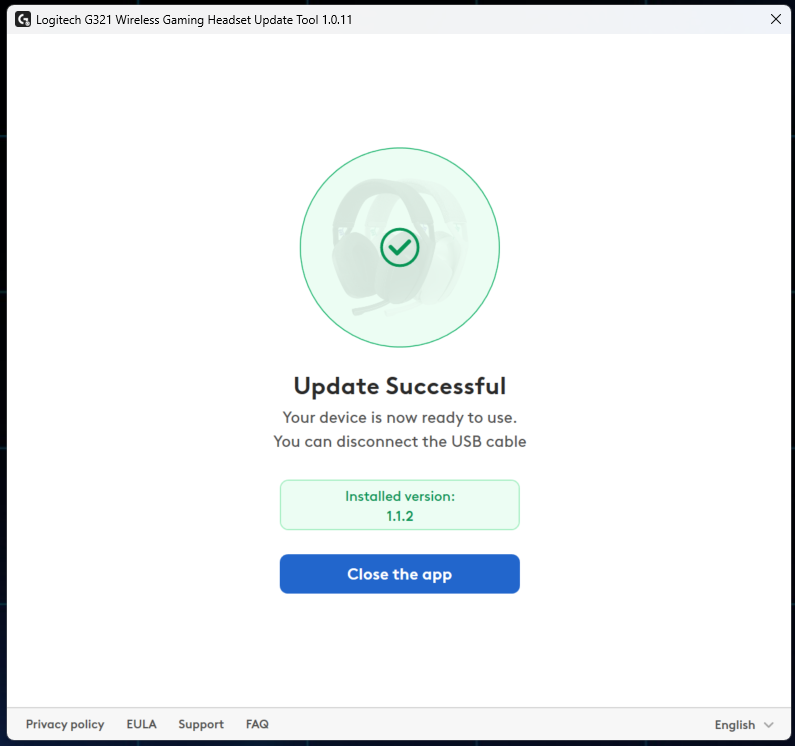
Repeat the complete process only if necessary.
Important Notice: The Firmware Update Tool is no longer supported or maintained by Logitech. We highly recommend using Logi Options+ for your supported Logitech devices. We are here to assist you during this transition.
Important Notice: The Logitech Preference Manager is no longer supported or maintained by Logitech. We highly recommend using Logi Options+ for your supported Logitech devices. We are here to assist you during this transition.
Important Notice: The Logitech Control Center is no longer supported or maintained by Logitech. We highly recommend using Logi Options+ for your supported Logitech devices. We are here to assist you during this transition.
Important Notice: The Logitech Connection Utility is no longer supported or maintained by Logitech. We highly recommend using Logi Options+ for your supported Logitech devices. We are here to assist you during this transition.
Important Notice: The Unifying Software is no longer supported or maintained by Logitech. We highly recommend using Logi Options+ for your supported Logitech devices. We are here to assist you during this transition.
Important Notice: The SetPoint software is no longer supported or maintained by Logitech. We highly recommend using Logi Options+ for your supported Logitech devices. We are here to assist you during this transition.
Frequently Asked Questions
There are no products available for this section
There are no Downloads for this Product
There are no Downloads for this Version.
Compatible Product
