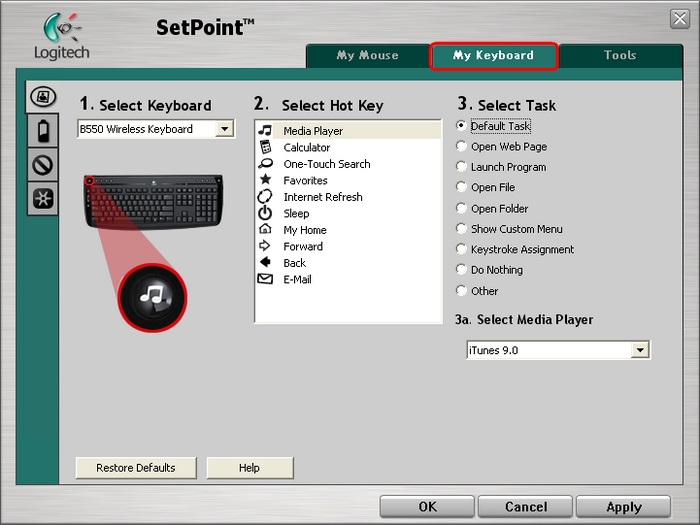
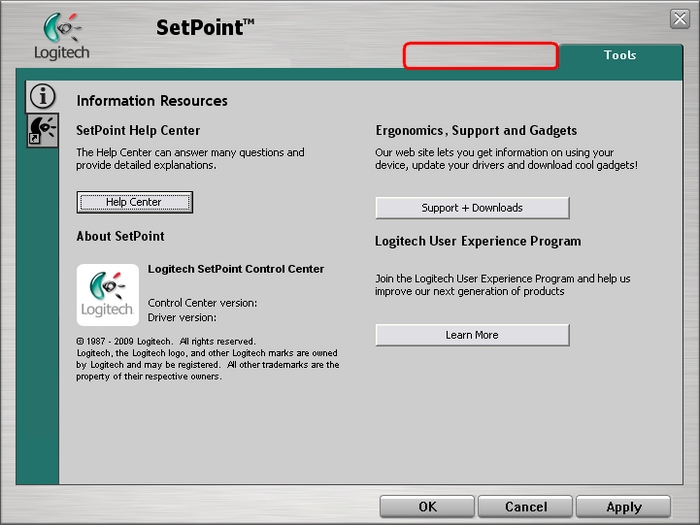
Normally, you should be able to customize your K320 using the My keyboard tab in SetPoint. If this tab is missing, you will need to reinstall SetPoint.
NOTE: Your K320 keyboard may display as B550 in SetPoint. This is normal behavior.
SetPoint with My Keyboard Tab
SetPoint without My Keyboard Tab
To uninstall SetPoint:
-
Go to Add or Remove Programs:
- Start menu view: Start > Control Panel > Add/Remove Programs
- Classic start menu view: Start > Settings >Control Panel > Add/Remove Programs
-
Open Add or Remove Programs
-
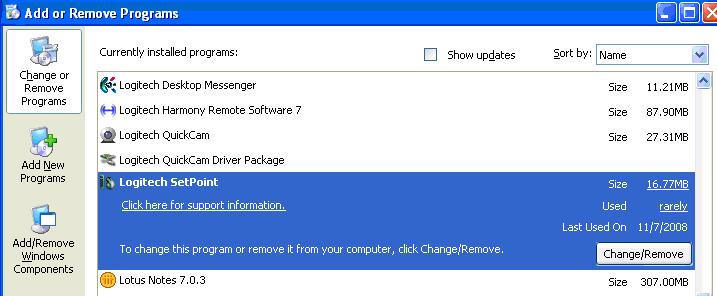
Select Logitech SetPoint from the list of programs displayed (shown below):
-
Click the Change / Remove button and follow the on-screen instructions to uninstall SetPoint.
-
Download and install the latest version of SetPoint from the K320 Downloads Page.
NOTE: You may need to reboot your system after SetPoint has been installed.
-
After your system restarts, open SetPoint to verify that the My Keyboard tab is available.
If the My Keyboard tab is still missing:
-
Exit SetPoint by right-clicking on the SetPoint icon in the system tray. The system tray is located in the bottom right corner of the screen next to your clock.

-
Select Exit.
-
Click on the Windows Start button.
-
Choose Run.
-
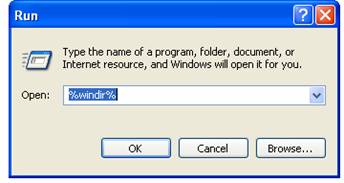
Type %windir% in the Run dialog box (shown below).
-
Double-click on the System32 folder to open it.
-
Double-click the drivers folder.
-
Rename the file wdf01000.sys to wdf01000.bak.
-
Re-install SetPoint.
WARNING: Before rebooting, check if the wdf01000.sys file is present. Rebooting without this file may prevent some of your hardware, including mice and keyboards, from working properly.
-
If the wdf01000.sys file is not present, immediately rename wdf01000.bak back to wdf01000.sys.
-
Reboot the computer.
-
After your system restarts, open SetPoint to verify that the My Keyboard tab is present.
-
Go to Uninstall a program:
- Start menu view: Start > Control Panel > Uninstall a program
- Classic start menu view: Start > Settings >Control Panel > Programs and Features
-
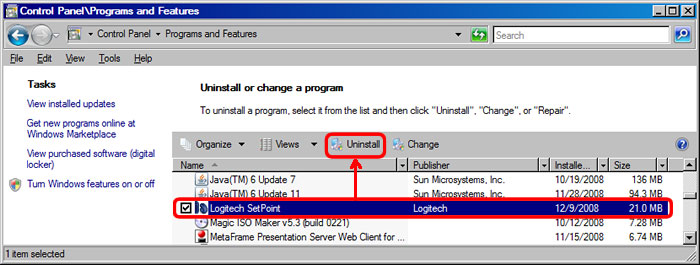
Select Logitech SetPoint from the list of programs displayed as shown below:
-
Click the Uninstall button highlighted above and follow the on-screen instructions to uninstall SetPoint.
-
After uninstalling SetPoint, download and install the latest version of SetPoint from the K320 Downloads Page.
NOTE: You may need to reboot your system after SetPoint has been installed.
-
After your system restarts, open SetPoint to verify that the My Keyboard tab is available.
-
Go to Uninstall a program (Start > Control Panel > Uninstall a program):
-
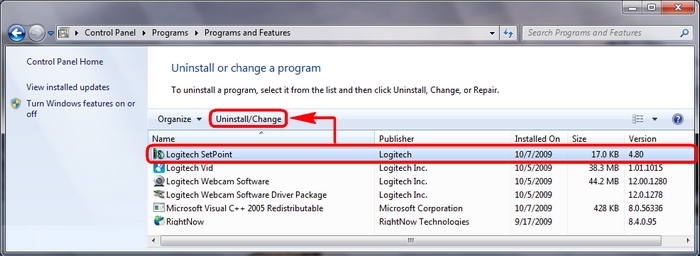
Select Logitech SetPoint from the list of programs displayed as shown below:
-
Click the Uninstall button highlighted above and follow the on-screen instructions to uninstall SetPoint.
-
After uninstalling SetPoint, download and install the latest version of SetPoint from the K320 Downloads Page.
NOTE: You may need to reboot your system after SetPoint has been installed.
-
After your system restarts, open SetPoint to verify that the My NumPad tab is available.
Additional Information:
If the above solutions do not resolve your problem, consult Knowledge Base article 15800 for instructions on contacting Logitech Technical Support.
Important Notice: The Firmware Update Tool is no longer supported or maintained by Logitech. We highly recommend using Logi Options+ for your supported Logitech devices. We are here to assist you during this transition.
Important Notice: The Logitech Preference Manager is no longer supported or maintained by Logitech. We highly recommend using Logi Options+ for your supported Logitech devices. We are here to assist you during this transition.
Important Notice: The Logitech Control Center is no longer supported or maintained by Logitech. We highly recommend using Logi Options+ for your supported Logitech devices. We are here to assist you during this transition.
Important Notice: The Logitech Connection Utility is no longer supported or maintained by Logitech. We highly recommend using Logi Options+ for your supported Logitech devices. We are here to assist you during this transition.
Important Notice: The Unifying Software is no longer supported or maintained by Logitech. We highly recommend using Logi Options+ for your supported Logitech devices. We are here to assist you during this transition.
Important Notice: The SetPoint software is no longer supported or maintained by Logitech. We highly recommend using Logi Options+ for your supported Logitech devices. We are here to assist you during this transition.
Frequently Asked Questions
There are no products available for this section
There are no Downloads for this Product
There are no Downloads for this Version
Compatible Product
