- Preparation: Before you begin, unplug the receiver or the wired connection of the product and then plug it back in. For Bluetooth products, please turn the power off and on again.
-
Identifying the Mouse/Keyboard in Device Manager: Open the Device Manager. (You can find it by right-clicking the Start button and selecting it from the menu.)
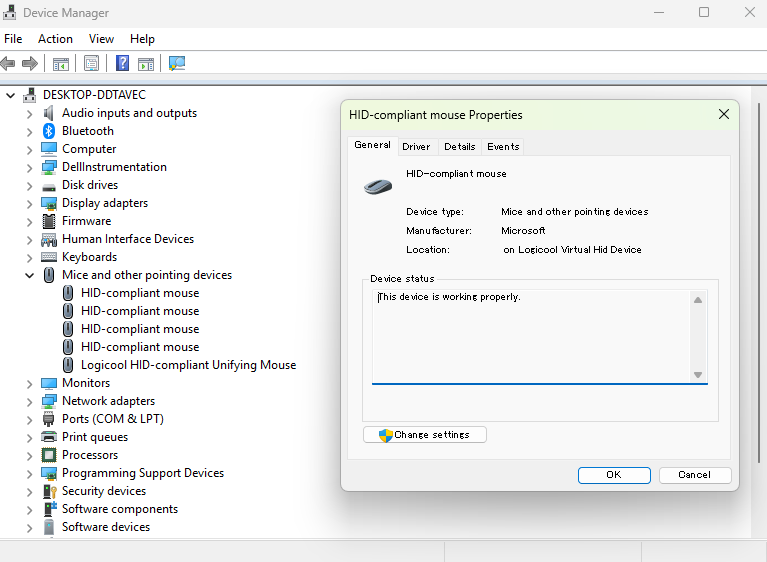
- For the mouse, expand the "Mice and other pointing devices" section. where you will see a window that says HID-compliant mouse.
- For the keyboard, expand the "Keyboards" section, where you will see a window that says HID Keyboard device
- If there are multiple items, identify the correct mouse as follows: Right-click one of the HID-compliant mice and select Properties.
Open the Details tab, select Last arrival date from the dropdown menu. The most recent date and time entry is the mouse you just reconnected.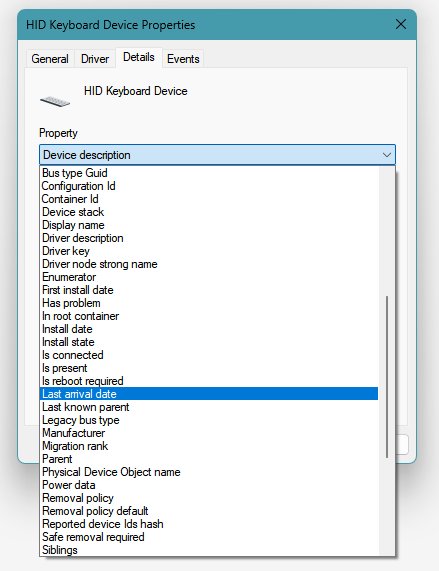
-
Uninstalling the Driver: Once you've identified the correct mouse/keyboard, open the Driver tab, and click Uninstall Device.
Note: If this option is grayed out, go to the General tab and click Change Settings. Enter the username and password for an administrator account.
- Restart and Reconnect: Disconnect the device or remove the USB receiver. Restart your computer. After the restart, reconnect the device.
-
Verification of Successful Completion: Open the properties of the HID-compliant mouse and check the timestamp of the device configuration under the Events tab.
If it displays entries like the example below, the process is completed:
Timestamp             Description
01/25/2025 15:10:01   Device configured
01/25/2025 15:10:01   Device started
06/01/2025 12:01:51   Device removed
06/01/2025 12:05:08   Device configured
06/01/2025 12:05:08   Device started
Ensure that the three most recent entries say "Removed," "Configured," and "Started," and match the approximate time you performed the procedure.
Important Notice: The Firmware Update Tool is no longer supported or maintained by Logitech. We highly recommend using Logi Options+ for your supported Logitech devices. We are here to assist you during this transition.
Important Notice: The Logitech Preference Manager is no longer supported or maintained by Logitech. We highly recommend using Logi Options+ for your supported Logitech devices. We are here to assist you during this transition.
Important Notice: The Logitech Control Center is no longer supported or maintained by Logitech. We highly recommend using Logi Options+ for your supported Logitech devices. We are here to assist you during this transition.
Important Notice: The Logitech Connection Utility is no longer supported or maintained by Logitech. We highly recommend using Logi Options+ for your supported Logitech devices. We are here to assist you during this transition.
Important Notice: The Unifying Software is no longer supported or maintained by Logitech. We highly recommend using Logi Options+ for your supported Logitech devices. We are here to assist you during this transition.
Important Notice: The SetPoint software is no longer supported or maintained by Logitech. We highly recommend using Logi Options+ for your supported Logitech devices. We are here to assist you during this transition.
Frequently Asked Questions
There are no products available for this section
There are no Downloads for this Product
There are no Downloads for this Version
Compatible Product
