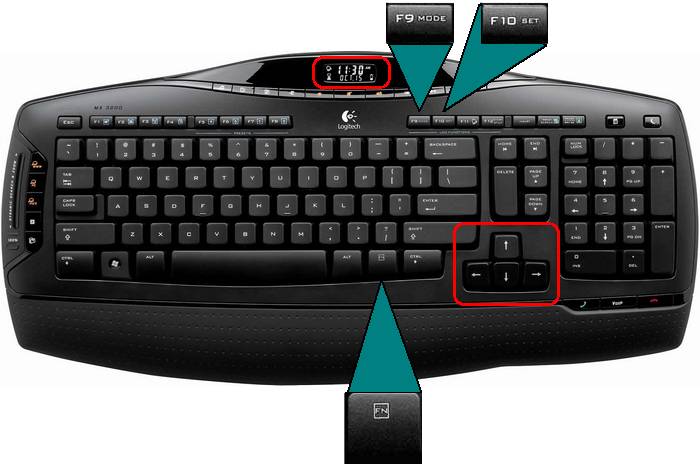
To set the correct time and date on your MX 3200 keyboard display, you will be using the following keys:
- F9 and F10 Function keys
- FN key
- Arrow Keys
-
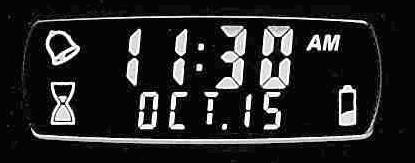
Press the FN + F9 keys until the time and date appear on the LCD display.
The date and time should look like this:
-
Now press the FN + F10 keys to go into the Set Mode. You can exit this mode at any time by pressing the ESC key.
-
Use the left or right arrow keys to select the hour. The hour will blink when it is selected.
-
Change the hour by using the number keys on the keyboard or by using the up and down arrow keys to navigate through the numbers. The Tab key will also change the time and date.
-
Use the right arrow key to select the minutes and change the hour by using the number keys on the keyboard or by using the up and down arrow keys to navigate through the numbers.
-
Press the right arrow key again to choose the 12-hour or 24-hour format with the up and down arrow keys.
-
To change the date, use the right arrow key again and use the up and down arrow to select the month. To change the day, use the right arrow to select and the up and down arrows to change the day.
-
When you are finished, press Enter on the keyboard to exit Set Mode.
The time and date on the LCD display should now be displayed properly. If the display is not set properly or a correction needs to be made, repeat the procedure starting at step 2.
Important Notice: The Firmware Update Tool is no longer supported or maintained by Logitech. We highly recommend using Logi Options+ for your supported Logitech devices. We are here to assist you during this transition.
Important Notice: The Logitech Preference Manager is no longer supported or maintained by Logitech. We highly recommend using Logi Options+ for your supported Logitech devices. We are here to assist you during this transition.
Important Notice: The Logitech Control Center is no longer supported or maintained by Logitech. We highly recommend using Logi Options+ for your supported Logitech devices. We are here to assist you during this transition.
Important Notice: The Logitech Connection Utility is no longer supported or maintained by Logitech. We highly recommend using Logi Options+ for your supported Logitech devices. We are here to assist you during this transition.
Important Notice: The Unifying Software is no longer supported or maintained by Logitech. We highly recommend using Logi Options+ for your supported Logitech devices. We are here to assist you during this transition.
Important Notice: The SetPoint software is no longer supported or maintained by Logitech. We highly recommend using Logi Options+ for your supported Logitech devices. We are here to assist you during this transition.
Frequently Asked Questions
There are no products available for this section
There are no Downloads for this Product
There are no Downloads for this Version
Compatible Product
