Verify the lighted button on the front of the Receiver is slowly flashing red. If it is not slowly flashing red,
-
Perform a factory reset on both your Receiver and your Controller. For instruction on performing a factory reset, please see Knowledge Base article 360023209694.
-
The lighted button should now be slowly flashing red.

-
Follow the setup instructions on the Controller display as described in Knowledge Base article 360023209694.
When you reach the screen on the Controller display that asks you to choose a Squeezebox,the receiver name should now be listed. The Squeezebox name will show as ‘Squeezebox XXXXXX’.
‘XXXXXX’ is the last six digits of the Receiver’s MAC address, which can be found on the bottom of the Receiver.
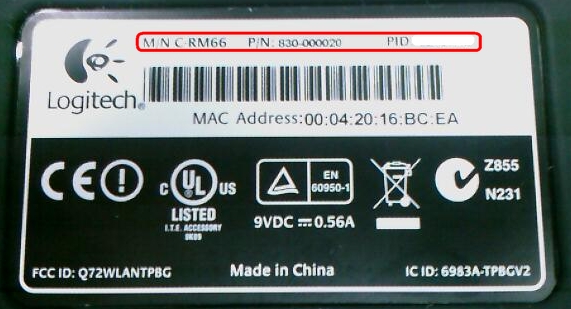
If the player’s MAC address is 00:04:20:16:BC:EA, it will appear in the Set Up Receiver menu as 'Squeezebox 16BCEA'.
If you still do not see your Squeezebox in the list, please check these additional suggestions.
Additional Information
Other possible solutions include the following:
-
Make sure your Receiver and Controller are near each other and in the same room while setting up.
-
Try moving your Squeezebox closer to your wireless router.
-
Try connecting the Squeezebox Receiver to a router via an ethernet cable.
-
If none of the above work, try setting up Squeezebox Duet in Bridge mode. For instructions on setting up Bridge mode, please see Knowledge Base article 360023209694.
Important Notice: The Firmware Update Tool is no longer supported or maintained by Logitech. We highly recommend using Logi Options+ for your supported Logitech devices. We are here to assist you during this transition.
Important Notice: The Logitech Preference Manager is no longer supported or maintained by Logitech. We highly recommend using Logi Options+ for your supported Logitech devices. We are here to assist you during this transition.
Important Notice: The Logitech Control Center is no longer supported or maintained by Logitech. We highly recommend using Logi Options+ for your supported Logitech devices. We are here to assist you during this transition.
Important Notice: The Logitech Connection Utility is no longer supported or maintained by Logitech. We highly recommend using Logi Options+ for your supported Logitech devices. We are here to assist you during this transition.
Important Notice: The Unifying Software is no longer supported or maintained by Logitech. We highly recommend using Logi Options+ for your supported Logitech devices. We are here to assist you during this transition.
Important Notice: The SetPoint software is no longer supported or maintained by Logitech. We highly recommend using Logi Options+ for your supported Logitech devices. We are here to assist you during this transition.
Frequently Asked Questions
There are no products available for this section
There are no Downloads for this Product
There are no Downloads for this Version
Compatible Product
