This tutorial shows you how to use these features in the Logitech SetPoint Mouse and Keyboard Software:
The Function Keys, or F-Keys, are the keys labeled F1 through F12 above the number keys. Some of these keys can be programmed to perform certain functions.
NOTE: To use the programmed F-Key, press and hold the FN key while pressing the programmed F-Key.
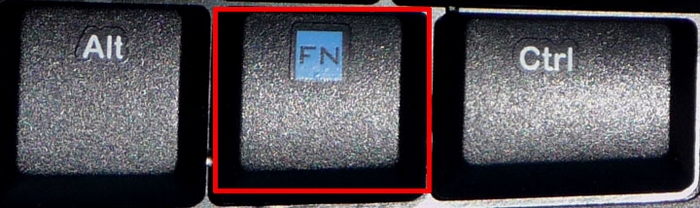
To program a function key:
-
Launch the Logitech SetPoint Mouse and Keyboard Software.
NOTE: If you don't have SetPoint installed, you can download it from the EX 100 Downloads Page.
Start > Programs > Logitech > Mouse and Keyboard > Mouse and Keyboard Settingss
-
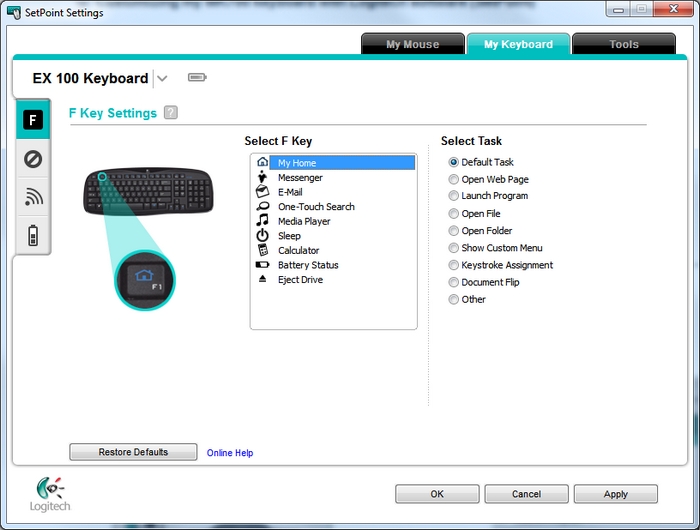
Click the My Keyboard tab at the top of the SetPoint Settings window.
NOTE: If you have more than one Logitech keyboard and the EX 100 isn't currently displayed, click the down-arrow icon next to the current product name and select it from the drop-down menu that displays.
-
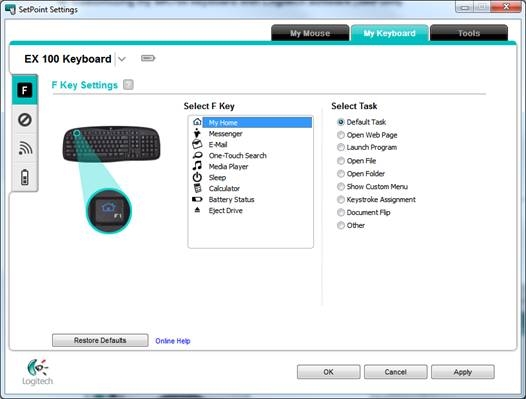
Click the "F" icon on the left toolbar to display the F Key Settings screen, if it isn't currently displayed.
-
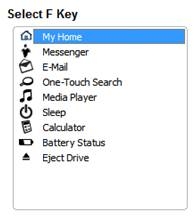
Choose the key yo.u want to customize in the Select F Key field.
-
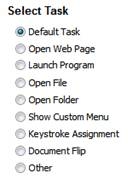
Choose the task you want the keyboard key to perform under Select Task.
NOTE: You can click the "?" icon by F Key Settings at the top for detailed descriptions of these options.
-
Click Apply to save your settings and then OK to exit SetPoint.
You can disable keys you don't normally use. Here's how:
-
Launch the Logitech SetPoint Mouse and Keyboard Software.
NOTE: If you don't have SetPoint installed, you can download it from the EX 100 Downloads Page.
Start > Programs > Logitech > Mouse and Keyboard > Mouse and Keyboard Settings 1 -
Click the My Keyboard tab at the top of the SetPoint Settings window.
NOTE: If you have more than one Logitech keyboard and the EX 100 isn't currently displayed, click the down-arrow icon next to the current product name and select it from the drop-down menu that displays.
-
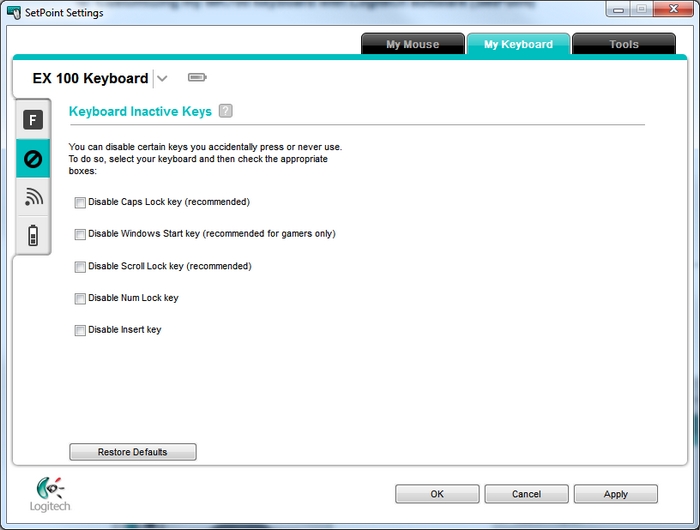
Click the disabling icon on the left toolbar to display the Keyboard Inactive Keys screen.
-
Select the check box next to each key you want to disable.
-
Click Apply to save your settings and then OK to exit SetPoint.
You can secure your cordless keyboard to protect your privacy. This is recommended when you're using your EX 100 in an environment where there are other 27 MHz wireless devices within approximately a 6 foot (2 meter) range.
-
Launch the Logitech SetPoint Mouse and Keyboard Software.
NOTE: If you don't have SetPoint installed, you can download it from the EX 100 Downloads Page.
Start > Programs > Logitech > Mouse and Keyboard > Mouse and Keyboard Settings
-
Click the My Keyboard tab at the top of the SetPoint Settings window.
NOTE: If you have more than one Logitech keyboard and the EX 100 isn't currently displayed, click the down-arrow icon next to the current product name and select it from the drop-down menu that displays.
-
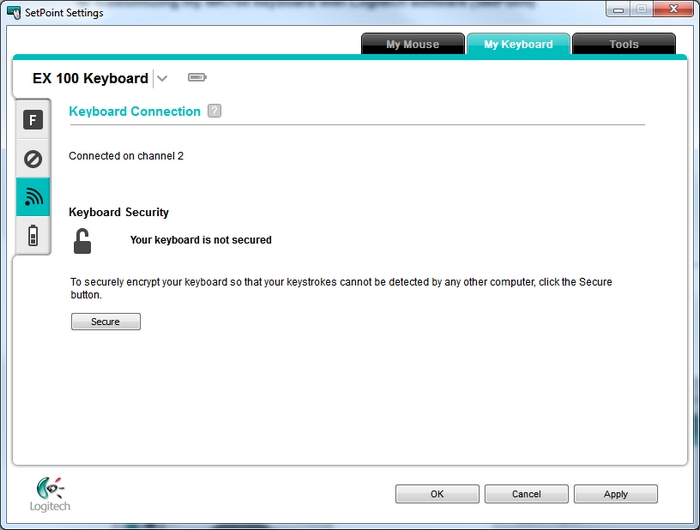
Click the wireless connection icon on the left toolbar to display the Keyboard Connection screen.
-
If you see the "Your keyboard is not secured" message (as shown above), click the Secure button.
-
Follow the directions in the pop-up window.
- Click Apply to save your settings and then OK to exit SetPoint
You can check your keyboard's battery status in SetPoint. Here's how:
-
Launch the Logitech SetPoint Mouse and Keyboard Software.
NOTE: If you don't have SetPoint installed, you can download it from the EX 100 Downloads Page.
Start > Programs > Logitech > Mouse and Keyboard > Mouse and Keyboard Settings
-
Click the My Keyboard tab at the top of the SetPoint Settings window.
NOTE: If you have more than one Logitech keyboard and the EX 100 isn't currently displayed, click the down-arrow icon next to the current product name and select it from the drop-down menu that displays.
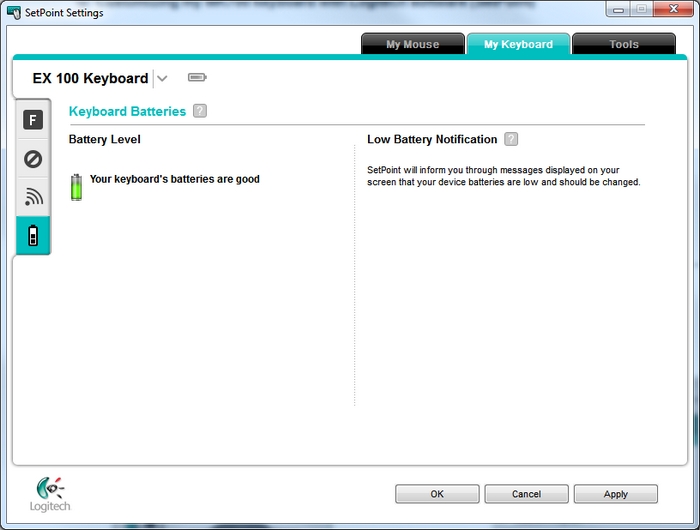
- Click the battery icon on the left toolbar to display the Keyboard Batteries screen and check your battery status.
- Click OK to exit SetPoint
Important Notice: The Firmware Update Tool is no longer supported or maintained by Logitech. We highly recommend using Logi Options+ for your supported Logitech devices. We are here to assist you during this transition.
Important Notice: The Logitech Preference Manager is no longer supported or maintained by Logitech. We highly recommend using Logi Options+ for your supported Logitech devices. We are here to assist you during this transition.
Important Notice: The Logitech Control Center is no longer supported or maintained by Logitech. We highly recommend using Logi Options+ for your supported Logitech devices. We are here to assist you during this transition.
Important Notice: The Logitech Connection Utility is no longer supported or maintained by Logitech. We highly recommend using Logi Options+ for your supported Logitech devices. We are here to assist you during this transition.
Important Notice: The Unifying Software is no longer supported or maintained by Logitech. We highly recommend using Logi Options+ for your supported Logitech devices. We are here to assist you during this transition.
Important Notice: The SetPoint software is no longer supported or maintained by Logitech. We highly recommend using Logi Options+ for your supported Logitech devices. We are here to assist you during this transition.
Frequently Asked Questions
There are no products available for this section
There are no Downloads for this Product
There are no Downloads for this Version
Compatible Product
