This problem is likely to be a lost connection. The connection between the MK700 mouse (identified in SetPoint as MX620) and the USB receiver can be lost due to several reasons:
- Low batteries
- Moving the USB receiver from one USB port to another
- Moving the USB receiver to another computer
- Plugging the USB receiver into a USB hub or other unsupported device such as a KVM switch (your USB receiver must be plugged directly into your computer)
- Using your cordless mouse on metal surfaces
- Radio frequency (RF) interference of more powerful wireless devices such as:
- Wireless speakers
- Computer power supplies
- Monitors
- Cellular telephones
- Garage door openers
Eliminate any problem sources mentioned above that might be affecting your devices.
Before connecting your MX620 mouse:
-
Make sure you have fresh batteries in your mouse. For battery installation instructions, please see Knowledge Base article 360023389753.
-
Make sure the mouse is turned on. The power light on the bottom of the mouse should be green. If it is not green, press the power button (shown below) for approximately one second.
Power Indicator

-
Make sure the USB receiver is directly and securely plugged into a working USB port on your computer.
-
Turn on your computer.
-
Follow the below procedure to re-connect your mouse.
Re-connecting your MX620 mouse:
-
Go to Start > Run.
-
Type in C:\Program Files\Logitech\SetPoint\connect.exe.
-
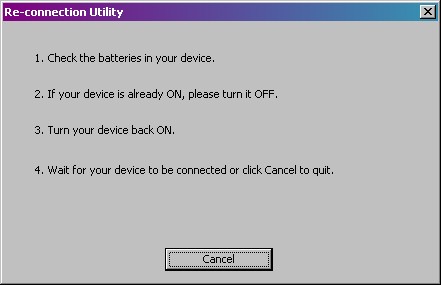
You will see the Connect Utility screen as shown below:
-
Follow the on-screen instructions.
-
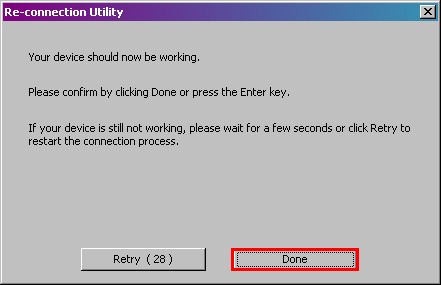
You will see the following window:
-
Click Done if the mouse is working properly, otherwise follow the onscreen instructions to retry.
Additional Information:
If the above solutions do not resolve your problem, consult Knowledge Base article 13855 for instructions on contacting Logitech Technical Support.
Important Notice: The Firmware Update Tool is no longer supported or maintained by Logitech. We highly recommend using Logi Options+ for your supported Logitech devices. We are here to assist you during this transition.
Important Notice: The Logitech Preference Manager is no longer supported or maintained by Logitech. We highly recommend using Logi Options+ for your supported Logitech devices. We are here to assist you during this transition.
Important Notice: The Logitech Control Center is no longer supported or maintained by Logitech. We highly recommend using Logi Options+ for your supported Logitech devices. We are here to assist you during this transition.
Important Notice: The Logitech Connection Utility is no longer supported or maintained by Logitech. We highly recommend using Logi Options+ for your supported Logitech devices. We are here to assist you during this transition.
Important Notice: The Unifying Software is no longer supported or maintained by Logitech. We highly recommend using Logi Options+ for your supported Logitech devices. We are here to assist you during this transition.
Important Notice: The SetPoint software is no longer supported or maintained by Logitech. We highly recommend using Logi Options+ for your supported Logitech devices. We are here to assist you during this transition.
Frequently Asked Questions
There are no products available for this section
There are no Downloads for this Product
There are no Downloads for this Version
Compatible Product
