Connect your mouse to your device
You can pair your mouse to your device through direct Bluetooth Low Energy connection:
-
To pair through Bluetooth:
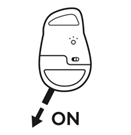
STEP 1
Remove the pull-tab from the mouse. It will automatically turn on. Channel 1 will be ready to pair.A white LED on the bottom side of your mouse (on the Easy-Switch LED number 1) will start blinking.
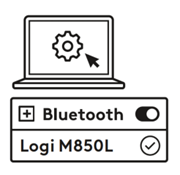
STEP 2
Open the Bluetooth preferences on your device. Add a new peripheral by selecting the mouse from your list of devices (make sure you select the same model number that is engraved under your mouse) and your mouse will be ready to use. -
If you want to pair additional devices to your mouse follow the next step:
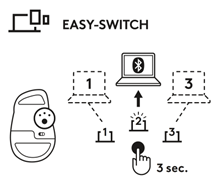
To pair the mouse with an additional device select Channel 2 by a short press (one second) on the connect button under your mouse.
When the LED starts blinking the second channel will be ready to pair through a Bluetooth connection (if the LED on Channel 2 does not start blinking, long press the connect button for three seconds to activate the pairing mode).
To toggle between devices, simply short press the connect button between Channel 1, 2 or 3.
-
Install the Logi Options+ App
Download the Logi Options+ App to customize your mouse and benefit from handy shortcuts and all the possibilities this mouse has to offer. To download and learn more about the full range of features, go to https://www.logitech.com/software/logi-options-plus
LEARN MORE ABOUT YOUR PRODUCT
Product Overview
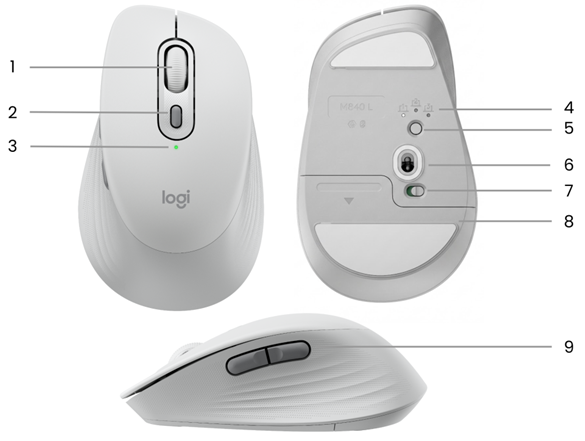
- SmartWheel scroll wheel
- DPI Button
- Battery status LED
- Connection Status LED
- Connect button
- 4000DPI sensor
- On/Off toggle switch
- Battery compartment
- Back/Forward buttons
Our new Logitech SmartWheel on your mouse
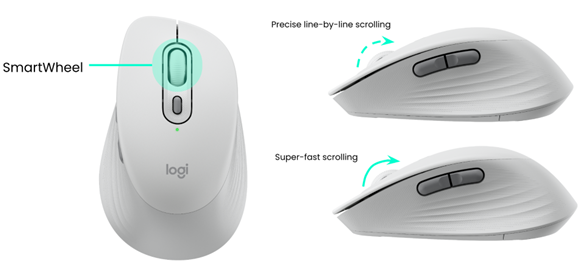
The Signature Comfort Plus Mouse M850 L features SmartWheel scrolling that delivers precision or speed the moment you need it. Seamlessly switch between these two scrolling styles with the flick of your finger:
-
Line-by-line (ratchet) scroll — Get line-by-line precision when you need to focus on the details. Scroll slowly, you will feel each step on the wheel. Ideal for reading or precise navigation of items and lists.
- Super-fast scroll — Get faster scroll for less friction spinning. It will let you scroll faster and with less effort. Ideal for quick scanning through long documents and web pages.
Virtual Horizontal Scroll
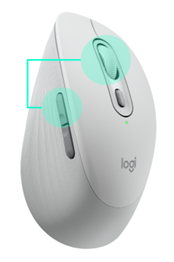 |
You can scroll horizontally with your mouse. This is done with a two-button combination: Press and hold one of the side buttons and scroll with the wheel simultaneously. NOTE: The horizontal scroll is ON by default in your mouse. You can customize this feature in the Point & Scroll tab in Logitech software. For more detailed information on Horizontal scroll, click here. |
Back/Forward buttons
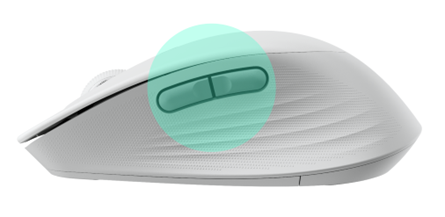 |
The back and forward buttons enhance navigation and simplify tasks. Logitech software lets you assign other useful functions to the buttons, including undo/redo, OS navigation, volume up/down, and more. |
How to customize your side buttons
- Download Logitech Options+.
-
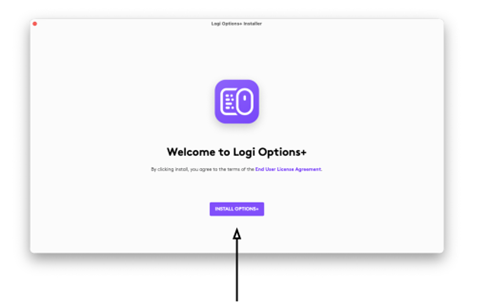
An installer window will pop up on your screen. Click Install Options+.
-
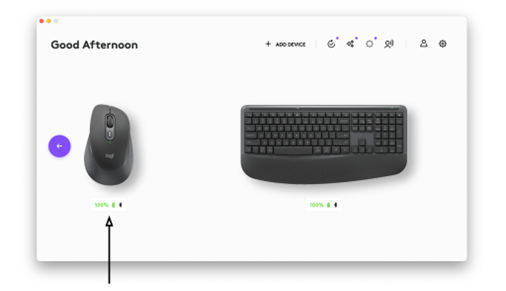
Once Logitech Options+ is installed, a window will open and you will be able to see an image of your mouse. Click on it.
-
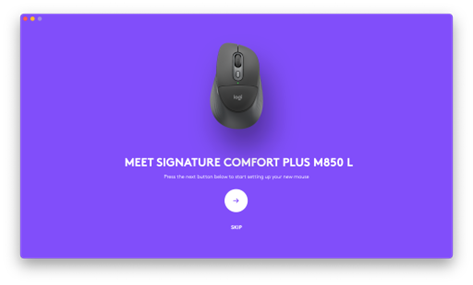
You will be taken into a quick onboarding process that shows you how to customize your mouse. We highly recommend not to skip it.
-
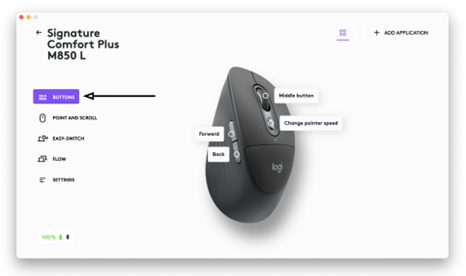
Once you finish, click Buttons on the left side of the screen.
-
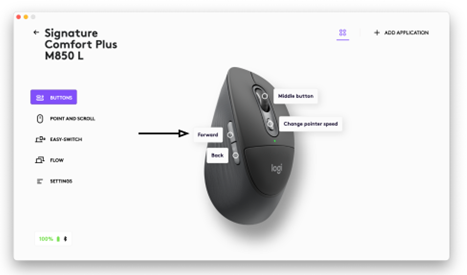
Click on any of the buttons that you wish to customize.
-
Select the function you like to set on that button from the options that appear on the right side of the screen and you are done!
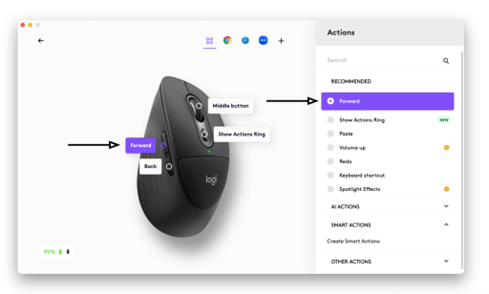
App-Specific Settings
Your mouse buttons can be assigned to perform different functions for different applications. You can assign the side buttons to control volume in Spotify, copy/paste in Microsoft Excel, or undo/redo in Adobe Photoshop.
When you install Logitech software, you can install predefined app-specific settings that will adapt the mouse button behavior to the selected applications.
Here are the app-specific settings we have created for you:
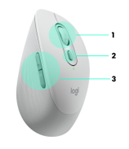 |
1 | 2 | 3 | |
| Default settings | Middle Button | Show Actions Ring | Forward | Back |
| Chrome | Middle Button | Show Actions Ring | Forward | Back |
| Safari | Middle Button | Show Actions Ring | Forward | Back |
| Zoom | Middle Button | Show Actions Ring | Start/Stop Video | Mute/Unmute mic |
| Media (Spotify, VLC, Quicktime) | Middle Button | Show Actions Ring | Forward | Back |
| Microsoft Excel | Pan (hold and move the mouse) | Show Actions Ring | Redo | Undo |
| Microsoft Word | Autoscroll | Show Actions Ring | Redo | Undo |
| Microsoft PowerPoint | Pan (hold and move the mouse) | Show Actions Ring | Redo | Undo |
| Adobe Photoshop | Pan (hold and move the mouse) | Show Actions Ring | Redo | Undo |
Each of these settings can be customized manually, for any application.
Assign gestures to the DPI button or any of the side buttons
If you want more advanced functionality, you can assign the DPI button or any of the side buttons of the mouse to be the “Gesture Button”. This will transform your selected button into a powerful multi-function button allowing you to use gestures for desktop navigation, app management, pan, zoom, and more.
-
On the Mouse tab, select the button and click on Gesture Button.
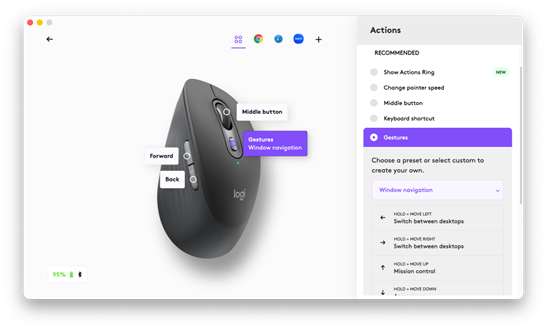
-
By default, the gesture buttons will allow you to navigate between windows and desktops.
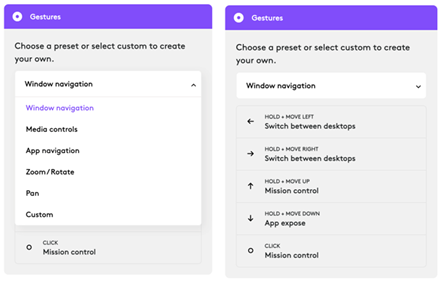
- In order to perform the gestures, you will need to hold the button while you move the mouse.
Flow between two computers with your mouse
You can work on multiple computers with one single mouse.
With Logitech Flow, you can use the mouse cursor to move from one computer to the next. You can even copy and paste between computers, and if you have a compatible Logitech keyboard, the keyboard will follow the mouse and switch computers at the same time.
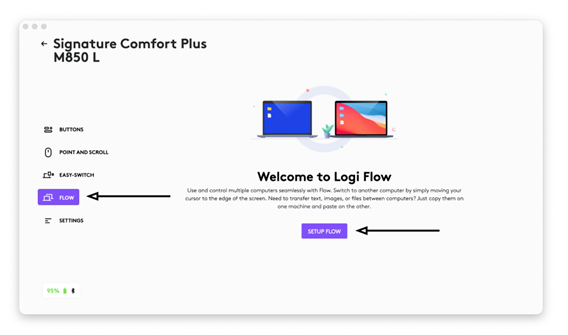
You will need to install Logitech software on both computers and follow these instructions.
Link your mouse M850 L to your K880 keyboard so they can both simultaneously switch from one computer to another
You can work on multiple computers with one single keyboard and mouse. Now, you can link your M850 L mouse to your K880 keyboard and switch both devices directly from your keyboard Easy-Switch keys. Here's how:
- First, pair your mouse and your keyboard to both of your computers and install the Logi Options+ App on them (please note this function only works on Windows and Mac operating systems).
-
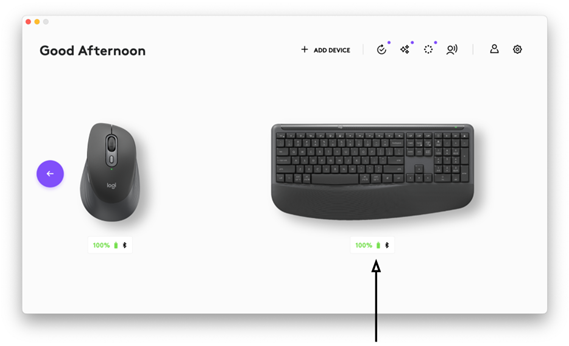
From any of your computers, open the Logi Options+ App and go to your keyboard's configuration page.
-
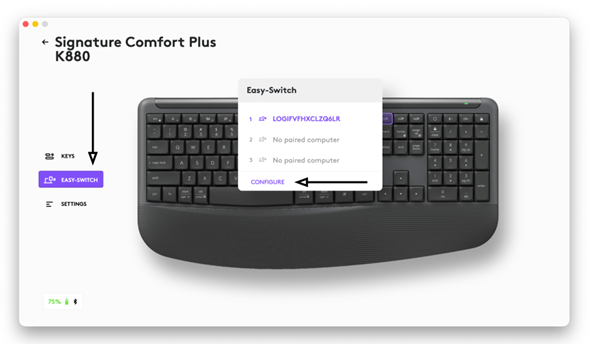
On the left side of the screen select the EASY- SWITCH tab and from the pop-up menu in the middle of the screen select the CONFIGURE option.
-
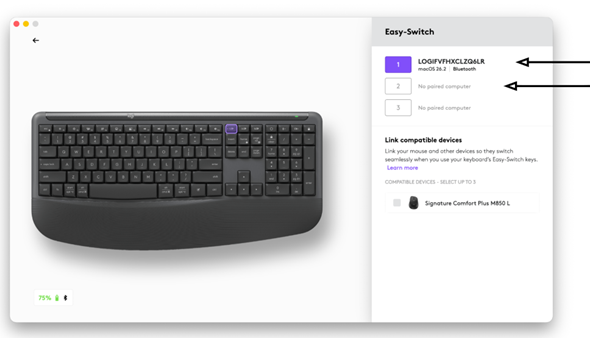
Make sure that at least two channels of your keyboard are connected to one computer each. You can confirm that on the menu on the top right side of the screen.
-
On the menu on the bottom right side of your screen, you will see the compatible mice that you can pair to your keyboard. Tick the box next to the mouse and you’re all set. You have linked your mouse to your keyboard.
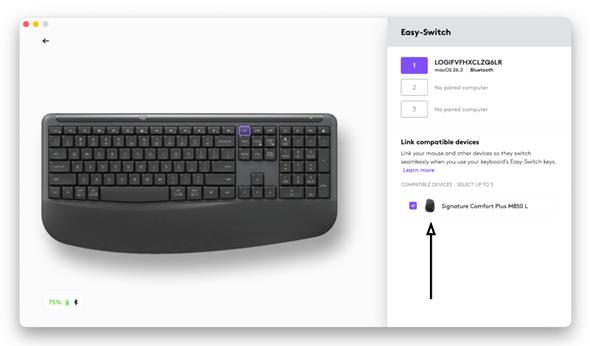
Switch from one computer to another with your linked mouse and keyboard
The switch from computer to computer is now much easier!
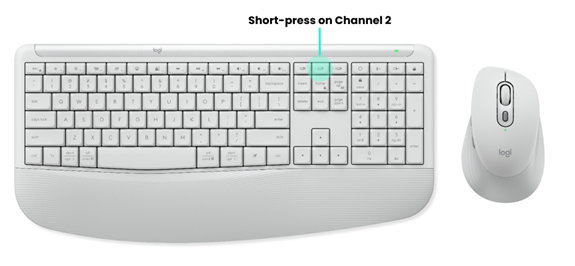
Now, simply short-press the Channel 2 key on your keyboard and both mouse and keyboard will move to your second computer.
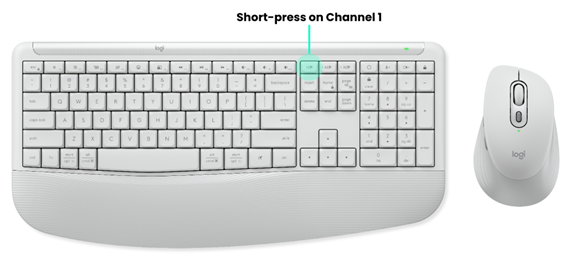
To move back to your first computer simply short-press the Channel 1 key on your keyboard and both mouse and keyboard will move back to your first computer.
Check Battery Status
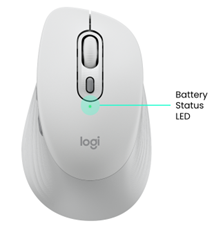 |
The LED on the top of the mouse indicates battery status. You can install Logitech software to receive battery status notifications, including low-charge warnings. |
| LED Color | Status | Time Out | Indications |
| Green | Steady | 5 seconds | From 100% to > 5% charge |
| Red | Pulsing | Five seconds steady, followed by three minutes pulsing |
Critical level (equivalent to one month median use) or below |
Battery life and replacement
Battery information:
- Requires 1 AA alkaline battery
- Expected battery life is up to 24 months
Installing a new battery
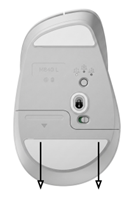 |
Slide the battery compartment cover down and remove it from the mouse. |
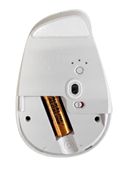 |
You will'll see the mouse battery. Remove it and replace with a new one. Make sure that it faces the correct direction and then place the battery cover back on. |
How to change the soft palm cushion on your M850 L mouse
The cushion on your mouse is designed to be replaceable. If you need to install a new cushion, you can do so using the pick tool provided with the replacement kit. This tool allows for easy removal and installation.
Please follow the instructions below to replace it:
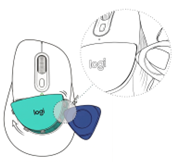 |
With the pick tool, simply insert firmly one of the corners of it through the split line between the mouse topcase and the cushion. Make sure to insert the tool in the upper right side of the cushion as shown on the image. Press the tool firmly into the parting line to avoid the tool sliding out and scratching your mouse. |
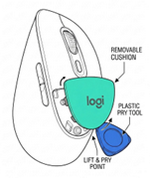 |
A plastic structure with the cushion will pop up from your mouse. Slide the tool down around the cushion to continue to unhook it across its border line. As you move around, the cushion will completely pop-out from the mouse. |
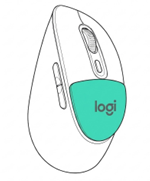 |
Set the new cushion back on the mouse and press it firmly until it's back in place. |
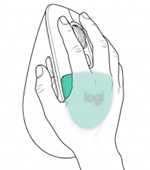 |
The mouse is now ready to be used again. |
Important Notice: The Firmware Update Tool is no longer supported or maintained by Logitech. We highly recommend using Logi Options+ for your supported Logitech devices. We are here to assist you during this transition.
Important Notice: The Logitech Preference Manager is no longer supported or maintained by Logitech. We highly recommend using Logi Options+ for your supported Logitech devices. We are here to assist you during this transition.
Important Notice: The Logitech Control Center is no longer supported or maintained by Logitech. We highly recommend using Logi Options+ for your supported Logitech devices. We are here to assist you during this transition.
Important Notice: The Logitech Connection Utility is no longer supported or maintained by Logitech. We highly recommend using Logi Options+ for your supported Logitech devices. We are here to assist you during this transition.
Important Notice: The Unifying Software is no longer supported or maintained by Logitech. We highly recommend using Logi Options+ for your supported Logitech devices. We are here to assist you during this transition.
Important Notice: The SetPoint software is no longer supported or maintained by Logitech. We highly recommend using Logi Options+ for your supported Logitech devices. We are here to assist you during this transition.
Frequently Asked Questions
There are no products available for this section
There are no Downloads for this Product
There are no Downloads for this Version
Compatible Product
