LEARN MORE ABOUT YOUR PRODUCT
Product Overview
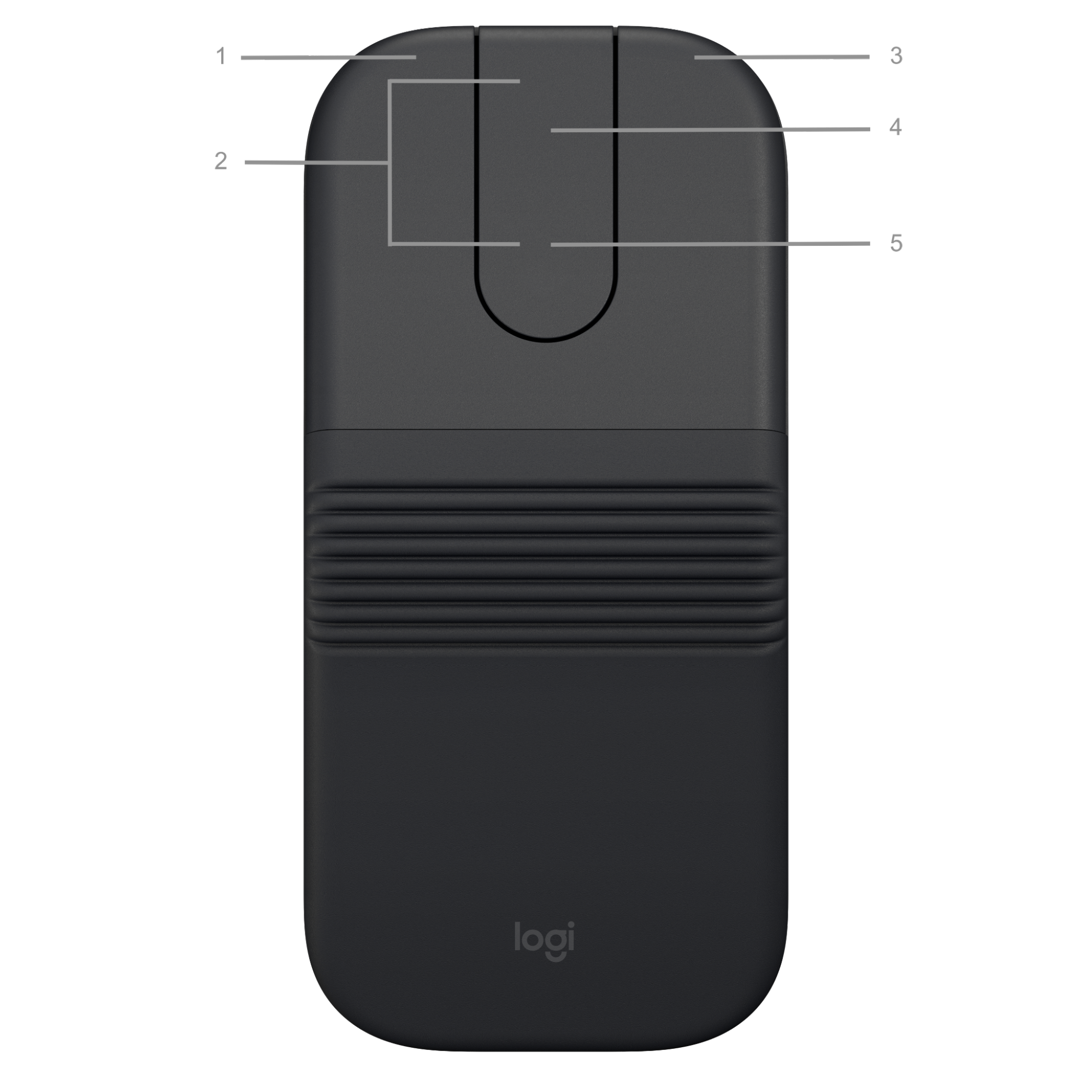
- Left click
- Customizable buttons
- Right click
- Touch scroll (Forward/back button under touch scroll)
- Battery status LED
Power on/off Your Mobi Fold
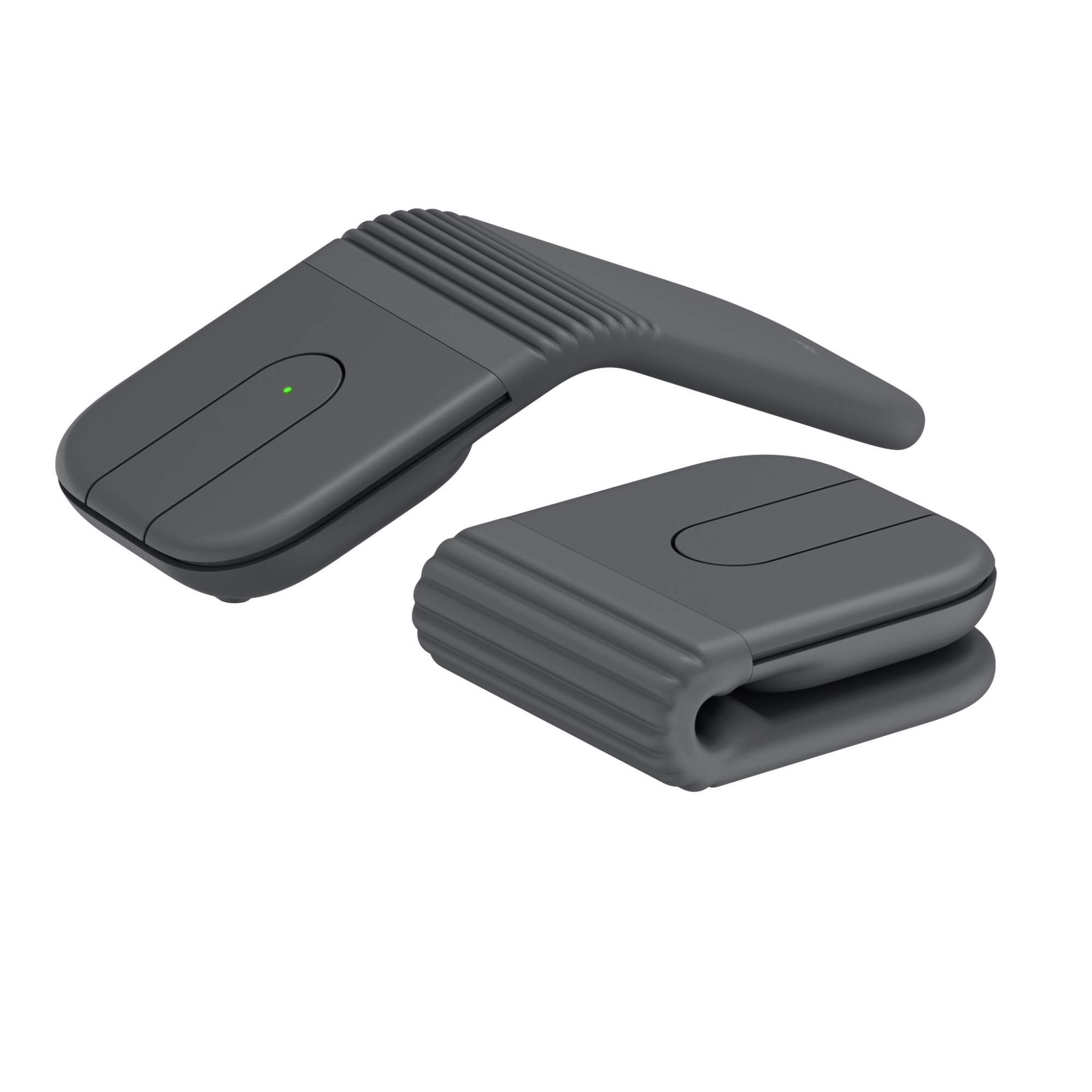
You can simply power on Mobi Fold by unfolding it and power it off by folding it.
Adaptive Touch Scroll
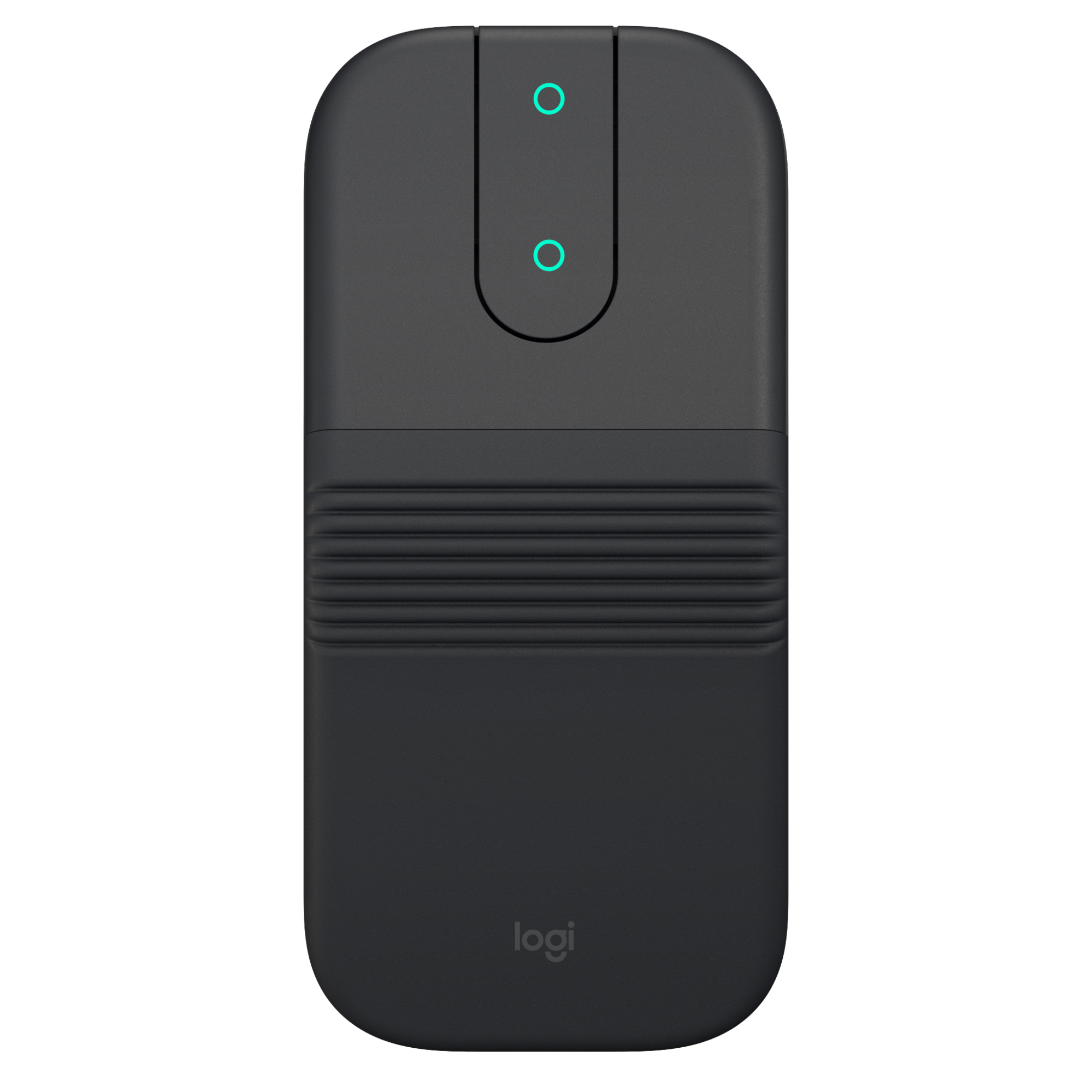
The adaptive touch scroll automatically shifts between line-by-line and hyperfast scrolling based on your scrolling speed.
- Line-by-line — ideal for precise navigation of items and lists.
- Hyper-fast — letting you fly through long documents and web pages.
Adaptive Touch Scroll
Back/Forward buttons
The back and forward buttons enhance navigation and simplify tasks.
To move back and forward:
- Press the back or forward button to navigate web or document pages, depending on the location of the mouse pointer.
High Precision Sensor
By default, Mobi Fold has a 800 DPI configuration.
In the Logitech Options+ Software, you can extend the sensor range up to 4000 DPI.
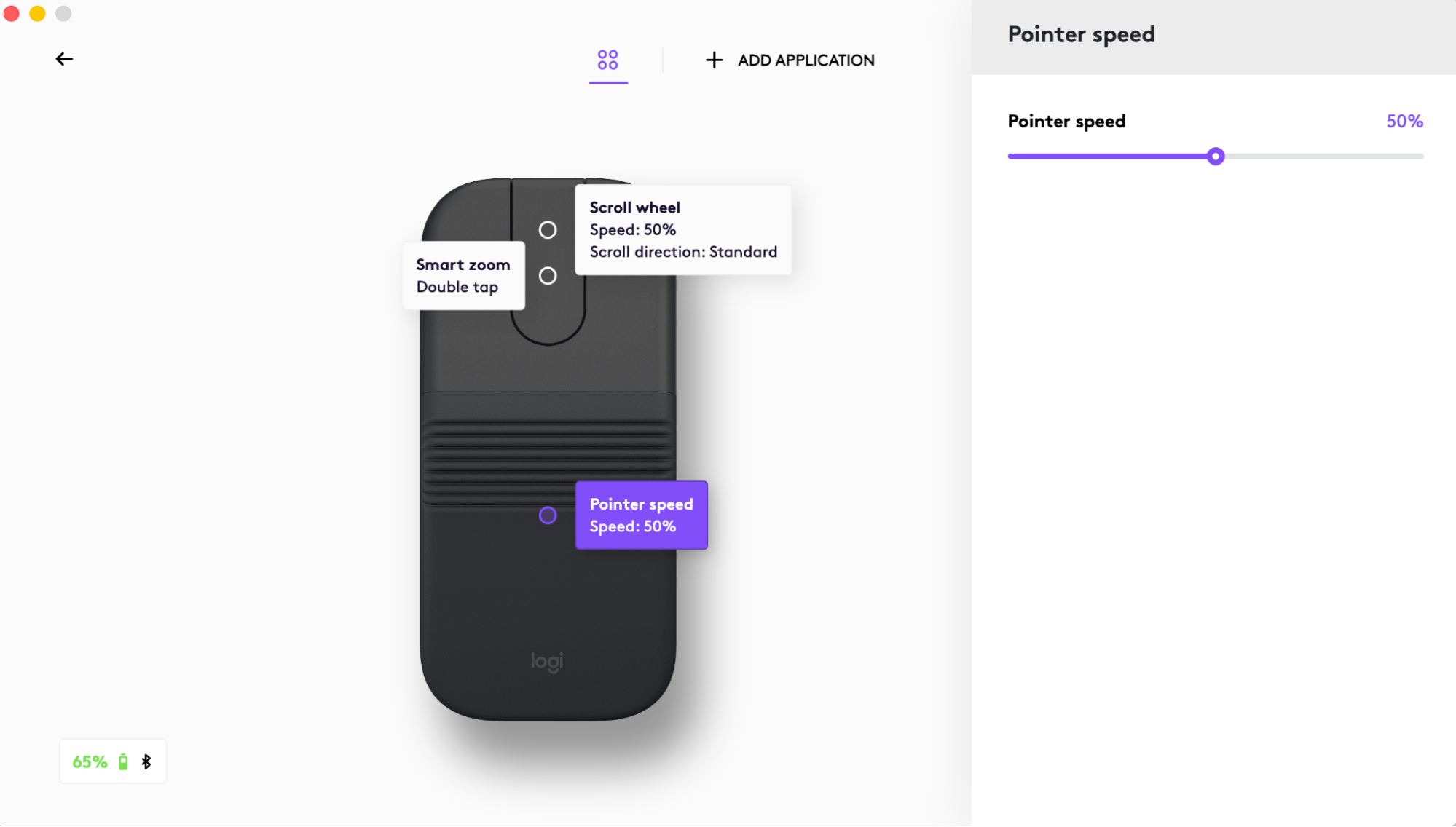
Enabling this option will allow you to adjust the pointer speed to match high resolution monitors.
Detailed Setup
Connecting the mouse via Bluetooth®
- Pull the insulation tab out from the battery compartment to power on the mouse.
- The LED should blink fast. If not, press and hold the Easy-Switch button (on the back of the mouse) for 3 seconds. When the light begins blinking, the mouse is ready to pair with your device.
- On your laptop/PC/tablet, make sure your Bluetooth® is on. Select Settings > Bluetooth® > On. Then select "Mobi Fold" from the device list.
Pair to Mobi Fold to multiple devices with Easy-Switch
Your mouse can be paired with up to three different computers using the Easy-Switch button to change the channel.
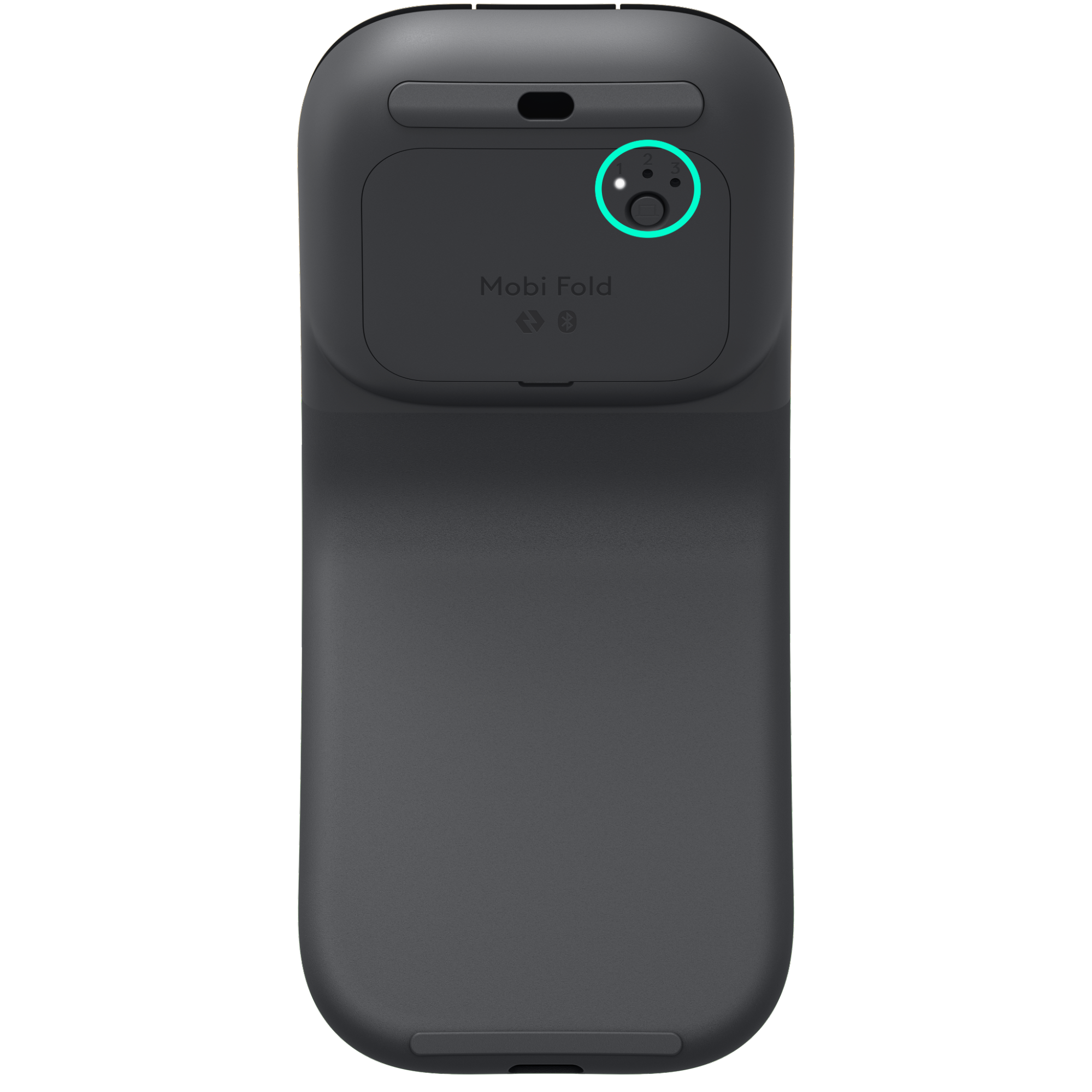
- A short press on the Easy-Switch button will let you switch channels (from one device to another). Select the channel you want and go to the next step.
- Press and hold the Easy-Switch button for three seconds. This will put the mouse in discoverable mode so that it can be seen by your computer. The LED will start blinking fast.
- Open the Bluetooth settings on your computer to complete the pairing.
Customize with Logi Options+
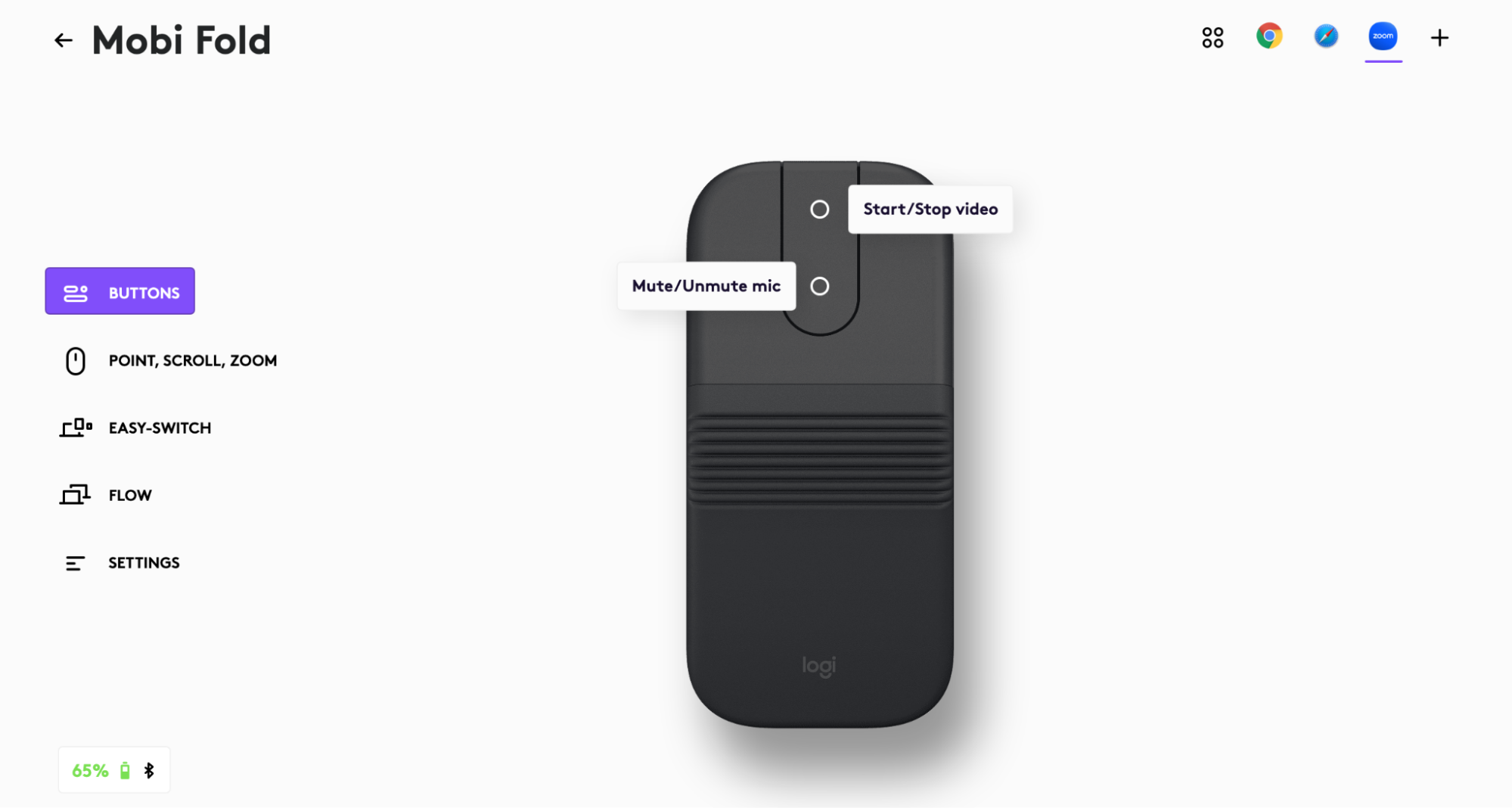
The buttons under the touch scroll can be assigned to perform different functions for different applications. For instance, you can assign buttons to copy/paste in Microsoft Excel, volume up / down in Spotify, or mute / unmute microphone in Zoom.
When you install Logitech Options+, you can install predefined app-specific settings that will adapt the mouse button behavior to the selected applications such as the browser of your choice, Zoom and more.
Flow between two computers
You can work on multiple computers with a single Mobi Fold
With Logitech Flow, you can use the mouse cursor to move from one computer to the next. You can even copy and paste between computers, and if you have a compatible Logitech keyboard, the keyboard will follow the mouse and switch computers at the same time.
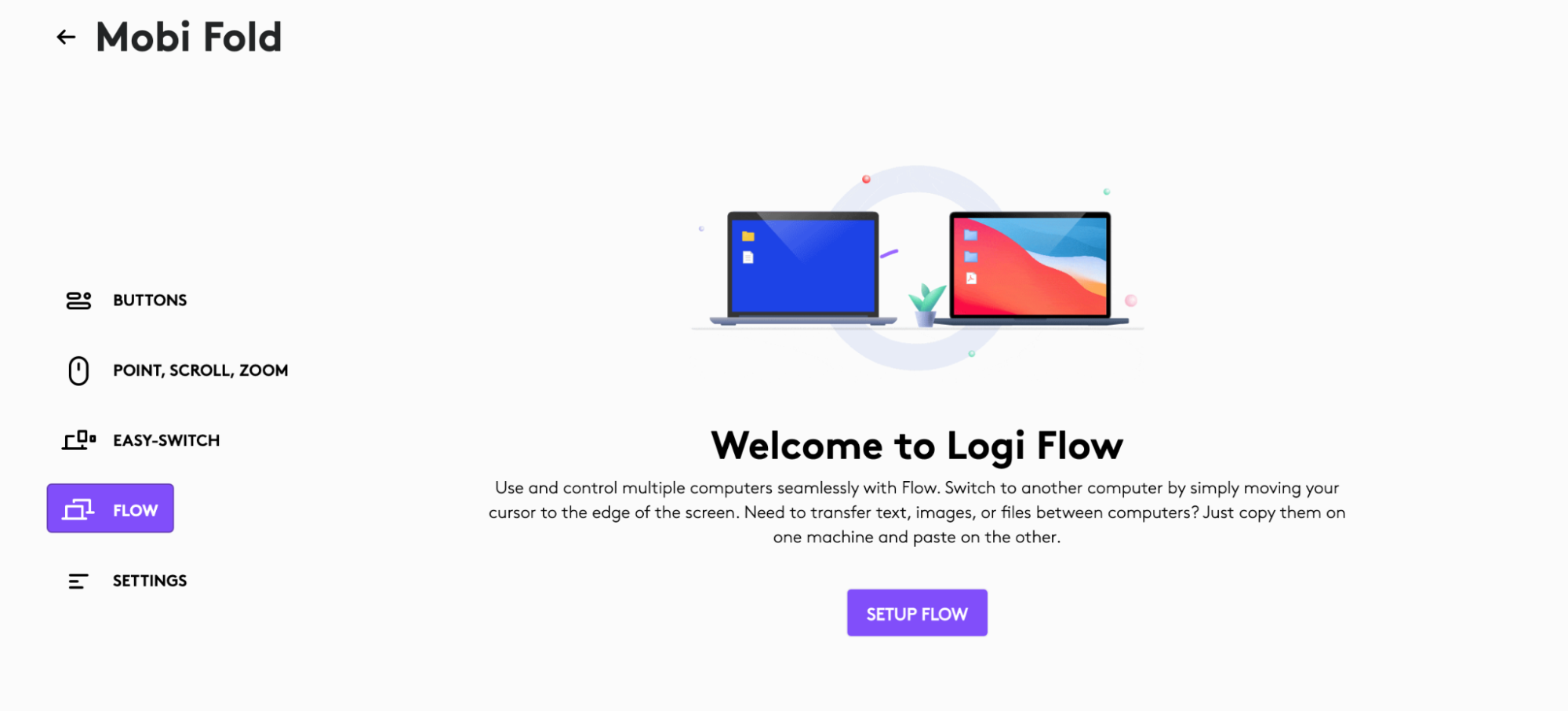
You will need to install Logitech Options+ software on both computers and follow these instructions.
Charge your Mobi Fold
Plug in a USB-C charging cable (sold separately) into the charging port on the mouse to recharge the mouse
A minimum of a one-minute charge gives you enough power for 22 hours of use. Depending on how you use the mouse, a full charge can last up to 33 days. Battery life may vary depending on user and operating conditions.
Check Battery Status
The LED on the top of the mouse indicates battery status.
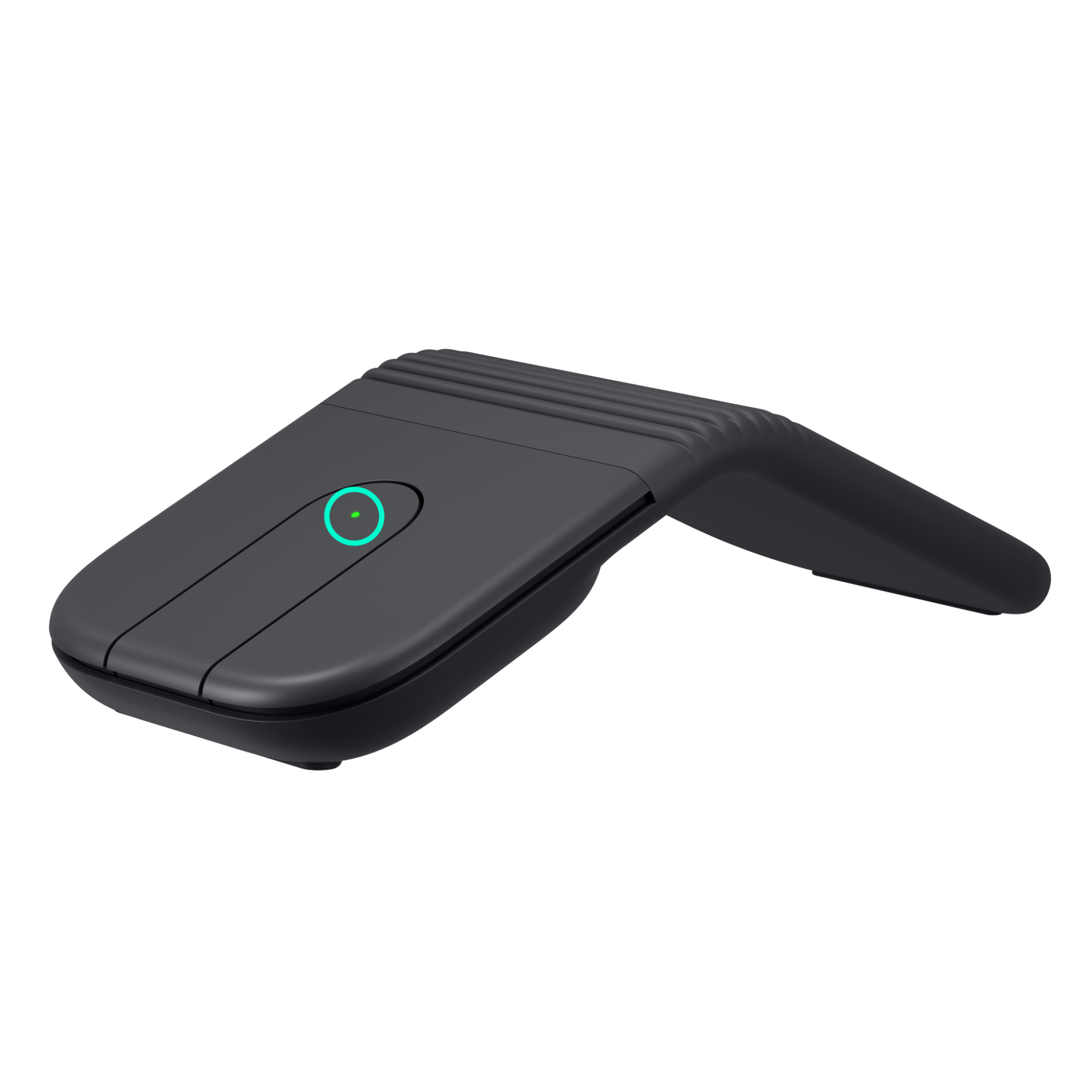
You can install Logitech Options+ software to receive battery status notifications, including low-charge warnings.
| LED Color | Indications |
| Green | From 100% to 10% charge |
| Red | 9% charge or below |
| Pulsing green | while charging |
Important Notice: The Firmware Update Tool is no longer supported or maintained by Logitech. We highly recommend using Logi Options+ for your supported Logitech devices. We are here to assist you during this transition.
Important Notice: The Logitech Preference Manager is no longer supported or maintained by Logitech. We highly recommend using Logi Options+ for your supported Logitech devices. We are here to assist you during this transition.
Important Notice: The Logitech Control Center is no longer supported or maintained by Logitech. We highly recommend using Logi Options+ for your supported Logitech devices. We are here to assist you during this transition.
Important Notice: The Logitech Connection Utility is no longer supported or maintained by Logitech. We highly recommend using Logi Options+ for your supported Logitech devices. We are here to assist you during this transition.
Important Notice: The Unifying Software is no longer supported or maintained by Logitech. We highly recommend using Logi Options+ for your supported Logitech devices. We are here to assist you during this transition.
Important Notice: The SetPoint software is no longer supported or maintained by Logitech. We highly recommend using Logi Options+ for your supported Logitech devices. We are here to assist you during this transition.
Frequently Asked Questions
There are no products available for this section
There are no Downloads for this Product
There are no Downloads for this Version
Compatible Product
