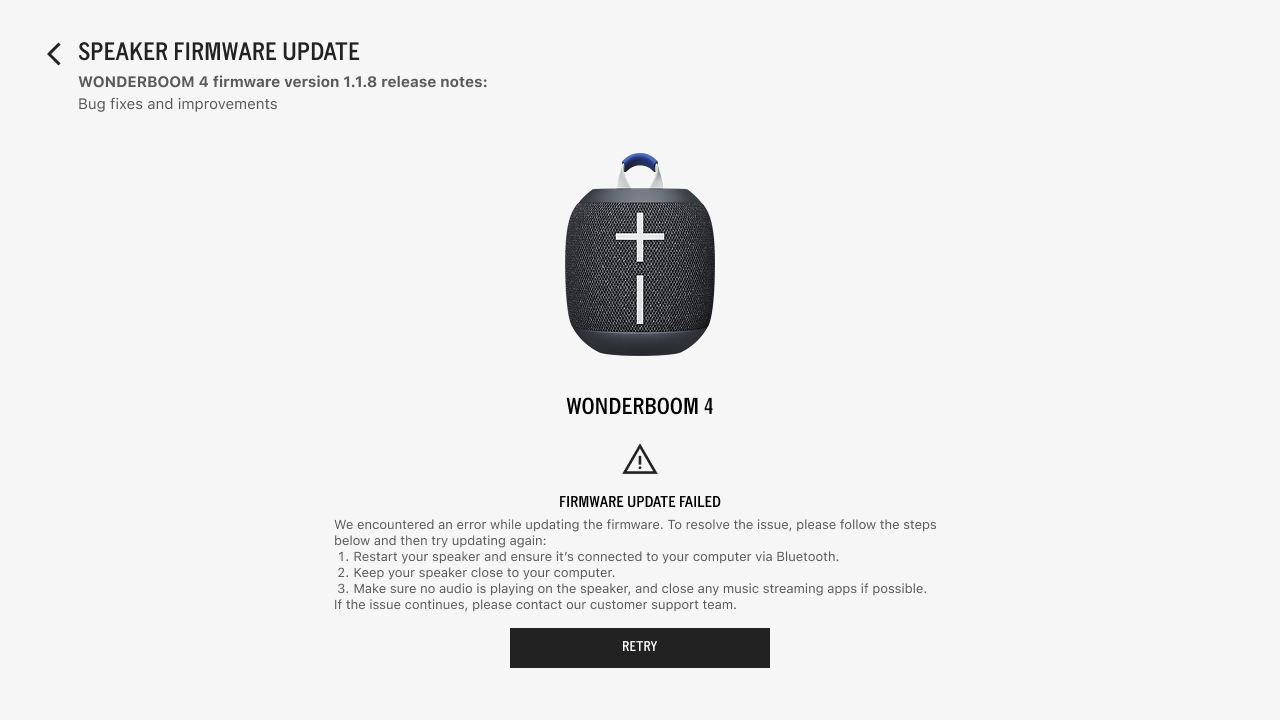
Why did the firmware update stop and fail on my MacBook?
If your firmware update failed on your MacBook, even after trying the troubleshooting steps shown on the screen (restart your speaker, ensure your speaker is near your Macbook, and stop all music streaming apps), you may need to restart your Bluetooth on your Macbook. (Not “Forget This Device”.)
To do this, navigate to your System Settings, and turn Bluetooth off and back on again. Then, reconnect your speaker to your MacBook before attempting the firmware update again.
If the issue persists, please reach out to the Logitech Support, and we’ll be happy to help.
Important Notice: The Firmware Update Tool is no longer supported or maintained by Logitech. We highly recommend using Logi Options+ for your supported Logitech devices. We are here to assist you during this transition.
Important Notice: The Logitech Preference Manager is no longer supported or maintained by Logitech. We highly recommend using Logi Options+ for your supported Logitech devices. We are here to assist you during this transition.
Important Notice: The Logitech Control Center is no longer supported or maintained by Logitech. We highly recommend using Logi Options+ for your supported Logitech devices. We are here to assist you during this transition.
Important Notice: The Logitech Connection Utility is no longer supported or maintained by Logitech. We highly recommend using Logi Options+ for your supported Logitech devices. We are here to assist you during this transition.
Important Notice: The Unifying Software is no longer supported or maintained by Logitech. We highly recommend using Logi Options+ for your supported Logitech devices. We are here to assist you during this transition.
Important Notice: The SetPoint software is no longer supported or maintained by Logitech. We highly recommend using Logi Options+ for your supported Logitech devices. We are here to assist you during this transition.
Frequently Asked Questions
There are no products available for this section
There are no Downloads for this Product
There are no Downloads for this Version
Compatible Product
