Choose your operating system:
NOTE: In Apple OS X, the OS does not automatically change to the latest audio device that you connect. You must change the audio device manually.
-
Close all media applications (eg Windows Media Player, etc)
-
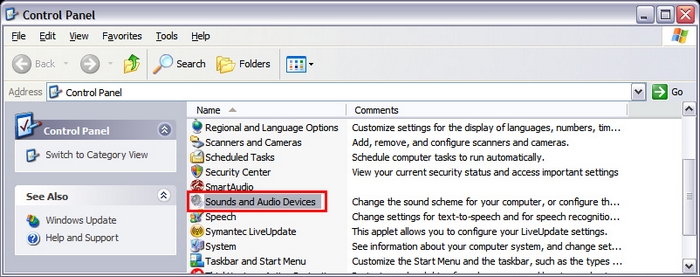
Go to the Sounds and Audio Devices control panel (Start/Control Panel/Sounds and Audio Devices):
-
Click on the Audio tab.
-
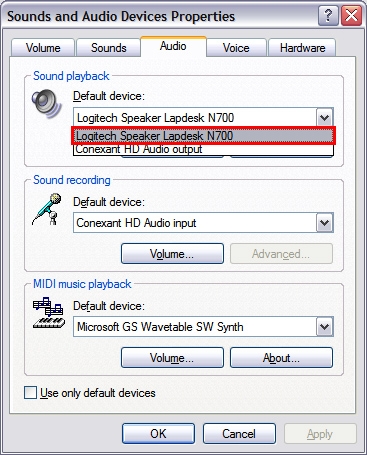
In the Sound Playback/Default Device window choose the N700 as shown below:
-
Click OK.
-
Restart your media application. The N700 should now be set as the default playback device.
-
Close all media applications (eg Windows Media Player, etc)
-
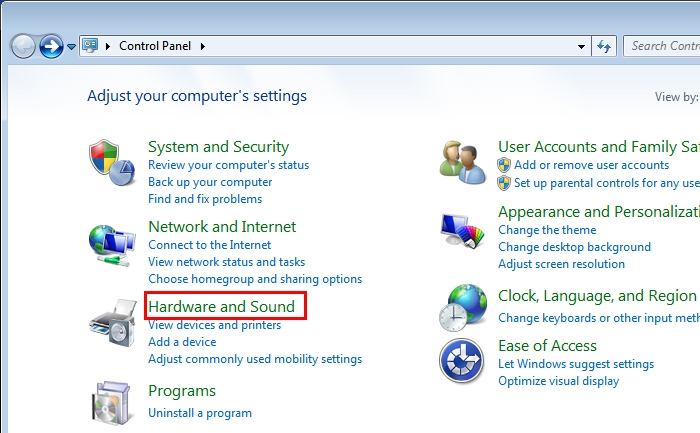
Go to Hardware and Sound control panel (Start/Control Panel/Hardware and Sound) as shown below:
-
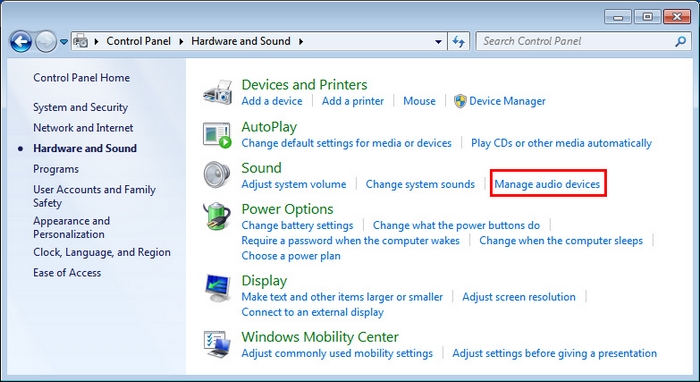
Under Sound, choose Manage audio devices (shown below):
-
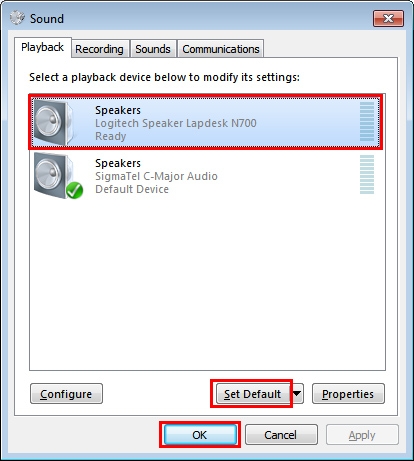
Select Playback Devices tab:
-
Choose the N700 as in the above example.
-
Click Set Default, then click OK.
-
Restart your media application. Your N700 should now be set as the default audio output device.
-
Close all media applications (eg. QuickTime Player, iTunes, etc).
-
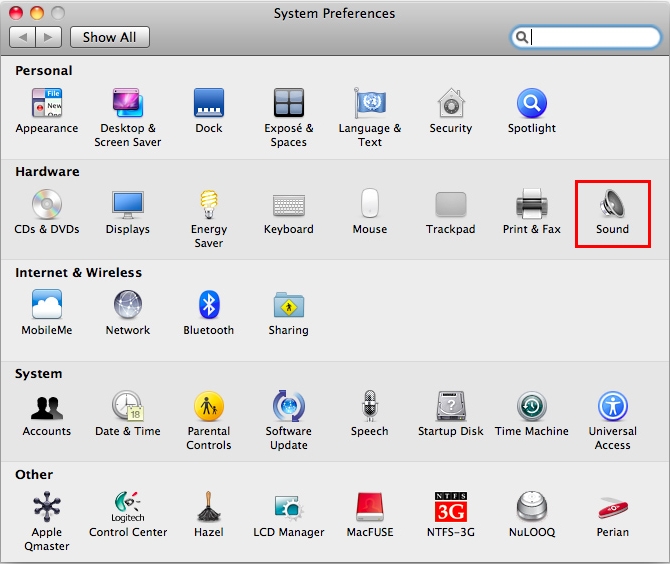
Open System Preferences and select Sound:
-
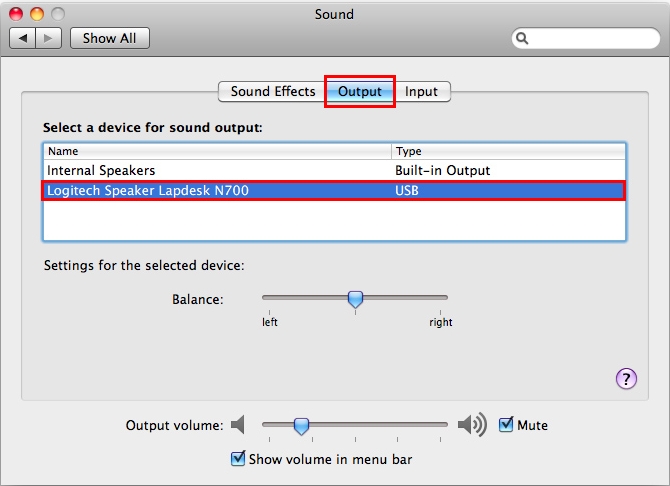
Select Output tab then select the N700 as shown below:
-
Close System Preferences.
-
Restart your media application. Your N700 should now be set as your default audio output device.
Additional Information:
If the above solutions do not resolve your problem, consult Knowledge Base article 15609 for instructions on contacting Logitech Technical Support.
Important Notice: The Firmware Update Tool is no longer supported or maintained by Logitech. We highly recommend using Logi Options+ for your supported Logitech devices. We are here to assist you during this transition.
Important Notice: The Logitech Preference Manager is no longer supported or maintained by Logitech. We highly recommend using Logi Options+ for your supported Logitech devices. We are here to assist you during this transition.
Important Notice: The Logitech Control Center is no longer supported or maintained by Logitech. We highly recommend using Logi Options+ for your supported Logitech devices. We are here to assist you during this transition.
Important Notice: The Logitech Connection Utility is no longer supported or maintained by Logitech. We highly recommend using Logi Options+ for your supported Logitech devices. We are here to assist you during this transition.
Important Notice: The Unifying Software is no longer supported or maintained by Logitech. We highly recommend using Logi Options+ for your supported Logitech devices. We are here to assist you during this transition.
Important Notice: The SetPoint software is no longer supported or maintained by Logitech. We highly recommend using Logi Options+ for your supported Logitech devices. We are here to assist you during this transition.
Frequently Asked Questions
There are no products available for this section
There are no Downloads for this Product
There are no Downloads for this Version
Compatible Product
