Factory reset, also called “formatting” or “hard reset", is done when you want to sell, give away or trade your device or when you want to return it to your retailer. Remember, a factory reset erases all your data from the device, so if you're resetting to fix an issue, we recommend first trying other solutions here.
You can reset your Logitech G Cloud Handheld in the following ways:
- Factory data reset from Settings (applicable in case you plan to sell, give away, trade, or return the device)
- Factory data reset from Recovery (applicable in case you forgot your Key/Password)
Factory Reset Protection (FRP)
In both above scenarios, you will need to disable Factory Reset Protection (FRP) before resetting your device. FRP is a security measure in Android devices to prevent others from using your device without permission. Once enabled, FRP requires logging into the device with the owner’s Google account to factory reset and activate the device. If you can't sign in to your Google account for any reason, you can visit the Google website for sign-in help.
Factory Data Reset from Settings
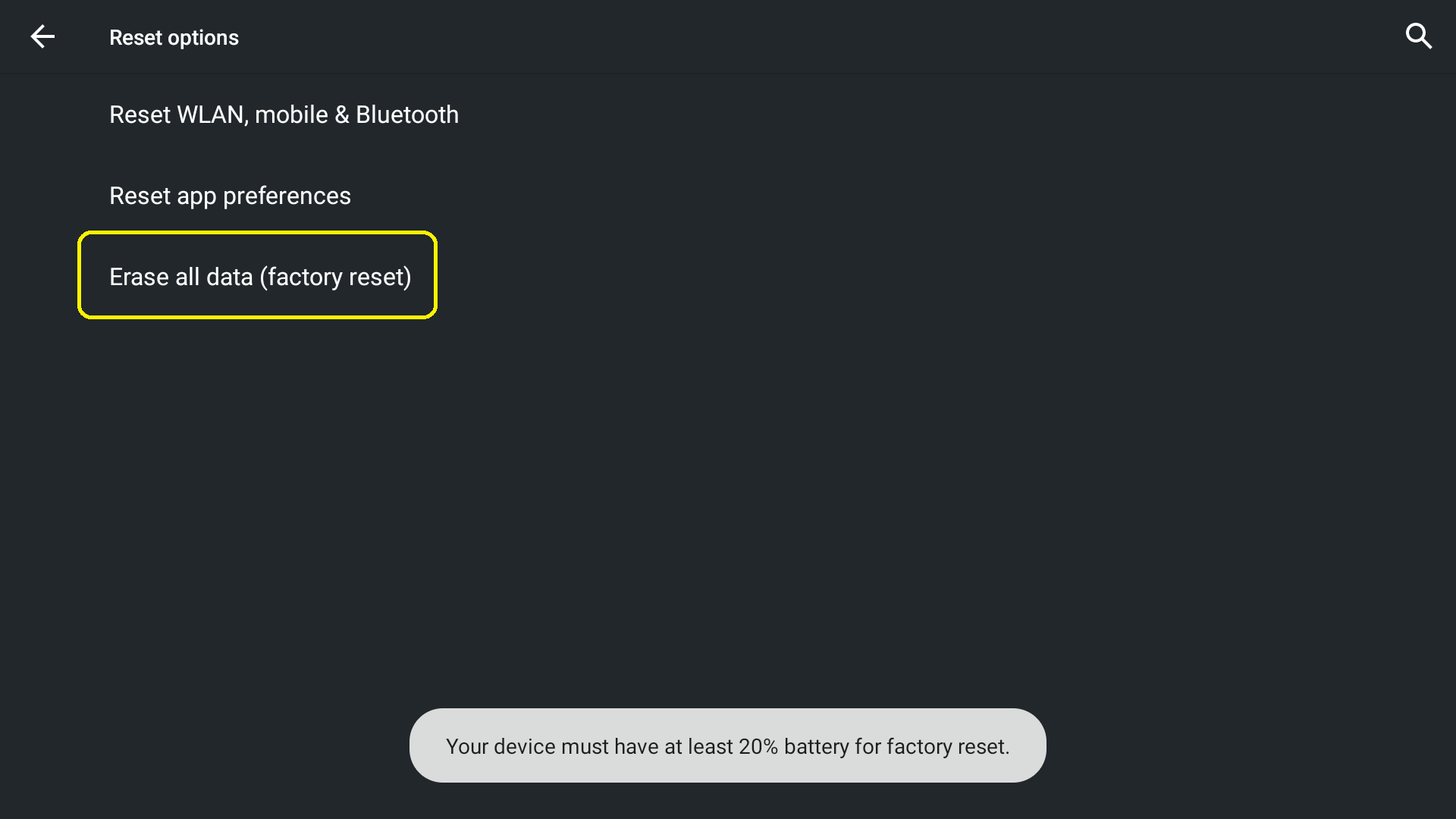
Note: Your device must have at least 20% battery for a factory reset.
- Open Settings:
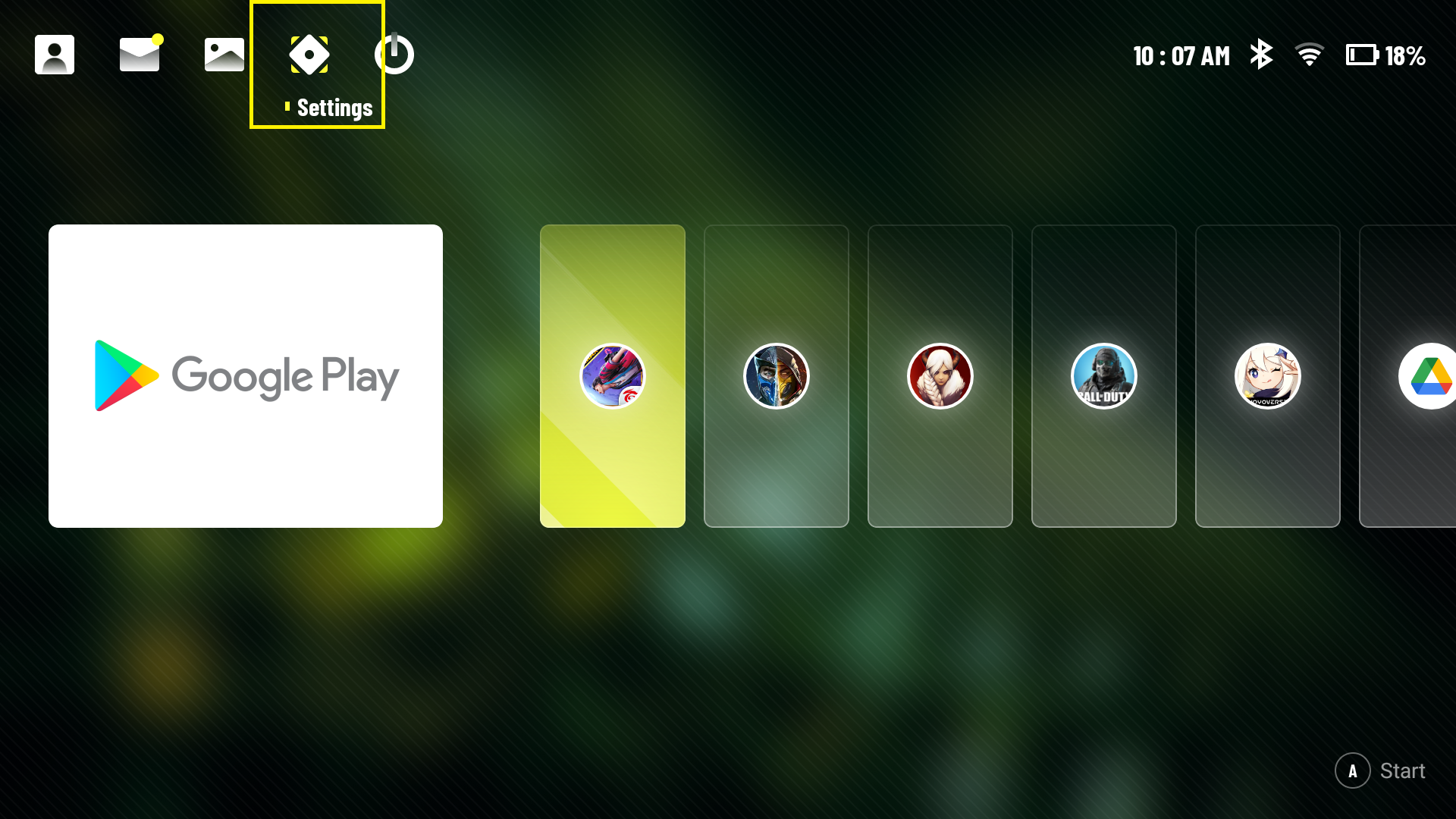
- Go to More Settings > Android Settings
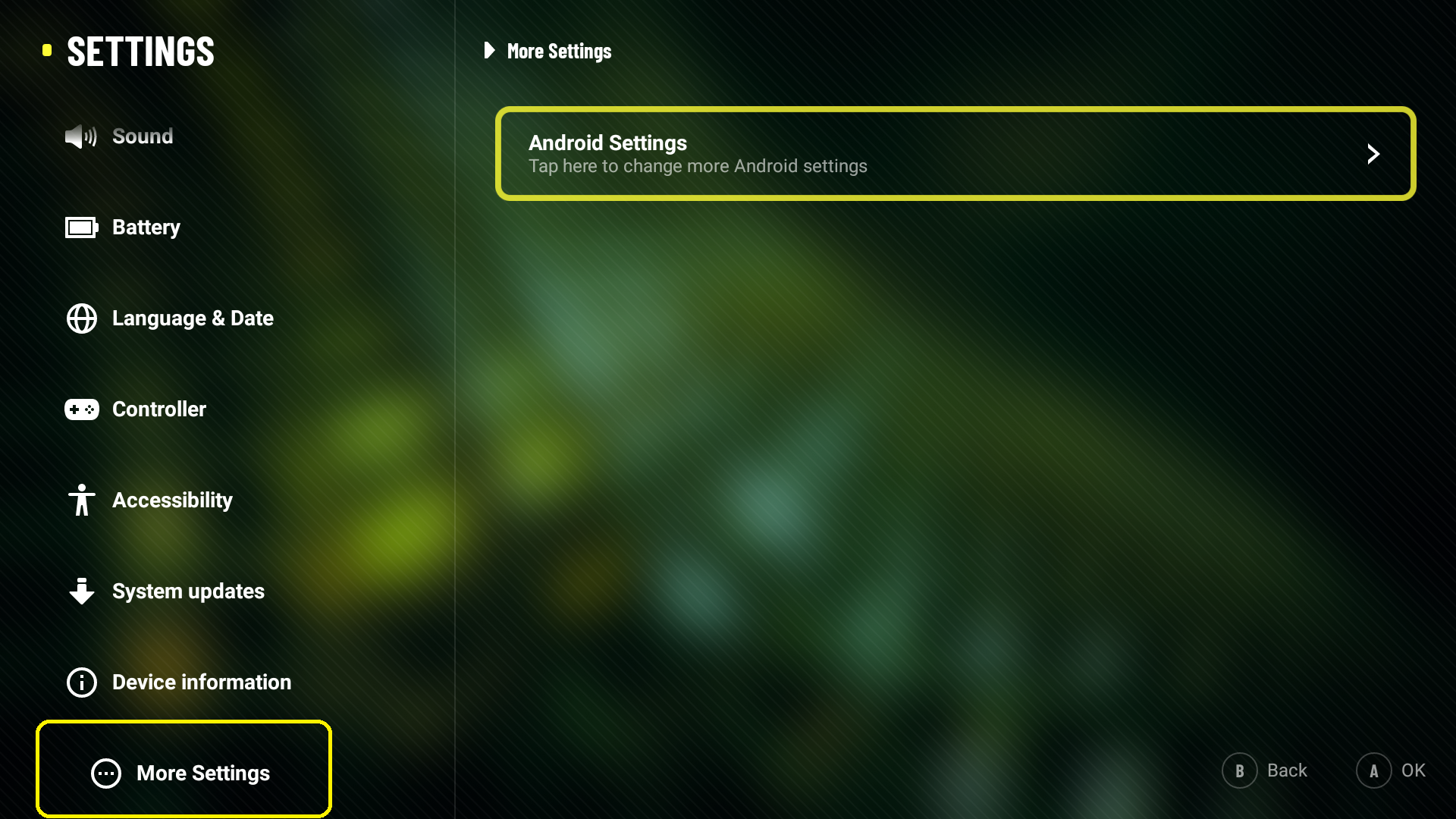
- Select System > Advanced
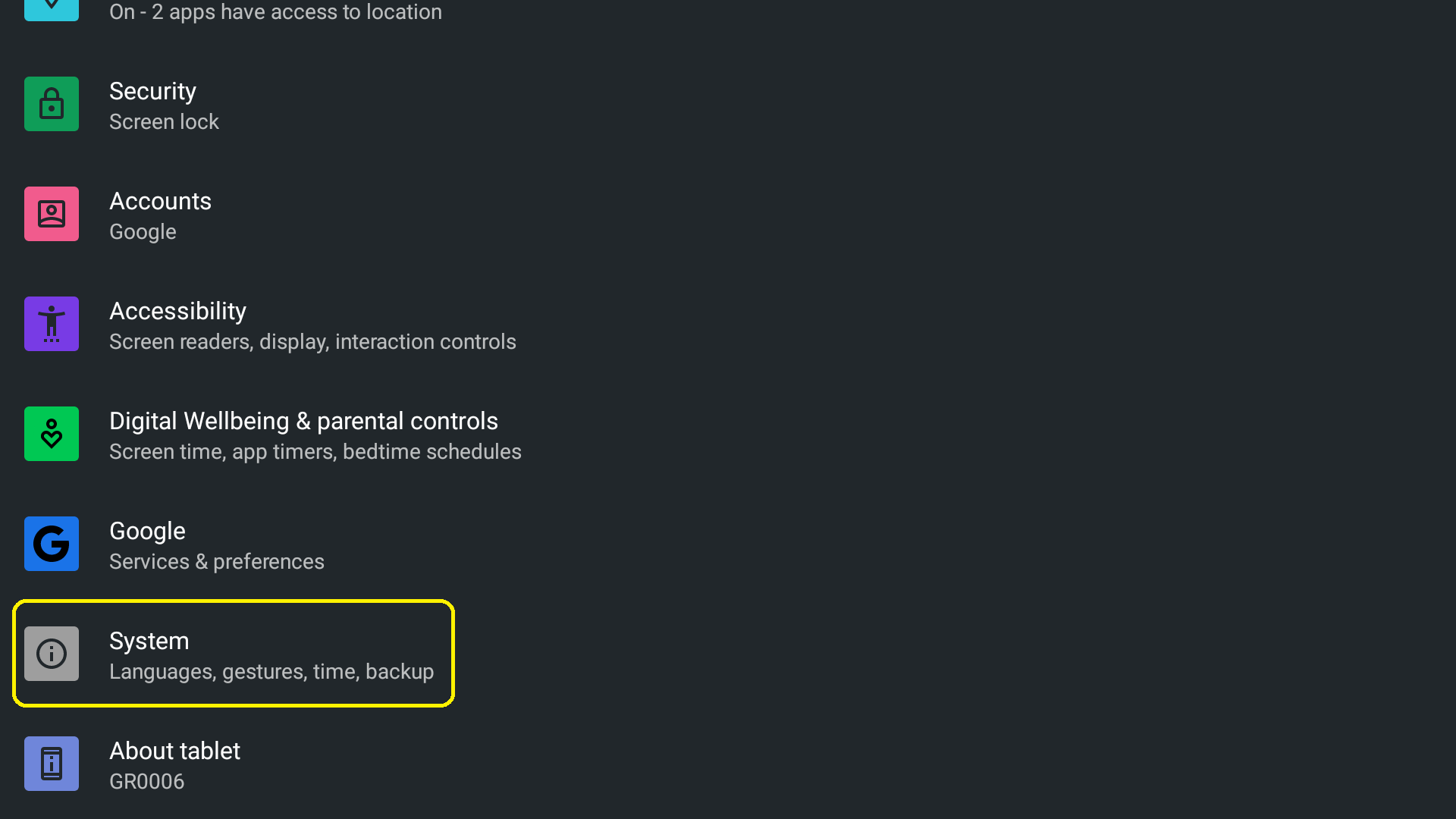
- Select Reset Options
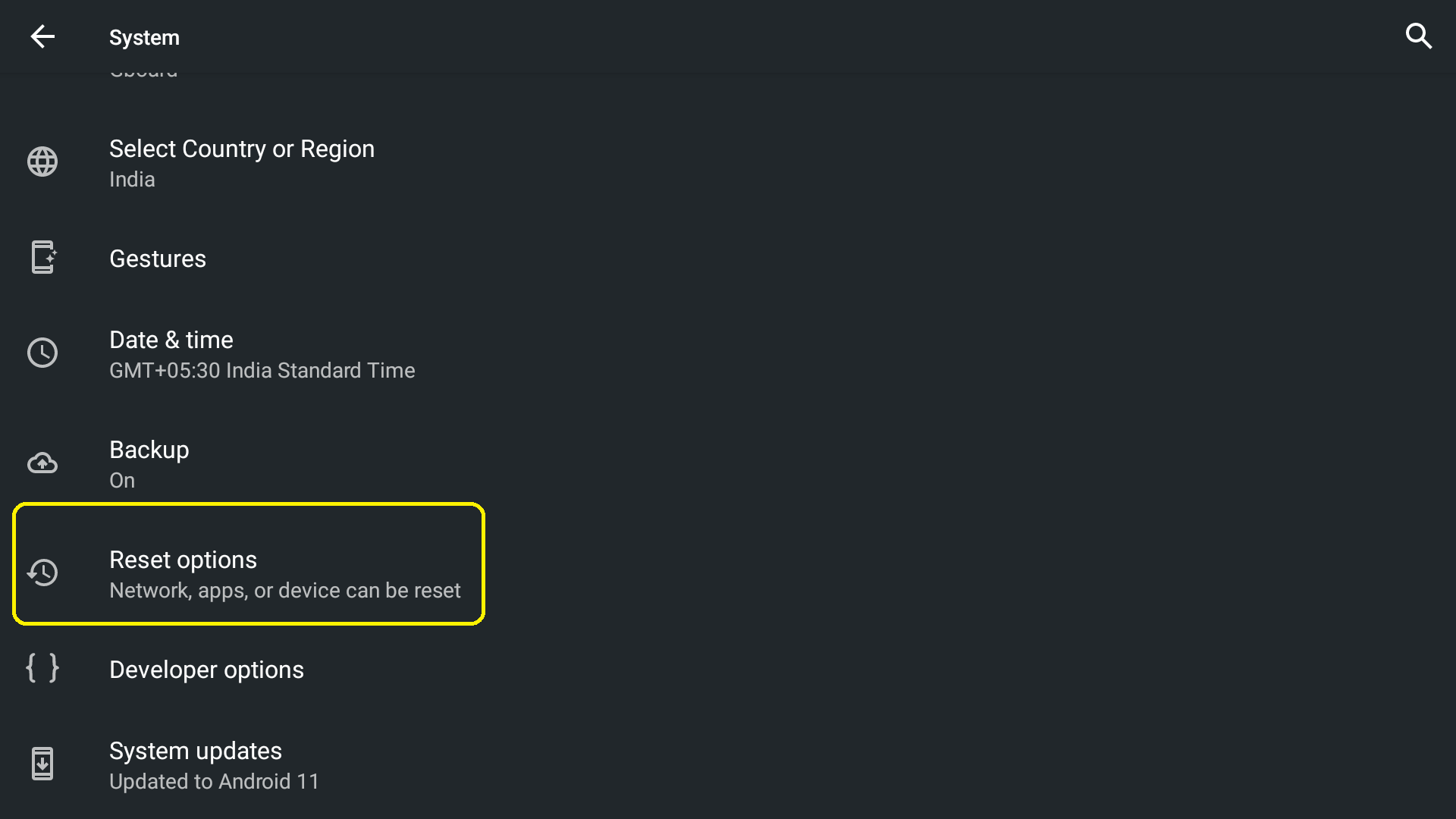
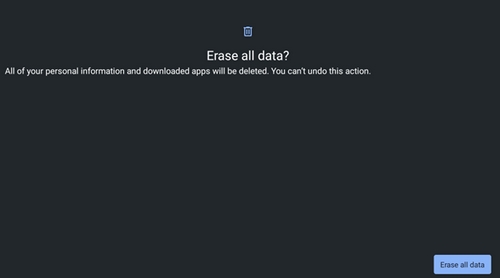
- Select "Erase all data"
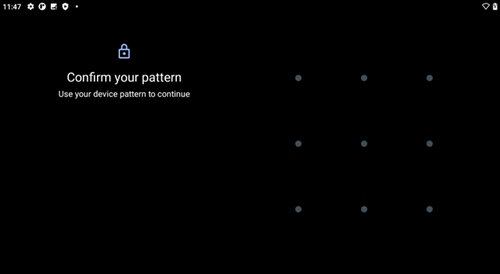
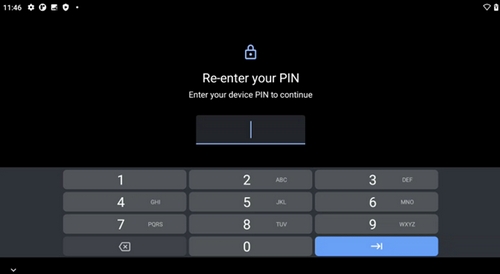
- If the screen lock or Google account protection has been enabled, you will need to enter the correct information (Pattern / PIN / Password) to proceed. See the screenshots below to see what it looks like:
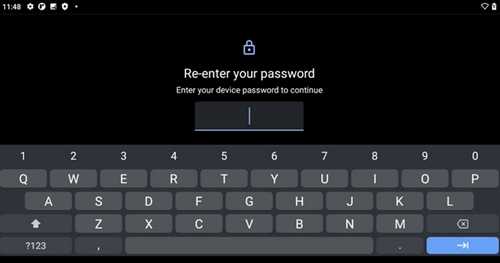
- Select "Erase all data"
Factory Data Reset from Recovery
You can perform a Factory Data Reset via Recovery Mode if you have forgotten your device’s key or password (AC Power is required to perform the steps).
- Turn off the device
- Wait ten (10) seconds
- Press and hold Volume -
- While holding Volume -, connect the device to a power source via a USB cable
- Press Volume - / Volume + to select Recovery mode
- Push the Power button to enter Recovery mode
- Hold the Power button, then press Volume +
- The Recovery menu should appear on screen
- Select Wipe data/factory reset
- Select Factory data reset
Important Notice: The Firmware Update Tool is no longer supported or maintained by Logitech. We highly recommend using Logi Options+ for your supported Logitech devices. We are here to assist you during this transition.
Important Notice: The Logitech Preference Manager is no longer supported or maintained by Logitech. We highly recommend using Logi Options+ for your supported Logitech devices. We are here to assist you during this transition.
Important Notice: The Logitech Control Center is no longer supported or maintained by Logitech. We highly recommend using Logi Options+ for your supported Logitech devices. We are here to assist you during this transition.
Important Notice: The Logitech Connection Utility is no longer supported or maintained by Logitech. We highly recommend using Logi Options+ for your supported Logitech devices. We are here to assist you during this transition.
Important Notice: The Unifying Software is no longer supported or maintained by Logitech. We highly recommend using Logi Options+ for your supported Logitech devices. We are here to assist you during this transition.
Important Notice: The SetPoint software is no longer supported or maintained by Logitech. We highly recommend using Logi Options+ for your supported Logitech devices. We are here to assist you during this transition.
Frequently Asked Questions
There are no products available for this section
There are no Downloads for this Product
There are no Downloads for this Version
Compatible Product
