To resolve the problem, you’ll need to run a Registry Editor (RegEdit) script to remove the entries in the Windows registry, and then recalibrate the data range.
NOTE: Apply the same steps to recalibrate a separate Side Panel.
Do the following to recalibrate your Heavy Equipment Wheel, Pedals and Side Panel axes on Windows 7, 8, 8.1 or 10:
- Unplug the Wheel and Side Panel USB cables from your computer.
- Download this zip file. The zip file contains a script that removes the Heavy Equipment Wheel, Pedals and Side Panel entries in the Windows registry.
WARNING: Incorrectly modifying the Windows registry can cause serious problems that may require you to reinstall your operating system. This script is designed to update the Windows registry safely, however, continue at your own risk. - Unzip the .zip file or extract the contents using any file extraction software of your choice.
- Double-click “Saitek - Clear Calibration - Farm Wheel Pedals & Panel.reg” to run the script.
- If prompted, click Yes in the User Account Control window.
- A Registry Error warning appears. Click Yes to continue.
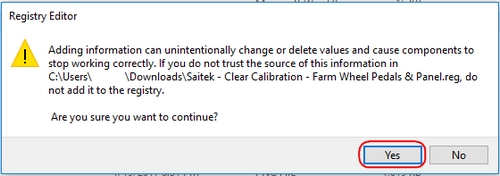
- A confirmation message is displayed on-screen. Click OK to close the message.
- Securely reconnect the Wheel and Side Panel USB cables to the computer.
- Open the Heavy Equipment Wheel, Pedals and Side Panel Test tab in Game Controllers. To open the Test tab, press the Windows and R keys at the same time, and then type joy.cpl in the Run window. Press the Enter or click OK.
- The Game Controllers window appears. Select the Saitek Heavy Eqpt. Wheel & Pedal in the Controller list and click Properties.
- Move all axes on the Wheel and Pedals through their full range of motion four times to rebuild the data range. Click OK.
- In the Game Controllers window. Select the Saitek Side Panel Control Deck and click Properties.
- In the Test Page, move all axes on the Stick through their full range of motion 4 times to rebuild the data range. Click OK to finish.
Important Notice: The Firmware Update Tool is no longer supported or maintained by Logitech. We highly recommend using Logi Options+ for your supported Logitech devices. We are here to assist you during this transition.
Important Notice: The Logitech Preference Manager is no longer supported or maintained by Logitech. We highly recommend using Logi Options+ for your supported Logitech devices. We are here to assist you during this transition.
Important Notice: The Logitech Control Center is no longer supported or maintained by Logitech. We highly recommend using Logi Options+ for your supported Logitech devices. We are here to assist you during this transition.
Important Notice: The Logitech Connection Utility is no longer supported or maintained by Logitech. We highly recommend using Logi Options+ for your supported Logitech devices. We are here to assist you during this transition.
Important Notice: The Unifying Software is no longer supported or maintained by Logitech. We highly recommend using Logi Options+ for your supported Logitech devices. We are here to assist you during this transition.
Important Notice: The SetPoint software is no longer supported or maintained by Logitech. We highly recommend using Logi Options+ for your supported Logitech devices. We are here to assist you during this transition.
Frequently Asked Questions
There are no products available for this section
There are no Downloads for this Product
There are no Downloads for this Version
Compatible Product
