Using SetPoint, you have the option of specifying certain settings when playing games.
To change the mouse game settings on your V220:
-
Open SetPoint (Start > Programs > Logitech > Mouse and Keyboard > Mouse and Keyboard Settings).
-
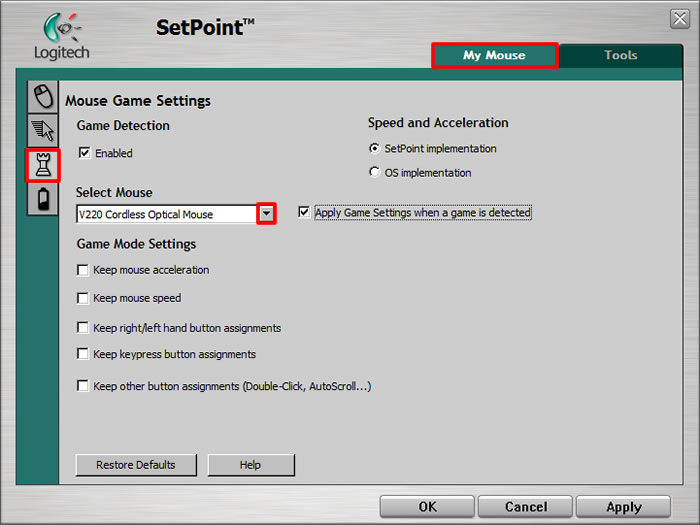
Select the My Mouse tab at the top of the window and click the Mouse Game Settings tab on the left (as shown below).
-
Use the drop down menus, sliders, and check boxes to find the mouse game settings that are right for you. You can also click Help to find detailed descriptions of these options for your device.
-
Click Apply to save your settings. Click OK to exit SetPoint.
Important Notice: The Firmware Update Tool is no longer supported or maintained by Logitech. We highly recommend using Logi Options+ for your supported Logitech devices. We are here to assist you during this transition.
Important Notice: The Logitech Preference Manager is no longer supported or maintained by Logitech. We highly recommend using Logi Options+ for your supported Logitech devices. We are here to assist you during this transition.
Important Notice: The Logitech Control Center is no longer supported or maintained by Logitech. We highly recommend using Logi Options+ for your supported Logitech devices. We are here to assist you during this transition.
Important Notice: The Logitech Connection Utility is no longer supported or maintained by Logitech. We highly recommend using Logi Options+ for your supported Logitech devices. We are here to assist you during this transition.
Important Notice: The Unifying Software is no longer supported or maintained by Logitech. We highly recommend using Logi Options+ for your supported Logitech devices. We are here to assist you during this transition.
Important Notice: The SetPoint software is no longer supported or maintained by Logitech. We highly recommend using Logi Options+ for your supported Logitech devices. We are here to assist you during this transition.
Frequently Asked Questions
There are no products available for this section
There are no Downloads for this Product
There are no Downloads for this Version
Compatible Product
