Your Alert system provides status LEDs on the camera, power supply and network adapter (Powerline Bridge).
Controlling the LED on your Alert camera:
-
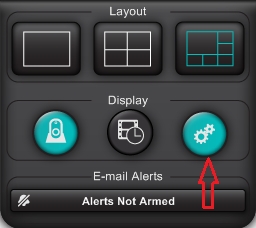
Launch Alert Commander and select the Settings button.
-
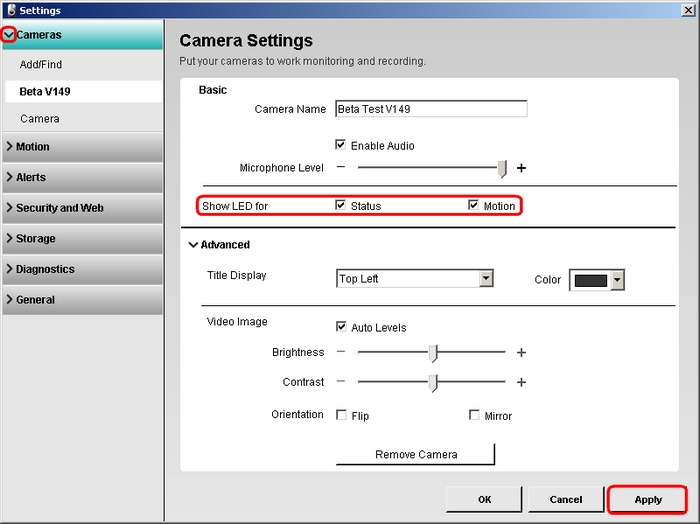
In the left column select Cameras
- Choose the camera name you would like to set
- Under the Basic section, locate "Show LED for"
- Disable LEDs by unchecking the appropriate box
-
Click the Apply button to save the setting.
Controlling the LEDs on your Alert network adapter:
-
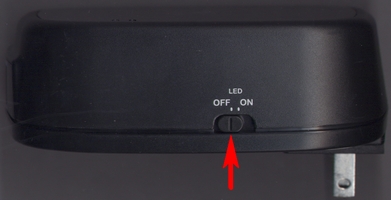
Locate the switch on the side of the network adapter
-
Set the switch to turn the LEDs off or on.
Important Notice: The Firmware Update Tool is no longer supported or maintained by Logitech. We highly recommend using Logi Options+ for your supported Logitech devices. We are here to assist you during this transition.
Important Notice: The Logitech Preference Manager is no longer supported or maintained by Logitech. We highly recommend using Logi Options+ for your supported Logitech devices. We are here to assist you during this transition.
Important Notice: The Logitech Control Center is no longer supported or maintained by Logitech. We highly recommend using Logi Options+ for your supported Logitech devices. We are here to assist you during this transition.
Important Notice: The Logitech Connection Utility is no longer supported or maintained by Logitech. We highly recommend using Logi Options+ for your supported Logitech devices. We are here to assist you during this transition.
Important Notice: The Unifying Software is no longer supported or maintained by Logitech. We highly recommend using Logi Options+ for your supported Logitech devices. We are here to assist you during this transition.
Important Notice: The SetPoint software is no longer supported or maintained by Logitech. We highly recommend using Logi Options+ for your supported Logitech devices. We are here to assist you during this transition.
Frequently Asked Questions
There are no products available for this section
There are no Downloads for this Product
There are no Downloads for this Version
Compatible Product
