What should I do if my device is not working?
- Make sure that the Logi Options+ app is installed and is running. You can do so by searching “Logi Options+” in the Windows search field and then launch it.
- Make sure you are running the latest version of Logi Options+.
- Make sure you are connected to the internet (if required).
- Make sure your devices are properly connected, the DialPad via Bluetooth or Logi Bolt dongle, and the Keypad is connected with the supplied USB-C to C cable.
- (Mac Only) Make sure that you have granted Bluetooth, Accessibility, Input Monitoring, Screen and System Audio Recording permissions to the Logi Options+ app.
- (Mac Only) Make sure that you have granted Bluetooth and Accessibility access to the LogiPluginService app.
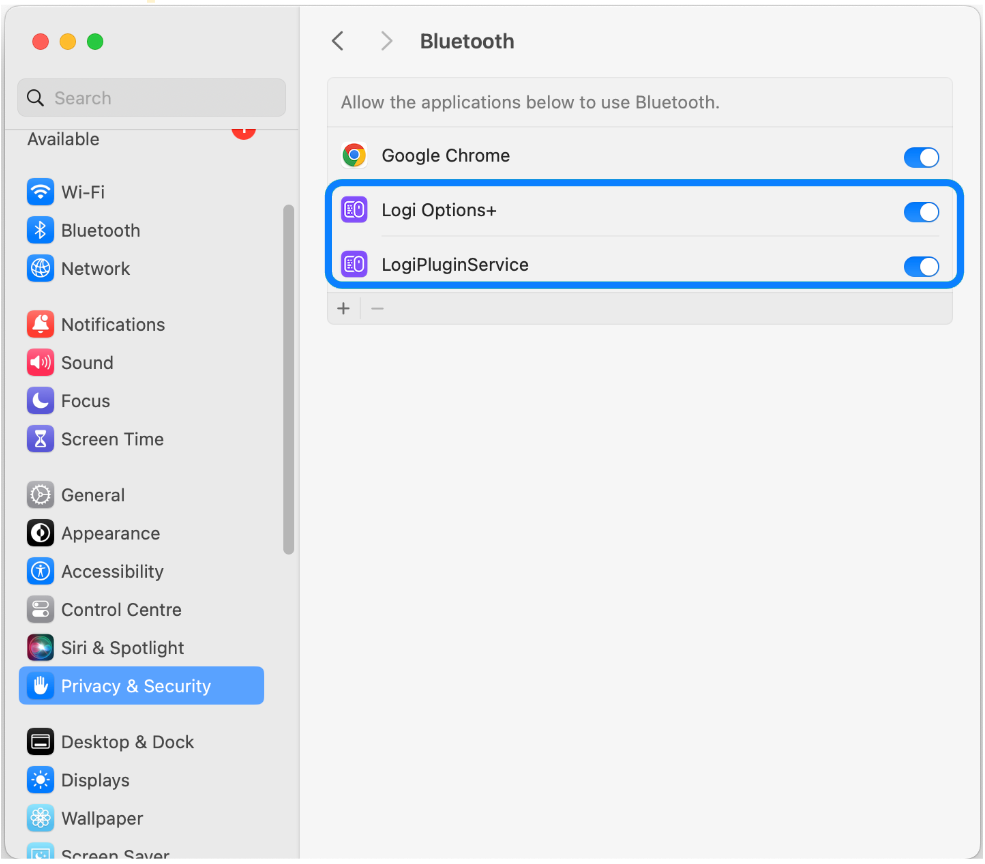
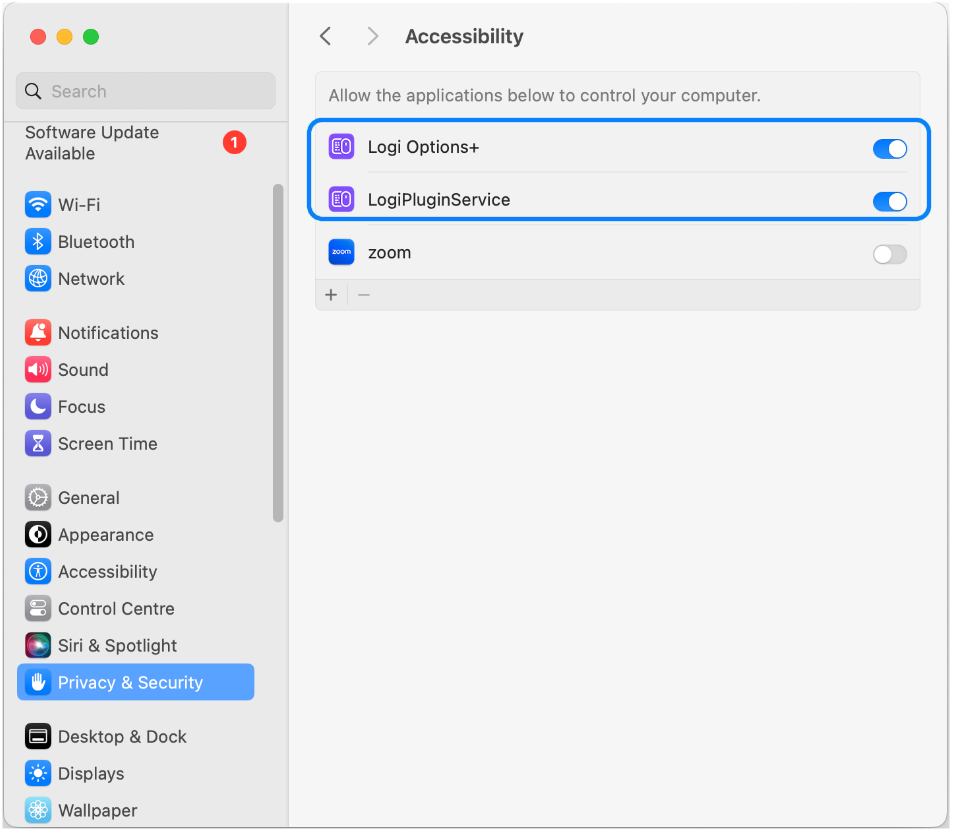

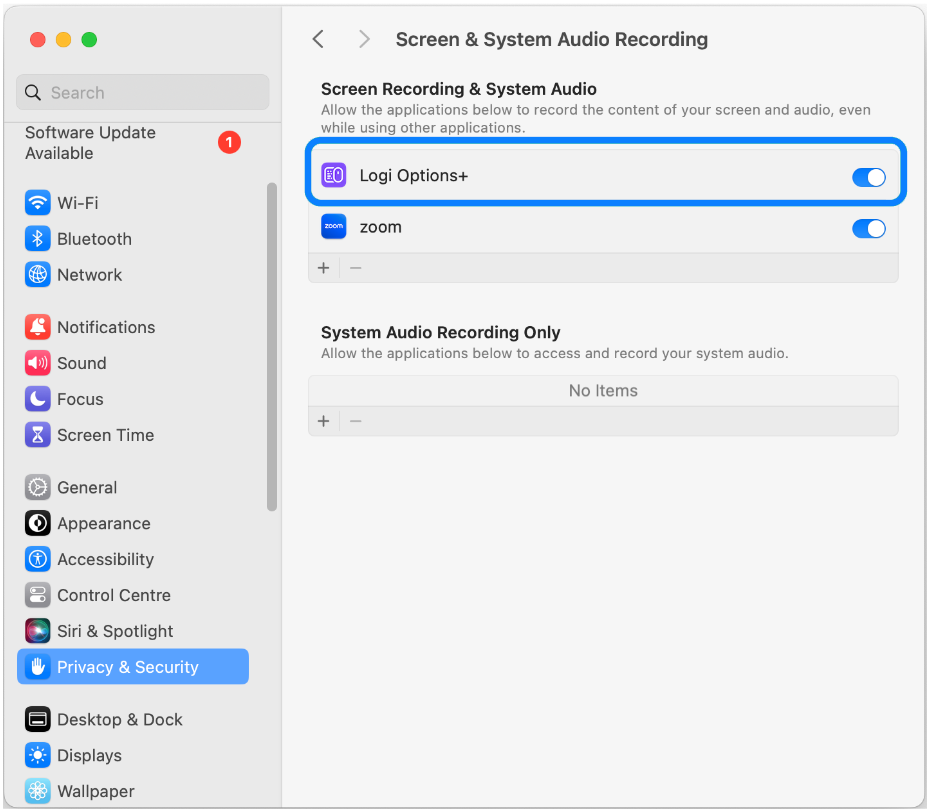
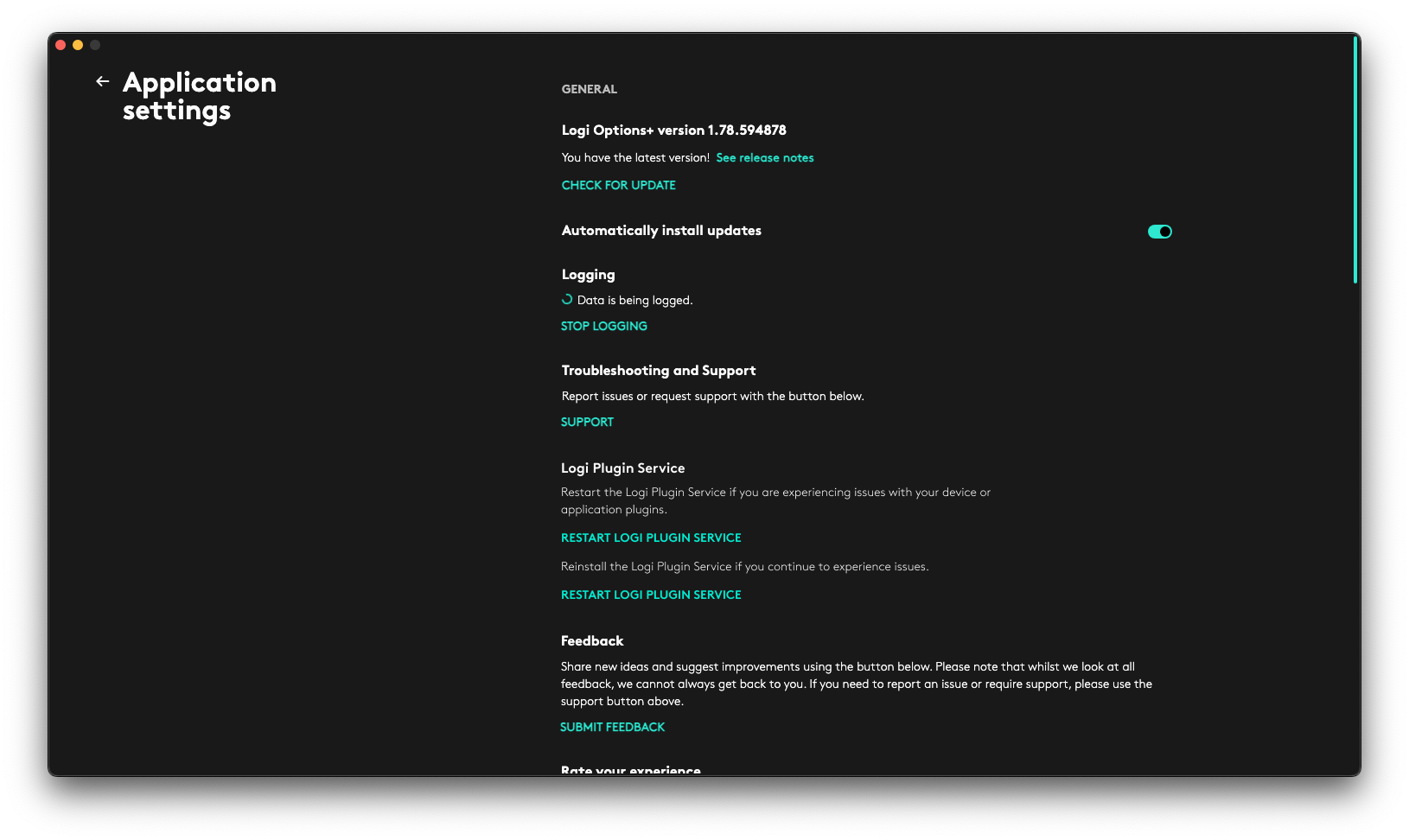
- If you are experiencing problems with plugins, try restarting or reinstalling the Logi Plugin Service. Click on the gear icon on the top-right corner in the home screen to open the Settings menu. Then navigate to the Logi Plugin Service section.
What should I do if some actions don’t work? (Mac only)
If certain actions aren't working on your Mac, it may be due to missing Accessibility permissions. Actions that commonly require these permissions include keyboard shortcuts, pasting text, using emojis, taking screenshots, locking the workstation, undo/redo functions, and adjusting volume.
Steps to Reset and Enable Accessibility Permissions:
- Open Settings and navigate to Privacy & Security > Accessibility.
- Look for Logi Plugin Service in the list. If it appears, select it and click the minus (-) icon to remove it.
- Click the plus (+) icon, then go to Applications > Utilities, select Logi Plugin Service, and ensure the permission toggle is enabled.
I've added a profile for Autodesk Fusion 365 (Windows) but the profile actions don’t show up when I open an Autodesk application
The issue is with the way Fusion is launched. There is the Launcher app, that initializes the Fusion app. However, when creating the application profile, the Launcher app is the one that can be selected in applications, not the actual Fusion app, which prevents switching profiles when Fusion app is in focus.
Following steps need to be used to workaround this issue:
- Create new application profile
- In the list of applications, scroll all the way to the bottom and use “Select another application” option
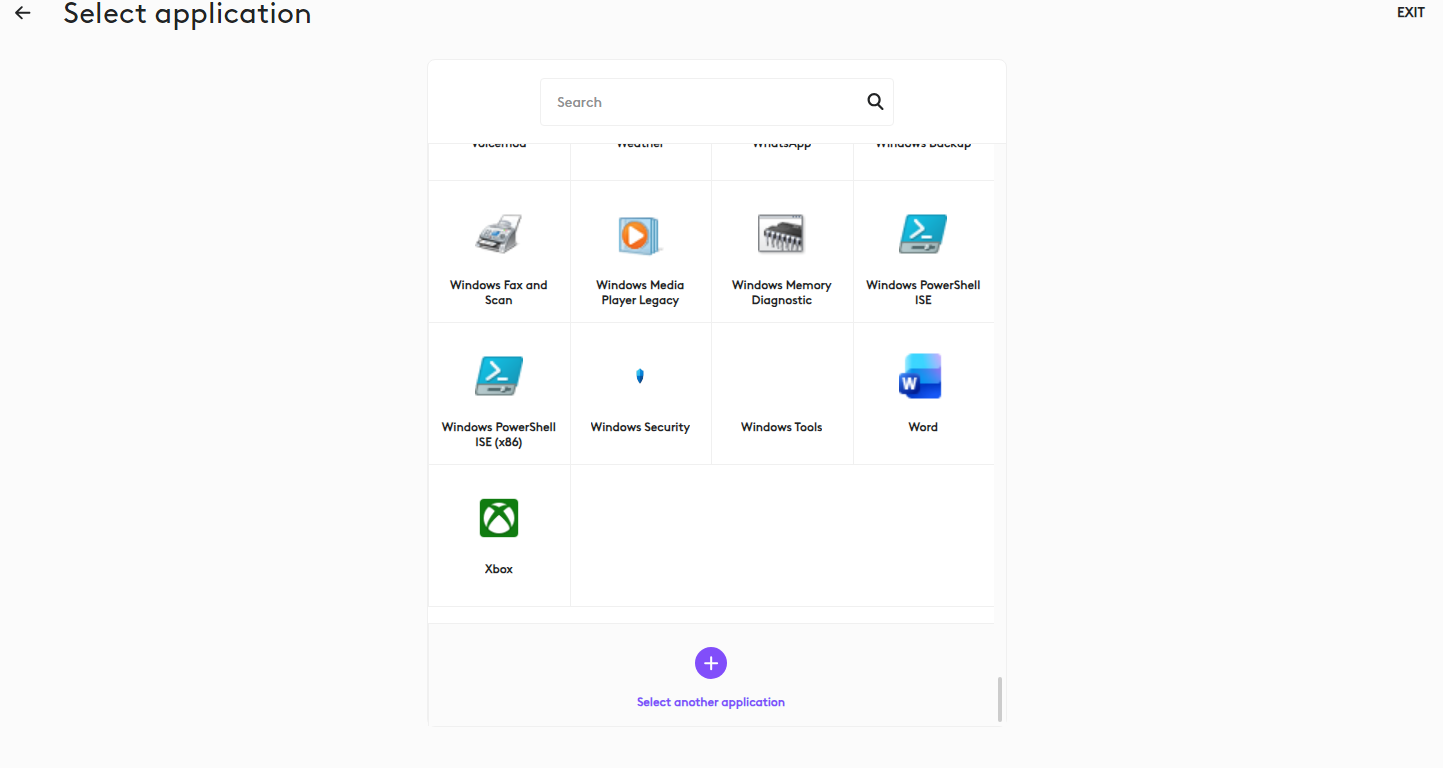
- Application profile must be pointed to the actual Fusion executable. Default location:
C:\Users\%username%\AppData\Local\Autodesk\webdeploy\production\c20471a4ae316e18725b0917d95e36d14575877a - the last folder may have a different name with every installation so user needs to spend some time to find the Fusion360.exe file
Note: This workaround may be needed for different Autodesk apps as well if they are using the launcher.
Important Notice: The Firmware Update Tool is no longer supported or maintained by Logitech. We highly recommend using Logi Options+ for your supported Logitech devices. We are here to assist you during this transition.
Important Notice: The Logitech Preference Manager is no longer supported or maintained by Logitech. We highly recommend using Logi Options+ for your supported Logitech devices. We are here to assist you during this transition.
Important Notice: The Logitech Control Center is no longer supported or maintained by Logitech. We highly recommend using Logi Options+ for your supported Logitech devices. We are here to assist you during this transition.
Important Notice: The Logitech Connection Utility is no longer supported or maintained by Logitech. We highly recommend using Logi Options+ for your supported Logitech devices. We are here to assist you during this transition.
Important Notice: The Unifying Software is no longer supported or maintained by Logitech. We highly recommend using Logi Options+ for your supported Logitech devices. We are here to assist you during this transition.
Important Notice: The SetPoint software is no longer supported or maintained by Logitech. We highly recommend using Logi Options+ for your supported Logitech devices. We are here to assist you during this transition.
Frequently Asked Questions
There are no products available for this section
There are no Downloads for this Product
There are no Downloads for this Version
Compatible Product
