This is usually due to a keyboard encryption problem. To resolve it, you will need to re-encrypt your keyboard. To re-encrypt your MK300, do the following:
-
Launch SetPoint (Start > Programs > Logitech > Mouse and Keyboard > Mouse and Keyboard Settings).
NOTE: If you do not have SetPoint installed, you can download it from the MK300 Downloads Page.
-
Click on My Keyboard tab at the top and select the MK300 keyboard from the Select Keyboard drop-down menu.
-
Click on the Keyboard Connection tab at the left side:
-
Click the Secure button to open the Secure Encryption Wizard (SEW).
-
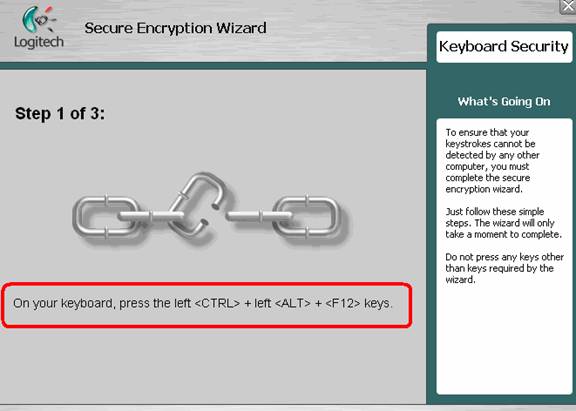
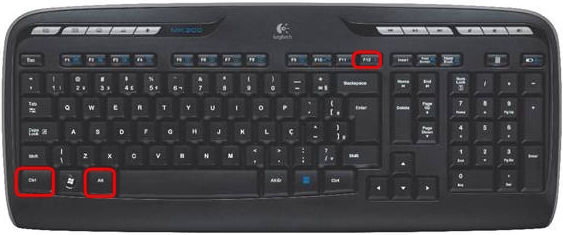
Hold down the CTRL + ALT + F12 keys simultaneously:
-
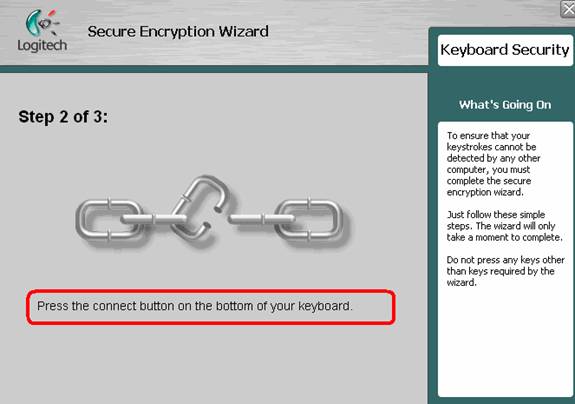
Press the red connect button on the bottom of your keyboard:

-
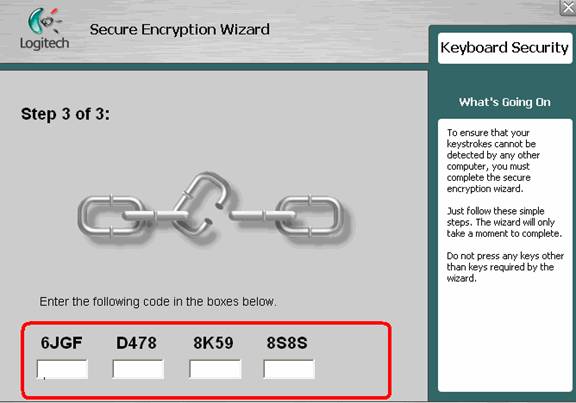
Step Three of the SEW will require you to enter a series of figures displayed below. Enter the digits in the fields directly beneath them as shown below.
NOTE: The figures shown here are only an example. Make sure to use the numbers you see- not those displayed in this article.
-
Click Finish to complete the Wizard.
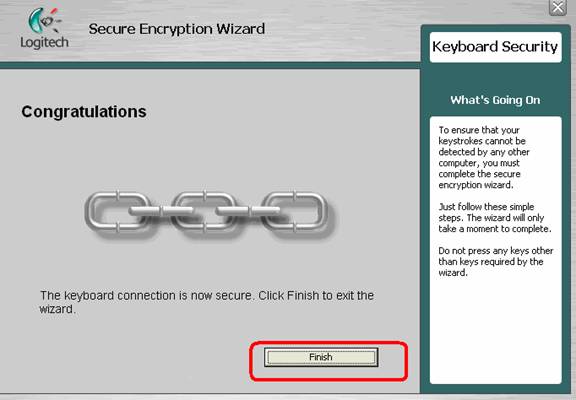
Your keyboard synchronization has been restored.
Additional Information about encryption:
If you experience frequent keyboard synchronization errors, you can disable the keyboard encryption. To disable encryption:
-
Press the Escape (ESC) key instead of entering code in Step Three of the SEW. This will return you to the window shown in Step 5 above.
-
Close the window by pressing the X in the upper right-hand corner.
-
Your keyboard should now be connected and fully functional, but encryption is disabled.
NOTE: Disabling the encryption may allow your keystrokes to be intercepted by other wireless devices. If no other 27MHz wireless devices are located in range, encryption can safely be disabled.
If the above solutions do not resolve your problem, consult Knowledge Base article 12141 for instructions on contacting Logitech Technical Support.
Important Notice: The Firmware Update Tool is no longer supported or maintained by Logitech. We highly recommend using Logi Options+ for your supported Logitech devices. We are here to assist you during this transition.
Important Notice: The Logitech Preference Manager is no longer supported or maintained by Logitech. We highly recommend using Logi Options+ for your supported Logitech devices. We are here to assist you during this transition.
Important Notice: The Logitech Control Center is no longer supported or maintained by Logitech. We highly recommend using Logi Options+ for your supported Logitech devices. We are here to assist you during this transition.
Important Notice: The Logitech Connection Utility is no longer supported or maintained by Logitech. We highly recommend using Logi Options+ for your supported Logitech devices. We are here to assist you during this transition.
Important Notice: The Unifying Software is no longer supported or maintained by Logitech. We highly recommend using Logi Options+ for your supported Logitech devices. We are here to assist you during this transition.
Important Notice: The SetPoint software is no longer supported or maintained by Logitech. We highly recommend using Logi Options+ for your supported Logitech devices. We are here to assist you during this transition.
Frequently Asked Questions
There are no products available for this section
There are no Downloads for this Product
There are no Downloads for this Version
Compatible Product
