This issue is most likely configuration related. Check the mouse button and program settings in Logitech Mouse and Keyboard software (SetPoint) as described below:
-
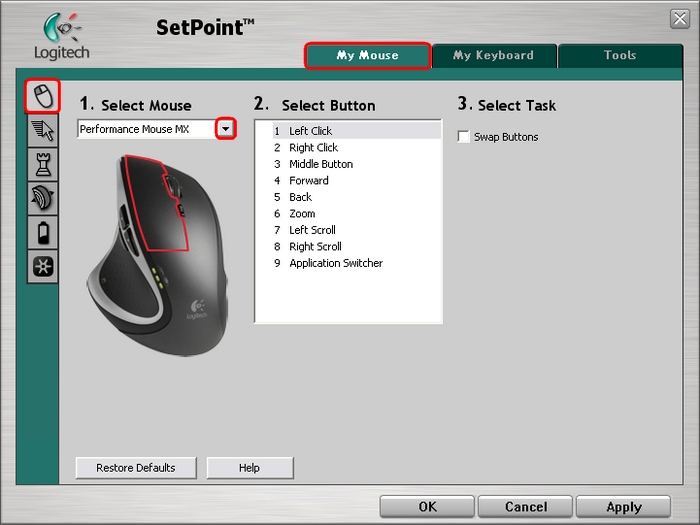
Launch SetPoint (Start > Programs > Logitech > Mouse and Keyboards > Mouse and Keyboard Settings).
-
Click on the My Mouse tab at the top and choose the Mouse Button Settings tab from the left.
-
Select the Performance Mouse MX from the Select Mouse drop-down menu as shown below:
-
Select the button that is not working from the Select Button field:
-
Depending on which button you select, there may be an option to select a program as shown below. In this example, we can choose a program to apply the Forward button:

-
If the Select Program option appears, select an application, then go back to the Select Button list and re-select the button you wish to verify:
-
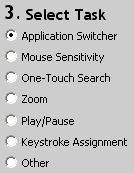
Select the task you wish to assign from the Select Task field:
-
Some options may generate an additional sub-field for additional configuration. In this example, we selected Cruise Up. Move the slider to set the speed.
-
Click Apply to save your settings. Click OK to exit SetPoint.
Additional Information:
If the above solutions do not resolve your problem, consult Knowledge Base article 12700 for instructions on contacting Logitech Technical Support.
Important Notice: The Firmware Update Tool is no longer supported or maintained by Logitech. We highly recommend using Logi Options+ for your supported Logitech devices. We are here to assist you during this transition.
Important Notice: The Logitech Preference Manager is no longer supported or maintained by Logitech. We highly recommend using Logi Options+ for your supported Logitech devices. We are here to assist you during this transition.
Important Notice: The Logitech Control Center is no longer supported or maintained by Logitech. We highly recommend using Logi Options+ for your supported Logitech devices. We are here to assist you during this transition.
Important Notice: The Logitech Connection Utility is no longer supported or maintained by Logitech. We highly recommend using Logi Options+ for your supported Logitech devices. We are here to assist you during this transition.
Important Notice: The Unifying Software is no longer supported or maintained by Logitech. We highly recommend using Logi Options+ for your supported Logitech devices. We are here to assist you during this transition.
Important Notice: The SetPoint software is no longer supported or maintained by Logitech. We highly recommend using Logi Options+ for your supported Logitech devices. We are here to assist you during this transition.
Frequently Asked Questions
There are no products available for this section
There are no Downloads for this Product
There are no Downloads for this Version
Compatible Product
