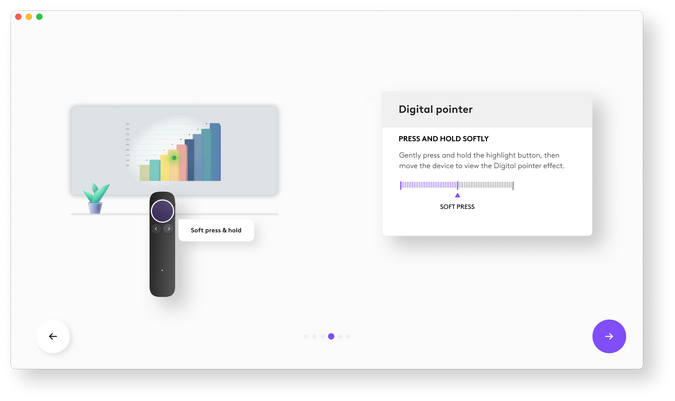
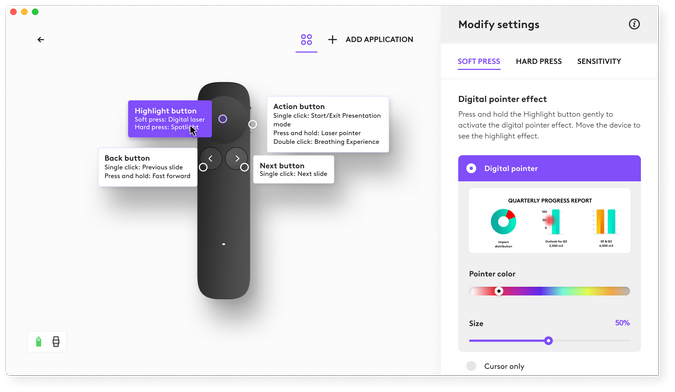
The Highlight button uses force-sensing technology with haptic feedback to offer two levels of control in one button. The haptic feedback confirms which level of press you triggered. Press lightly for a soft press, or press more firmly for a hard press to activate different effects without using multiple buttons.
Soft press
A light press activates your primary pointing effect — the digital laser or mouse cursor. Use this to position the pointer, click links, or play videos.
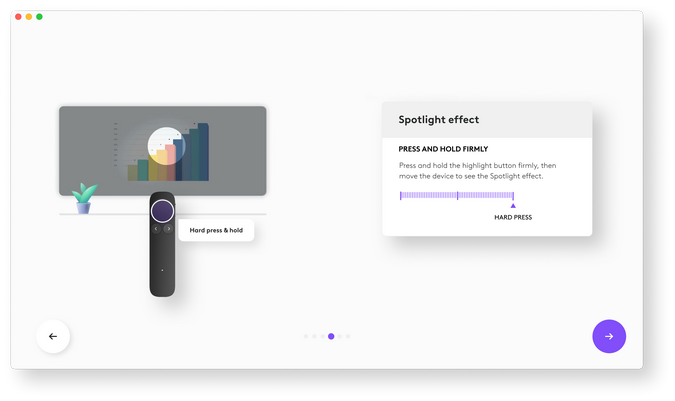
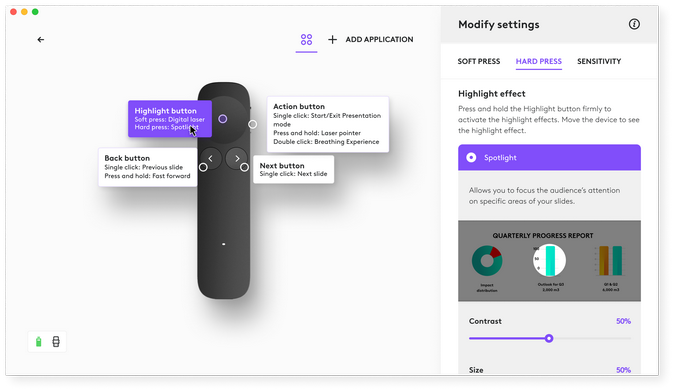
Hard press
Press more firmly until you feel a distinct haptic vibration to activate advanced pointer effects. You can assign one of four effects to this level press: Spotlight 2 (default), Magnify, Squarelight, or Annotation.
| POINTER EFFECT | DESCRIPTION | ILLUSTRATION |
|---|---|---|
| Spotlight | Highlights a circular area and dims the rest to keep the audience's attention. | 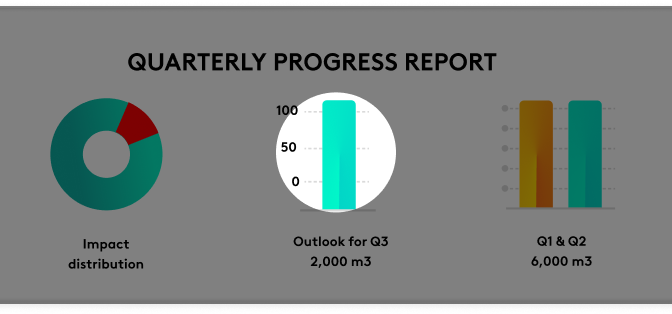 |
| Magnify | Zooms in on a specific area of your slide to make it easier to see. | 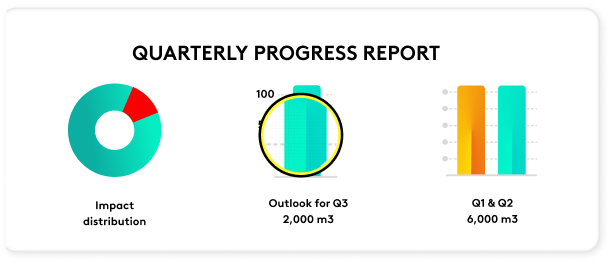 |
| Annotate | Lets you draw or add multiple markings on your slide. | 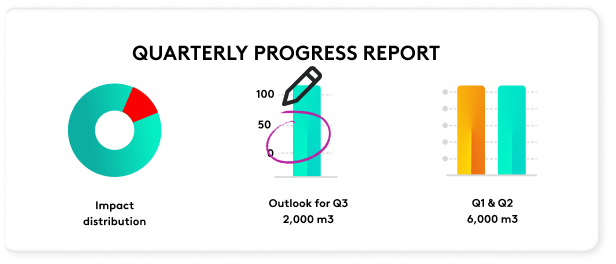 |
| Squarelight | Lets you create a square highlight to focus on a specific area and adjust its size as needed. | 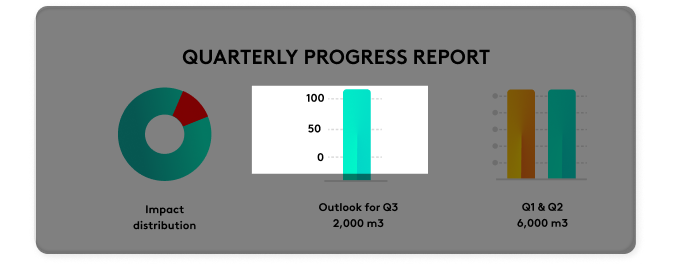 |
Customizable sensitivity
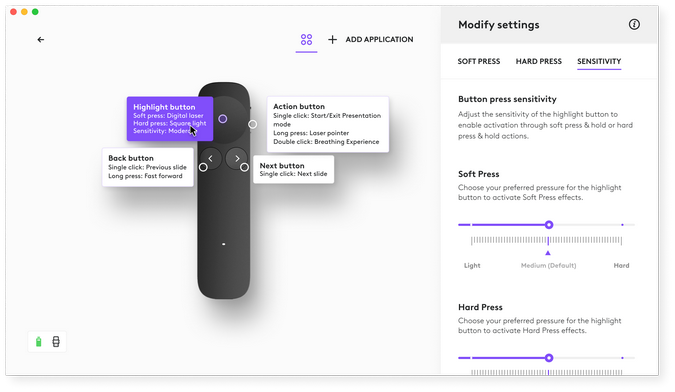
Since everyone’s press feels different, you can adjust how much force is needed to switch between press levels. In the Logi Options+ app, choose between Soft, Medium, or Hard pressure settings to match how firmly you like to press the button.
Cursor control
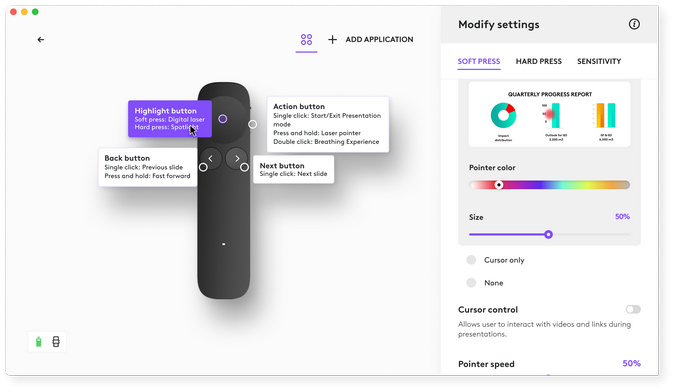
To click on links or videos, you’ll need to enable cursor control to give you cursor functionality. The cursor will be visible at the center of the pointer effect allowing you to click.
Freeze Effect
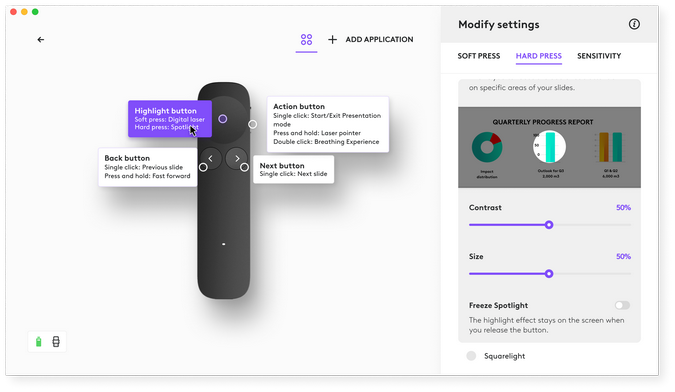
This feature brings a specific part of your slide to focus without having to keep pointing at it with your Spotlight 2. Simply move the highlight to the desired position and release the button — the highlight will remain there until you press the button again.
Important Notice: The Firmware Update Tool is no longer supported or maintained by Logitech. We highly recommend using Logi Options+ for your supported Logitech devices. We are here to assist you during this transition.
Important Notice: The Logitech Preference Manager is no longer supported or maintained by Logitech. We highly recommend using Logi Options+ for your supported Logitech devices. We are here to assist you during this transition.
Important Notice: The Logitech Control Center is no longer supported or maintained by Logitech. We highly recommend using Logi Options+ for your supported Logitech devices. We are here to assist you during this transition.
Important Notice: The Logitech Connection Utility is no longer supported or maintained by Logitech. We highly recommend using Logi Options+ for your supported Logitech devices. We are here to assist you during this transition.
Important Notice: The Unifying Software is no longer supported or maintained by Logitech. We highly recommend using Logi Options+ for your supported Logitech devices. We are here to assist you during this transition.
Important Notice: The SetPoint software is no longer supported or maintained by Logitech. We highly recommend using Logi Options+ for your supported Logitech devices. We are here to assist you during this transition.
Frequently Asked Questions
There are no products available for this section
There are no Downloads for this Product
There are no Downloads for this Version
Compatible Product
