In the Logitech Gaming Software 7.x, you can set up a profile as either Default or Persistent:
-
Default Profile: This profile will be active if no other profiles are currently running.
-
Persistent Profile: This profile will be the active profile regardless of any applications that are running. A Persistent profile will cause the Logitech Gaming Software to no longer detect the application that is running and only use the Persistent profile.
To set a profile as either Default or Persistent:
-
Launch the Logitech Gaming Software 7.x.
-
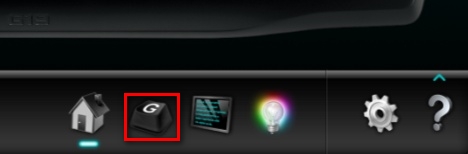
Click on the G-Key icon at the bottom of the screen..
-
Click on the icon that matches the image of your game to make sure the proper profile is selected.
NOTE: If the game icon isn't visible, hover your mouse over the profile to display the profile name.
-
Right-click on the game icon that has the profile you want to set as either Default or Persistent.
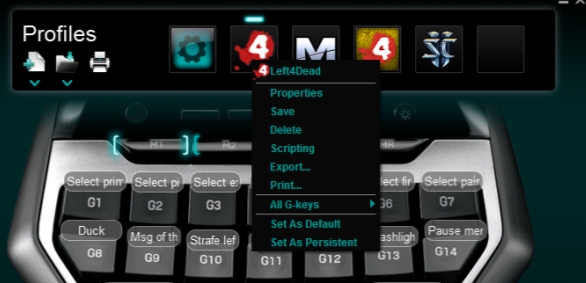
NOTE: In this example, Left4Dead is selected.
-
Click on Set as Default or Set as Persistent to enable that profile as either the Default or Persistent profile.
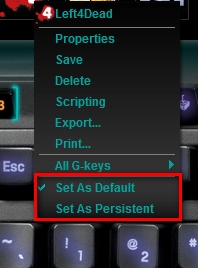
NOTE: If the profile already has a checkmark next to either Set as Default or Set as Persistent, then that profile has already been configured for that behavior.
Important Notice: The Firmware Update Tool is no longer supported or maintained by Logitech. We highly recommend using Logi Options+ for your supported Logitech devices. We are here to assist you during this transition.
Important Notice: The Logitech Preference Manager is no longer supported or maintained by Logitech. We highly recommend using Logi Options+ for your supported Logitech devices. We are here to assist you during this transition.
Important Notice: The Logitech Control Center is no longer supported or maintained by Logitech. We highly recommend using Logi Options+ for your supported Logitech devices. We are here to assist you during this transition.
Important Notice: The Logitech Connection Utility is no longer supported or maintained by Logitech. We highly recommend using Logi Options+ for your supported Logitech devices. We are here to assist you during this transition.
Important Notice: The Unifying Software is no longer supported or maintained by Logitech. We highly recommend using Logi Options+ for your supported Logitech devices. We are here to assist you during this transition.
Important Notice: The SetPoint software is no longer supported or maintained by Logitech. We highly recommend using Logi Options+ for your supported Logitech devices. We are here to assist you during this transition.
Frequently Asked Questions
There are no products available for this section
There are no Downloads for this Product
There are no Downloads for this Version
Compatible Product
