The Wireless Rechargeable Touchpad T650 supports gestures with or without SetPoint software. The table below shows which gestures are supported directly by the operating system, and which require SetPoint. In version 6.50, SetPoint includes videos demonstrating the gestures supported by the T650.
NOTE: If you don't already have SetPoint installed, you can download it.
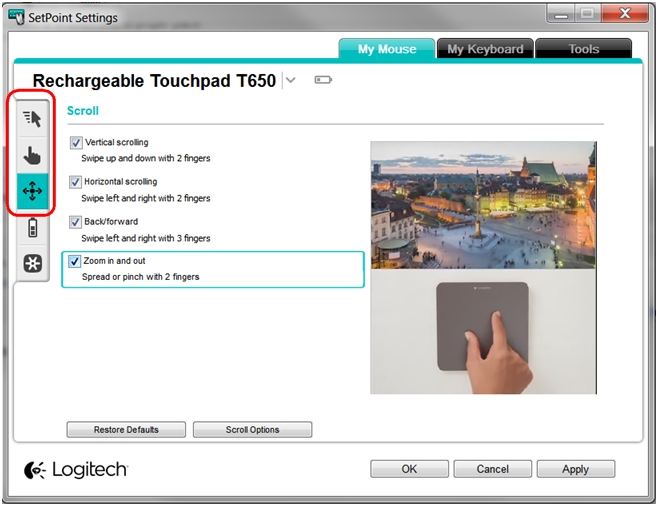
To see the supported gestures and their video demonstrations:
-
Launch the Logitech SetPoint mouse and keyboard software.
Windows 7: Start > Programs > Logitech > Mouse and Keyboard > Mouse and Keyboard Settings
Windows 8: Start screen > Mouse and Keyboard Settings
-
Click the My Mouse tab at the top of the SetPoint Settings window.
-
Select your touchpad from the product drop-down menu at the top left.
-
Click any of the top three icons on the left (Point and Click, Navigate Windows or Scroll) to see the options available for each.
-
Hover over any of the options to see the video demonstration.
Gesture support for the T650 touchpad includes the following:
| Function | Windows 8 Gestures | Windows 7 Gestures |
| Left Click* | Click touchpad surface with one finger | Click touchpad surface with one finger |
| Tap or click with one finger*** | Tap with one finger*** | |
| Drag* (Drag-n-Drop) | Click-n-drag method: Click lower-left corner of the touchpad surface (left-click) with thumb and move cursor with index or middle finger |
Click-n-drag method: Click lower-left corner of the touchpad surface (left-click) with thumb and move cursor with index or middle finger |
| Tap-n-drag method: Double-tap then drag the object**** |
Tap-n-drag method: Double-tap then drag the object**** |
|
| Right Click* | Click lower-right corner of the touchpad surface with one finger | Click lower-right corner of the touchpad surface with one finger |
| Tap or click the lower-right corner of the touchpad surface with one finger*** | Tap or click the lower-right corner of the touchpad surface with one finger *** | |
| Middle Click* | Click touchpad surface with three fingers | Click touchpad surface with three fingers |
| Tap or click the touchpad surface with three fingers*** | Tap or click the touchpad surface with three fingers*** | |
| Vertical Scrolling* | Swipe up/down with two fingers | Swipe up/down with two fingers |
| Horizontal Scrolling* | Swipe left/right with two fingers | Swipe left/right with two fingers |
| Zoom +/-** | Spread/Pinch with two fingers | Spread/Pinch with two fingers |
| Start Screen* | Swipe up with three fingers | Not applicable |
| Start Menu* | Not applicable | Swipe up with three fingers NOTE: This function isn't available if SetPoint is installed. |
| Switching Applications*/** | Swipe one finger from left edge toward center* | Swipe up with three fingers** |
| Show/Hide Desktop* | Swipe down with three fingers | Swipe down with three fingers |
| Windows 8 Charm* | Swipe one finger from the right edge toward center | Not applicable |
| Show Windows 8 Application menu* | Swipe one finger from the top edge toward center | Not applicable |
| Back/Forward* | Swipe left/right with three fingers | Swipe left/right with three fingers |
| Windows Snap** | Swipe left/right with four fingers | Swipe left/right with four fingers |
| Minimize/Maximize** | Swipe up/down with four fingers | Swipe up/down with four fingers |
|
NOTES: *Operating system natively supports without software. **Requires SetPoint. ***Requires SetPoint and includes options for different gestures. ****Requires SetPoint 6.51.8 or later. | ||
Important Notice: The Firmware Update Tool is no longer supported or maintained by Logitech. We highly recommend using Logi Options+ for your supported Logitech devices. We are here to assist you during this transition.
Important Notice: The Logitech Preference Manager is no longer supported or maintained by Logitech. We highly recommend using Logi Options+ for your supported Logitech devices. We are here to assist you during this transition.
Important Notice: The Logitech Control Center is no longer supported or maintained by Logitech. We highly recommend using Logi Options+ for your supported Logitech devices. We are here to assist you during this transition.
Important Notice: The Logitech Connection Utility is no longer supported or maintained by Logitech. We highly recommend using Logi Options+ for your supported Logitech devices. We are here to assist you during this transition.
Important Notice: The Unifying Software is no longer supported or maintained by Logitech. We highly recommend using Logi Options+ for your supported Logitech devices. We are here to assist you during this transition.
Important Notice: The SetPoint software is no longer supported or maintained by Logitech. We highly recommend using Logi Options+ for your supported Logitech devices. We are here to assist you during this transition.
Frequently Asked Questions
There are no products available for this section
There are no Downloads for this Product
There are no Downloads for this Version
Compatible Product
