If you see the following displayed on the Circle app, your camera is offline.
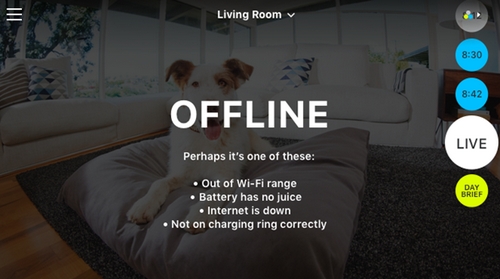
To troubleshoot, try the following:
- Your ISP (Internet Service Provider) service might be down or may be experiencing issues. Make sure your internet connection is online — if not online, contact your service provider.
TIP: If your device has cellular data capabilities, turn on Airplane mode and then turn on Wi-Fi to see if it is working. - Restart your Circle. On the bottom of the camera base, move the power switch to the OFF position. Wait for 10 seconds and return the switch to the ON position.
- Temporarily take the camera off the charging dock and move it near your router.
- The ideal distance between your Circle and router is 5 - 10 ft.
- Reduce the number of obstructions between your router and camera (e.g. make sure there are no brick walls between Circle and your router).
TIP: If you use a range extender or repeater, move it closer to your router.
- Temporarily reduce the number of devices using the same wireless network. Turn off your wireless devices and disconnect any ethernet cables.
- Your wireless network settings have changed — if you’ve recently changed your wireless settings or have replaced your router, you may need to reconfigure your camera. Try resetting your Circle to reset your camera settings. Once reset, you can reconfigure your camera.
- Decrease the video resolution from the 720p default to 360p.
- In the Settings menu, tap More Settings to edit your Resolution.
- Your camera could be turned off or its battery might be depleted — make sure the power switch on your camera is set to ON and try placing it on the charging dock.
- Make sure you have the latest version of the Circle mobile app.
- Make sure you have the latest version of the Firmware.
- In the Settings menu, tap More Settings, and then tap Update Firmware.
- Reset your Circle while it is 5 - 10 ft away from your router.
If none of these troubleshooting steps resolve your issue, contact Customer Care using the Circle app.
Open the Settings menu, tap Help, and then tap Contact Us. Please include the following information:
- The app you are using (iOS app, Android app, Web app).
- The version of the app (In the Settings menu, tap Product Details to see App Version).
- The email account and camera(s) having the problem.
- Explanation of when you started experiencing the problem (ex. during initial setup, after a firmware update, after an app update, after an OS update, after changing ISPs or internet package).
- Please also submit your diagnostics by opening the Settings menu on the top left of the screen, tap Help, and then tap Submit Diagnostics.
Important Notice: The Firmware Update Tool is no longer supported or maintained by Logitech. We highly recommend using Logi Options+ for your supported Logitech devices. We are here to assist you during this transition.
Important Notice: The Logitech Preference Manager is no longer supported or maintained by Logitech. We highly recommend using Logi Options+ for your supported Logitech devices. We are here to assist you during this transition.
Important Notice: The Logitech Control Center is no longer supported or maintained by Logitech. We highly recommend using Logi Options+ for your supported Logitech devices. We are here to assist you during this transition.
Important Notice: The Logitech Connection Utility is no longer supported or maintained by Logitech. We highly recommend using Logi Options+ for your supported Logitech devices. We are here to assist you during this transition.
Important Notice: The Unifying Software is no longer supported or maintained by Logitech. We highly recommend using Logi Options+ for your supported Logitech devices. We are here to assist you during this transition.
Important Notice: The SetPoint software is no longer supported or maintained by Logitech. We highly recommend using Logi Options+ for your supported Logitech devices. We are here to assist you during this transition.
Frequently Asked Questions
There are no products available for this section
There are no Downloads for this Product
There are no Downloads for this Version
Compatible Product
