The problem is most likely due to a lost connection between your keyboard and your USB receiver. The connection can be lost due to a number of reasons:
- Low batteries
- Moving the USB receiver from one USB port to another
- Moving the USB receiver to another computer
- Plugging the USB receiver into a USB hub or other unsupported device such as a KVM switch (your USB receiver must be plugged directly into your computer)
- Using your wireless keyboard on metal surfaces
- Radio frequency (RF) interference of more powerful wireless devices such as:
- Wireless speakers
- Computer power supplies
- Monitors
- Cellular telephones
- Garage door openers
Eliminate any problem sources mentioned above that might be affecting your keyboard.
Before Connecting your K320:
-
Put fresh batteries in your K320. For battery replacement instructions, see Knowledge Base article 360023392773.
-
Make sure your keyboard is turned on. For instructions on turning your K320 on and off, see Knowledge Base article 360023392773.
-
Verify that the USB receiver is firmly and directly plugged into a working USB port on your computer.
-
Turn on your computer.
-
Follow the process below to re-connect your keyboard.
Re-connecting your K320:
NOTE: Your K320 keyboard may display as B550 in the Unifying software. This is normal behavior.
-
Download the current version of your K320 keyboard software from the K320 Downloads Page.
-
Launch the Logitech Unifying Software (Start > Programs > Logitech > Unifying > Logitech Unifying Software).
-
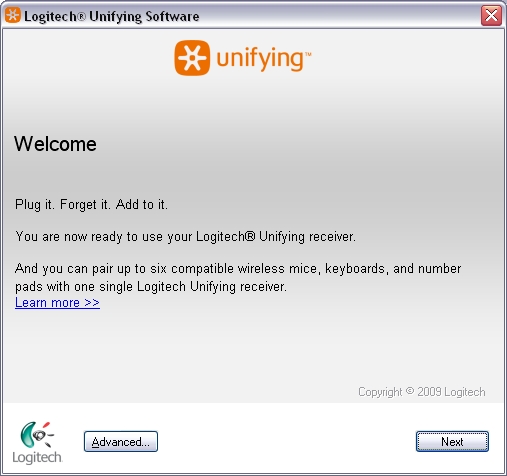
The Unifying software Welcome screen will appear as shown below. Click Next to continue:
-
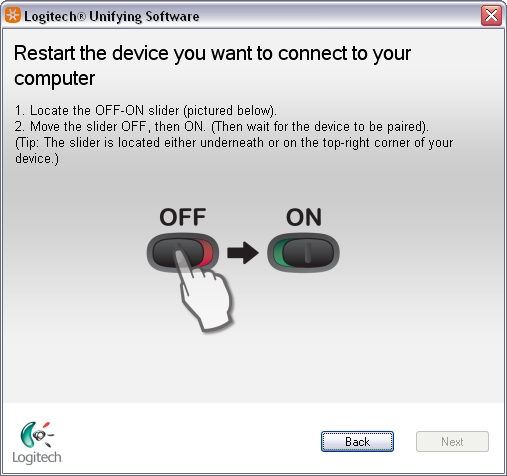
Follow the on-screen instructions to turn your K320 off then on:
-
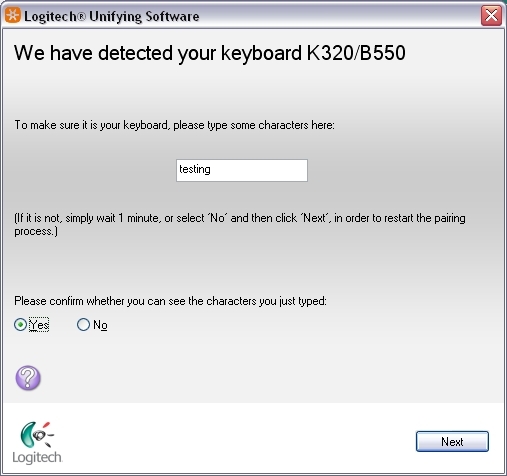
When your K320 is detected you will see a confirmation message as shown below. Type a test message into the provided field to verify that the keyboard is working.
-
Once you have confirmed the keyboard is working, check Yes then click Next to continue.
-
Click Finish to exit the Unifying software. Your K320 keyboard should now be connected.
Additional Information:
If the above solutions do not resolve your problem, consult Knowledge Base article 15800 for instructions on contacting Logitech Technical Support.
Important Notice: The Firmware Update Tool is no longer supported or maintained by Logitech. We highly recommend using Logi Options+ for your supported Logitech devices. We are here to assist you during this transition.
Important Notice: The Logitech Preference Manager is no longer supported or maintained by Logitech. We highly recommend using Logi Options+ for your supported Logitech devices. We are here to assist you during this transition.
Important Notice: The Logitech Control Center is no longer supported or maintained by Logitech. We highly recommend using Logi Options+ for your supported Logitech devices. We are here to assist you during this transition.
Important Notice: The Logitech Connection Utility is no longer supported or maintained by Logitech. We highly recommend using Logi Options+ for your supported Logitech devices. We are here to assist you during this transition.
Important Notice: The Unifying Software is no longer supported or maintained by Logitech. We highly recommend using Logi Options+ for your supported Logitech devices. We are here to assist you during this transition.
Important Notice: The SetPoint software is no longer supported or maintained by Logitech. We highly recommend using Logi Options+ for your supported Logitech devices. We are here to assist you during this transition.
Frequently Asked Questions
There are no products available for this section
There are no Downloads for this Product
There are no Downloads for this Version
Compatible Product
