Pinhole reset
To reset your Circle camera, you will need a paperclip or similar tool.
NOTE: Try avoiding using a tool with a sharp point like a tack or needle as this can damage the button in the pinhole.
- Locate the pinhole in the back of your Circle camera (on the base).
- Insert the paper clip into the pinhole and press the reset button.
- Wait for a beep and hold for another 6 seconds until you hear 2 beeps.
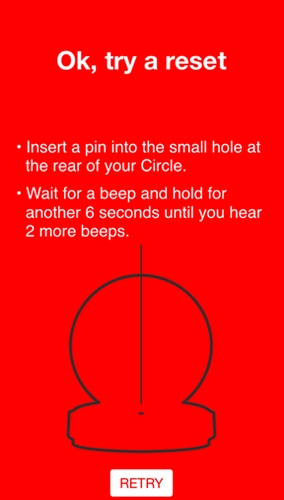
- Your camera settings should now be reset.
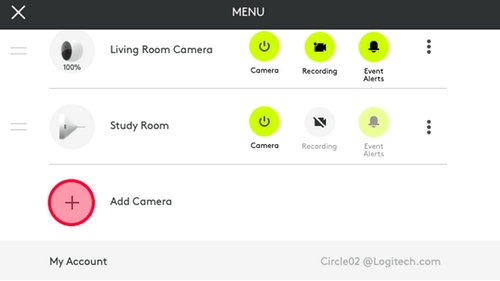
NOTE: The camera may go offline in the app. This is expected behavior. - In the Settings menu, tap Add Camera.
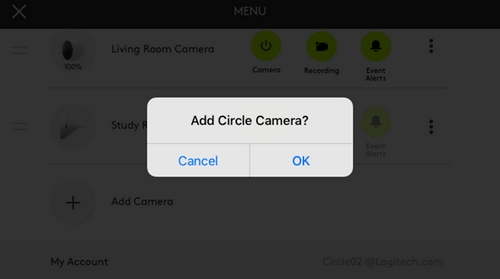
- Tap OK to confirm that you would like to add another camera to your Circle account.
- Set up your camera again (click here for instructions).
NOTE: To set up Circle, you need to be within 10 feet of the camera and have access to a Bluetooth Smart device. For more information, click here.
App reset
IMPORTANT: This app reset method will erase your recorded footage.
- Open the Settings menu.
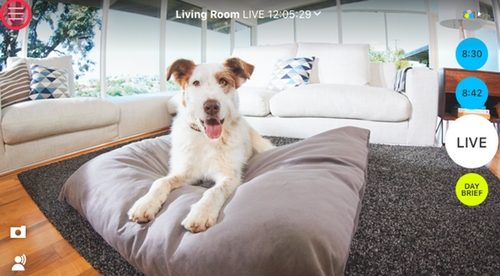
- Tap More Settings.
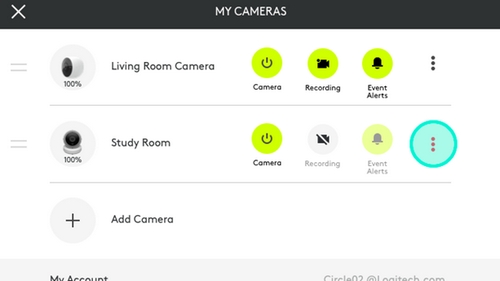
- Scroll down to Remove Camera and tap to reset your camera settings.
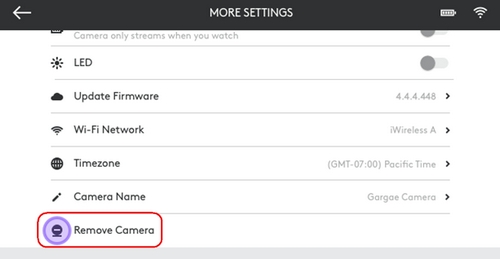
- Set the camera up as you would a new camera. You can still add it to your existing account.
NOTE: If this is the only camera you have, you will not be able to log into your account until you set up the camera again. To set it up, tap Setup on the app home screen. To set up Circle, you need to be within 10 feet of the camera and have access to a Bluetooth Smart device. For more information, click here.
Important Notice: The Firmware Update Tool is no longer supported or maintained by Logitech. We highly recommend using Logi Options+ for your supported Logitech devices. We are here to assist you during this transition.
Important Notice: The Logitech Preference Manager is no longer supported or maintained by Logitech. We highly recommend using Logi Options+ for your supported Logitech devices. We are here to assist you during this transition.
Important Notice: The Logitech Control Center is no longer supported or maintained by Logitech. We highly recommend using Logi Options+ for your supported Logitech devices. We are here to assist you during this transition.
Important Notice: The Logitech Connection Utility is no longer supported or maintained by Logitech. We highly recommend using Logi Options+ for your supported Logitech devices. We are here to assist you during this transition.
Important Notice: The Unifying Software is no longer supported or maintained by Logitech. We highly recommend using Logi Options+ for your supported Logitech devices. We are here to assist you during this transition.
Important Notice: The SetPoint software is no longer supported or maintained by Logitech. We highly recommend using Logi Options+ for your supported Logitech devices. We are here to assist you during this transition.
Frequently Asked Questions
There are no products available for this section
There are no Downloads for this Product
There are no Downloads for this Version
Compatible Product
