Choose the following Logitech webcam software you want to prevent from launching during startup:
Select your operating system:
-
Click Start > Run.
-
Type msconfig and press Enter:

-
The System Configuration Utility screen will appear.
-
Click on the Startup tab and look for the two entries Quickcam and Communications_Helper.
-
Remove the checkmark beside each of these entries by clicking on the checkboxes beside each entry:

-
Click Apply then OK.
-
Click Restart on the System Configuration screen:

-
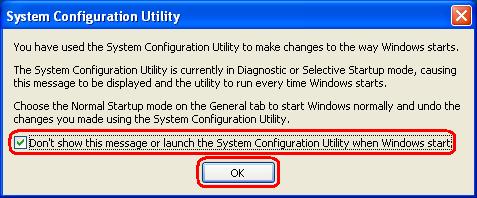
After restarting your computer you will see the System Configuration Utility screen:

-
Place a check mark where it says 'Don’t show this message or launch the System Configuration Utility when Windows start' so next time you start your computer you will not this screen again.
-
Click Start.
-
Type msconfig and press Enter:

-
The System Configuration screen will appear.
-
Click on the Startup tab and look for the two entries Logitech and LogitechQuickCamRibbon.
-
Remove the checkmark beside each of these entries by clicking on the checkboxes beside each entry:

-
Click Apply, then click OK.
-
Click Restart on the System Configuration screen:

-
After restarting your computer you will see the System Configuration Utility screen:
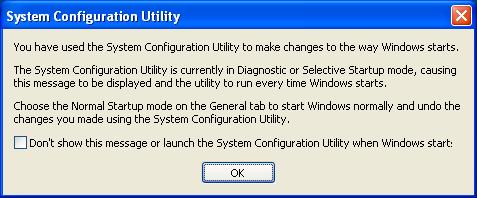
NOTE: This is an XP image, but Vista differs only in its appearance.
-
Check the checkbox beside the ‘Don’t show this message or launch the System Configuration Utility when Windows start’ message:
NOTE: This is an XP image, but Vista differs only in its appearance.
-
Click OK.
Logitech Webcam Software (LWS):
Select your operating system:
-
Click Start > Run.
-
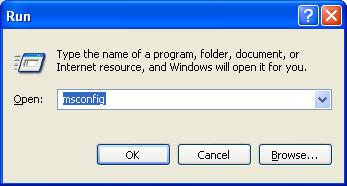
Type msconfig and press Enter:
-
The System Configuration Utility screen will appear.
-
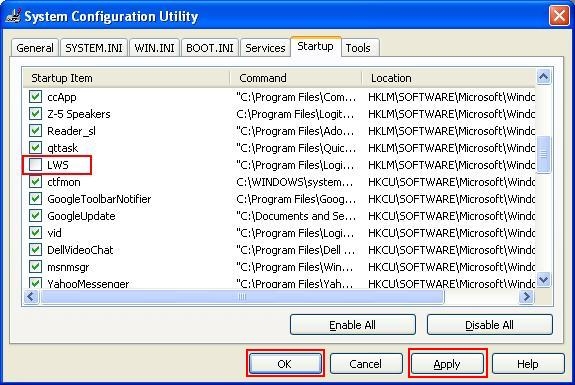
Click on the Startup tab and look for ‘Logitech Webcam Software’.
NOTE: Logitech Webcam Software is listed as LWS.
-
Remove the checkmark beside the ‘Logitech Webcam Software’ entry by clicking in the checkbox beside the entry:
-
Click Apply then click OK.
-
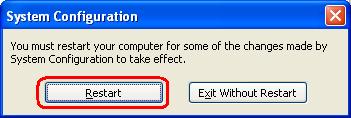
Click Restart on the System Configuration screen:
-
After your computer restarts, you will see the System Configuration Utility window as shown below:
-
Check the checkbox beside the ‘Don’t show this message or launch the System Configuration Utility when Windows start’ message:

-
Click OK.
-
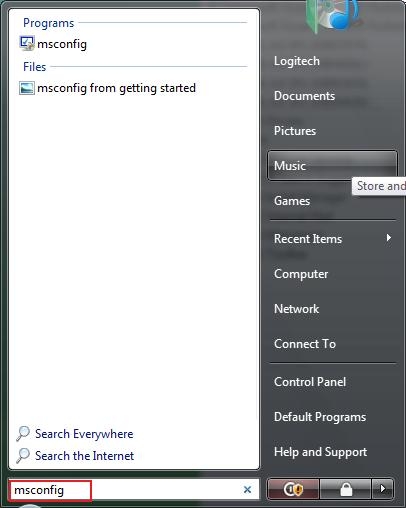
Click Start.
-
Type msconfig and press Enter:
-
The System Configuration screen will appear.
-
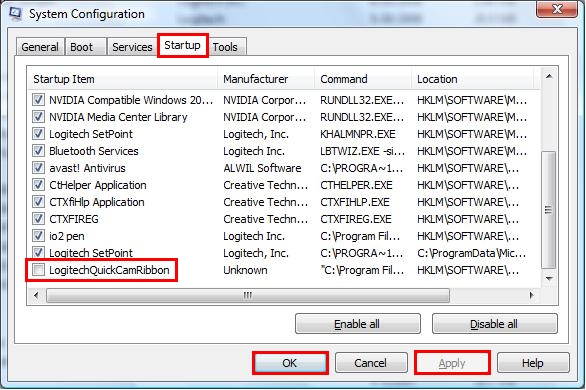
Click on the Startup tab and look for LogitechQuickCamRibbon.
-
Remove the checkmark beside the LogitechQuickCamRibbon entry by clicking in the checkbox beside the entry:
-
Click Apply, then click OK.
-
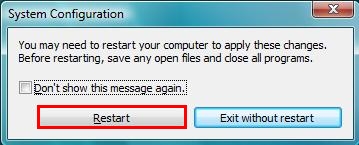
Click Restart on the System Configuration screen:
-
After your computer restarts, you will see the System Configuration Utility window as shown below:
NOTE: This is an XP image, but Vista differs only in its appearance.
-
Check the checkbox beside the ‘Don’t show this message or launch the System Configuration Utility when Windows starts’ message:
NOTE: This is an XP image, but Vista differs only in its appearance.
-
Click OK.
Important Notice: The Firmware Update Tool is no longer supported or maintained by Logitech. We highly recommend using Logi Options+ for your supported Logitech devices. We are here to assist you during this transition.
Important Notice: The Logitech Preference Manager is no longer supported or maintained by Logitech. We highly recommend using Logi Options+ for your supported Logitech devices. We are here to assist you during this transition.
Important Notice: The Logitech Control Center is no longer supported or maintained by Logitech. We highly recommend using Logi Options+ for your supported Logitech devices. We are here to assist you during this transition.
Important Notice: The Logitech Connection Utility is no longer supported or maintained by Logitech. We highly recommend using Logi Options+ for your supported Logitech devices. We are here to assist you during this transition.
Important Notice: The Unifying Software is no longer supported or maintained by Logitech. We highly recommend using Logi Options+ for your supported Logitech devices. We are here to assist you during this transition.
Important Notice: The SetPoint software is no longer supported or maintained by Logitech. We highly recommend using Logi Options+ for your supported Logitech devices. We are here to assist you during this transition.
Frequently Asked Questions
There are no products available for this section
There are no Downloads for this Product
There are no Downloads for this Version
Compatible Product
