To connect your iPad with your keyboard folio:
-
Turn the keyboard on by sliding the power switch on the side of the keyboard to the right.
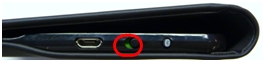
The status light on the top of the keyboard should turn green.
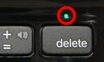
NOTE: If the status light is red, you need to charge your keyboard battery. See answer 360023418093 for more information.
-
Press the Bluetooth button on the side of the keyboard, next to the power switch.
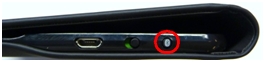
The Bluetooth light on the top of the keyboard should start blinking.
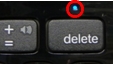
NOTE: The first time you turn the keyboard folio on, it enters Bluetooth discovery mode until it successfully pairs with your iPad, up to 15 minutes.
-
On your iPad, tap the Settings icon and then tap Bluetooth. Make sure Bluetooth is On.
-
Tap Ultrathin Keyboard Folio i5 to pair the keyboard with your iPad.
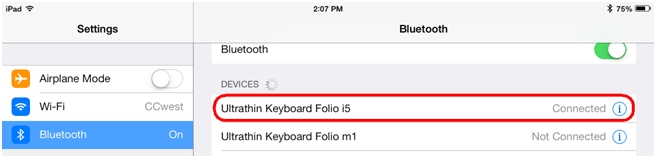
When the pairing is complete, the iPad will show the status of Connected for your Ultrathin Keyboard Folio. You should now be able to use the keyboard with any iPad application that accepts keyboard inputs.
Important Notice: The Firmware Update Tool is no longer supported or maintained by Logitech. We highly recommend using Logi Options+ for your supported Logitech devices. We are here to assist you during this transition.
Important Notice: The Logitech Preference Manager is no longer supported or maintained by Logitech. We highly recommend using Logi Options+ for your supported Logitech devices. We are here to assist you during this transition.
Important Notice: The Logitech Control Center is no longer supported or maintained by Logitech. We highly recommend using Logi Options+ for your supported Logitech devices. We are here to assist you during this transition.
Important Notice: The Logitech Connection Utility is no longer supported or maintained by Logitech. We highly recommend using Logi Options+ for your supported Logitech devices. We are here to assist you during this transition.
Important Notice: The Unifying Software is no longer supported or maintained by Logitech. We highly recommend using Logi Options+ for your supported Logitech devices. We are here to assist you during this transition.
Important Notice: The SetPoint software is no longer supported or maintained by Logitech. We highly recommend using Logi Options+ for your supported Logitech devices. We are here to assist you during this transition.
Frequently Asked Questions
There are no products available for this section
There are no Downloads for this Product
There are no Downloads for this Version
Compatible Product
