Your right Jaybird RUN earbud is the master (main) earbud. The right earbud connects to your audio device and to the left earbud.
If you experience audio dropouts, try the following:
- Make sure your Jaybird RUN have the latest firmware. The v1.1 firmware update improves the Bluetooth connectivity of Jaybird RUN. If you are unsure what firmware version your RUN have, you can check here . To update your Jaybird RUN, download the Firmware Update Assistant here and follow the instructions.
- To minimize audio drop outs, try to reduce the distance between your right earbud and your audio device. For example, try to have your audio device in your right pocket or on your right arm if running with an arm band.
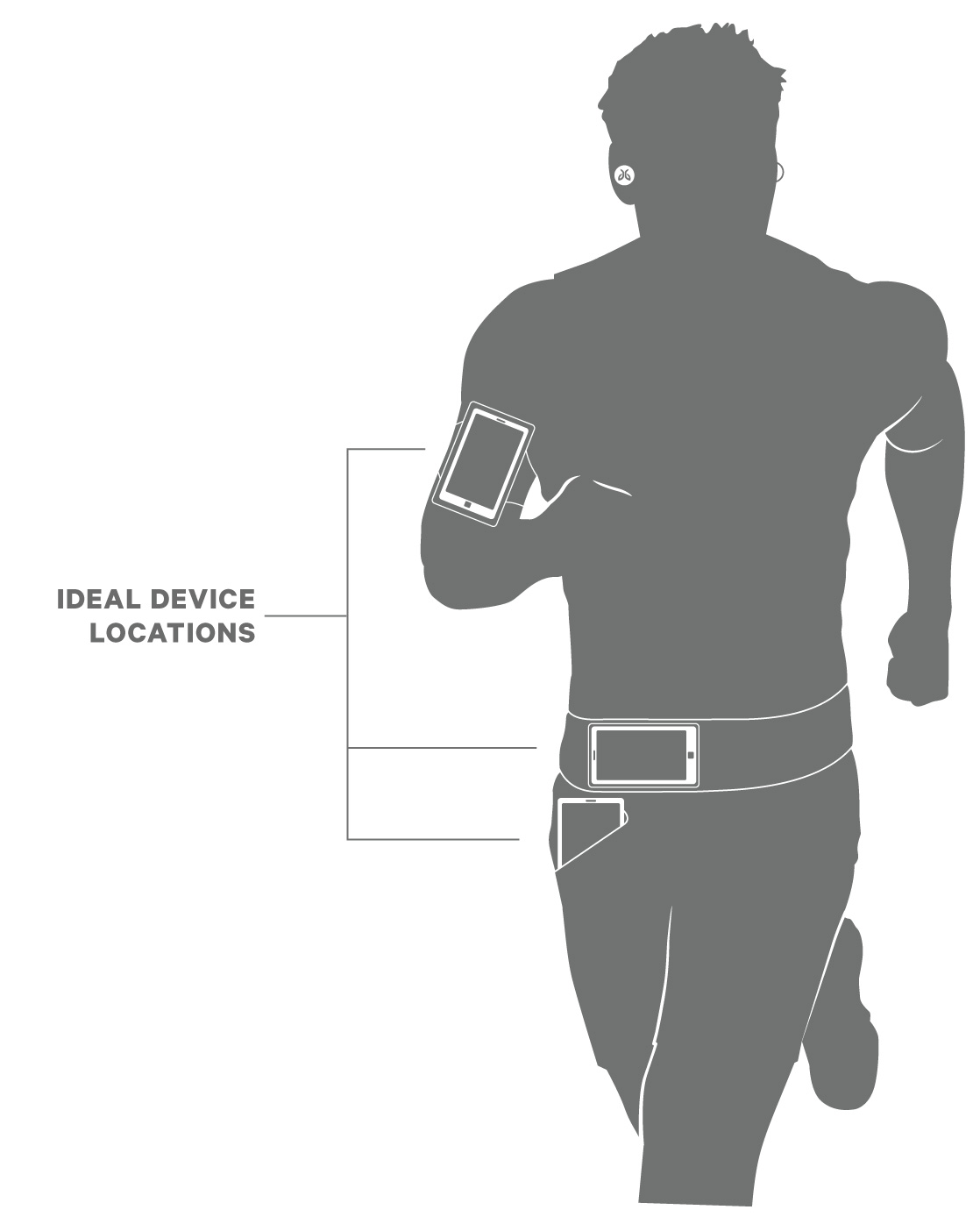
- While the range of most Bluetooth devices is 10 meters (33 feet), the optimal range for any Bluetooth audio device is about 60 centimeters (2 feet) from the audio source.
- Some environments, cell phone towers, dense wifi networks, and other transmitting devices can interfere with your Bluetooth connection. If possible, try to move away from the area or devices.
- Reset your Bluetooth connection by turning your device's Bluetooth off for at least 10 seconds and then back on. Please note, turning Bluetooth off and back on quickly will not reset the connection.
- Complete a reset of your right earbud which will clear the list of devices that your earbuds are paired to. See How do I reset my RUN earbuds?
Important Notice: The Firmware Update Tool is no longer supported or maintained by Logitech. We highly recommend using Logi Options+ for your supported Logitech devices. We are here to assist you during this transition.
Important Notice: The Logitech Preference Manager is no longer supported or maintained by Logitech. We highly recommend using Logi Options+ for your supported Logitech devices. We are here to assist you during this transition.
Important Notice: The Logitech Control Center is no longer supported or maintained by Logitech. We highly recommend using Logi Options+ for your supported Logitech devices. We are here to assist you during this transition.
Important Notice: The Logitech Connection Utility is no longer supported or maintained by Logitech. We highly recommend using Logi Options+ for your supported Logitech devices. We are here to assist you during this transition.
Important Notice: The Unifying Software is no longer supported or maintained by Logitech. We highly recommend using Logi Options+ for your supported Logitech devices. We are here to assist you during this transition.
Important Notice: The SetPoint software is no longer supported or maintained by Logitech. We highly recommend using Logi Options+ for your supported Logitech devices. We are here to assist you during this transition.
Frequently Asked Questions
There are no products available for this section
There are no Downloads for this Product
There are no Downloads for this Version
Compatible Product
