NOTE: This feature requires that Logitech’s Mouse and Keyboard software (SetPoint) be installed on your computer.
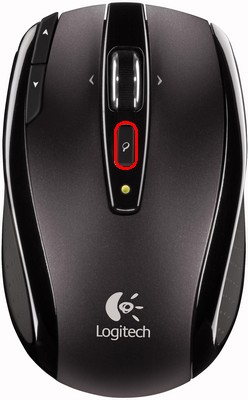
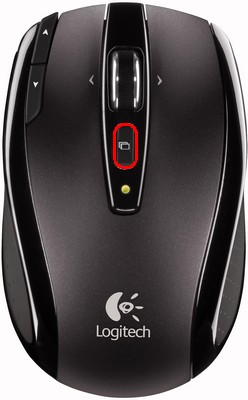
The One-Touch Search Button is found on the middle of the VX Nano (2007 version) mouse. The VX Nano (2008 version) has a Document Flip button in the same button location. To program the VX Nano (2008 version) button to function as a One-Touch Search Button, see Knowledge Base article 360023379173.
|
VX Nano (2007 version) |
VX Nano (2008 version) |
 |
 |
Making and Changing your Settings
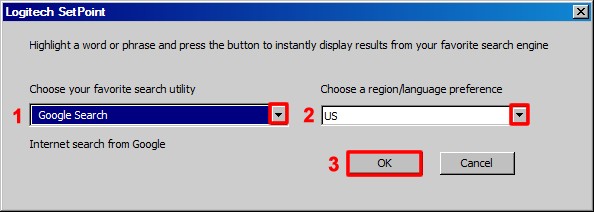
If you have not yet used the One-Touch Search button before, press the Search button on the mouse and a settings dialog box will open.
If you have used it before or this dialog box doesn’t open, you can change your settings at any time by opening SetPoint (Start > Programs > Logitech > Mouse and Keyboard > Mouse and Keyboard Settings).
Programming the One-Touch Search button
-
Choose a search engine from the drop down menu labeled #1 on the image above.
-
Choose a region / language preference.
- Click OK.
Your One-Touch Search button is now programmed and ready to use.
Opening your Search Utility
Once you have made your settings, each time you press the One-Touch Search button, your selected search engine, or utility, will open in your default browser.
Searching on text
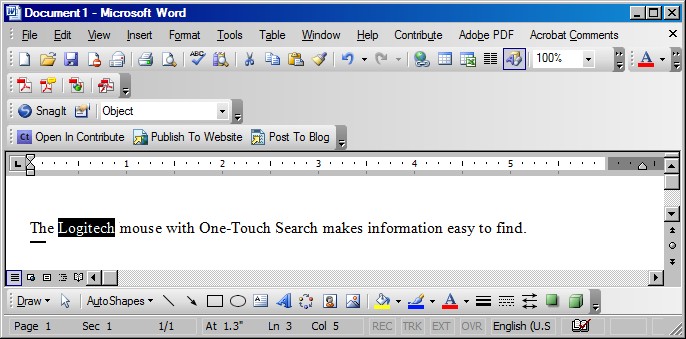
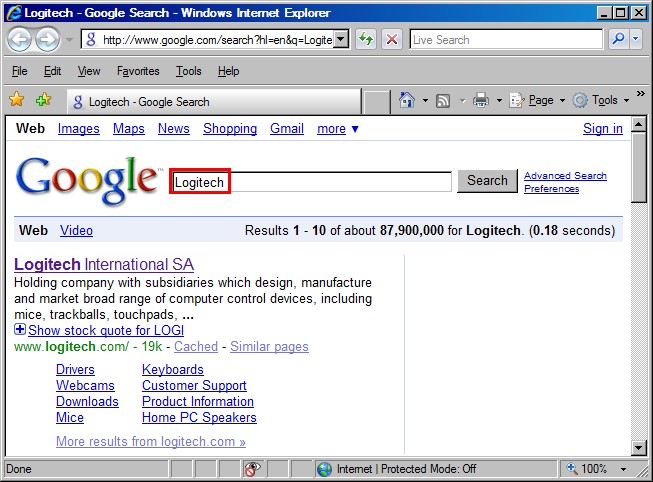
You can also use the One-Touch Search button to search terms in almost any application. For example, to perform a search on the term Logitech in found in a Microsoft Word document, follow these steps:
-
Highlight the word or phrase in a document.
-
Press the One-Touch Search button.
-
Your programmed search engine will now search the Internet for the highlighted word or phrase.
NOTE: If you later decide to change your default search engine or region / language preference, open SetPoint and reprogram your One-Touch Search button. For more information on changing your mouse settings, see Knowledge Base article 360023379173.
Important Notice: The Firmware Update Tool is no longer supported or maintained by Logitech. We highly recommend using Logi Options+ for your supported Logitech devices. We are here to assist you during this transition.
Important Notice: The Logitech Preference Manager is no longer supported or maintained by Logitech. We highly recommend using Logi Options+ for your supported Logitech devices. We are here to assist you during this transition.
Important Notice: The Logitech Control Center is no longer supported or maintained by Logitech. We highly recommend using Logi Options+ for your supported Logitech devices. We are here to assist you during this transition.
Important Notice: The Logitech Connection Utility is no longer supported or maintained by Logitech. We highly recommend using Logi Options+ for your supported Logitech devices. We are here to assist you during this transition.
Important Notice: The Unifying Software is no longer supported or maintained by Logitech. We highly recommend using Logi Options+ for your supported Logitech devices. We are here to assist you during this transition.
Important Notice: The SetPoint software is no longer supported or maintained by Logitech. We highly recommend using Logi Options+ for your supported Logitech devices. We are here to assist you during this transition.
Frequently Asked Questions
There are no products available for this section
There are no Downloads for this Product
There are no Downloads for this Version
Compatible Product
