Inserting your iPad
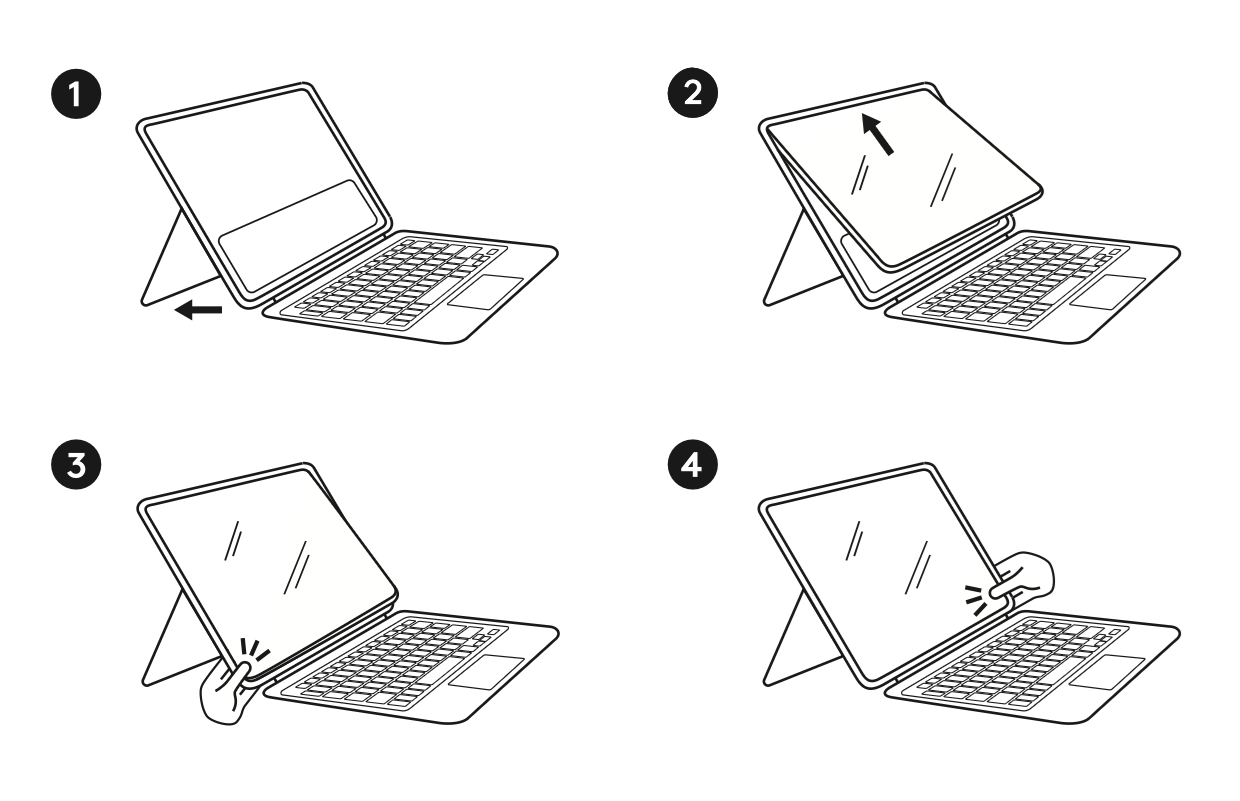
- Open the kickstand. This allows the Rugged Combo holder to flex more easily during insertion.
- Insert the top left (power button) side of the iPad first, followed by the top right side of the iPad. This part should be easy, as the bottom of the iPad is not yet in the holder.
- Work your way down the left side, pushing the iPad screen into the Rugged Combo.
-
With three corners inserted, work your way across the bottom edge and firmly push the last, bottom right corner into the holder lip.
- Tip: Grab the bottom corner of the holder with two hands and use two thumbs to push the iPad screen firmly into that corner.
- Check that the holder lip is uniform all around the iPad screen.
Removing your iPad
- To remove the iPad, begin by opening the kickstand to give the holder a little more flexibility.
- Grip the bottom right edge of the iPad screen with two hands, and use your two thumbs to push the side wall of Rugged Combo 4 back, exposing the iPad edge.
- Slide your finger across the bottom edge, separating the iPad from the bottom corners of the holder.
- Once the bottom two edges are free, the iPad should slide out from the top.
Important Notice: The Firmware Update Tool is no longer supported or maintained by Logitech. We highly recommend using Logi Options+ for your supported Logitech devices. We are here to assist you during this transition.
Important Notice: The Logitech Preference Manager is no longer supported or maintained by Logitech. We highly recommend using Logi Options+ for your supported Logitech devices. We are here to assist you during this transition.
Important Notice: The Logitech Control Center is no longer supported or maintained by Logitech. We highly recommend using Logi Options+ for your supported Logitech devices. We are here to assist you during this transition.
Important Notice: The Logitech Connection Utility is no longer supported or maintained by Logitech. We highly recommend using Logi Options+ for your supported Logitech devices. We are here to assist you during this transition.
Important Notice: The Unifying Software is no longer supported or maintained by Logitech. We highly recommend using Logi Options+ for your supported Logitech devices. We are here to assist you during this transition.
Important Notice: The SetPoint software is no longer supported or maintained by Logitech. We highly recommend using Logi Options+ for your supported Logitech devices. We are here to assist you during this transition.
Frequently Asked Questions
There are no products available for this section
There are no Downloads for this Product
There are no Downloads for this Version
Compatible Product
