- Make sure the microphone is positioned as close to your mouth by moving the mic boom up and down.
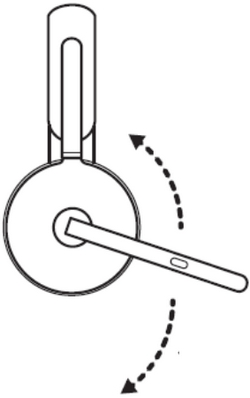
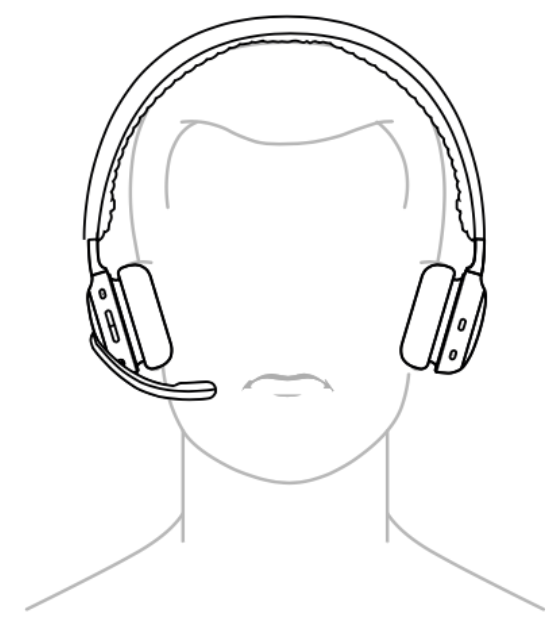
- Make sure microphones are not blocked.
- Make sure your headset is selected as the default Recording device (Windows) or Input device (Mac) and that the mic level is set to maximum. Here's how:
Windows- Go to Sounds — right-click the Windows start menu, click System, then click Sounds.
- Click Sound and make sure your headset is selected in the drop-down menu under Input.
- Make sure the microphone level is set to 100 — in the Sound settings panel, under Input, click Device properties.
- In the Headset Microphone Properties pop-up, click the Levels tab and make sure the level is set to 100 (maximum).
- Go to System Settings — click on the Apple menu on the top left of your screen, then click System Settings.
- Click on Sound in the left side panel, then click Input.
- Make sure your headset is selected by clicking on it in the list of devices
- Adjust the Input volume to the right to increase the Input level.
- If the headset is connected to the laptop with Bluetooth, make sure to select the right device on the mic and audio setting.
Some laptops may ask you to select *headset name* Hands-Free for mic and speaker settings for calls.
Important Notice: The Firmware Update Tool is no longer supported or maintained by Logitech. We highly recommend using Logi Options+ for your supported Logitech devices. We are here to assist you during this transition.
Important Notice: The Logitech Preference Manager is no longer supported or maintained by Logitech. We highly recommend using Logi Options+ for your supported Logitech devices. We are here to assist you during this transition.
Important Notice: The Logitech Control Center is no longer supported or maintained by Logitech. We highly recommend using Logi Options+ for your supported Logitech devices. We are here to assist you during this transition.
Important Notice: The Logitech Connection Utility is no longer supported or maintained by Logitech. We highly recommend using Logi Options+ for your supported Logitech devices. We are here to assist you during this transition.
Important Notice: The Unifying Software is no longer supported or maintained by Logitech. We highly recommend using Logi Options+ for your supported Logitech devices. We are here to assist you during this transition.
Important Notice: The SetPoint software is no longer supported or maintained by Logitech. We highly recommend using Logi Options+ for your supported Logitech devices. We are here to assist you during this transition.
Frequently Asked Questions
There are no products available for this section
There are no Downloads for this Product
There are no Downloads for this Version
Compatible Product
