To use Skype with your QuickCam Pro 9000, please do the following:
Verify Pro 9000 is functional:
-
Launch QuickCam software (Start > Programs > Logitech > Logitech QuickCam)
-
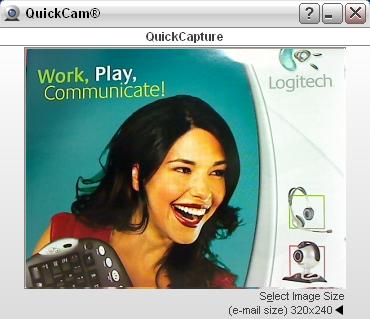
Verify that you can see yourself in the QuickCam window as shown below:
-
Close the QuickCam window.
Configuring Skype:
-
Launch Skype (Start > Programs > Skype > Skype)
-
Select Options from the Tools menu as shown below:
-
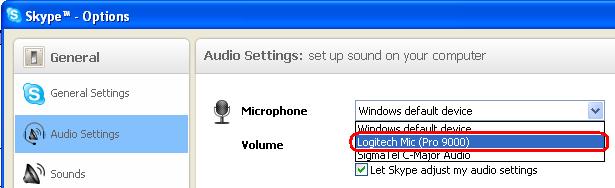
Select Audio Settings from the sidebar and choose your QuickCam Pro 9000 microphone from the drop-down menu as shown below:
-
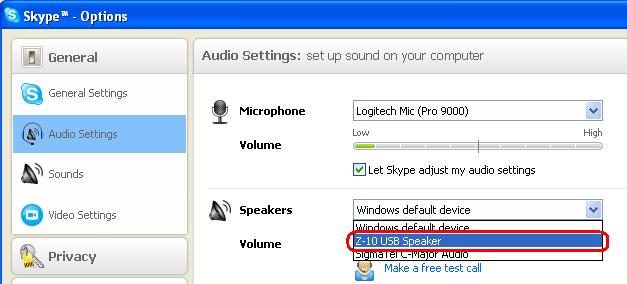
Choose the speakers or headphones you want to use from the drop-down menu as shown below:
-
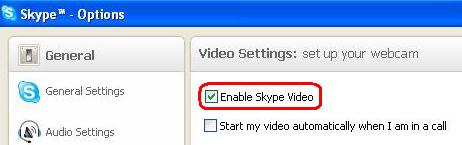
Select Video Settings from the sidebar and check the Enable Skype video button as shown below:
-
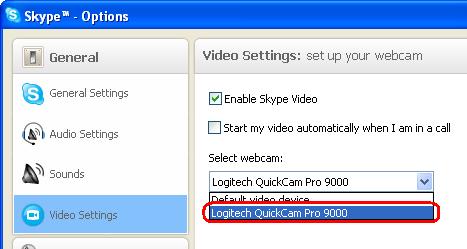
Choose your QuickCam Pro 9000 from the drop-down menu as shown below:
-
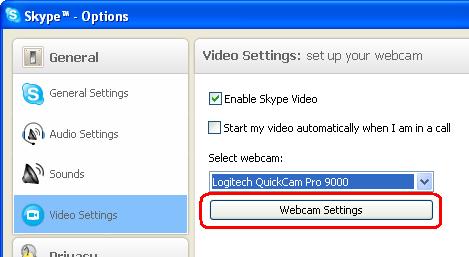
Your QuickCam Pro 9000 should now be correctly configured for use with Skype. If you need to adjust the settings further, click Webcam Settings as shown below:
-
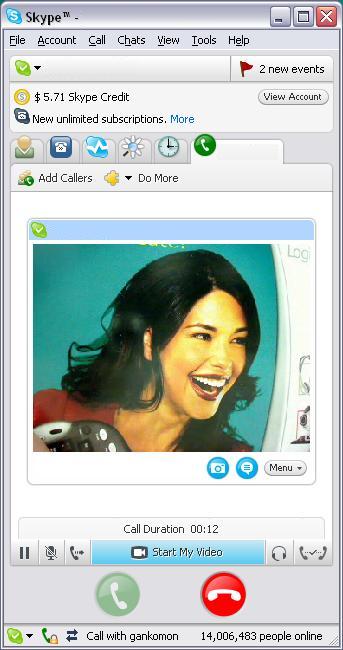
To video chat with a friend in Skype, open a chat window as shown below:
-
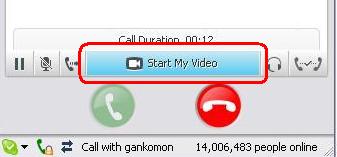
Click on the Start My Video button as shown below:
-
You should now be video chatting with your friend.
NOTE: You and your friend both need to have cameras, be using Skype and accept each other’s video feeds in order to video chat.
Important Notice: The Firmware Update Tool is no longer supported or maintained by Logitech. We highly recommend using Logi Options+ for your supported Logitech devices. We are here to assist you during this transition.
Important Notice: The Logitech Preference Manager is no longer supported or maintained by Logitech. We highly recommend using Logi Options+ for your supported Logitech devices. We are here to assist you during this transition.
Important Notice: The Logitech Control Center is no longer supported or maintained by Logitech. We highly recommend using Logi Options+ for your supported Logitech devices. We are here to assist you during this transition.
Important Notice: The Logitech Connection Utility is no longer supported or maintained by Logitech. We highly recommend using Logi Options+ for your supported Logitech devices. We are here to assist you during this transition.
Important Notice: The Unifying Software is no longer supported or maintained by Logitech. We highly recommend using Logi Options+ for your supported Logitech devices. We are here to assist you during this transition.
Important Notice: The SetPoint software is no longer supported or maintained by Logitech. We highly recommend using Logi Options+ for your supported Logitech devices. We are here to assist you during this transition.
Frequently Asked Questions
There are no products available for this section
There are no Downloads for this Product
There are no Downloads for this Version
Compatible Product
