Even though haptic signals have been disabled in your Windows settings, you'll still receive haptic feedback on your MX Master 4 for the Options+ features you have configured or for the haptic-enabled plugins you have installed from the Logi Marketplace. Click here to learn more about MX Master 4 Haptic Feedback.
If you want to disable haptic feedback entirely on your MX Master 4, you'll need to disable haptic feedback both in Windows Settings and in Logi Options+.
-
Open Options+, click on Haptic feedback settings and toggle off Haptic feedback.
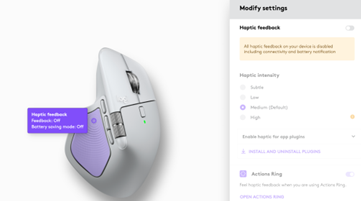
-
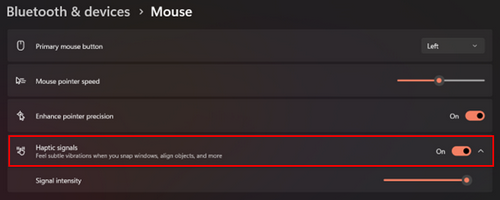
In Windows, open Settings, and in Bluetooth & devices > Mouse, and toggle off Haptic signals.
Important Notice: The Firmware Update Tool is no longer supported or maintained by Logitech. We highly recommend using Logi Options+ for your supported Logitech devices. We are here to assist you during this transition.
Important Notice: The Logitech Preference Manager is no longer supported or maintained by Logitech. We highly recommend using Logi Options+ for your supported Logitech devices. We are here to assist you during this transition.
Important Notice: The Logitech Control Center is no longer supported or maintained by Logitech. We highly recommend using Logi Options+ for your supported Logitech devices. We are here to assist you during this transition.
Important Notice: The Logitech Connection Utility is no longer supported or maintained by Logitech. We highly recommend using Logi Options+ for your supported Logitech devices. We are here to assist you during this transition.
Important Notice: The Unifying Software is no longer supported or maintained by Logitech. We highly recommend using Logi Options+ for your supported Logitech devices. We are here to assist you during this transition.
Important Notice: The SetPoint software is no longer supported or maintained by Logitech. We highly recommend using Logi Options+ for your supported Logitech devices. We are here to assist you during this transition.
Frequently Asked Questions
There are no products available for this section
There are no Downloads for this Product
There are no Downloads for this Version
Compatible Product
